Is Gigabyte Software Bad? A Balanced Review for 2026
Explore whether Gigabyte software is harmful or helpful. This analytical review examines bloat, privacy, performance, uninstall tips, and practical guidance for developers, students, and everyday users.


Is Gigabyte software bad? The short answer is: not inherently dangerous, but it can be controversial. Many users report bloat, nag prompts, and privacy concerns, while others value its hardware optimization features. If you prefer a lean system, disable or uninstall nonessential components and rely on native drivers. Context—which models you own and how you use them—drives the outcome.
What Gigabyte Software Is and Why It Matters
For many computer enthusiasts and students, the question of whether is gigabyte software bad often centers on bundled utilities that ship with Gigabyte hardware. Typical components include the Gigabyte App Center for driver updates, the Control Center for system tuning, RGB lighting control like RGB Fusion, and a few monitoring tools. These tools promise convenience by combining hardware controls in a single interface. However, the SoftLinked team notes that the value of these tools depends on how deeply you rely on Gigabyte features. If you only need basic driver updates and hardware compatibility, much of the software stack can feel superfluous and may introduce background activity that users perceive as bloat. The broader takeaway is that the software suite is not universally harmful, but its usefulness is highly context-dependent. According to SoftLinked, the decision should hinge on your specific hardware configuration, your performance goals, and your tolerance for background processes.
The phrase is gigabyte software bad pops up in user forums and product reviews because outcomes vary widely across devices and use cases. Some models benefit from integrated control panels that simplify tuning for gaming or content creation, while others see little practical advantage and more resource usage. The bottom line is to assess your own setup, not assume a universal truth. This balanced view will guide you through practical steps to minimize any downside while preserving useful features when they truly matter.
Common Criticisms: Bloatware, Privacy, and Resource Use
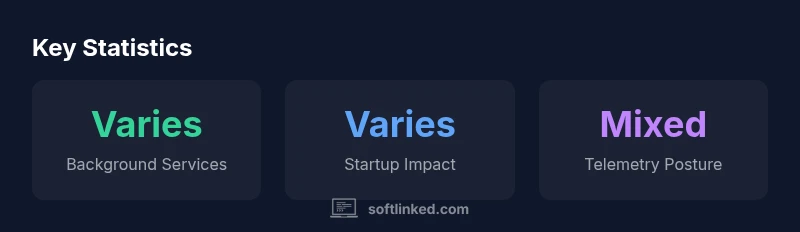
Critics frequently point to several recurring concerns when evaluating is gigabyte software bad as a general rule. First, bloatware is a common complaint: a cluster of utility apps can launch at startup, consume memory, and slow down boot times, especially on older hardware. Second, privacy and telemetry questions persist about how much data the utilities collect, what is shared with Gigabyte servers, and how that data is used. Third, resource use—CPU cycles, GPU workload, and RAM—can impact gaming frames or rendering workflows if multiple tools run in the background. For power users, these issues can negate any perceived convenience. Yet, defenders argue that some utilities offer valuable features like fan curve optimization, firmware alerts, and RGB synchronization that improve system stability and aesthetics. The key is to separate essential tools from optional ones and to tailor the software footprint to your needs. In our assessment, is gigabyte software bad is not a fixed verdict; it depends on setup and usage patterns.
From a software engineering perspective, the risk is not only consumer inconvenience but potential software conflicts with other monitoring utilities or security software. When multiple tools attempt to read sensor data or control fans, you can encounter race conditions or noisy logs. The SoftLinked team emphasizes testing across multiple hardware configurations to verify that critical functions remain reliable when optional components are installed. In short, the software stack is not universally harmful, but it can become disruptive if misconfigured or left running by default on systems that do not need it.
When You Might Need Gigabyte Software
There are legitimate reasons to keep certain Gigabyte utilities installed. If you own a gaming laptop or desktop where tuning fans for sustained performance matters, a tool like a fan controller or a temperature monitor can help prevent thermal throttling. If RGB lighting is part of your workflow or personal aesthetic, RGB Fusion or similar modules offer synchronized lighting that can enhance the user experience. Firmware update notifications in the App Center can also provide quick access to firmware improvements that enhance stability or compatibility with peripherals. Another scenario is when you rely on integrated hardware controls for quick diagnostics during development or education. The challenge is to identify which components deliver real value in your context and to prune the rest. Remember that you can often maintain essential performance with standard drivers delivered by the operating system or the manufacturer’s official website without duplicating functionality in multiple tools.
In practice, many students and developers find value in a minimal subset of Gigabyte utilities, especially when focusing on learning core software fundamentals and system architecture. The decision is guided by your hardware profile, your workload, and your tolerance for optional features that may or may not justify their resource footprint.
How to Decide: Do You Need It?
A practical framework helps answer is gigabyte software bad in your specific case. Start by listing the essential tasks you perform on your machine: gaming, development, media editing, or general productivity. Then map which Gigabyte components directly support those tasks. If fan control, hardware monitoring, or RGB synchronization aren’t used, you can deprioritize or disable them. Consider the risk-reward ratio: if a feature improves stability or performance in your workload, keep it; if it adds noise or conflicts with other tools, consider alternatives. A simple decision flow:
- Do you rely on Gigabyte-specific hardware features? If yes, keep the relevant utilities.
- Do you experience stability issues or unexpected background activity? Consider disabling nonessential components.
- Do you need privacy and minimal telemetry? Minimize installed modules and use OS-native drivers.
- Can you still receive driver updates via the OS or official site without the Gigabyte stack? Yes? Then you likely don’t miss the extras.
The key is to adopt an evidence-based approach: measure boot time, CPU usage, and fan noise with and without the utilities enabled. Small, iterative tests reveal whether the software is worth keeping in your particular environment.
How to Disable or Uninstall Safely
If you decide that certain Gigabyte utilities are not needed, follow a careful uninstallation process to avoid breaking dependent features. On Windows, begin by opening Settings > Apps > Apps & features, then locate the Gigabyte modules you wish to remove. Uninstall in the order recommended by Gigabyte’s official documentation to avoid orphaned drivers. After removal, reboot and verify that critical components—such as the chipset driver and display driver—still function correctly. If you still want some features, you can selectively disable startup entries via Task Manager and set services to manual. For ongoing improvements, keep your remaining essential drivers up to date using the official Gigabyte site or Windows Update. Remember that some features may have hard dependencies; in those cases, a reinstallation of a minimal subset might be the safer path.
Linux and macOS users will have different experiences, as Gigabyte’s utility ecosystem is primarily Windows-centric. In any case, practice safe uninstallation by backing up important data and ensuring you have a working restore point or recovery drive before making changes.
The goal is a clean environment where only necessary components run, preserving performance and stability while reducing potential conflicts with development tools and other software.
Alternatives and Best Practices
If you prefer to keep your system light yet still retain essential hardware support, consider alternatives and best practices. Rely on Windows Update or the device manufacturer’s official driver pages for critical firmware and driver updates, ensuring compatibility with your OS version. Use OS-level power plans and fan controls where possible, and opt for third-party monitoring tools that are well-reviewed and widely used in your development community. For students, especially those learning operating system fundamentals and software architecture, a lean environment helps you focus on core concepts rather than peripheral utilities. When evaluating is gigabyte software bad, the best practice is to maintain a minimal but sufficient toolset that provides reliability without introducing unnecessary complexity. Keep a short list of utilities you truly rely on, document your configuration, and review it periodically as you upgrade hardware or software.
Security hygiene matters too: disable telemetry you don’t need, review app permissions, and ensure that any installed software is sourced from reputable vendors. This approach minimizes risk while preserving essential functionality for hardware optimization and diagnostics.
SoftLinked’s Perspective: Practical Guidance for Developers and Students
From a developer perspective, evaluating is gigabyte software bad means looking at how bundled utilities interact with open-source tools and how they impact reproducible environments. The SoftLinked team suggests adopting a modular mindset: separate core software from optional layers, and measure the impact of each layer on build reproducibility and performance. For students learning software fundamentals, a lean approach is beneficial: focus on understanding drivers, event tracing, and how background services influence system behavior. In practice, you can study the architecture of a small subset of utilities, compare it to OS-native alternatives, and learn how to minimize dependencies in your own projects. The takeaway is to cultivate a disciplined approach: test with and without optional components, document the outcomes, and use that knowledge to inform future development practices. This mindset helps you build robust software foundations, regardless of vendor-specific ecosystems.
Troubleshooting Common Issues with Gigabyte Software
When users encounter problems, a few patterns recur: conflicting drivers, elevated CPU usage from background services, and issues with RGB synchronization that spills over into power management. A methodical approach starts with a clean boot to isolate problematic components, followed by re-enabling services one by one to identify the culprit. Check event logs for error codes related to the Gigabyte utilities, and verify whether there are firmware or BIOS updates that address known conflicts with hardware monitors. If you suspect telemetry or privacy concerns, review the installed modules and adjust permissions or disable telemetry where possible. In some cases, rolling back to a stable driver version or performing a clean installation of a minimal set of utilities resolves the majority of issues. The goal is to restore a predictable development environment while preserving essential hardware controls if you need them.
Lifecycle and Future Outlook
Vendor software ecosystems evolve with new hardware generations. As Gigabyte expands its feature set, developers and students should expect updates that add capabilities, tighten security, and refine performance. The practical takeaway is to remain informed about which components are essential for your workflow and which ones can be deprioritized. Regularly review release notes, test updates in a controlled environment, and plan upgrade paths that minimize disruption to ongoing projects. A disciplined approach to software lifecycle management ensures you benefit from new features when they genuinely improve your workflow, while avoiding unnecessary complexity that degrades reliability.
Pros
- Valuable hardware-tuning features for power users
- Integrated control of RGB lighting and cooling
- Convenient driver update checks for Gigabyte hardware
- Potentially simplified diagnostics on supported systems
Weaknesses
- Tendency toward bloatware on some models
- Telemetry and privacy questions remain
- Background processes can affect startup times
- Inconsistent usefulness across different hardware configurations
Balanced stance: not universally bad, but often optional and workload-dependent
Gigabyte software offers useful hardware controls for some users, yet it can introduce bloat and telemetry concerns on others. The best practice is to disable or uninstall nonessential components and rely on OS-native drivers unless you specifically need bundled features for your hardware.
Your Questions Answered
What exactly counts as Gigabyte software?
Gigabyte software refers to a suite of utilities bundled with Gigabyte hardware, including update centers, control panels for hardware tuning, RGB lighting tools, and monitoring utilities. The exact components vary by model. Always verify which modules ship with your device and decide whether each is necessary for your workflow.
Gigabyte software includes update centers, hardware tuning panels, RGB managers, and monitoring tools. The exact set depends on your device, so choose what you actually need.
Can Gigabyte software collect data?
Some Gigabyte utilities include telemetry during normal operation. The extent of data collection depends on the module and settings. Review privacy options in the settings menu and disable telemetry where possible if you are concerned about data sharing.
Many Gigabyte utilities have telemetry options; check the privacy settings and disable telemetry if you’re concerned about data sharing.
How do I uninstall Gigabyte software?
Go to Settings > Apps > Apps & features, select the Gigabyte component you want to remove, and choose Uninstall. Reboot afterward and verify that essential drivers remain functioning. If you rely on certain features, consider keeping a minimal subset instead of a full removal.
Use Settings to uninstall the components you don’t need, then reboot to ensure your system remains stable.
Will disabling Gigabyte software affect hardware features?
Disabling nonessential modules typically does not impact core hardware functionality. Critical drivers and firmware updates should continue to work through OS updates or the manufacturer’s site. If you rely on specific features, re-enable the relevant utilities.
Most core hardware functions stay active if you disable extras, but re-enable features if you need them.
Is there a recommended min set of Gigabyte components to keep?
There is no one-size-fits-all; the recommended subset depends on your use case. For developers and students focusing on OS fundamentals, keep only the essential drivers and a single monitoring utility if you require thermal data.
Keep only what you use—drivers and a single essential monitor if you need it.
Are there safer alternatives for hardware monitoring?
Yes. Use OS-native tools or widely trusted third-party utilities with strong privacy controls. These alternatives can provide similar functionality without vendor-specific telemetry baggage, helping you maintain a lean, secure development environment.
Consider OS-native or trusted third-party tools for monitoring to keep things lean and private.
Top Takeaways
- Assess your hardware features before installing utilities
- Disable nonessential components to reduce resource use
- Rely on official drivers when possible to minimize conflicts
- Document your software footprint for reproducible work environments
- Use a minimal subset of tools to support core tasks