How to Use SPSS Software: A Practical Guide
Learn how to use SPSS software with a practical, step-by-step approach. This beginner-friendly guide covers installation, data preparation, descriptive and inferential analyses, and reporting for clear, reproducible results. By SoftLinked.


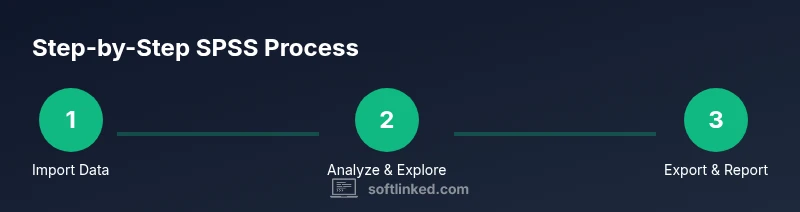
Learn how to use SPSS software to import data, run descriptive statistics, perform basic inferential tests, and generate shareable outputs. This step-by-step guide walks you through installation, data preparation, choosing the right analyses, and exporting results. By the end, you'll translate raw data into clear insights with reproducible workflows. No prior coding required.
Understanding SPSS and its typical use cases
how to use spss software spans data management, descriptive analysis, and reporting. According to SoftLinked, SPSS remains a staple in social sciences, marketing research, and health analytics due to its user-friendly GUI, robust statistics, and reliable exporting options. Whether you are a student learning statistics, a data analyst in a startup, or a researcher in a university lab, SPSS offers a consistent workflow: import data, verify variables, run analyses, and present results.
In practice, SPSS is known for its menu-driven interface as well as a powerful syntax option. This dual approach makes it approachable for beginners who want to click through menus, while advanced users can automate repetitive tasks using SPSS syntax that reads like a mini programming language. The software also separates two key concerns: data management (variables, cases, missing values) and analysis (descriptive, inferential). Understanding this distinction helps you design analyses that are reproducible and auditable.
SPSS handles common data types (numeric, string, date) and supports a wide range of procedures from basic descriptive statistics to complex modeling. For teaching labs, SPSS is especially valuable because instructors can demonstrate methods without requiring coding, while still offering the power to scale analyses as students grow more confident.
Getting SPSS set up: licensing, installation, and workspace
SPSS is typically accessed through institutional licenses or personal licenses, with trial options available for new users. Before you install, verify that your computer meets the minimum requirements and that you have a stable network connection for license activation. The setup wizard will guide you through installing the program and creating your first user profile.
Once installed, open SPSS Statistics (the standard desktop version) and create a new project or open a sample dataset. The workspace is organized into Data View and Variable View. Data View resembles a spreadsheet, while Variable View lets you define data type, measurement level, and missing value rules. Setting these correctly at the start saves you from rework later. Configure your default directories for data and outputs to ensure reproducibility.
Licensing and access vary by organization, but you can often start with a temporary license or student edition. As you become more comfortable, consider setting up a shared folder for projects and establishing naming conventions for files, so colleagues can reproduce analyses exactly as you did.
Loading data: from CSV/Excel and data hygiene basics
To begin, import data from CSV or Excel via File > Open > Data. In many cases, you will import a clean, header-labeled dataset to minimize rework. SPSS will infer variable types, but you should verify each field for correctness (numeric fields as numeric, dates recognized, and text coded consistently). If your data uses special characters or non-standard encoding, set the appropriate options during import. After loading, take a quick look at the Variable View to confirm labels, values, and missing-value rules reflect your study design.
Consistency is key: harmonize column names, unify measurement scales, and document any recoding you perform. If your dataset spans multiple sources, create a master file with a clear variable dictionary so downstream analyses are straightforward. Remember to save a copy of the raw data before applying any transformations; SPSS can be configured to log changes as a syntax file for full traceability.
Descriptive analysis: frequencies, descriptives, crosstabs
Descriptive statistics provide a first snapshot of data quality and distribution. In SPSS you access these through Analyze > Descriptive Statistics. For categorical variables, run Frequencies to view counts and proportions, along with charts like bar graphs. For numeric variables, Descriptives shows mean, standard deviation, minimum, maximum, and often a quick view of skewness or kurtosis. Crosstabs helps examine relationships between two categorical variables; you can add a Chi-Square test to assess independence and understand whether observed patterns differ from expected frequencies. SoftLinked analysis shows that many analysts save time by applying the same descriptive steps across multiple datasets using syntax and a project template. This practice enhances reproducibility and reduces the chance of ad hoc errors during reporting.
Inferential statistics: t-tests, ANOVA, chi-square
Beyond description, SPSS enables a broad set of inferential procedures. To compare means between two groups, use Independent-Samples T Test; for related samples, choose Paired-Samples T Test. If you have more than two groups, One-Way ANOVA is your go-to option, with post hoc comparisons to identify specific group differences. For categorical relationships between variables, the Chi-Square test assesses independence. Before interpreting p-values, check assumptions such as normality, homoscedasticity, and adequate sample size. If assumptions are violated, SPSS provides nonparametric alternatives like Mann-Whitney U or Kruskal-Wallis. Using a mixture of descriptive summaries and inferential tests gives a complete picture of the data, and keeping notes on the rationale for each test improves future replication.
Reproducible workflows: using syntax and projects
A core strength of SPSS is its command language. You can record a sequence of actions or write syntax to automate data transformations, selections, and analyses. Save your syntax file with a .sps extension and run it against new datasets to reproduce identical results. Combine syntax with a project-specific folder structure: one folder for raw data, one for transformed data, and another for outputs like charts and reports. This separation of concerns makes audits straightforward and supports collaboration. When sharing results, include the syntax file and a short README that explains any data cleaning steps or variable recoding performed.
Presenting results: exporting tables, charts, and interpreting outputs
Presenting results clearly is as important as performing the analyses. In SPSS, you can export tables and charts from the Output Viewer to Word, PDF, or PowerPoint. For formal reports, copy tables with Paste Special to preserve formatting or export the entire Output Viewer as a PDF. In charts, ensure that axis labels, legends, and titles tell a cohesive story; standardize fonts and color schemes to improve readability in reports or slides. When interpreting the results, link statistical findings back to your research questions and data limitations. Include effect sizes and confidence intervals where possible, and note any assumptions or caveats that influence conclusions.
Advanced tips for robust SPSS analyses
As you deepen your use of SPSS, adopt practices that improve reliability and efficiency. Build a small library of reusable syntax blocks for common tasks (data import, variable recoding, descriptive summaries), and document each block with comments. Validate results by cross-checking with alternative methods or software when feasible. Maintain a metadata dictionary for datasets to help teammates understand variable meanings, units, and permissible ranges. Finally, cultivate a workflow that emphasizes reproducibility: version data, store syntax alongside outputs, and maintain a concise methods narrative for each project. The SoftLinked team emphasizes that a reproducible SPSS workflow reduces misinterpretation and accelerates learning for students and professionals alike.
Tools & Materials
- SPSS software license(Ensure you have a valid license or access via your institution)
- Computer with at least 8 GB RAM(Recommended for smooth operation and multiple analyses)
- Sample data file (CSV/Excel)(Use a clean dataset with headers and consistent encoding)
- Data cleaning utilities (optional)(SPSS Data Editor built-in tools can handle basic cleaning)
- CSV/Excel data export(Export/import data as needed for cross-platform workflows)
Steps
Estimated time: 2-3 hours
- 1
Open SPSS and start a new project
Launch SPSS, create a new data file, and set a clear working directory to ensure reproducibility. This establishes a stable base path for all data and outputs.
Tip: Name the project descriptively and set a default data directory. - 2
Import your dataset
Use File > Open > Data to bring in CSV or Excel files. Check that variables load correctly and that encoding matches your dataset. This step prevents downstream errors.
Tip: Verify numeric fields are recognized as numeric to avoid type errors later. - 3
Define variables and clean data
In Variable View, set measurement levels (nominal, ordinal, scale) and label values. Address missing values and outliers before analysis to avoid biased results.
Tip: Use consistent value labels and ensure dates are parsed correctly. - 4
Run descriptive statistics
From Analyze > Descriptive Statistics, generate Frequencies for categorical data and Descriptives for numeric data. Review means, standard deviations, and distributions.
Tip: Save outputs to a dedicated folder for reporting. - 5
Perform an inferential test
Choose an appropriate test (e.g., Independent-Samples T Test or One-Way ANOVA) to compare groups. Check assumptions (normality, equal variances) before interpreting results.
Tip: Consider nonparametric alternatives if assumptions fail. - 6
Use syntax to automate steps
Record or write SPSS syntax to repeat analyses across datasets. Save your syntax file (.sps) alongside outputs for full reproducibility.
Tip: Comment your code so others can follow your workflow. - 7
Save and export results
Export tables and charts to Word/PowerPoint or export the Output Viewer as PDFs. Include a brief methodology note in your report.
Tip: Use Paste Special to preserve formatting in reports. - 8
Document methodology for reproducibility
Create a brief methods section, store project files in a versioned folder, and attach metadata to datasets to enable replication by others.
Tip: Keep a log of dataset versions and analysis steps.
Your Questions Answered
What is SPSS software used for?
SPSS is a statistical software package used for data management, descriptive analysis, and a range of statistical tests. It is popular in academia and industry for turning data into insights without requiring advanced programming. This guide shows practical workflows to get started.
SPSS is a statistical tool used for data management and analysis, with an easy-to-use interface for descriptive and inferential statistics.
Can a beginner use SPSS without coding?
Yes. SPSS offers a GUI for point-and-click analysis, and you can learn basic tasks quickly. As you grow more comfortable, you can add SPSS syntax to automate repetitive steps.
Yes, beginners can start with the GUI, then gradually use syntax for automation.
What data formats can SPSS import?
SPSS can import common data formats such as CSV and Excel. It also supports data from databases and other statistical formats via import wizards. Ensure encoding and decimal separators are correct during import.
It can import CSV and Excel files; check encoding during import.
How do I export results from SPSS?
Results can be exported from the Output Viewer to Word, PDF, or rich text formats. You can also copy tables directly or paste special into reports to preserve formatting.
Export your results from the Output Viewer to your report format.
Is SPSS suitable for advanced statistics?
SPSS covers a broad range of statistics, from basic descriptives to regression, factor analysis, and nonparametric tests. For highly specialized analyses, consider supplementary tools or SPSS syntax.
Yes, it supports many advanced statistics, though some specialized methods may require additional tools.
Watch Video
Top Takeaways
- Plan data structure before analysis
- Use syntax to automate steps
- Verify variable types during import
- Export results for reporting
- Organize data and outputs for reproducibility