How to Use LightBurn Software: A Step-by-Step Guide
Learn how to use LightBurn software for laser engraving and cutting: setup, import artwork, calibrate, run test burns, and optimize workflows across Windows and macOS.


In this guide, you will learn how to use LightBurn software to design, position, and burn laser projects. You’ll set up your laser, import vector or bitmap files, calibrate on your material, and run test burns. The guide covers Windows and macOS workflows, safety checks, and common troubleshooting steps. By the end you'll be able to set origin, apply presets, and prepare files for export.
What LightBurn Is and Why It's Popular
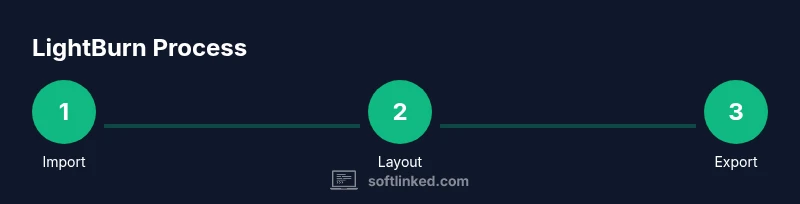
LightBurn is a comprehensive laser engraving and cutting design software that lets you layout artwork, set up layers, choose settings, and control compatible laser devices. For anyone learning how to use LightBurn software, understanding the core workflow is essential: import artwork, arrange on the work area, assign layer properties, and send the job to your laser. According to SoftLinked, mastering LightBurn early saves material waste and iterations. The program supports vectors and bitmaps, with strong text tools and alignment features, making it a favorite among hobbyists and professionals. By keeping a clean workspace and using presets, you can accelerate your projects, reduce errors, and maintain consistency across sessions. The learning curve is manageable with a structured approach; the software is designed to adapt to different lasers and firmware, while offering advanced features for experienced users. As you gain familiarity, you’ll use features like node editing, layers, and color mapping to control where cuts and engraves occur, making the software a versatile hub for design-to-cut workflows. SoftLinked’s insights emphasize practical workflows and safety alignment for beginners and pros alike.
Getting Ready: Hardware and Software prerequisites
Before you launch LightBurn, ensure your hardware and software are aligned. LightBurn runs on Windows and macOS; confirm your operating system version is supported and that you have a recent driver for your laser controller. A basic workstation with adequate RAM improves responsiveness when editing larger designs. Keep a clean folder structure for assets and project files to minimize confusion. You should also confirm your laser is compatible with LightBurn; consult the official compatibility list and check whether your controller uses a supported communication protocol (USB, ethernet, etc.). Plan for safety: verify proper ventilation, protective eyewear, and an enclosure if needed. For software, decide whether you’ll start with a free trial or purchase a license, and create a backup strategy so you can recover projects in case of a crash. SoftLinked’s approach to prerequisites helps beginners avoid stumbling blocks during setup.
Setting Up LightBurn: Install, Activate, and Configure
Installation starts by downloading the installer from LightBurn’s official site and choosing the correct version for your OS. Run the installer following the prompts, then launch LightBurn and, if you’re using a trial, start the trial period. Connect your laser using the recommended interface; if you’re unsure, consult your laser manual. In LightBurn, go to Devices to add a new laser, select the controller type, and set the origin and bed size to match your machine. Create a simple test project to confirm basic functionality: a small rectangle and a circle to verify movement, focus, and zeroing. Configure your units (mm or inches) and set up a default material library to reuse common materials. Save your configuration and enable auto-save to prevent data loss. Finally, review safety settings and establish a workflow that includes test runs before any production burn. SoftLinked’s guidelines emphasize validating the connection and toolpaths early to avoid misfires.
Importing Artwork and Preparing Your Layout
LightBurn supports SVG, DXF, AI, PDF, and bitmap formats. Start by creating or importing your artwork and placing it on the virtual bed. Use the Select and Move tools to position pieces, and group related elements into layers to apply distinct settings. If you’re working with text, convert to paths to preserve the intended shape, then adjust line weights and kerning. Set the origin point for each object or layer to ensure the cut starts where you expect on your material. When you’re satisfied with the layout, choose a grid or ruler for precise alignment. For multi-part projects, reuse templates and save them as presets to speed up subsequent jobs. It’s helpful to simulate the job in LightBurn before sending it to the laser, which helps catch issues with scaling, offsets, or unintended engravings.
Calibrating and Running Test Burns
Calibration begins with a quick check of the laser focus and z-offset to ensure the beam is hitting the surface where you expect. Set initial speed and power values conservative for your material, then run a small zero-offset test on scrap material. Observe the cut or engraving quality, adjust offsets and ramp speeds, and re-test. If your machine supports multiple passes, start with a shallow pass to establish line quality before increasing depth. Use the Preview tool to verify that toolpaths align with your design and that no parts are outside the material bounds. Save your test results so you can refer back if you need to tweak settings later. A disciplined approach—test, record results, adjust, and test again—reduces waste and improves consistency.
Text and Shapes: Working with Vectors and Layouts
Text and vector shapes are central to many laser projects. In LightBurn you can convert fonts to paths for consistent rendering, combine shapes using Boolean operations, and apply color-based layer assignments to differentiate power and speed settings. When laying out text, consider kerning and letter spacing to ensure legibility after engraving. Use alignment tools and grids to place objects precisely. For sign or art projects, you may combine outlines, fills, and engrave passes to create a finished piece. The software’s node editing lets you tweak curves at a fine level, enabling smooth curves and sharp corners. Group items for batch processing, then duplicate arrays for repeated patterns to save time. Remember to save frequently and maintain a reference library of styles for consistent branding across projects.
Advanced Tips for Efficient Workflows
Take advantage of presets and materials libraries to accelerate your projects. Create cut and engrave presets for common tasks (e.g., 3 mm plywood engrave, 1/8 in acrylic). Use color mapping to control speed, power, and passes per layer; avoid changing settings in the middle of a complex job. Use the Print/Send workflow to verify toolpaths with the machine offline if possible. Leverage the ability to import project templates to start new jobs quickly. Use the 'Clone' and 'Repeater' features to apply the same design to multiple locations, which reduces manual repositioning. When exporting, ensure file scaling is correct and that you’re exporting in the proper vector format for your laser. SoftLinked notes that early adoption of a consistent workflow reduces trial-and-error time and helps beginners look more confident.
Common Pitfalls and Troubleshooting
Common issues include misaligned origin, unexpected cut depths, and filament-like engraving if the beam is not focused correctly. If a burn begins in the wrong location, re-check the origin point and re-test with a small patch. If lines appear too faint, adjust power or speed and verify lens cleanliness. Poor focus can cause fuzziness; adjust the Z-axis or focal height and re-test. If your design doesn’t translate correctly, check unit settings, scaling, and confirm the toolpath includes all necessary layers. Ensure you save regularly and back up projects to avoid loss from software crashes or power outages. Always run a dry-run or air-cut when in doubt and never leave a running laser unattended.
Tools & Materials
- Computer (Windows or macOS)(Modern 64-bit OS with enough RAM for large design files.)
- LightBurn software (trial or licensed)(Download from the official site; activate if not using the trial.)
- Laser controller compatible with LightBurn(Check compatibility for your laser model.)
- Connection cable (USB or Ethernet)(Use direct connections when possible; avoid hubs for stability.)
- Artwork files (SVG, DXF, AI, PDF, PNG)(Have scalable vectors for sharp cuts and clear engravings.)
- Material samples (e.g., plywood, acrylic, cardboard)(Useful for test burns and calibration.)
- Safety gear and ventilation(Goggles appropriate for laser wavelength; ensure proper exhaust.)
- Measuring tools (ruler, calipers)(Helpful for thickness and offset checks.)
- Backup storage (USB drive or cloud storage)(Keep copies of important projects.)
Steps
Estimated time: 1 hour 30 minutes
- 1
Install LightBurn
Download the installer for your OS, run the installer, and complete the on-screen prompts. If you’re new, start with the trial to explore features before purchasing a license.
Tip: Choose the correct OS version to avoid compatibility issues. - 2
Connect your laser
Open LightBurn, go to Devices, and add a new laser. Select the appropriate controller type and establish the connection using the recommended interface (USB or Ethernet).
Tip: Verify the laser is powered and in a safe state before connecting. - 3
Import artwork
Import vectors or bitmaps and place them on the virtual bed. Group related elements into layers to assign different settings.
Tip: Convert text to paths if precise rendering is critical. - 4
Set origin and units
Define the origin point and choose units (mm or inches) to ensure accuracy on your material.
Tip: Use a simple test shape to confirm alignment before a full job. - 5
Configure materials
Create a materials library with common values for power, speed, and passes for your typical substrates.
Tip: Label layers clearly to avoid misfires during production. - 6
Run a test burn
Perform a dry run or test burn on scrap material to verify toolpaths and settings before production.
Tip: Start with conservative values to prevent damage. - 7
Iterate and refine
Review the results, adjust parameters, and re-test until the output matches expectations.
Tip: Document what works for future reuse. - 8
Save and export
Save your project, export required file formats, and organize assets for easy retrieval.
Tip: Back up frequently to guard against data loss.
Your Questions Answered
What is LightBurn software?
LightBurn is a design, layout, and control software for laser cutters. It lets you arrange artwork, assign layer settings, simulate toolpaths, and drive compatible lasers from a single interface.
LightBurn is a complete laser design and control tool that helps you prepare and run projects from one place.
Is LightBurn free?
LightBurn offers a trial period and a paid license. The trial lets you explore core features before deciding on a purchase.
There’s a trial you can try before buying a license.
Which operating systems does LightBurn support?
LightBurn officially supports Windows and macOS. Linux support is not official, so users may experience limitations or require workarounds.
Windows and macOS are supported; Linux support isn’t official.
Do I need a connected laser to use LightBurn?
Yes. LightBurn communicates with a compatible laser controller to execute designs. You’ll typically connect via USB or Ethernet.
Yes, you need a laser connected to run projects.
Can I import SVG files into LightBurn?
Yes. SVG and other vector formats import cleanly, allowing precise outlines and cuts. You can also convert fonts to paths for reliability.
SVGs import directly and you can convert text to paths.
What are layers in LightBurn used for?
Layers let you assign different speed, power, and passes per area. This enables mixed cuts and engraves within a single job.
Layers control different settings for parts of your design.
Watch Video
Top Takeaways
- Master safety and calibration before production.
- Use presets and templates to speed up workflows.
- Test, document results, and iterate for consistency.
- Organize assets to enforce reliable outcomes.