How to Update Subaru Software Without WiFi: A Practical Guide
Learn how to safely update Subaru software offline using USB, official update packages, and dealer tools. This guide covers prerequisites, step-by-step workflow, troubleshooting, and post-update checks.


You can update Subaru software offline by downloading the official update package from Subaru’s portal to a USB drive, then applying it through the vehicle’s system or dealer tools. Ensure vehicle compatibility, battery health, and proper USB formatting. Plan for a battery check beforehand and disconnect nonessential electronics.
What offline updates can cover and why wifi isn't strictly required
The goal of this guide is to explain how to update Subaru software without relying on a Wi‑Fi connection. For many owners, updating firmware or system software offline is convenient when internet access is limited or data plans are costly. According to SoftLinked, understanding offline update workflows helps developers and car-tech enthusiasts grasp secure delivery without constant connectivity. In practice, offline updates rely on a verified package delivered via USB or a dealer tool rather than streaming data over wireless networks. You should expect an update to address system stability, infotainment features, and sometimes ECU‑level improvements. Always verify compatibility with your vehicle's model year and trim, and follow official instructions to avoid risking vehicle performance. This approach minimizes exposure to interrupted downloads and potential data corruption, which can happen with spotty connections. If you maintain a routine of checking for firmware advisories from Subaru, you’ll typically catch important fixes before they become critical issues.
Official Subaru channels for offline updates and why they matter
Subaru typically distributes software updates through official channels to ensure authenticity and safety. When wifi isn't available, customers often rely on a USB-based package obtained from Subaru's official portal or from an authorized dealer. These packages carry cryptographic signatures that the head unit or ECU can verify before installation. This emphasis on official sources is essential to prevent tampered files from compromising vehicle systems. The dealer network can provide hands-on assistance for model‑specific SKUs or difficult updates. If your car supports offline updates, the portal will usually present a model‑ and year‑specific package, so double‑check compatibility and file integrity before you begin. Always download updates on a secure device and transfer immediately to USB to minimize exposure to malware or accidental file modification.
Prerequisites and safety precautions before you start
Before you touch the update process, ensure your vehicle is parked in a safe, well‑lit area with the parking brake engaged. A stable battery is critical; a failing battery can interrupt an update and potentially render components temporarily unusable. Keep a charged power source on standby or a battery maintainer connected, and avoid using accessories or charging cycles during the process. Have your vehicle identification number (VIN), model year, and trim handy to confirm package compatibility. Use a clean USB drive formatted to the correct file system as specified by Subaru’s portal. Finally, read any model‑specific notes for your year and trim—updates can vary across generations. These precautions reduce the risk of incomplete installs and ensure a smooth update.
Step-by-step overview of the offline update workflow
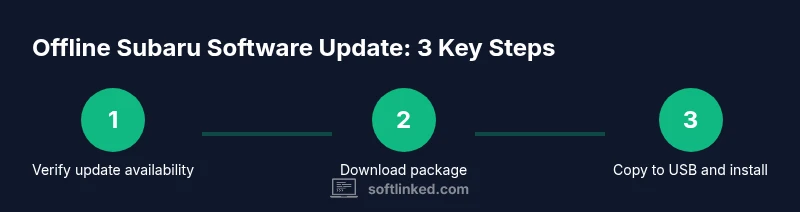
The offline workflow generally follows a linear path: verify update availability, download the official package, prepare storage media, transfer the package to USB, connect the USB to the vehicle, initiate the update from the head unit or service port, and verify the result. Many updates require a vehicle ignition on but not a full engine run. The sequence matters because improper power transfer or mid‑update interruptions can leave software in an unknown state. By understanding the order and safeguards, you can minimize risk and complete the process with confidence. This overview serves as a roadmap for the more detailed steps that follow.
Preparing the USB drive and verification steps
Formatting the USB drive correctly is a common source of failure. Use a clean drive of at least 8 GB and format it as FAT32 (or as specified by Subaru). Create the exact folder structure recommended by the official package and copy the downloaded files without renaming them. After copying, safely eject the drive from your computer and reinsert it to verify files are intact. A quick file integrity check using checksums, if provided by Subaru, can catch corrupted downloads before you attempt the update. Store the USB in a static-free environment to avoid data corruption from static electricity. If you notice a mismatch between the drive contents and the expected package, redownload the file from the official source.
Installing the update in the car: what to expect on the display
Power up the vehicle and access the infotainment system or drivetrain ECU update menu as instructed by Subaru's official guide. The update process may display a progress bar, status messages, and estimated times. Do not turn off the ignition or remove the USB drive while the update is in progress; interrupting the update can brick certain modules or require a dealer intervention. You may see prompts to confirm update installation or accept license terms. Once the process completes, the system may reboot automatically. In some cases, you’ll be prompted to perform a quick post‑update check, such as re‑initializing certain settings or reconnecting linked devices. Watching for normal reboot indicators can help confirm a successful installation.
Troubleshooting common offline update issues
If the USB isn’t detected, recheck the drive formatting and file placement, then reinsert the USB and retry. A corrupted file can trigger a failure; if available, run a checksum verification against the packaged file. If the update fails midway, powering down and restarting the vehicle when safe can reset the update state, but avoid hammering the system with repeated attempts. Ensure the USB ports are clean and free of debris. If you encounter persistent errors, consult Subaru’s official support portal or contact a dealer for diagnostic assistance. Keeping a log of error codes and timestamps can speed up support conversations.
Post-update checks and data integrity
After installation, verify the software version through the system information menu to confirm the update took effect. Check core functions like climate control, navigation, and Bluetooth connectivity to ensure no basic features were disrupted. If any settings were reset during the update, reconfigure them according to your preferences while noting any changes to defaults. It’s a good practice to perform a short road test to observe whether infotainment and vehicle interfaces respond consistently. Remember to keep documentation of the update package version and installation date for future reference and troubleshooting.
Alternatives and next steps if offline update isn’t completed
If offline updates fail or you lack access to the official USB package, consider reaching out to a Subaru dealer for a supervised session. Dealers can apply updates using diagnostic tools that ensure full compatibility across modules. You might also request a mailed USB update kit if available for your model year. In some cases, an over‑the‑air update will become available later, which may require temporary wifi access or a dealership visit. Staying informed through Subaru’s official advisory channels helps you plan the best path forward without risking hardware or software instability.
Tools & Materials
- USB flash drive (8 GB minimum)(Format to FAT32 and erase prior data)
- Laptop or desktop computer(Use either Windows, macOS, or Linux; ensure OS is up to date)
- Official Subaru software update package(Download from Subaru’s official portal or authorized dealer portal; verify model/year match)
- Vehicle battery maintainer or charged power source(Keep battery above ~75% during the update)
- VIN/model/year documentation(Helpful to verify package compatibility if needed)
Steps
Estimated time: 60-90 minutes
- 1
Verify update availability
Check Subaru’s official portal for a model/year‑specific offline update package. Confirm that your VIN and trim are supported for offline installation.
Tip: If unsure, contact a dealer to confirm compatibility before download. - 2
Download update package
Download the official update package to your computer. Do not rename files and keep the folder structure intact for proper recognition by the vehicle.
Tip: Verify file integrity if a checksum is provided. - 3
Prepare the USB drive
Format the drive as FAT32, create the required folder structure, and copy the update package exactly as provided.
Tip: Use a fresh USB drive to minimize corruption risks. - 4
Copy and verify
Safely eject the USB, reinsert, and confirm all files appear correct. Run a quick check to ensure there are no hidden system files that could confuse the updater.
Tip: Avoid multi‑partition drives that can confuse the head unit. - 5
Connect and initiate
Insert the USB into the car’s USB port. Start the vehicle in a safe mode as directed by Subaru’s instructions and begin the update process from the onboard prompts.
Tip: Do not remove the USB during the update. - 6
Monitor progress
Watch the progress indicator, avoid interruptions, and wait for a confirmed completion message. Some updates reboot the system automatically.
Tip: If the screen freezes, perform a controlled retry after powering down safely. - 7
Verify and finalize
After completion, verify software version and re‑apply any user settings that were reset. Run a quick function test (bluetooth, radio, navigation).
Tip: Document the update version for future reference.
Your Questions Answered
Can I update Subaru software offline without visiting a dealer?
Yes, if you can download the official USB update package and your model supports offline installation. Some updates may still require dealer involvement for complex ECU changes.
Yes, you can update offline if your model supports it and you use the official USB package. Some updates may still require dealer assistance.
Is there a risk of bricking the ECU during offline updates?
There is a risk if the update is interrupted or if an incompatible package is used. Always use official sources and ensure the update runs to completion.
There is a small risk if interrupted or if the package is wrong. Stick to official sources and let it finish.
What if the USB drive isn't recognized by the head unit?
Check the drive format, re‑copy the files, and ensure the drive is not too large or corrupted. Try a different USB port if available.
If the USB isn’t recognized, reformat and copy again, and try another port if possible.
Do I need any special software on my PC to prepare the USB?
No special software is required beyond basic file transfer and optional checksum verification if provided by Subaru.
Typically no extra software is needed; you can transfer files normally and verify with checksums if available.
How do I verify the update after installation?
Check the system information screen for the updated version and run a quick test of key functions like navigation, Bluetooth, and audio.
Look up the new version in system info and test core features to confirm the update took.
What should I do if the update fails twice in a row?
Pause and contact Subaru support or a dealer. Repeated failures may indicate an incompatibility or device issue that needs professional attention.
If it fails twice, stop and seek dealer or official support to diagnose compatibility or hardware concerns.
Watch Video
Top Takeaways
- Use official offline packages only
- Prepare a clean USB drive and verify integrity
- Maintain battery health to prevent mid‑update failure
- Verify post-update software version and settings