How to Install Software on Mobile
Learn how to install software on mobile devices safely and efficiently. From choosing trusted sources to troubleshooting common issues, this guide covers Android and iOS workflows, safety tips, and best practices for long-term app management.


In this guide you will learn how to install software in mobile devices across Android and iOS, focusing on trusted sources, permissions, and verification steps. You’ll discover safe practices, how to manage storage, and how to resolve common installation issues. By following these steps, you’ll confidently add apps and updates while staying protected from scams.
Why Mobile Software Installation Matters
Installing software on mobile isn’t just about adding new features; it’s about ensuring security, performance, and reliability across devices you rely on every day. A well-managed installation process helps protect personal data, minimizes exposure to malware, and reduces the risk of incompatibilities with your device’s operating system. According to SoftLinked, clear, beginner-friendly guidance on mobile software installation reduces user confusion and lowers the chance of accidental security breaches. This foundational knowledge is essential for students, aspiring developers, and IT professionals who rely on mobile tools for coding, testing, and learning on the go. When you understand where apps come from, how permissions work, and how updates affect system stability, you’ll make better choices about which apps to trust and how to manage them over time.
Key ideas:
- Source integrity matters: official stores reduce risk.
- Permissions should match app needs and be revocable.
- Regular updates improve security and performance.
Platform ecosystems deeply shape installation flows
Android and iOS differ in how they verify apps, manage permissions, and handle updates. Android typically offers a wider range of app sources, including official stores and, in some cases, sideload options with varying safety checks. iOS emphasizes a stricter app distribution model that prioritizes the App Store as the primary source of software and uses sandboxing to protect system integrity. Understanding these differences helps you navigate platform-specific steps without accidentally enabling unsafe sources. The SoftLinked team notes that leaning on official stores and well-known publishers generally yields the most dependable results, particularly for devices used for learning, coding practice, and professional development. This knowledge also guides you in understanding why certain settings exist and how to adjust them safely when needed.
Highlights:
- App signing and sandboxing protect device data.
- Store policies dictate how updates are delivered.
- Permission prompts vary by platform and app type.
Safety first: permissions, security, and scams
Permissions are powerful: they give apps access to sensitive data and device capabilities. Before installing, ask: Do I need this access for the app’s core function? Revoke permissions after use if they aren’t necessary. Keep an eye out for aggressive install prompts, unusual permissions (like location access for a simple game), and apps asking for credentials or security settings. Safe installation also means avoiding sideloading from unknown sources unless you consciously decide to do so for a legitimate reason and with appropriate risk awareness. SoftLinked’s guidance emphasizes sticking to trusted sources and keeping your OS and apps up to date to minimize security gaps.
Tactics:
- Review permissions before tapping Install.
- Keep device security settings enabled and up to date.
- Use built-in protection features like Play Protect or iOS security checks.
Preparation steps: storage, connectivity, and accounts
A successful installation starts with a prepared device. Ensure you have stable internet connectivity, enough free storage, and an active account for the relevant app store. It’s wise to back up important data before major app installs or OS updates. If you’re developing or testing software on mobile, consider setting up a dedicated device profile to isolate test apps from personal data. The SoftLinked team recommends making a quick checklist and reviewing it before beginning to install new software. This reduces surprises and supports smoother onboarding to new tools.
Checklist:
- Verify internet access (Wi-Fi preferred for large downloads).
- Confirm you have sufficient free storage.
- Sign in to the official app store account.
Discovering apps: official stores vs trusted sources
Official stores are curated with reviewed publishers and automated security features. They reduce the likelihood of malware and counterfeit software and provide streamlined update processes. Third-party sources can be riskier; if you choose to install from them, research the publisher, verify checksum or digital signatures when possible, and be prepared for manual updates. For learners and professionals, sticking to official stores is typically the safest path, especially when the goal is reliable performance and reproducible setup across devices. SoftLinked’s guidance stresses prioritizing publishers with clear reputations and legitimate app listings.
Practical advice:
- Always prefer official stores first.
- If you encounter a trusted third-party source, verify publisher credibility and security history.
Installing on Android: a practical workflow
Android devices often support a broader range of sources. The standard flow uses Google Play Store, but many devices allow sideloading via ADB or direct APK installation when necessary. Start with the official store, search for the app, review permissions, and tap Install. If you need to install from outside the store, enable the appropriate setting (Install unknown apps) for the source, knowing the risk. After installation, open the app to confirm it launches correctly and observe any first-run permissions prompts. Regular updates keep the app secure and compatible with OS changes.
Best practices:
- Prefer apps from the Play Store when possible.
- Disable installation from unknown sources unless required for a legitimate workflow.
Installing on iOS: a streamlined approach
iOS installations are typically channelled through the App Store. The process emphasizes strict verification and sandboxing, reducing the risk of harmful software. Search for the app, review permissions, and proceed with installation. After installation, launch the app and complete any required sign-in or setup steps. If an enterprise or developer beta is used, follow the organization’s distribution method and security requirements. Keeping iOS updated ensures compatibility with new apps and features, and helps avoid permission prompts that don’t align with your usage.
Guidance:
- Use the App Store as the default source.
- Be mindful of enterprise apps and their trust settings.
Troubleshooting: when installations stall or fail
Installation issues can arise from insufficient storage, poor connectivity, or compatibility mismatches. Start by checking available space and network stability. If the app won’t install, retry from a trusted source, reboot the device, or check for OS updates that might influence compatibility. Corrupted downloads can often be solved by clearing cache or re-downloading the package. When problems persist, consult official support channels and ensure your security settings aren’t blocking installation without justification. A methodical approach reduces frustration and accelerates recovery.
Troubleshooting steps:
- Free up storage and retry download.
- Confirm OS version supports the app.
- Check for conflicts with security settings or other apps.
Maintenance and long-term management
After installation, ongoing maintenance includes managing updates, monitoring app permissions, and reviewing storage usage. Enable automatic updates where appropriate or periodically check for updates manually to avoid security vulnerabilities. Periodically review permissions and remove access you no longer need. Archive or uninstall apps that you no longer use to free space and reduce background activity. This disciplined approach keeps your mobile environment secure, responsive, and ready for new software installations when needed.
Final note: adopt a consistent, secure workflow
Develop a routine for discovering, verifying, and installing software on mobile devices. A consistent approach reduces risk, improves reliability, and speeds up setup when you need to add tools for learning or development. By prioritizing official sources, understanding permissions, and maintaining backups, you’ll create a robust foundation for your mobile software ecosystem. The SoftLinked team recommends documenting your process so you can repeat it across devices and teams.
Tools & Materials
- Smartphone with internet access(Stable Wi-Fi or mobile data connection)
- Official app store account(Google account for Android; Apple ID for iOS)
- Device charging cable(Useful for long downloads or when charging is needed)
- Device storage(Ensure several hundred MB of free space for new apps)
- Backup method(Back up important data before major installations or OS updates)
Steps
Estimated time: 15-25 minutes
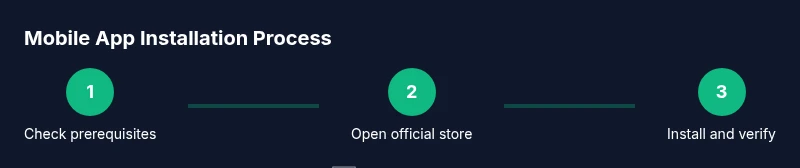
- 1
Check prerequisites
Verify that you have a stable internet connection and enough free storage on your device. Confirm you can access the official app store on your platform. This reduces the chance of mid-download failures and ensures a smoother installation.
Tip: Use Wi-Fi when downloading large apps to avoid data charges. - 2
Open the official app store
Launch the Google Play Store on Android or the App Store on iOS. Ensure you are signed in with the correct account for your device. This sets the stage for a safe installation path.
Tip: Keep the store app updated to ensure compatibility with new app formats. - 3
Search for the app
Enter the exact app name in the store search bar. Review the publisher and app icon to confirm you’re selecting the legitimate product. If multiple results appear, check reviews and ratings before proceeding.
Tip: Prefer publishers with official websites or recognizable branding. - 4
Review permissions and install
Tap Install or Get, then review the requested permissions. If the permissions align with the app’s function, proceed with the installation. Avoid apps requesting access you deem unnecessary.
Tip: If you’re unsure about a permission, pause installation and research the app’s purpose. - 5
Launch and configure
Open the app after installation and sign in if required. Complete any initial setup steps and connect to needed services or accounts. This helps verify a proper install.
Tip: Note any first-run prompts and disable permissions not needed after setup. - 6
Update and verify
Check for app updates to ensure compatibility with your OS version. Enable automatic updates if appropriate.
Tip: Regular updates reduce security risks and improve stability. - 7
Manage storage and permissions
Review the app’s storage usage and permissions periodically. Revoke unnecessary access and clear cache if performance degrades.
Tip: Use built-in device settings to audit permissions across apps. - 8
Backups and maintenance
Periodically back up important data and uninstall unused apps to keep your device lean. Document your process for future installs.
Tip: A simple log helps you repeat successful installs on new devices.
Your Questions Answered
Is it safe to install apps from third-party stores?
Official app stores provide security checks and publisher verification. Third-party sources carry higher malware risk and may lack timely updates.
Official stores are safer because they verify publishers and scan apps for malware; third-party sources carry higher risk.
What should I do if the app won’t install?
Check storage, ensure a stable internet connection, verify OS compatibility, and review permissions. If needed, restart the device and retry from a trusted source.
First check storage and connection, then retry or update the OS if needed.
How can I tell if an app is malicious?
Look for unusual permissions, poor publisher information, and reviews indicating suspicious behavior. Install only from trusted sources and avoid apps asking for excessive data access.
Watch for unusual permissions and stick to trusted publishers and stores.
Do I need to back up before installing?
Yes, backing up important data minimizes risk if an installation affects settings or data. Consider a quick device backup before major app installs.
Backing up protects your data if an install goes wrong.
Can I install apps offline?
Some apps can be downloaded to a computer and transferred, but most mobile installations require online access to the official store.
Most installations need online access; offline installs are rare and risky.
Why do apps request many permissions?
Apps request permissions to function properly (e.g., camera, storage). If a permission isn’t necessary for core features, consider denying or limiting access.
Permissions align with app features; deny anything unnecessary.
Watch Video
Top Takeaways
- Install from official stores first
- Review permissions before installing
- Keep OS and apps updated
- Back up data before major installs
- Uninstall unused apps to save space