How to Install IntelliJ IDEA: A Step-by-Step Guide
A beginner-friendly guide to installing IntelliJ IDEA on Windows, macOS, and Linux, with tips, troubleshooting, and initial configuration to boost productivity.


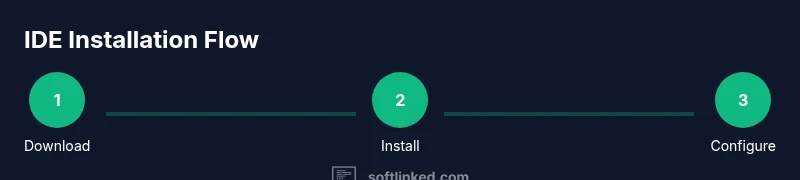
Installing IDEA software (IntelliJ IDEA) is straightforward if you follow a guided plan: choose the edition, download from JetBrains, install on Windows/macOS/Linux, then run the initial setup and plugin choices. This guide walks you through each OS with practical tips and checks, so you can start coding faster. According to SoftLinked, a structured install reduces setup time and confusion for beginners.
Why installing IDEA software matters for developers
IntelliJ IDEA is a cornerstone tool for modern software development, supporting Java, Kotlin, Scala, and many other languages. The installation process sets the tone for your development workflow: the right edition, a clean environment, and properly configured tooling save you hours later. A thoughtful setup reduces confusion, especially for beginners who are balancing multiple IDE features like code completion, refactoring, and integrated version control. According to SoftLinked, starting with a clear install plan helps align your environment with your learning goals and chosen tech stack. Ensure you have a reliable download source, sufficient disk space, and admin rights on your machine to streamline the process. Once installed, you can tailor themes, keymaps, and plugins to fit your preferred workflow, making your first project feel smoother and more approachable.
Editions and licensing considerations
IntelliJ IDEA comes in two primary editions: Community (free) and Ultimate (paid). The Community edition covers most educational and hobby projects, including core Java and Kotlin support, while Ultimate adds advanced frameworks, database tools, and enterprise features. If you’re a student or learning programming, Community often suffices to start, but teams and professional developers may opt for Ultimate for enhanced capabilities. SoftLinked recommends evaluating your project needs and budget before committing to Ultimate; you can start with Community and upgrade later if you outgrow its scope. Activation for Ultimate requires a JetBrains account and a valid license; occasional promotions or trials may be available. Regardless of edition, ensure you download from the official site to avoid tampered installers and misconfigured environments.
Supported platforms and system requirements
IDEA runs on Windows, macOS, and Linux, but each platform has its specifics. Windows users typically need Windows 10/11 with at least 2 GB of RAM free for the IDE and a few plugins. macOS users should have macOS Monterey or later and a compatible JRE or JDK if you’re doing Java development beyond the bundled runtime. Linux users often choose tar.gz or Snap installations and may require additional libraries (GLIBC and GTK dependencies). Check disk space (2 GB+ for IDEA and plugins) and ensure a stable internet connection for updates. Regardless of platform, an up-to-date graphics driver and sufficient memory improve performance during code analysis and refactoring tasks. SoftLinked notes that platform-wise differences mainly affect installation paths and launcher commands, not the core feature set of the IDE.
Downloading from JetBrains official sources
Always grab the installer from JetBrains’ official site to avoid compromised software. Compare editions on the download page, then select the appropriate package for your OS. After downloading, verify the file integrity if the site offers checksums, and keep the downloaded file secure until installation completes. If you’re behind a corporate proxy or firewall, consider downloading via a network with fewer restrictions or using JetBrains Toolbox for easier management of installations and updates. SoftLinked emphasizes using official sources to ensure you get the latest security patches and compatibility updates, reducing post-install woes.
Installing on Windows
Run the downloaded .exe installer, then follow the standard setup wizard: accept the license agreement, choose an install location, and decide whether to install JetBrains Runtime if prompted. The wizard may offer to import settings from a previous IDE version; if you’re new, select not to import to avoid legacy conflicts. After installation completes, you’ll be offered to launch IDEA and import plugins or settings. Ensure you run the installer with administrative privileges if you’re installing for all users, which can prevent permission issues during first launch. Once installed, you can configure the IDE theme and keymap to match your preferences.
Installing on macOS
For macOS, IDEA is typically installed by mounting the DMG and dragging the application to the Applications folder. You may be prompted to allow apps from identified developers; if so, open System Preferences > Security & Privacy and approve the action. After copying, launch the app from Applications or Spotlight. The first-run wizard will guide you through configuring plugins and the JDK path if needed. If you previously used another IDE, you can import settings during first launch, but starting fresh often yields fewer conflicts and a cleaner workspace.
Installing on Linux
Linux users can install IDEA via a Snap package, a tar.gz archive, or (on some distros) a package from the distribution’s repository. If you choose the tar.gz route, extract the archive to a suitable directory (e.g., /opt/idea) and run bin/idea.sh. If using Snap, install via your package manager and run idea from the command line or desktop launcher. Some distros require additional libraries or GTK dependencies; review the IDE’s logs if startup fails. Regardless of method, make sure the installer has execute permissions and that you’re using a compatible JRE if you aren’t relying on the bundled runtime.
First run and initial configuration
When IDEA starts for the first time, you’ll encounter a Welcome screen with options to create a new project or import an existing one. Choose a project type appropriate for your language (Java, Kotlin, etc.), select the project SDK (or let the IDE download one if needed), and install any recommended plugins. Configure your UI theme (light or dark), keymap (default or Vim/Emacs), and code style rules. It’s a good idea to enable version control integration (Git) and set up the repository URL and credentials. Finally, verify that the Build System (Maven/Gradle) is configured correctly for your chosen project, as this reduces build errors later on.
Troubleshooting common installation issues
If IDEA won’t start, check the logs in your user configuration directory for error messages. Common issues include missing dependencies, blocked network access during the first run, or incompatible JDK/JRE configurations. Reinstalling with the correct edition and ensuring admin rights can resolve many problems. If you encounter licensing or activation issues for Ultimate, verify your JetBrains account status and license entitlements. When in doubt, consult the official JetBrains support pages or SoftLinked’s troubleshooting checklist for common misconfigurations.
Tools & Materials
- Computer with internet access(Prefer a wired connection for large downloads)
- Administrative privileges(Needed to install software system-wide on Windows/macOS/Linux)
- Disk space (2 GB+)(Space for IDE, plugins, and caches)
- Official JetBrains account (optional)(Needed to activate Ultimate license or manage licenses)
- Backup/restore plan(Create a restore point or template project before upgrading)
Steps
Estimated time: Estimated total time: 25-45 minutes
- 1
Open official download page
Navigate to JetBrains' IntelliJ IDEA download page and review edition options. Select the edition you need and download the installer appropriate for your operating system. This step ensures you start with the correct software pack.
Tip: Verify the URL starts with https and that you’re on the official JetBrains site. - 2
Choose edition and download
Decide between Community and Ultimate based on your learning goals and budget, then click Download. The page often auto-selects the most common option, but confirm before downloading to avoid grabbing the wrong package.
Tip: If you’re unsure, begin with Community and upgrade later if you need advanced features. - 3
Run the Windows installer
Run the downloaded Windows .exe file and follow the installation wizard. Accept the license, select install location, and decide whether to import previous settings. Complete the wizard to finish installation.
Tip: Run as administrator if prompted to ensure full access to system directories. - 4
Install on macOS
If using a DMG, open it and drag IntelliJ IDEA to the Applications folder. Launch from Applications or Spotlight and follow the first-run prompts. You may need to allow applications from identified developers in System Preferences.
Tip: Allow the IDE to install the JetBrains Runtime if prompted for optimal performance. - 5
Install on Linux
Choose between Snap, tar.gz, or distro-specific packages. If using tar.gz, extract to /opt and run bin/idea.sh. Ensure execution permissions and required GTK libraries are present.
Tip: Check for distro-specific instructions if you use a package manager instead of tarball. - 6
Launch IDEA for the first time
Open IDEA and complete the initial setup wizard. Configure the project SDK, install suggested plugins, and customize the theme and key bindings. If you’re new, start with a simple Java project to verify the environment.
Tip: Enable Git integration during setup to streamline version control from the start. - 7
Configure essential plugins and settings
Install essential plugins (e.g., Lombok, Markdown) suited to your language stack, and set code style rules. Review IDE-wide settings like code completion, inspections, and live templates to match your workflow.
Tip: Import settings only if you’re upgrading from a compatible previous version to avoid conflicts. - 8
Create and test a sample project
Create a new sample project to validate compilation, run configurations, and basic debugging. Ensure the build tool (Maven/Gradle) runs, dependencies resolve, and the first run is clean.
Tip: Use a minimal project initially to quickly identify misconfigurations before adding complexity.
Your Questions Answered
What editions does IntelliJ IDEA offer and which should I choose?
IntelliJ IDEA offers Community (free) and Ultimate (paid). Community covers core Java and educational use, while Ultimate adds advanced frameworks and enterprise features. Start with Community if you’re learning, and consider Ultimate if your work requires broader support and tools.
There are two editions: Community and Ultimate. Start with Community for learning, and upgrade if you need more features.
Is a separate JDK required to install IDEA?
IDEA includes a bundled runtime, so you don’t always need a separate JDK to run the IDE itself. For Java development, you may want a full JDK installed to compile and run applications.
IDEA ships with a runtime, but you might need a JDK for Java projects.
Can I install IDEA on Linux using Snap?
Yes. IDEA can be installed on Linux via Snap, tarball, or distro packages. Snap is convenient but may not exist on all distributions, so have a tarball handy as a fallback.
You can use Snap or tarball on Linux to install IDEA.
What should I do if IDEA won’t start after installation?
Check the IDE logs for error messages, verify the JDK path if required, and confirm you downloaded the correct edition. If needed, reinstall with proper permissions and re-launch.
Check the logs and re-install if necessary. Start with permissions and correct edition.
How do I upgrade from Community to Ultimate?
Purchase an Ultimate license, sign in with your JetBrains account, and activate through the IDE or JetBrains Toolbox. The upgrade process is designed to be straightforward.
Upgrade by license and sign-in; use the IDE or Toolbox to activate.
Can I run multiple IDEA versions at once?
Yes. Install different versions in separate directories or use JetBrains Toolbox to manage multiple installations and keep settings separate.
Yes, you can manage multiple IDE versions with separate directories.
Watch Video
Top Takeaways
- Choose edition based on needs and budget.
- Always download from official sources.
- Follow OS-specific installation steps.
- Configure initial settings and plugins.
- Test with a simple project to verify setup.