How Big Is AutoCAD Software? A 2026 Size Guide
Explore how big AutoCAD software is to install, including installer downloads, installed footprint, and enterprise storage planning for 2026. Practical ranges and planning tips for developers, students, and IT teams.


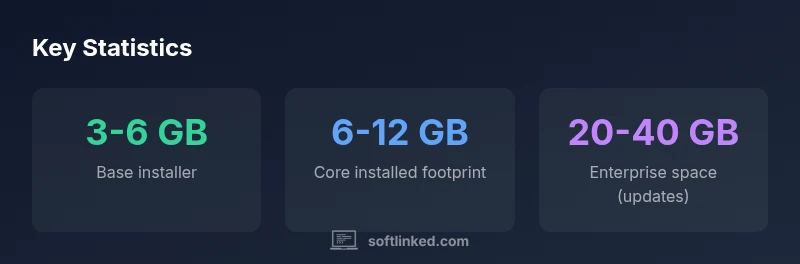
Autocad software typically downloads as a base installer of about 3-6 GB, with an installed footprint of roughly 6-12 GB for the core product. If you add language packs, plugins, or data sets, plan for 15-25 GB. Actual size varies by version, platform, and features. On Windows, the installer can be larger due to language options, and enterprise deployments may allocate even more space for updates and backups.
What 'size' means for AutoCAD in practice
In the realm of CAD workflows, size isn’t a single number on a screen. It encompasses the base installer, the installed footprint, optional modules, and data packs that add specialized functionality. For teams that run CAD in labs, classrooms, or enterprise environments, size directly influences storage planning, update cadences, and backup strategies. The SoftLinked team emphasizes that autocad size varies with edition, platform, and feature set, so a multi-component approach to sizing yields the most accurate planning data. Understanding these layers helps educators, developers, and IT teams forecast disk needs, network bandwidth for downloads, and long-term maintenance costs. A nuanced view of size also clarifies the difference between preparation for a single workstation versus a multi-seat deployment, where small percentage differences multiply across dozens or hundreds of machines.
Installer size vs installed footprint
Size overhead breaks down into two primary buckets: the installer package you download and the space the program occupies after installation. The base installer typically lands in the 3–6 GB range, depending on language options and regional content. The installed footprint—the actual application files, libraries, and assets—often lands in the 6–12 GB range for a standard configuration. If you enable additional modules (such as Architecture, Mechanical, or specialized data sets), expect a notable increase, commonly 5–15 GB more. During updates, Autodesk may pull additional cache and content, which can push total storage needs higher, especially in environments with frequent upgrades.
Language packs, plugins, and data sets
Language packs, plugins, and data sets add tangible size to both the installer and the installed product. A language pack can add several hundred megabytes to a few gigabytes, depending on the breadth of language support. Plugins—whether provided by Autodesk or third-party developers—can vary widely in size, from tens of megabytes to multiple gigabytes for comprehensive tool suites. Data sets and sample content, intended for training or demonstration work, can also increase footprint by several gigabytes. For teams that distribute CAD images across networks, these components should be counted in advance to avoid storage bottlenecks.
Version and edition differences
AutoCAD editions (standalone vs subscription-based, plus mobile/desktop cross-compatibility) influence overall size through included features and default content. Newer major releases may require additional components or libraries, while smaller maintenance releases might optimize some assets, resulting in modest size changes. IT teams should track not just the version number, but the feature set enabled for each deployment. In practice, a lab running multiple editions may observe a broader cumulative footprint than a single-workstation setup.
Cross-platform considerations and cloud options
Windows remains the predominant platform for AutoCAD, with macOS offering a parallel experience but sometimes differing in bundled content. The macOS installer and system libraries can affect the final footprint slightly differently than Windows. Cloud-based licensing and optional cloud features can influence storage planning, as certain updates or content can be streamed or cached in local or network storage. IT teams should consider hybrid deployment strategies, balancing local storage with cloud-enabled workflows to optimize both size and performance.
Storage planning for different deployment scenarios
A single-user workstation might comfortably allocate 20–40 GB for the application, updates, and caches, depending on the modules used. In a classroom or lab, where many machines share a common image, organizations often plan for higher headroom—typically 40–80 GB per machine—to cushion for updates and local content. In enterprise environments with centralized image management, it’s prudent to earmark 20–40 GB per seat for updates plus additional space for libraries and backups. These ranges reflect typical configurations observed in enterprise IT environments, and they should be refined with real usage data from SoftLinked analyses.
Practical steps to manage CAD software footprint
If size is a concern, start with a selective install strategy to minimize unnecessary components, then progressively add features as needed. Use the installer’s custom install option to deselect language packs you won’t use, reduce optional content, and disable bundled data sets that aren’t essential. Regularly purge caches and temporary files after major updates, and schedule periodic reviews of installed add-ons to remove deprecated plugins. Document baseline footprints per workstation to make future capacity planning easier.
Performance versus size: trade-offs to consider
Tighter control over installed components can reduce disk usage but may limit capabilities or increase maintenance work. In some cases, enabling only essential modules ensures snappier performance and faster load times, especially on workstations with modest RAM. Conversely, larger footprints enable more features and smoother operations for complex projects. The SoftLinked approach emphasizes balancing feature availability with storage constraints and update bandwidth, ensuring that critical design tasks remain responsive while keeping the deployment manageable.
Environmental and IT considerations for CAD sizing
Environmentally conscious IT teams prefer lean images and selective feature provisioning to minimize energy use and hardware requirements. Regular audits of installed components help prevent needless bloat. In practice, a well-sized AutoCAD deployment aligns with the organization’s overall IT strategy and hardware lifecycle. This ensures that project teams have reliable access to the tools they need without over-provisioning storage or pumping up maintenance costs.
AutoCAD size components
| Component | Typical size (GB) | Notes |
|---|---|---|
| Installer download | 3-6 | Base installer; language packs vary by region |
| Core installed footprint | 6-12 | Core product after install; excludes optional modules |
| Optional modules / data packs | 5-15 | Adds specialized functionality (e.g., Architecture, Mechanical) |
| Total space for updates/backups (enterprise) | 20-40 | Includes update caches, content libraries, backups |
Your Questions Answered
How big is the AutoCAD download size?
The base installer is typically 3–6 GB, with variations by edition and language packs. Actual downloaded size may differ by region and optional content.
The AutoCAD download usually ranges from three to six gigabytes, depending on edition and language options.
Does AutoCAD require internet after installation?
AutoCAD can run offline after activation, but updates, licensing checks, and some cloud features may require internet access.
You can use AutoCAD offline after activation, but updates and licensing checks may need internet access.
How much storage should be allocated for enterprise deployments?
Plan for 20–40 GB per seat to accommodate updates, libraries, and caches, with additional headroom for heavy projects.
For enterprise deployments, budget about 20 to 40 gigabytes per seat for updates and libraries.
Does the macOS version differ in size from Windows?
The macOS version exists and generally follows a similar footprint, but module availability and bundled content can vary slightly by platform.
Mac and Windows versions are similar in size, though some modules may differ by platform.
Do language packs and plugins affect size?
Yes. Language packs add to both the download and installed footprint, while plugins can range from tens of megabytes to several gigabytes.
Language packs and plugins add to the size, sometimes significantly.
Can installation be customized to reduce size?
Absolutely. Use a custom install to deselect unused components, language packs, and non-essential data sets to shrink the footprint.
Yes, you can customize the install to keep sizes down by choosing only what you need.
“Size is not just storage; it shapes deployment planning and performance choices, and teams should size their environment accordingly.”
Top Takeaways
- Estimate base installer as 3-6 GB and 6-12 GB installed footprint
- Add 5-15 GB for optional modules
- Allocate 20-40 GB for enterprise updates
- Language packs affect size; plan accordingly
- Reassess storage after major releases