Google Chrome Download for PC: Safe, Fast & Easy Guide
Learn how to download Google Chrome for PC safely from the official source, install, update, and customize settings on Windows. Clear, step-by-step guidance from SoftLinked helps beginners and pros alike.


Goal: Get Google Chrome on your PC by downloading the official Windows installer from Google. Start at the official Chrome download page, select the Windows 64-bit (or 32-bit if needed), and run the installer. Follow the prompts to complete setup, then open Chrome and sign in to sync bookmarks and settings.
Why Google Chrome on PC Matters for Everyday Browsing
If you’re trying to optimize your browsing experience, a reliable browser like google chrome download for pc matters for speed, security, and compatibility with modern web standards. The SoftLinked team notes that Chrome’s strong performance, cross-device sync, and a vast extension ecosystem can streamline study, coding, and personal productivity. This guide focuses on safe, official methods to obtain Chrome on Windows PCs and avoid common pitfalls. By following best practices, you reduce exposure to malware and frustrating setup quirks, while keeping features like autofill, password management, and developer tools within reach.
Quick System Check: Is Your PC Ready?
Before you download, verify that your PC meets general requirements for Chrome, including a supported Windows version, sufficient RAM, and available disk space. Also confirm you have administrative privileges to install software and that you are on a trusted network to reduce the risk of tampered installers. If you’re on an older device, consider clearing space and updating Windows components to avoid post-install issues. Keeping your system ready helps ensure the google chrome download for pc goes smoothly.
Where to Download: Official Source and Safety
The official Chrome download page is the safest starting point. To protect your device, only download from google.com/chrome and beware of imitators or misleading popups. The installer is relatively small, but updates are frequent; SoftLinked recommends enabling automatic updates to stay protected and ensure you’re always running the latest security patches and performance improvements.
The Official Chrome Installer: What to Expect
When you click Download, Chrome provides a Windows installer that downloads a small setup file and then installs the full browser. The installer may prompt for permissions and offer options such as setting Chrome as the default browser and importing bookmarks from other browsers. You can customize a lean setup by deselecting optional features if you prefer a minimal footprint. After installation, Chrome will launch automatically (depending on your choices) and guide you through a quick initial setup.
Step-by-Step Download, Install, and First Run
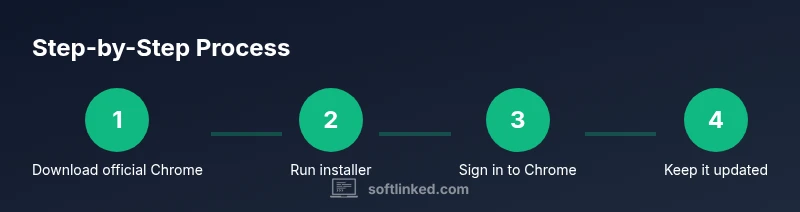
The process begins with obtaining the official installer, running it, and following on-screen prompts. You’ll be asked to confirm permissions, choose whether to make Chrome your default browser, and sign in to a Google account to sync bookmarks and settings. After installation, a quick tour may appear, helping you adjust basic privacy and security preferences. The goal is a clean baseline configuration that aligns with your browsing needs while maintaining strong security.
Troubleshooting Common Issues During Download or Install
If the download stalls, pause any VPNs or proxies, switch to a stable network, or retry after a few minutes. Antivirus or firewall software can sometimes block installers; temporarily allowing Google Chrome’s installer (or adding an exception) often resolves this. If you see error codes, search the official support pages for guidance, ensuring you’re using the latest installer from the official source.
Post-Install Customization and Security Best Practices
After installation, sign in to your Google account to sync bookmarks, history, and extensions across devices. Review Chrome’s privacy and security settings, enable Safe Browsing, control third-party cookies, and manage site data permissions. Regularly review installed extensions for security and performance impact, and use the built-in task manager to monitor resource usage. These practices help keep your browsing fast and secure on your PC.
Keeping Chrome Updated on PC
Chrome updates automatically by default, but you can verify update status manually via Menu > Help > About Google Chrome. Automatic updates ensure you receive the latest security fixes and feature improvements without manual effort. Consider enabling notifications for updates and periodically checking that your version is current, especially if you rely on Chrome for development or testing.
Tools & Materials
- Official Google Chrome installer for Windows(Download from the official Chrome download page (google.com/chrome).)
- Stable internet connection(Needed for download and subsequent updates.)
- Administrator privileges on Windows(Required to install software on the PC.)
- Backup plan for bookmarks/settings(Optional; useful if you want to preserve existing data before install.)
- Optional security posture(Temporary disablement of antivirus is not recommended; rather, allow the installer through security prompts.)
Steps
Estimated time: 10-15 minutes
- 1
Verify system readiness
Check that your Windows PC meets general requirements and has sufficient free disk space. Ensure you have administrative access to install software. This upfront check helps prevent install failures.
Tip: Having a browser open while you download can help you quickly compare the installer size against the expected file. - 2
Open the official Chrome download page
Navigate to google.com/chrome to access the official download page. Avoid third-party sites to reduce risk of tampered installers.
Tip: Bookmark the official page for easy access in future updates. - 3
Choose the correct Windows build
Select the 64-bit installer for modern PCs or 32-bit if you are on an older device. The installer will guide you if you’re unsure which to pick.
Tip: If you’re unsure, choose 64-bit—most modern systems support it and it provides better performance. - 4
Run the downloaded installer
Launch the setup file and approve UAC prompts to allow installation. Follow on-screen prompts to complete setup.
Tip: Deselect optional offers if you want a lean setup (e.g., default browser changes). - 5
Sign in to sync your data
Open Chrome after installation and sign in with your Google account to sync bookmarks, history, and settings across devices.
Tip: If you use multiple devices, enable sync for a seamless experience. - 6
Verify updates and set defaults
Check that Chrome updates automatically and confirm whether you want it as your default browser. Adjust privacy and site settings as needed.
Tip: Regularly review extensions and permissions to maintain security.
Your Questions Answered
Can I download Chrome on Windows 11 or Windows 10?
Yes. Google Chrome supports Windows 10 and Windows 11. Use the official Chrome page to download the correct Windows build for your system.
Chrome works on Windows 10 and 11, and you should download it from the official page to get the right installer.
Is Chrome safe to download from the official source?
Yes. The official Chrome download page provides the legitimate installer. Avoid third-party mirrors to reduce malware risk.
Yes, download from Google’s official Chrome page to stay safe.
Do I need to sign in to use Chrome after installation?
Signing in with a Google account is optional but enables syncing bookmarks, history, and extensions across devices.
Signing in is optional but helps you sync data across devices.
What should I do if the installer is blocked by antivirus?
Temporarily allow the Chrome installer in your antivirus settings or firewall, then retry. Do not permanently disable security features.
If blocked, approve it in security settings and try again.
How often does Chrome update itself?
Chrome updates automatically in the background. You can verify status via Menu > Help > About Google Chrome.
Chrome updates automatically; you can check status anytime.
Watch Video
Top Takeaways
- Download only from the official Chrome page to ensure safety.
- Choose the correct Windows build for compatibility.
- Sign in to sync data for a consistent experience across devices.
- Enable automatic updates to maintain security and performance.
- Regularly review privacy settings and extensions after installation.