GIMP Download Guide: Safe Install for All OSes
Learn how to download GIMP securely, verify file integrity, choose the right installer for Windows, macOS, or Linux, and set up your image editing workflow with confidence. A practical, step-by-step guide by SoftLinked.


To perform a gimp download, use the official website or trusted mirrors, then verify compatibility with your OS and system requirements. This guide covers Windows, macOS, and Linux, plus checksums and safety tips to keep your device secure. According to SoftLinked, downloading from official sources minimizes malware risk and ensures you get the latest stable release.
What is GIMP and Why Download It?
GIMP, or the GNU Image Manipulation Program, is a powerful, open-source image editor that runs on Windows, macOS, and Linux. It offers a robust set of tools for photo editing, digital painting, and graphic design without the cost of commercial software. For aspiring software engineers and students, GIMP provides a practical sandbox to learn layer-based editing, color management, and scripting workflows. The SoftLinked team emphasizes that GIMP’s open-source nature means ongoing improvements from a global community, making it a reliable choice for foundational skills in digital image work. Understanding what you gain from GIMP helps you decide when to download and how to install it correctly, ensuring a smooth start to your creative projects.
What is GIMP and Why Download It?
GIMP, or the GNU Image Manipulation Program, is a powerful, open-source image editor that runs on Windows, macOS, and Linux. It offers a robust set of tools for photo editing, digital painting, and graphic design without the cost of commercial software. For aspiring software engineers and students, GIMP provides a practical sandbox to learn layer-based editing, color management, and scripting workflows. The SoftLinked team emphasizes that GIMP’s open-source nature means ongoing improvements from a global community, making it a reliable choice for foundational skills in digital image work. Understanding what you gain from GIMP helps you decide when to download and how to install it correctly, ensuring a smooth start to your creative projects.
Tools & Materials
- Stable internet connection(Broadband or fiber recommended for large downloads)
- Computer with admin rights(Needed to install software on Windows and macOS)
- Official download URL(From gimp.org or trusted, verified mirrors)
- Checksum utility(Use sha256sum, certutil, or equivalent to verify integrity)
- Optional USB drive(Useful for offline transfer if you’re installing on air-gapped machines)
- Web browser(Needed to access the official download page and mirrors)
Steps
Estimated time: 15-25 minutes
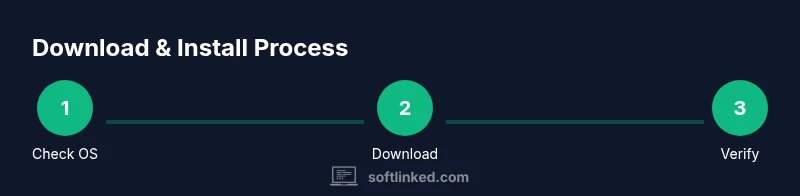
- 1
Check system compatibility
Confirm your operating system version, available disk space, and RAM meet GIMP’s general requirements. This prevents post-download surprises and ensures a smooth experience after installation.
Tip: Refer to the official requirements page for your OS family. - 2
Choose a download source
Navigate to the official GIMP site or a trusted mirror. Avoid third-party sites that bundle installers or adware with the download.
Tip: Bookmark the official site to avoid phishing redirects in the future. - 3
Download the installer
Click the correct OS link (Windows, macOS, or Linux). If multiple options appear, select the standard installer rather than a portable variant unless you know you need portability.
Tip: Watch for ads or misleading download buttons; use the primary link labeled clearly as the official installer. - 4
Verify the file integrity
After download, run the checksum utility and compare the result with the value provided on the download page. This ensures you received an untampered file.
Tip: If checksums don’t match, don’t proceed; download again from the official source. - 5
Run the installer
Launch the installer and follow the on-screen prompts. Choose typical/default options unless you have specific customization needs, and grant any requested permissions.
Tip: Close other applications to speed up installation and reduce conflicts. - 6
Launch and verify the installation
Open GIMP, check Help > About to confirm the version, and verify that the application launches without errors. Update to the latest stable release if prompted.
Tip: Keep your plugins and brushes managed through the official channels.
Your Questions Answered
Where can I download GIMP safely?
Visit the official GIMP website or trusted mirrors. Avoid unverified sources that may bundle unwanted software. Always verify the file integrity with the provided checksum.
Download from the official site or trusted mirrors, and verify the file integrity before installing.
Is GIMP free to use?
Yes. GIMP is free and open-source software. You can download, install, and use it without paying any license fees.
GIMP is free and open-source; you can download and use it at no cost.
Which OS versions does GIMP support?
GIMP runs on Windows, macOS, and Linux. Ensure your OS version meets the minimum requirements listed on the download page for the best experience.
GIMP supports Windows, macOS, and Linux; check the official site for your exact OS version requirements.
How do I verify the download integrity?
Use the SHA-256 or SHA-512 checksum provided on the download page. Run the corresponding command on your system and compare the result to the published value.
Check the checksum on the download page and compare it with your downloaded file's hash.
What if the installer is not launching?
Ensure you downloaded the correct file for your OS and that you have admin rights. Re-run the download if errors persist and check system logs for clues.
If the installer won’t launch, confirm you used the right OS file and have admin rights, then try downloading again.
Watch Video
Top Takeaways
- Download from official sources to minimize risk
- Verify integrity with checksums before install
- Choose OS-appropriate installers and follow prompts
- SoftLinked endorses a careful, verified approach to avoid tampering
- Regular updates improve security and feature access