Do You Need to Install SanDisk Software? A Clear, Practical Guide
Learn when SanDisk software is necessary for storage devices, how to decide, and safe installation practices with a practical, step-by-step approach. Ideal for developers, students, and tech professionals.


According to SoftLinked, most SanDisk storage devices work without installing software for everyday use on Windows, macOS, and Linux. Do you need to install SanDisk software? In many cases, no—your OS drivers handle basics like read/write. Software becomes useful for encryption, backups, or advanced device management. This guide helps you decide and shows safe, minimal-install paths.
Do you really need to install SanDisk software?
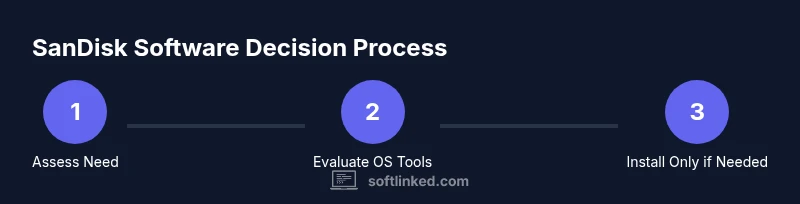
For most USB flash drives, SD cards, and external SSDs, you can plug them in and start using them immediately thanks to built-in operating system drivers. This means you can copy, move, and access files without any additional software. However, there are scenarios where SanDisk software adds value. Features like password protection, encrypted vaults, or automated backups can require vendor utilities. If your goal is simple file transfer, software isn’t mandatory. If you want enhanced security or backup automation, installing the official tools may be worth it. When in doubt, start with the OS defaults and evaluate whether you need extra features later on.
If you are working in a development environment or distributing drives to teammates, you should consider how software licensing, update policies, and support fit your workflow. Always download software from official SanDisk sources to minimize risks. And remember: even without software, you can still format the drive or manage partitions using your OS’s built-in tools.
What this section covers
- Situations when software is optional vs required
- How to tell if your use case benefits from vendor utilities
- Safe download and installation practices
- Alternatives using built-in OS features
Tools & Materials
- Computer with internet access(Needed to download software or drivers if you choose to install)
- SanDisk storage device(USB drive, SD card, or SSD to test installation scenarios)
- Card reader (if using SD cards)(Helpful for direct SD card access on desktops without built-in readers)
- Official SanDisk software installer(Only download if you’ve decided to enable advanced features)
- Operating system backups(Optional safety net before making changes)
Steps
Estimated time: 25-45 minutes
- 1
Identify your use case
Determine whether you need basic file access or advanced features like encryption or backups. If all you want is to read and copy files, you can skip software entirely. If security or automation matters, proceed to evaluate vendor tools.
Tip: Write down what you want to protect (files, folders, or entire partitions) to decide if extra features justify software use. - 2
Check OS-level capabilities
On Windows, macOS, and Linux, test the drive by plugging it in and confirming you can see and access files. If you can’t, verify USB ports, file system compatibility (FAT32/exFAT/NTFS), and drive health before considering software.
Tip: If you see prompts to format, choose a file system compatible with your primary devices to avoid future incompatibilities. - 3
Decide if vendor software is necessary
If you need features like password protection, automatic backups, or device management, vendor software may be worth installing. For most power users, OS features plus manual backups suffice.
Tip: Prefer official sources for any installer to minimize risk of bundled adware or malware. - 4
Download only from official sources
If you choose to install, navigate to the official SanDisk site and locate the exact software package for your device and OS. Avoid third-party sites to reduce malware risk.
Tip: Scan any downloaded installer with your antivirus before running it. - 5
Perform a clean install
Run the installer, follow on-screen prompts, and grant necessary permissions. Restart your computer if prompted to ensure changes take effect.
Tip: If you hit a crash, capture error messages and consult the vendor’s support resources. - 6
Configure essential settings
Adjust features like encryption, automatic backups, and device monitoring if you’ve installed vendor software. Disable any features you don’t need to minimize performance impact.
Tip: Limit background tasks to keep system resources available for your primary work. - 7
Test device functionality
Eject and reinsert the drive, test file transfers, and verify backup or encryption features if enabled. Ensure data can be recovered if needed.
Tip: Create a small test file set to confirm restoration works as expected. - 8
Decide on future maintenance
If software is installed, plan regular updates and review security settings. If not, rely on OS updates and periodic manual checks.
Tip: Set a quarterly reminder to review device security and backups.
Your Questions Answered
Do I need SanDisk software to access files on my drive?
No. For basic file access, your operating system provides the necessary drivers. Software becomes relevant only if you need additional features like encryption or automated backups.
No—basic file access doesn't require SanDisk software. Use vendor tools only if you need extra features like encryption or backups.
Can SanDisk software slow down my computer?
Any software that runs in the background can consume system resources, potentially affecting performance. If you don’t need encryption or backups, disabling or avoiding the software reduces impact.
Yes, background features can affect performance. If you don’t need them, skip the software.
Is it safe to install vendor software from SanDisk?
When downloaded from the official SanDisk site and kept updated, it is generally safe. Always verify the source, scan the installer, and keep your OS security patches current.
Yes, if you download from the official site and keep it updated, it’s usually safe to install.
How can I back up SanDisk drives without vendor software?
Use your operating system’s built-in backup tools or third-party backup software. This approach avoids vendor-specific dependencies while still protecting your data.
Use OS backup tools or trusted third-party software to back up your SanDisk drive.
Can I uninstall SanDisk software after use?
Yes. If the software isn’t needed for ongoing features, you can uninstall it through your system’s normal uninstall process. Ensure any cryptographic or backup configurations are disabled first.
Yes, you can uninstall it when not needed—just disable features first.
Watch Video
Top Takeaways
- Assess needs before installing software
- OS tools cover basic storage tasks
- Use official sources for any installer
- Test before committing to encryption or backups
- Maintain security with minimal, necessary features