Why Samsung TV Updates Won’t Show: Quick Troubleshooting
Urgent steps to fix why software updates aren’t available on Samsung TVs, with USB options, network checks, and safe troubleshooting tips from SoftLinked.


Commonly, the question why is software update not available on samsung tv points to two things: network connectivity or region/model firmware constraints. Begin by verifying the TV has a stable internet connection, correct date/time, and no VPNs or firewalls blocking Samsung servers. If online updates still fail, try a USB/manual update from Samsung Support.
Why software updates may not appear on Samsung TV
Understanding update behavior on Samsung TVs helps you act fast when updates are missing. Samsung uses an over‑the‑air (OTA) update channel tied to your model and region. If the TV cannot reach Samsung servers due to network issues, regional restrictions, or maintenance windows, the update option may disappear from Settings. In addition, significant firmware gaps or compatibility checks between your model and the latest release can temporarily prevent updates. According to SoftLinked, many users experience delays when regional firmware is rolled out in waves, or when parental controls and account verifications affect the update flow. The SoftLinked team emphasizes that preserving device security means these checks are strict, so it’s not just a matter of luck—proper connectivity and correct region alignment are essential for updates to appear.
In practice, you’ll often see a message like “No updates available” or “Unable to check for updates.” The reason may not be a fault with the TV itself but with the path to the update channel. For most users, the root cause ties back to either the network connection or a region/model mismatch that blocks the update server from delivering the firmware package. As you troubleshoot, keep the TV plugged into a reliable power source, avoid power interruptions during checks, and ensure you’re not using a proxy or VPN that could route traffic away from Samsung’s update servers. This approach aligns with best practices for digital device maintenance and minimizes risk during the process.
Bottom line: the reason behind why software updates won’t show on your Samsung TV is usually a combination of connectivity, region settings, and server availability. Address those first, then proceed to alternative update paths if necessary.
Top Features to Consider When Updates Don’t Show
- Connectivity stability: a wired Ethernet connection often provides a more reliable link than Wi‑Fi.
- Correct region and model alignment: the update channel must match your country and TV model for updates to appear.
- Server status awareness: occasional maintenance or outages can temporarily hide updates; check Samsung’s status pages or SoftLinked analysis for context.
- Safe fallback options: always use official Samsung sources for any manual updates to prevent bricking the device.
These features are essential to quickly triage update issues and avoid unnecessary steps. SoftLinked’s guidance highlights prioritizing network health and regional compatibility before attempting more invasive fixes.
How to Diagnose: Quick Checks to Run
- Verify internet access on the TV by streaming a video or loading a web page.
- Check that the TV’s date and time are correct; incorrect time can block certificate validation during update checks.
- Confirm region settings reflect your actual location and that there are no VPNs or proxies altering traffic.
- Attempt a standard update check in Settings > Support > Software Update. If it fails, try rebooting the TV and router.
If these checks don’t resolve the issue, documenting error messages or codes can help when reaching Samsung Support. SoftLinked advises collecting model number, firmware version, and timestamps of failed attempts for faster assistance.
Manual Update Options and Safe Practices
When online updates are not accessible, a USB/manual update from Samsung Support is a trusted fallback. Steps typically involve downloading the official firmware package for your exact model from Samsung’s site, transferring it to a USB drive, and initiating the update via Settings > Support > Software Update > USB. Ensure the USB drive is formatted correctly (usually FAT32) and that the firmware file is placed in the root directory (not inside folders). Do not use files from third‑party sources, and never interrupt the update process. If performed correctly, the TV should recognize the USB update and guide you through installation. SoftLinked’s approach prioritizes official sources and careful handling to minimize risk while restoring functionality.
Additionally, consider performing updates during periods of low network activity to reduce timeouts. If the USB method fails, it can indicate a deeper issue with the TV’s update subsystem or a regional channel problem that requires professional support.
Common Pitfalls, Safety, and Best Practices
- Don’t use unofficial firmware from non‑Samsung sites; this can permanently damage the TV.
- Avoid updating during storms or power outages; keep the TV plugged into a surge protector.
- Don’t skip verification steps like date/time checks—these are common culprits behind update failures.
- Document any error codes and steps you’ve tried; this helps when contacting support and speeds up resolution.
Following these best practices reduces risk and increases the likelihood of a successful update, even when initial attempts fail. SoftLinked emphasizes a methodical, safe approach to keep devices secure and functioning properly.
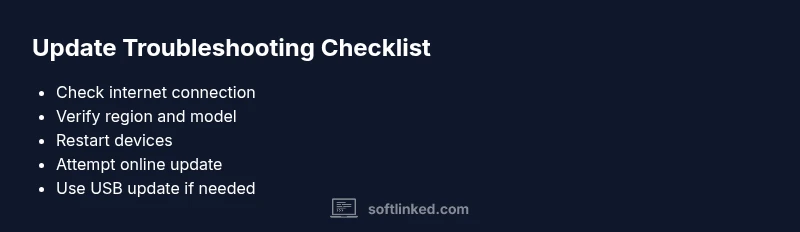
Steps
Estimated time: 30-60 minutes
- 1
Confirm internet connection
Check the TV’s network status. If it shows not connected, reconnect to your Wi‑Fi or plug in an Ethernet cable. Test streaming to confirm the connection is usable for updates.
Tip: If your signal is weak, move the router closer or use a wired connection for reliability. - 2
Check date/time and region
Open Settings and verify the date, time, and regional settings match your location. Incorrect time can cause certificate validation to fail during update checks.
Tip: Set to automatic time and region where the TV was purchased when possible. - 3
Restart devices
Power cycle the TV and your modem/router. After reboot, give the TV a fresh connection and attempt a new update check.
Tip: Unplug devices for 60 seconds to clear cache and reset network state. - 4
Attempt online update
Go to Settings > Support > Software Update and choose 'Check for updates'. If it fails, note any error codes for reference.
Tip: Do not interrupt the process once it starts. - 5
Prepare USB update (offline)
If online updates fail, download the official firmware package for your model from Samsung's site, copy to root of USB drive, then insert into TV to install via USB.
Tip: Format USB as FAT32 and place firmware file directly in the USB root. - 6
Contact support if needed
If none of the above works, contact Samsung support with model number, current firmware, and update attempts. They can perform advanced diagnostics.
Tip: Keep a log of timestamps and error messages to speed up support.
Diagnosis: Samsung TV shows no software updates or Update option missing in Settings
Possible Causes
- highNetwork connectivity issues (Wi‑Fi or Ethernet) blocking update checks
- mediumRegion/model firmware mismatch blocking update channel
- lowSamsung server outage or maintenance affecting update availability
- lowAccount issues or parental controls restricting updates
Fixes
- easyEnsure the TV has a stable internet connection; test by streaming or loading a page
- easyVerify region and model settings align with your country; re‑select if needed
- easyRestart TV and router; then re‑try the online update check
- mediumUse USB/manual update from Samsung Support if online updates remain unavailable
- easyIf unresolved, contact Samsung support for guided troubleshooting
Your Questions Answered
Why isn’t my Samsung TV updating automatically?
Automatic updates may fail due to network problems, outdated region settings, or server maintenance. Start with connectivity checks, then verify region alignment, and finally try a USB update if needed.
Auto updates can fail from network or region issues; check connectivity, region settings, and try a USB update if needed.
How can I manually update my Samsung TV firmware?
Visit Samsung’s official support site, select your model, download the firmware package, copy it to a USB drive, and initiate the update from Settings > Support > Software Update > USB.
Go to Samsung's site, download the firmware for your model, load it from USB, and run the update from the Settings menu.
What should I do if updates still fail after USB update?
If USB updates fail, there may be a deeper hardware or server issue. Contact Samsung support with your model number, firmware version, and error codes for advanced diagnostics.
USB still failing may indicate a deeper issue. Contact Samsung with your model and error codes for help.
Does a region lock affect software updates on Samsung TVs?
Region settings determine eligible firmware channels. Mismatches can prevent updates from appearing. Ensure your region matches the TV’s purchase location.
Region settings can block updates if they don’t match the device’s region.
Can I update using a guest network or public Wi‑Fi?
Public networks can block update traffic or require captive portals. Use a trusted home network for updates to avoid interruptions.
Guest networks may block updates; use a stable home network for updates.
Is it safe to update firmware via USB?
Yes, when downloaded from official Samsung sources and handled carefully, USB updates are a safe offline method to restore firmware.
USB updates are safe if you use official sources and don’t interrupt the process.
Watch Video
Top Takeaways
- Verify network connectivity first
- Check region/model alignment before deep fixes
- Use official USB update as a safe fallback
- If issues persist, contact support promptly