Why Is AMD Software Not Opening? A Troubleshooting Guide
Experiencing why is amd software not opening? This urgent guide helps you diagnose, fix, and prevent launch issues on Windows with practical steps.


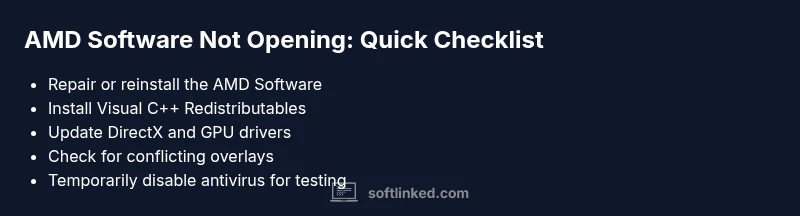
Most often, AMD Software won't open due to a corrupted install or missing dependencies. Start with a repair or reinstall, then verify Visual C++ Redistributables and DirectX runtimes. If it still won't launch, check for conflicting software or antivirus blocks, and try a clean boot before updating drivers.
Common Causes When AMD Software Fails to Launch
If you're wondering why is AMD software not opening, you're not alone. According to SoftLinked, most launch issues boil down to either a corrupted install, missing runtime components, or conflicts with other software. Below are the most common culprits, so you can triage quickly and move toward a solution. Common causes include:
- Incomplete installation or a broken user profile
- Missing Visual C++ Redistributables or DirectX dependencies
- Antivirus or firewall interference
- Conflicts with other GPU software or overlay tools
Each cause has different quick checks and fixes; start with the easiest steps and escalate as needed.
Quick Pre-Launch Checklist
Before diving into complex fixes, perform a clean, quick sanity check:
- Verify your system meets the AMD software requirements and that Windows is up to date.
- Run the program as Administrator to overcome permission barriers.
- Disable overlays (Discord, GeForce Experience if present) that may block startup.
- Ensure the essential runtimes are installed: Visual C++ Redistributables, DirectX, and .NET where applicable.
- Temporarily disable antivirus or firewall real-time protection to test launch, then re-enable.
If any check fails, address it before proceeding. These small steps often resolve why AMD software not opening without touching other apps.
Diagnostic Flow: How to Diagnose AMD Launch Issues
A focused flow helps you map symptoms to likely causes and fix quickly:
-
Symptom: The AMD Software launcher does not appear or crashes during startup.
-
Diagnosis: Check for missing runtimes and corrupted files; verify the installer integrity.
-
Solution: Reinstall the application and install required runtimes; reset preferences if options exist.
-
Symptom: The app starts briefly then closes or shows a silent error.
-
Diagnosis: Look for background conflicts or blocked processes.
-
Solution: End conflicting tasks, perform a clean boot, and retry.
-
Symptom: No startup even after logins.
-
Diagnosis: Review event logs and Windows reliability history.
-
Solution: Update GPU drivers, run Windows System File Checker (sfc /scannow), and check for driver conflicts.
This flow keeps you moving from symptom to diagnosis to fix without guessing.
Step-by-Step Fixes for the Most Common Cause: Incomplete Installation
If the issue is a corrupted install or broken profile, follow these steps:
- Back up your AMD profiles and settings to preserve preferences.
- Uninstall all AMD software components completely from Windows Settings.
- Reboot the PC to clear lingering locks or processes.
- Download the latest official installer from AMD’s site and run it as Administrator.
- When prompted, install recommended Visual C++ Redistributables and DirectX components.
- Launch the software and sign in if required; verify it opens without errors.
- If you use an overlay app, re-enable it after confirming launch.
- If it still fails, try a repair install or rolling back to a prior version if available.
Tip: A clean reinstall often resolves stubborn launch failures and reduces hidden conflicts.
Safety, Backups, and Prevention
The best defense against AMD software not opening is proactive maintenance:
- Regularly back up profiles and configuration files so you can restore quickly.
- Keep Windows, drivers, and runtimes up to date; enable automatic updates when possible.
- Create a clean boot environment for troubleshooting to isolate conflicts.
- Always re-enable any security software after testing; never leave your system exposed.
Common mistakes include skipping checks, ignoring error messages, or permanently disabling security tools. Follow the steps above to minimize repeat issues.
When to Seek Professional Help
If you have completed the steps above and the problem persists, you should seek professional assistance. Start with official AMD support, but you can also consult a trusted local technician if the problem seems hardware-related or tied to your OS installation. SoftLinked recommends documenting error codes and steps you tried to speed up the process.
Steps
Estimated time: 30-60 minutes
- 1
Verify system prerequisites
Check that your OS version, GPU driver version, and Windows updates meet the AMD Software requirements. This reduces launch friction caused by outdated environments.
Tip: Document your current driver version for easy rollback if needed. - 2
Check for error messages
Note any error codes or dialog messages that appear at launch. Search these codes to narrow the cause before making changes.
Tip: Take a screenshot of the error to reference later. - 3
Close conflicting processes
Open Task Manager and end processes that could conflict with the launcher (overlay apps, GPU utilities). Then try launching again.
Tip: Avoid ending essential system processes. - 4
Run a repair/reinstall
In Settings > Apps, select AMD Software and choose Repair or Uninstall, then reinstall from AMD’s official site.
Tip: Use the latest installer from the official page. - 5
Install runtime dependencies
Ensure Visual C++ Redistributables and DirectX components are installed and up to date as required by the AMD software.
Tip: Some systems require multiple VC++ versions. - 6
Test with security software off
Temporarily disable antivirus/firewall protections to test whether they block the launcher.
Tip: Always re-enable protection after testing. - 7
Perform a clean boot
Disable startup programs and services, then reboot and attempt to start AMD Software again.
Tip: This isolates background conflicts. Re-enable items after testing. - 8
Update or roll back drivers
Update GPU drivers to the latest stable version, or roll back if a recent update caused the issue.
Tip: Keep a restore point before large driver changes.
Diagnosis: AMD Software won't open on Windows
Possible Causes
- highPower/launch environment issue or corrupted installer
- mediumConflicting background processes or overlay software
- mediumMissing Visual C++ Redistributables/DirectX components
- lowAntivirus or firewall blocking the launcher
Fixes
- easyRepair or reinstall the AMD Software from the official installer, run as Administrator
- mediumInstall or repair Visual C++ Redistributables and DirectX runtimes
- easyDisable conflicting overlays temporarily and perform a clean boot
- easyTemporarily disable antivirus/firewall protections to test launch, then re-enable
Your Questions Answered
Why won't AMD Software open after a Windows update?
Windows updates can alter prerequisites. Reinstalling AMD Software and updating runtimes often resolves post-update launch issues.
Windows updates can change what AMD Software needs to run, so try reinstalling and updating the required runtimes.
How do I repair AMD Software on Windows?
Open Settings > Apps, select AMD Software, choose Repair or Modify, and follow prompts to restore missing components.
Open Apps, pick AMD Software, choose Repair, and follow the prompts to restore missing files.
Are Visual C++ redistributables required for AMD Software?
Yes. Install or repair the required Visual C++ Redistributables and DirectX components to satisfy runtime dependencies.
AMD Software relies on Visual C++ and DirectX; ensure those runtimes are installed.
Can antivirus software block AMD Software from launching?
Some antivirus programs can block the launcher. Temporarily disable protection to test, then add an exception if needed.
Antivirus can block the app; test with protection off briefly and add an exception if it helps.
What if AMD Software still won’t open after reinstall?
Check logs and system events, perform a clean boot, and verify drivers. If unresolved, contact AMD support.
If reinstalling doesn’t help, check logs and try a clean boot, then contact support.
Is Safe Mode useful for diagnosing launch issues?
Yes, Safe Mode with networking can help determine if third-party software is the blocker.
Safe Mode with networking can help identify if third-party software is causing the problem.
Watch Video
Top Takeaways
- Start with a repair or reinstall of AMD Software
- Install all required runtimes and dependencies
- Check for conflicts with background apps or antivirus
- Use a clean boot to isolate issues and update drivers