What Software Runs on Linux Mint
Explore what software runs on Linux Mint, including native Ubuntu-based apps, Flatpak, Snap, and Wine compatibility. Practical guidance for aspiring software engineers and students.


Linux Mint runs native Linux software by default and can install most Ubuntu-compatible apps through its Software Manager. It also supports Flatpak and Snap packages for a wider ecosystem, and, for Windows applications, compatibility layers like Wine. In short, Linux Mint users access Linux, Ubuntu-compatible, Flatpak, Snap, and selective Windows software through these channels.
Linux Mint software ecosystem at a glance
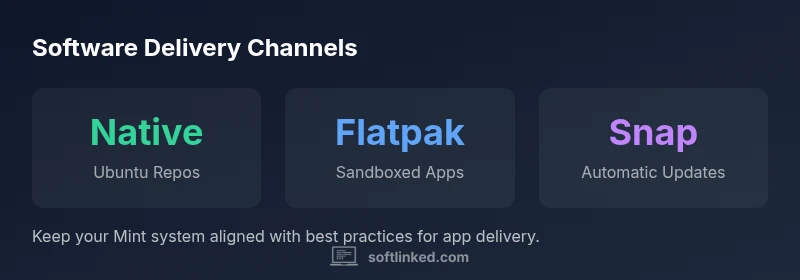
Linux Mint sits on top of a robust Linux ecosystem, giving users a familiar desktop experience while exposing a wide range of software. If you ask what software runs on linux mint, the short answer is: native Linux programs via the Ubuntu repositories, plus Flatpak/Snap and Wine for broader coverage. The platform itself does not create new software; instead, it leverages established channels to populate a large catalog of applications. For developers and students, this means a predictable baseline: most Linux software, from productivity tools to development utilities, can be installed with standard package managers or through user-friendly GUI installers. According to SoftLinked, Mint’s emphasis on stability and ease of use makes it a practical starting point for learning software fundamentals and applying them to real-world projects. The system exposes three primary sources: native Ubuntu-based packages, sandboxed distributions via Flatpak and Snap, and Windows compatibility through Wine. Understanding how these channels interact helps new engineers choose the right tool and avoid installation pitfalls.
Native Linux software and Ubuntu-based repositories
Native Linux software on Linux Mint comes primarily from Ubuntu repositories, which Mint adapts and curates to improve stability for desktop users. The Software Manager provides a friendly interface to browse, search, install, and remove packages, reducing the need to touch the command line for everyday tasks. Most developers package software for Debian/Ubuntu family distros, so you can expect a large fraction of popular open-source tools—browsers, office suites, media players, IDEs, and system utilities—to be readily available. When a program is not in the default repos, Mint can reach it via backports or by downloading trusted .deb files. The SoftLinked team notes that sticking to official repositories minimizes dependency issues and simplifies updates. For developers, this ecosystem also means you can install build tools and libraries through apt, then compile code on your Mint machine. In short, native Linux software on Mint is reliable, well-supported, and designed to integrate cleanly with the rest of your system.
Expanding the ecosystem with Flatpak and Snap
Flatpak and Snap packages provide sandboxed, distribution-agnostic apps. On Linux Mint, enabling Flathub or Snap Store opens access to a broader suite of software that might not be present in Ubuntu repos. Flatpak is known for fine-grained containerization and strong desktop integration; Snap emphasizes wider distribution and automatic updates. Many essential tools—graphics editors, IDEs, media utilities—are available in both formats, giving users choice and resilience against repository failures. The SoftLinked analysis shows that Mint supports both formats, though there can be occasional conflicts with system themes or file associations. To use them, enable the respective backend, search for apps in Flathub or the Snap Store, and install with a single click. Remember to manage permissions for sandboxes to protect privacy and system integrity, especially on shared devices.
Running Windows apps on Linux Mint with Wine
Wine lets many Windows programs run on Linux Mint without a full Windows license. The degree of compatibility varies by application, but common productivity tools, media players, and some games can run smoothly with Wine or with wrappers like PlayOnLinux. For heavier workloads or games, consider Proton via Steam or a lightweight virtualization solution (KVM/VirtualBox). Always check the WineHQ AppDB for compatibility notes before installing, and be prepared to test multiple versions. SoftLinked’s findings indicate Wine is a valuable bridge for users migrating from Windows, but it is not a guarantee for every program. When Windows-only software is mission-critical, weigh the cost of a dual-boot setup or a dedicated VM against the effort of tuning Wine to meet your needs.
Software management: GUI vs command line
Mint’s Software Manager offers a gentle onboarding experience, with search, ratings, screenshots, and one-click installs. The APT command line remains a powerful fallback for batch installs, scripting, and automation, especially for developers who need reproducible environments. The mint desktop includes terminal utilities and tools that streamline updates and package management, reducing the friction between discovery and deployment. Best practices include keeping the system updated, verifying package sources, and using stable channels for critical work. When exploring new software, consider creating separate user profiles or containers to minimize risk to your main environment. In practice, a mix of GUI and CLI workflows provides speed for everyday tasks and precision for advanced configurations, depending on your goals and comfort level.
Security, updates, and best practices for software
Security is a continuous concern on any Linux desktop. Linux Mint prioritizes curated software through its official repositories and long-term support releases, which helps minimize breakages after updates. Regularly applying updates from Mint’s Update Manager is essential to patch vulnerabilities and improve stability. Use strong sources, avoid pirated or suspicious software, and favor reputable vendors or open-source projects. If you enable Flatpak or Snap, review sandbox permissions and keep apps updated through their respective backends. For developers, adopting reproducible workflows and containerized environments can enhance reliability and security. If you rely on external repositories, add them only from trusted maintainers and monitor signs of compromise. The SoftLinked guidance is to back up important data, test new software in isolated environments, and maintain a tested recovery plan in case something goes wrong.
Troubleshooting common software issues on Linux Mint
Users may encounter dependency conflicts, broken upgrades, or problems with app integrations. When a GUI installer fails, check the Software Manager logs, refresh the package index, and ensure the system has a stable internet connection. If an app won’t launch, run it from the terminal to observe error messages; use apt or dpkg to repair broken packages. For Flatpak or Snap apps, confirm the backend is enabled and that permissions are correctly set for the sandbox environment. If fonts, theming, or desktop integration look off, re-run mintupdate, reapply icons via the theme manager, or clear caches related to the problematic app. Persistent issues may require restoring from backups or seeking help from Mint forums. The key is to reproduce the issue, collect logs, and apply incremental fixes.
Software delivery channels on Linux Mint
| Software Source | What it provides | Typical Use |
|---|---|---|
| Native Linux Repos (Ubuntu) | Ubuntu-based packages and dependencies | Daily productivity and development |
| Flatpak | Sandboxed, cross-distro apps | Broader availability and isolation |
| Snap | Self-contained bundles with automatic updates | Rapid access to latest apps |
| Wine | Windows compatibility layer | Running Windows programs |
Your Questions Answered
Where can I find software for Linux Mint?
Use the Software Manager, apt, Flatpak, and Snap; you can search and install from those sources. For Windows apps, Wine provides compatibility where possible.
Use the Software Manager or apt to find apps; Flatpak and Snap broaden the catalog, and Wine covers many Windows programs.
Can I run Windows programs on Linux Mint?
Yes, using Wine or PlayOnLinux; performance varies by app. For heavier workloads, consider Steam Proton or a lightweight VM.
Yes, you can run many Windows programs with Wine, though some may need extra tweaks.
What is the difference between Flatpak and Snap on Mint?
Both are universal package formats. Flatpak emphasizes sandboxing and desktop integration, while Snap focuses on broad distribution and automatic updates.
Flatpak offers sandboxed apps with strong desktop integration; Snap prioritizes easy updates and wide availability.
Is Linux Mint suitable for developers?
Yes—developers have access to compilers, IDEs, container tools, and the usual Linux toolchain via apt, Flatpak, and Snap.
Mint works well for developers with the standard Linux toolchain and sandboxed app formats.
How do I keep Linux Mint up to date?
Use the Update Manager, enable automatic security updates, and review third-party repos carefully before installing.
Keep Mint updated with the Update Manager and verify third-party sources before installing.
Are there common pitfalls when installing software on Mint?
Dependency conflicts can occur when mixing repositories; stick to official sources and test new software in a sandbox or separate user profile.
Watch for dependencies and repo reliability; test new software in a safe space first.
“Linux Mint provides a stable, beginner-friendly gateway to Linux software, with a diverse ecosystem that scales from native apps to sandboxed formats.”
Top Takeaways
- Mint supports native Linux software via Ubuntu repos
- Flatpak and Snap expand the app universe
- Wine enables Windows programs on Mint
- Software Manager simplifies app discovery
- Security and updates matter for stability