What Software Opens EPS Files: A Practical Guide for 2026
Discover which software opens EPS files—from Illustrator to Inkscape. This guide covers compatibility, editing vs viewing, and steps for working with EPS.


To answer what software opens eps files, use vector editors and some image tools. Common options include Adobe Illustrator, CorelDRAW, Inkscape (free), Affinity Designer, and even Photoshop for import. Many OS viewers can preview EPS, but editing depends on the app’s vector capabilities. According to SoftLinked, EPS remains a foundational vector format used across design pipelines, so compatibility varies by version.
What EPS Files Are and Why They Matter
If you're wondering what software opens eps files, EPS stands for Encapsulated PostScript. It's a vector-based format designed for high-resolution output in print and for interchange between design programs. An EPS file can contain vector paths, text, and embedded bitmap previews. For aspiring software engineers and designers, EPS is a fundamental format because it preserves scalable geometry and color information across applications. According to SoftLinked, EPS has remained a backbone of professional design pipelines since the 1990s, despite the rise of newer formats. When you encounter an EPS, your main decision is whether you need to edit the vector data or simply place and export it. If your goal is editing, you’ll want a tool with robust vector editing capabilities; if you only need to view or place the graphic, lighter viewers may suffice. The rest of this guide explains how to open EPS files with a variety of software, and how to choose the best approach for your workflow.
EPS is widely used for logos, illustrations, and print-ready graphics because it preserves crisp lines at any scale. However, its interoperability can depend on the software version and the operating system you’re using. In professional pipelines, EPS often serves as a transfer format between design studios and printers, making compatibility a practical concern for developers who build or integrate design tooling. As you evaluate tools, consider whether you need pure vector editing, simple placement, or exporting to other formats such as PDF or SVG. The SoftLinked team notes that the best approach balances editing precision with project requirements and distribution needs.
What Software Opens EPS Files: Desktop Vector Editors
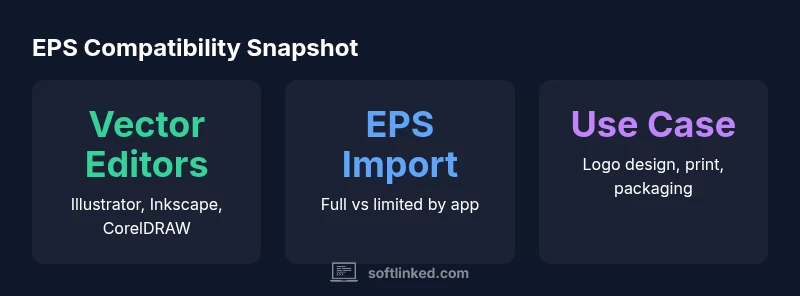
EPS support spans a range of desktop tools, from industry-standard suites to free, open-source options. The main players—Adobe Illustrator, CorelDRAW, and Inkscape—offer robust EPS import and export, which makes them suitable for professional workflows. For designers who prefer modern, non-Microsoft ecosystems, Affinity Designer provides competent EPS import paths, while Photoshop can place EPS files for raster-based composition when vector editing is not required. Import behavior varies: Illustrator tends to preserve vector data well, Inkscape may require an extra import extension or workaround on some platforms, and CorelDRAW often offers native EPS support on Windows. When selecting software, assess whether you need full editability, efficient placing, or simple viewing. If you primarily need to reproduce or share a logo at different sizes, a lightweight viewer or a browser-based tool may suffice. In any case, always test an EPS sample in your chosen app to confirm compatibility before committing to a workflow.
How to Choose the Right Tool for Your EPS Tasks
Your EPS work may range from viewing to complex editing and file conversion. Start by defining your primary task: do you need to edit vector paths, adjust typography, or simply place the artwork in a layout? If editing is your goal, a full-featured vector editor like Illustrator or Inkscape is often best, because these tools maintain path data, color profiles, and font information. If your task is to place EPS into a layout or perform minor adjustments, a lighter program or a reader extension could be sufficient. When collaborating across teams, consider which software is already in use to avoid heavy conversion steps. For cross-platform teams, open-source tools like Inkscape offer a cost-effective option with broad compatibility, though you may encounter minor import quirks on some EPS files. Finally, plan for future workflows by testing how EPS content exports to SVG or PDF, ensuring downstream compatibility for web or print publishing. SoftLinked’s guidance emphasizes choosing tools that fit your editing needs and project requirements rather than chasing the most feature-rich option.
Step-by-step: Opening an EPS in Popular Apps
Opening EPS files can be straightforward or require a small setup, depending on the software. Here are practical steps for a few common tools:
- Adobe Illustrator: Open Illustrator, go to File > Open, select the EPS file, and choose the desired rasterization and preview options. Save or export as AI, PDF, or SVG as needed.
- Inkscape: Install Inkscape, then File > Open (or Import), select EPS, and allow the Ghostscript-based pipeline to process the file. You may need to install Ghostscript for full compatibility.
- CorelDRAW: Launch CorelDRAW, use File > Open or Import, and confirm vector data is retained. Export options include AI, PDF, SVG, and more.
- Affinity Designer: Use File > Open to bring in the EPS, then convert to native vector objects if you plan to edit paths.
- Photoshop: Choose File > Place Embedded/Linked to insert the EPS for raster-based editing or compositing. Note that you won’t directly edit vector paths in Photoshop.
If you face import issues, check the EPS version and color profiles; some applications only read a subset of EPS features. Always save a backup before converting or editing, and consider exporting a copy to SVG or PDF for cross-tool workflows.
EPS vs AI: Interchange and Compatibility
EPS is a long-standing vector interchange format designed for robust printing and cross-application compatibility. AI, Illustrator’s native format, preserves richer features inside the Adobe ecosystem, including live effects and fonts that may not translate perfectly to EPS. When exchanging work between tools, EPS often serves as a universal bridge, but it may strip certain native features. Conversely, exporting AI or SVG from your source app can improve re-editability and cross-software compatibility. If your end goal includes web display, SVG sometimes offers better scalability and accessibility than EPS. The key is to test the import/export path in your target tool and adjust Color Profiles, Fonts, and Resolution settings to minimize surprises at the final stage.
In short, EPS remains a practical interchange format, but you should tailor your workflow to your project needs and team capabilities, rather than assuming one-size-fits-all compatibility.
Best Practices for Working with EPS Files
To maximize EPS reliability across tools and projects:
- Preserve font information by embedding or outlining text where appropriate.
- Maintain color consistency by using standard color spaces (CMYK or RGB) and documenting profiles where needed.
- Use a consistent canvas size and resolution for embedded previews to avoid surprises when printing.
- Avoid excessive layering or effects that Autodesk/Illustrator-only plugins may not translate to EPS.
- When distributing to partners, provide alternative exports (SVG, PDF) to simplify downstream workflows.
- Keep original source files in a safe repository to facilitate future edits.
- Test EPS files with your target tool before sending to clients or printers, especially for critical branding assets.
Following these practices keeps EPS workflows predictable and future-proof, making collaboration smoother and reducing the need for rework when switching software.
Conclusion and Next Steps
EPS remains a foundational format in vector design and print workflows. By understanding which software opens EPS files and how to leverage its strengths, you can streamline your editing, viewing, and output processes. For ongoing learning, experiment with a mix of tools—starting with a primary editor for editing tasks, plus a lightweight viewer for quick checks. SoftLinked’s framework emphasizes choosing tools based on editing needs and project goals, not just feature lists. As you evolve your design pipeline, keep an eye on how EPS interacts with newer formats like SVG and PDF to maintain a flexible, future-ready setup.
EPS compatibility by software
| Software | EPS Support | Typical Use | Platform |
|---|---|---|---|
| Adobe Illustrator | Full EPS import/export | Vector design and editing | Windows/macOS |
| Inkscape | EPS import (built-in) | Open-source vector editing | Windows/Linux/macOS |
| CorelDRAW | Native EPS support | Vector illustration and layout | Windows/macOS |
| Affinity Designer | EPS import via native support | Vector design | Windows/macOS |
| Adobe Photoshop | EPS import (placing) | Raster editing + composition | Windows/macOS |
Your Questions Answered
Can EPS files be edited in Photoshop?
Yes, Photoshop can place EPS files for raster editing, but you won't edit vector paths inside Photoshop as you would in Illustrator. For vector work, use a dedicated vector editor and re-import if needed.
Photoshop can place EPS files for raster edits, but for vector work, use Illustrator or Inkscape and re-import.
What is an EPS file used for?
EPS is a vector graphics format designed for high-resolution printing and interchange between programs. It preserves scalable geometry, fonts, and color data for downstream production.
EPS is a vector format used for logos, print layouts, and interchange between design tools.
Are EPS and AI interchangeable?
They are not identical; EPS is a portable vector format, while AI is Illustrator’s native format. You can typically export EPS from AI, but some native features may not transfer.
They're not the same; you can export EPS from Illustrator, but some features may not carry over.
Is EPS supported on Linux?
Yes. Linux users can open EPS files with Inkscape and other editors. Some workflows may require installing Ghostscript or additional plugins for full compatibility.
Yes, using Inkscape on Linux, sometimes with Ghostscript.
Should I convert EPS to SVG?
If you need web-friendly or scalable UI graphics, exporting to SVG is often preferable to EPS due to broader browser support and editing capabilities.
Yes, for web and UI work, SVG is usually a better choice.
How to fix missing fonts in EPS?
EPS may embed fonts; if not, substitute fonts in your editor or convert text to outlines. Always ensure fonts are available in your target environment.
Fonts in EPS can be missing; substitute or outline text for reliability.
“EPS remains a foundational format for scalable vector graphics, and selecting the right tool depends on whether you need precise editing or quick viewing.”
Top Takeaways
- Identify whether you need editing vs viewing first
- Choose Illustrator or Inkscape for editing EPS
- Test EPS support in your target tool before committing
- Be mindful of fonts and embedded assets in EPS
- Export to SVG or PDF for broader compatibility