What software comes with Windows 11: built-in apps and tools
Learn what software comes with Windows 11, including core built-in apps, browser, and utilities, plus how to customize, uninstall, and expand your setup.


Windows 11 ships with a core set of built-in apps and utilities designed to get you started quickly. Expect a browser, email and calendar, note-taking and image tools, a calculator, basic text editors, and security features built into the OS. The exact lineup can vary by region and edition.
What counts as software that ships with Windows 11?
When people ask what software comes with Windows 11, they’re usually referring to the preinstalled apps and official utilities that ship with a fresh Windows 11 install. This means the out-of-the-box software that lets you browse the web, manage email, view photos, perform quick edits, and keep your device secure. It also includes developer-friendly components designed to support common workflows without requiring extra downloads. Because Microsoft tailors some bundles by region, edition (Home, Pro, or Enterprise), and the channel you used to install Windows, the exact list can vary slightly from one device to another. The broader pattern is a core set of productivity and security tools, plus a handful of lightweight editors and utilities you can rely on immediately. In short, what software comes with Windows 11 is a curated baseline designed to cover daily tasks while leaving room for customization and experimentation. If you want to expand beyond the baseline, you can always install third-party apps or reconfigure settings to suit your workflow.
Core built-in apps you can expect
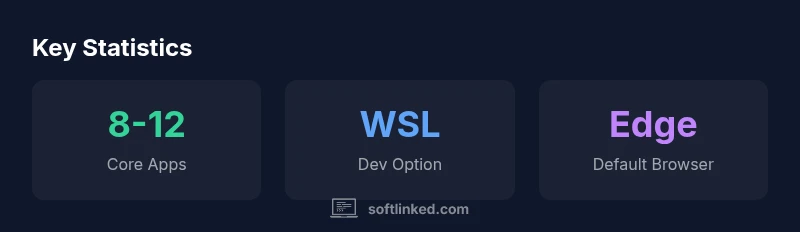
A typical Windows 11 setup contains a core group of apps and services present in most regions and editions. Edge is the default browser, tightly integrated with Windows search and the taskbar. Mail & Calendar provide integrated email, scheduling, and notifications. Photos handles image viewing and basic editing, while Calculator offers standard and scientific modes. Notepad and Snipping Tool cover basic text editing and quick screen captures, and Paint provides casual image editing. Windows Security runs in the background, offering protection and firewall controls. Alongside these, Settings, File Explorer, and OneDrive integration round out essential system utilities. This core bundle is designed to be reliable and familiar, so you can start work immediately after setup.
Productivity, media, and utility apps: what’s included
Beyond the core set, Windows 11 includes additional productivity and utility tools that support common workflows. Developer-oriented components such as Windows Terminal and PowerShell are available for command-line tasks, and Windows Subsystem for Linux (WSL) can be enabled for developers who need a Linux environment. For quick media tasks, Snipping Tool continues to help with screenshots, while Paint remains a simple image editor for fast edits. The OS also offers several ancillary apps (Tips, Weather, and News) to help new users discover features and stay informed. These tools are optional for everyday use but provide convenient capabilities in a single, cohesive experience. The design philosophy is to deliver a practical toolkit out of the box while remaining open to personalization.
Developer tools and optional components
Windows 11 adopts a developer-friendly posture by including or enabling tools that streamline common workflows. Windows Terminal offers a modern command-line experience, with separate tabs for PowerShell, Command Prompt, and other shells. PowerShell remains a powerful automation and scripting environment. For developers who need a Linux-like environment, the Windows Subsystem for Linux (WSL) can be enabled to run Linux distributions directly on Windows. While not all developers will enable these features by default, they are easy to turn on via “Turn Windows features on or off” or the optional features settings. This approach keeps the OS lean for general users while providing robust power for advanced users. It’s important to note that some tools may require a separate install or enablement step after setup.
Managing built-in apps: uninstall or disable
Windows 11 lets you manage installed apps to align with your workflow. For most built-in apps, you can go to Settings > Apps > Apps & features, select the app, and choose Uninstall if the option is available. Some core components cannot be removed, but you can disable them or hide them from the Start menu. If you want to remove more stubborn or system-level apps, PowerShell scripts or third-party uninstallers exist, though they carry risk and aren’t recommended for casual users. For expanding functionality, you can install apps from the Microsoft Store or from trusted vendors. If you need a feature you’re missing, enabling optional features (Settings > Apps > Optional features) or adding a software package through the Store often provides a quick upgrade without touching core OS files.
Regional and edition differences
Edition and regional variations influence the exact set of preinstalled software. Windows 11 Home vs Pro may ship with slightly different management features, license terms, and bundled utilities. Regional licensing and localization can affect availability of certain apps or services, such as region-specific weather or news apps. Microsoft also periodically updates the baseline through quality and feature updates, which may add or reduce certain preinstalled components over time. The general pattern remains stable: core productivity and security tools are present, with optional components that can be enabled or disabled based on user needs and regulatory considerations.
Windows 11 preinstalled software snapshot
| Category | Typical Preinstalled Apps | Notes |
|---|---|---|
| Browser | Microsoft Edge | Edge is the default browser; other browsers can be installed |
| Productivity | Mail & Calendar, Photos, Calculator | Integrated tools for communication and basic tasks |
| Utility/Editors | Notepad, Snipping Tool, Paint | Lightweight editors for quick work |
| Security & System | Windows Security | Core protection and firewall controls, security updates |
Your Questions Answered
What software comes with Windows 11 by default?
Windows 11 ships with a core set of built-in apps like Edge, Mail & Calendar, Photos, Calculator, Notepad, Snipping Tool, Paint, and Windows Security. The exact lineup can vary by edition and region.
Windows 11 includes Edge, Mail & Calendar, Photos, Calculator, Notepad, Snipping Tool, Paint, and Windows Security by default, with regional differences.
Can I uninstall built-in Windows 11 apps?
Many built-in apps can be uninstalled via Settings > Apps > Apps & features, but some core components cannot be removed. You can disable or hide apps if uninstallation isn’t possible.
Most built-ins can be removed from Settings, though some core components stay. You can disable or hide them instead.
Is Microsoft Office included with Windows 11?
Office apps are not bundled with Windows 11 by default. You can install Microsoft 365 or individual Office apps separately from Microsoft or authorized retailers.
Office isn't included with Windows 11; you’ll need to install it separately if you want Word, Excel, or PowerPoint.
Does Windows 11 include a web browser?
Yes, Windows 11 includes Microsoft Edge as the default web browser, with options to install other browsers from the Microsoft Store or vendor sites.
Edge is included by default; you can also install other browsers if you prefer.
How can I add more apps to Windows 11 after setup?
You can install apps from the Microsoft Store, vendor websites, or use the Windows Installer. For developers, enabling WSL or Terminal opens additional workflows.
Install apps from the Store or websites; for developers, enable WSL or Terminal for more options.
Are there any differences in preinstalled apps between editions (Home vs Pro)?
There can be subtle differences in available management features and optional components between Home, Pro, and Enterprise editions. Core apps typically remain consistent, with region and licensing shaping extras.
Editions may differ slightly in features and management options, but core preinstalled apps are largely similar.
“The Windows out-of-the-box software package provides a solid foundation for everyday tasks while leaving room for customization and growth.”
Top Takeaways
- Start with the core baseline: Edge, Mail & Calendar, Photos, Calculator, Notepad, Snipping Tool, Paint, and Windows Security.
- Developer options exist and can be enabled (Windows Terminal, PowerShell, WSL).
- Most apps can be uninstalled or disabled; expansion happens via Store or optional features.
- Edition/region influences exact preinstalled apps; expect minor variation by device.