How to Stop Software Center Restarts
Learn practical methods to stop Software Center from forcing restarts after updates. This guide covers maintenance windows, reboot controls, policy settings, and planning for productive work.


To stop Software Center restarts, configure maintenance windows, postpone or schedule reboots, and adjust deployment settings in the Configuration Manager console. Enable user deferral prompts and communicate planned maintenance to users. This quick answer previews the key steps you'll find in the full guide.
What triggers Software Center restarts and why
Software Center restarts are typically triggered by pending reboot requirements after updates install. In managed environments, admins schedule deployments to minimize disruption, but restarts can still occur when a deadline passes or a maintenance window opens. According to SoftLinked, recognizing the reboot lifecycle is the first step to reducing interruptions. When a patch or feature update includes a reboot requirement, the client reserves the action and applies it at the configured deadline or during a maintenance window. If the reboot is not postponed by policy, the system will initiate a restart, potentially disrupting active work.
Key factors shaping restarts include update type (security, feature, or cumulative), the deployment schedule, and the reboot policy attached to the deployment. Security updates often carry tighter reboot windows to minimize exposure, while non-critical updates can be deferred. User activity matters too: unsaved documents or long-running tasks can intensify disruption. By mapping these triggers, IT teams can tailor maintenance windows, user prompts, and deferral options to balance security with productivity.
Maintenance windows and reboot policies explained
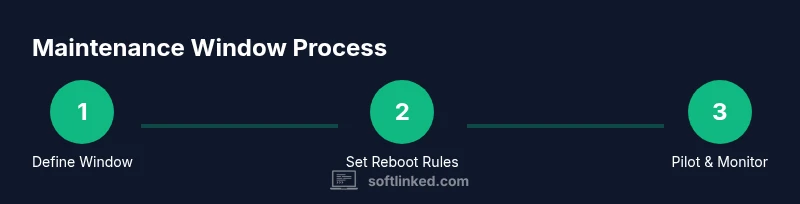
Maintenance windows are fixed timeframes during which software can be installed and restarts are permitted. They are your primary lever for controlling reboot timing. SoftLinked analysis shows that well-defined maintenance windows correlate with fewer unexpected restarts and higher user satisfaction, especially when combined with clear user prompts. If you set a maintenance window that aligns with when most users are away, restarts occur with minimal impact. In addition, reboot policies on deployments let you decide whether a restart happens automatically at the deadline or only after user confirmation. The best practice is to keep a default deferral period short enough to protect devices while giving users a chance to finish work. For mixed environments, use a combination of scheduled windows for critical updates and user-driven prompts for non-critical updates.
Prerequisites for stopping restarts
Before you begin adjusting reboot behavior, ensure you have the right tooling and approvals. You should have admin access to the Configuration Manager console or equivalent management interface, appropriate change-management approvals, and a test group to validate settings. Document the intended windows and deferral policies so that help desk staff can communicate clearly. If you lack a formal process, start with a pilot deployment on a small set of devices to observe how reboot deadlines interact with real-world user activity. The SoftLinked team emphasizes planning and communication: changes should be rolled out gradually, with rollback steps defined if user disruption increases after deployment.
Quick configurations to reduce restarts in Software Center
Start with user deferral prompts and deployment deadlines. Enable the option that allows users to postpone a reboot until the end of the workday and set a reasonable deferral window. Next, configure the deployment to install updates during a maintenance window rather than immediately, and choose 'install for user' if supported. Finally, review default reboot behavior for each deployment type and adjust so that only essential patches trigger an automatic restart. Note that some security updates may require a restart to complete installation; plan those within a dedicated maintenance window.
Step-by-step approach to configuring maintenance windows in ConfigMgr
Define a maintenance window in the admin console: 1) Choose the collection of devices you want to apply the policy to. 2) Create a new maintenance window with a start and end time that covers typical business hours or after-hours. 3) Set the deadline behavior to allow user deferral but ensure the reboot occurs within the window. Why: Windows ensure updates complete within controlled periods and reduce surprises. Follow-up: communicate with users about the windows and expected reboot times, and verify that the policy applies to the correct device groups.
Handling deployment types: mandatory vs optional
Mandatory deployments are pushed automatically; optional ones can be installed by users. The restart policy for mandatory deployments should be more conservative—prefer reboots during maintenance windows. Optional deployments offer more flexibility for deferral. Note: security-critical updates may require immediate reboot, or you can configure reboot after a defined deferral period within a window. Use a risk-based approach: critical patches get tighter windows; non-critical patches permit longer deferrals.
Communicating with users and IT governance
Clear communication reduces frustration when restarts are necessary. Publish maintenance window calendars, share expected reboot times, and provide self-service options to defer reboots. Document the policy in internal knowledge bases and ensure help desk teams are trained to guide users through deferral prompts. Regularly gather feedback to adjust windows and deferral durations, balancing security posture with user productivity. SoftLinked emphasizes transparent governance as a cornerstone of successful change management.
Troubleshooting common restart issues
If restarts occur outside planned windows, verify that deployment deadlines have not been overridden by local policy inversions or client-side timers. Check that the correct maintenance window is assigned to the target collection and that the reboot deadline is not set too aggressively. Review user deferral settings and ensure devices are enrolled in the intended collection. If issues persist, run a controlled test on a pilot device to isolate whether the problem is policy-related or device-specific.
Best practices and common pitfalls
Always pilot changes before broad rollout to catch edge cases. Maintain a clear rollback plan in case the new reboot policy causes more disruption than anticipated. Avoid disabling restarts altogether on production devices; at minimum, redirect them to a controlled maintenance window. Keep users informed with concise messages about when and why restarts happen. Finally, document every policy change for auditability and future maintenance.
SoftLinked verdict and final recommendations
The SoftLinked team recommends adopting a layered approach that combines maintenance windows, user deferral prompts, and clear communications. By separating policy definitions from user experience, you can reduce interruptions while preserving security and compliance. Hard stops on restarts should be avoided unless there is a compelling, organization-wide requirement. In practice, monitor outcomes and adjust deferral windows and deadlines based on real-world feedback.
Authoritative sources
- Microsoft Learn: Maintenance windows in Configuration Manager: https://learn.microsoft.com/en-us/mem/configmgr/core/plan/maintenance-windows
- Microsoft Docs: Software Center configuration and deployment policies: https://learn.microsoft.com/en-us/mem/configmgr/core/clients/manage/software-center
- Additional trusted guidance: https://www.microsoft.com/en-us/mem/ (General ConfigMgr guidance and best practices)
Tools & Materials
- Configuration Manager Console(Admin access needed to edit deployments, maintenance windows, and reboot policies)
- Windows PC with Software Center(Test device to validate restart behavior before broad rollout)
- Change management documentation(Approval workflows and rollback steps must be defined)
- Test deployment group(Pilot user group for validating new settings)
- Communication plan template(Used to inform users about maintenance windows and deferrals)
Steps
Estimated time: 30-60 minutes
- 1
Open the Configuration Manager console
Launch the admin console and navigate to the Software Library workspace. Verify you have permission to view and edit deployments and maintenance windows.
Tip: Confirm you are connected to the correct site server to avoid applying settings to the wrong collection. - 2
Review reboot behavior for existing deployments
Check each deployment’s reboot deadline and user deferral options. Note which deployments are set to install updates immediately and which allow postponement.
Tip: Document any deployments that should remain immediate due to critical security requirements. - 3
Create or adjust a maintenance window
Define a maintenance window for the target device set, selecting a start and end time that aligns with user activity patterns. Attach the reboot policy to this window.
Tip: Start with a conservative window and expand only after testing shows minimal disruption. - 4
Configure reboot behavior for deployments
Set reboot behavior to allow user deferral within the maintenance window and enforce reboot by its end. Ensure critical updates have a defined but reasonable window.
Tip: Prefer user prompts and deferral before forcing a restart on production devices. - 5
Pilot the changes
Roll out the new settings to a small, representative group. Monitor restart times, user feedback, and the success of update installations.
Tip: Keep a rollback plan ready if disruption increases or critical systems are affected. - 6
Monitor and adjust
Review logs and user reports after 1–2 cycles. Tweak maintenance window timings, deferral durations, and deadlines to improve outcomes.
Tip: Automate reports to detect deviations from expected restart patterns. - 7
Communicate the policy
Publish the maintenance window calendar and deferral options. Ensure help desk staff can explain policy changes clearly.
Tip: Provide concise, template messages for user-facing communications. - 8
Document the process
Record policy changes, pilot results, and final decisions in the knowledge base. Include rollback steps and contact points.
Tip: Keep documentation updated as new patch cycles and Windows updates occur.
Your Questions Answered
What is Software Center and why might it restart automatically?
Software Center manages deployments and can trigger restarts when updates require completion. Restarts may occur at a deadline or within a maintenance window to ensure security and compliance.
Software Center handles updates and restarts on a schedule to keep devices secure. You may see a restart at a set time or during a maintenance window.
Can I postpone a reboot for all deployments?
You can enable user deferral prompts and set deferral windows, but some critical security updates may still require a reboot within a defined window.
You can let users defer restarts, but some security updates still need a reboot within a window.
How do maintenance windows affect security updates?
Maintenance windows control when restarts occur but do not eliminate the need for timely security updates. Critical patches should still be applied promptly within a safe window.
Maintenance windows guide when restarts happen, but critical patches still need timely installation.
What is the best way to test these changes?
Use a pilot group to validate the new reboot policies. Monitor restart timing, user feedback, and update success before wider deployment.
Test in a small group first, watch for issues, and adjust before expanding.
Where can I find the reboot policy settings in the admin console?
Reboot policies are found under Deployments > Properties > Reboot Behavior and within Maintenance Window settings for the target device collections.
Look under Deployments and Maintenance Windows to adjust reboot behavior.
Will delaying restarts impact compliance?
Delaying restarts within reason can be compatible with compliance requirements if managed with documented policies and timely security patching in a controlled window.
Deferring restarts can be compliant when policy and audits are in place and security updates are still applied on schedule.
Watch Video
Top Takeaways
- Define maintenance windows before deployments.
- Enable user deferral and communicate clearly.
- Pilot changes and monitor restart outcomes.
- Balance security needs with user productivity.
- Document policies for auditability and future updates.