How to Update Apple Watch Software
Learn how to update your Apple Watch software with a clear, step-by-step guide. Prepare your devices, start the update from the iPhone Watch app, troubleshoot common issues, and verify the new watchOS version for secure, smooth performance.


This guide explains how to update Apple Watch software, covering preparation, the official update path, and verification. You’ll learn exactly what to do to complete a successful watchOS update, minimize risks, and maintain security and performance. For developers and students, understanding this process also illustrates effective device orchestration and user-focused deployment—an essential software fundamentals example.
Why Updating Apple Watch Software Matters
If you're here to learn how to software update apple watch, you’re taking a smart step toward keeping your device secure and reliable. Regular watchOS updates bring security patches, bug fixes, performance improvements, and sometimes new features that enhance health tracking, apps, and integration with iPhone. They also fix known compatibility issues with iOS releases and third-party apps. In short, updates help your Apple Watch stay smooth and secure over time.
According to SoftLinked, users who keep devices up to date report fewer crashes and smoother app experiences across the OS ecosystem. SoftLinked Analysis, 2026 indicates that timely updates correlate with better battery management and app compatibility, especially after major iOS watchOS combinations. This is why committing to a regular update rhythm matters for developers and students learning software fundamentals; understanding the process reduces anxiety and improves outcomes.
Note: The exact steps to update may vary slightly by model and regional settings, but the core principles remain the same across watchOS versions. In the sections that follow, we’ll walk through preparation, the official update path, and practical troubleshooting tips to ensure a successful update every time.
How WatchOS Updates Work
Updates to watchOS are delivered by Apple as incremental software packages that the paired iPhone retrieves and then transmits to the Apple Watch over Bluetooth or Wi-Fi when both devices are in range. A minor update may include small fixes; major updates add features and changes to user interface. The update process involves verification on Apple's servers, downloading the package to the iPhone, and then transferring/install to the watch. There are a few states: Preparing, Downloading, Installing, Verifying. During the process, the watch displays an animation or a progress indicator. The update will pause if the battery drops or the connection is lost; you should keep both devices close and charged. It’s important to keep in mind that you cannot update the watchOS directly on the watch; the iPhone acts as the conduit.
From a software fundamentals perspective, watch updates are a good example of client-server update flow and device orchestration. They illustrate the importance of maintaining a secure update channel, handling interruptions gracefully, and ensuring a consistent state across devices. For developers, this is a practical case study in deployment pipelines and user experience considerations. The SoftLinked Team notes that user experience during updates matters as much as the technical steps, because a confusing or failed update can deter users from staying current.
Prerequisites and Preparation
Before you start the update, gather a few essentials and verify conditions to minimize the risk of a failed installation. Check that your iPhone is signed into iCloud with the same Apple ID as your Apple Watch. Confirm that your iPhone is running a compatible iOS version for the target watchOS release. Ensure the Apple Watch has at least 50% charge or is placed on its charger during the update. Connect both devices to a reliable Wi-Fi network and keep them close together. Back up your iPhone (and if you want, note down important watch settings) to protect against data loss. If you’re using a beta software profile on iPhone or Watch, consider disabling it temporarily to avoid update conflicts. Check available storage on iPhone and Watch for the update package. If your watch is old and near the end of support, review release notes to confirm compatibility with your model; some older watches cannot install the latest watchOS version.
The SoftLinked analysis, 2026, emphasizes that preparation reduces failure rates; the more you prepare (charging, connectivity, and a clean environment), the smoother the update. Now you are ready to begin the official update path via the Watch app on iPhone.
Using the iPhone Watch App to Update
Apple Watch software updates are managed from the iPhone’s Watch app. With your iPhone unlocked and near the watch (and both devices on charger), open the Watch app, then tap General, and select Software Update. If an update is available, tap Download and Install. You may be prompted to enter your iPhone passcode or Apple ID password for authentication. The watch will begin the update after the iPhone finishes downloading the package. Leave both devices undisturbed and in range; avoid using the iPhone heavily during the install to prevent network interruptions. The update can take 15–60 minutes depending on the size of the release and network speed. After the install, the watch will restart, and you’ll see the Apple logo during the boot sequence.
Tips: If you have multiple iCloud devices, disable low-power saving modes temporarily to ensure uninterrupted download. Ensure your iPhone battery is also above 50% to avoid boot-time issues. If prompted for a pair re-authorization after the update, follow the on-screen prompts to re-establish the connection.
Observations: Some updates require you to accept license terms or to provide permission for enabling features like Analytics; you can review these prompts and choose accordingly. Remember that the update process relies on a stable internet connection and the right Apple ID credentials.
Step-By-Step Update Process
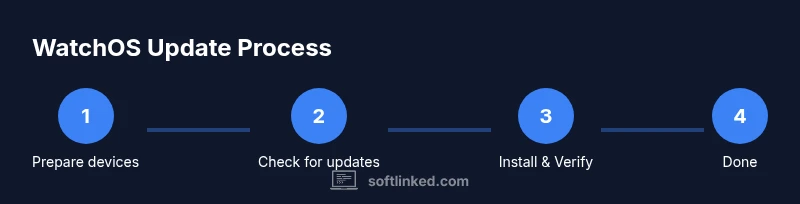
- Prepare devices: Charge both iPhone and Apple Watch; connect to a stable Wi-Fi network. Ensure both devices remain in range during the update.
Tip: Place your watch on its charger and keep the iPhone near you to avoid disconnections.
- Open Watch app and check for updates: In the iPhone's Watch app, go to General > Software Update. If an update is available, you’ll see a notification.
Tip: If nothing shows, refresh the page by pulling down; updates can appear in waves depending on region.
- Start the update: Tap Download and Install. You may be asked to enter your passcode or Apple ID password for authentication.
Tip: Use a stable Wi-Fi connection to speed downloads and prevent interruptions.
- Let the update download: The iPhone will download the update package in the background. Do not close the Watch app or switch apps during this phase.
Tip: If the download stalls, pause and reconnect to a stronger network before resuming.
- Install on the Apple Watch: The watch will install once the download completes. You’ll see progress on both the iPhone and the watch; avoid removing power or moving devices away.
Tip: Do not restart devices manually during installation; allow the system to finish booting afterward.
- Verify completion: After the reboot, open Settings on the watch or the Watch app on iPhone to confirm the watchOS version.
Tip: Check for additional prompts such as enabling features or agreeing to terms.
- Post-update checks: Test core features (complications, health tracking, messages, apps) to ensure everything operates normally.
Tip: If issues appear, perform a quick reboot and re-check the update state in the Watch app.
Troubleshooting Common Update Issues
If the update gets stuck at any stage, try these fixes in order: ensure both devices are on a stable network, bring them closer, and charge devices. A common issue is the update failing to install due to insufficient battery; always place the watch on the charger during updates. If the update stalls on Preparing or Verifying, restart both devices and retry from the Watch app. In rare cases, unpairing and re-pairing the Watch can resolve persistent failures, but only as a last resort because it can reset settings.
Insufficient storage is another frequent blocker. Free up space by removing unused apps or media on the iPhone before retrying. If you see an error about compatibility, verify watch model support for the new watchOS version and reset region/beta settings if needed. Ensure your date, time, and region are correct; incorrect settings can block verification. If you encounter credential prompts repeatedly, sign out of iCloud on the iPhone and sign back in, then retry the update.
Always review release notes for the target watchOS version to understand new requirements, features, and potential known issues. If issues persist after multiple attempts, consult Apple Support resources or visit an Apple Store for hands-on assistance.
Verifying the Update and Staying Secure
After a successful update, verify the version by going to Settings > General > About on the Apple Watch or by checking the Software Update status in the iPhone’s Watch app. Confirm that the installed watchOS matches the latest release noted by Apple. Regularly check for minor updates as they come, and review release notes to understand new features and security improvements. If you’re a developer or student, observe how the update improves app compatibility and performance across the ecosystem. The SoftLinked Team recommends turning on automatic updates for watchOS when available to ensure ongoing protection and compatibility, while periodically reviewing settings to keep privacy controls aligned with your preferences. By adopting a proactive update habit, you enhance security, reliability, and user experience for yourself and peers.
Tools & Materials
- iPhone with latest iOS and Watch app(Sign in with the same Apple ID as your Apple Watch; keep iPhone close to watch during update)
- Apple Watch(Charge to at least 50%, or keep on charger during update)
- Apple Watch charger(Keep watch on charger until update completes)
- Stable Wi-Fi connection(Prefer 5GHz network; avoid unstable hotspots)
- Apple ID credentials(Needed for authentication during update)
- iPhone backup(Back up iPhone prior to update to protect data)
- Time to spare(Plan 30-60 minutes for complete update)
Steps
Estimated time: 30-60 minutes
- 1
Prepare devices
Charge both iPhone and Apple Watch and connect to a stable Wi‑Fi network. Bring devices within close proximity to reduce interruption risk during the update.
Tip: Place the watch on its charger and keep the iPhone plugged in or charged for the duration. - 2
Open Watch app and check for updates
On the iPhone, open the Watch app, go to General, then Software Update. If an update is available, you’ll see a prompt to download.
Tip: If nothing appears, refresh by pulling down the screen or check again after some time. - 3
Start the installation
Tap Download and Install and authenticate if prompted. The iPhone downloads the package and prepares the watch for installation.
Tip: Use a strong, stable network to avoid interruptions. - 4
Let the devices complete the install
Keep both devices near, connected, and on power until installation finishes. The watch will restart automatically.
Tip: Do not use the phone heavily or switch apps during installation. - 5
Verify the update
After reboot, verify watchOS version in Settings > General > About on the watch or in the Watch app on iPhone.
Tip: Check for any additional prompts to enable features or terms. - 6
Test core features
Open a few apps, try a complication, and run through health-tracking features to ensure everything operates smoothly.
Tip: If something seems off, retry the update or restart the devices. - 7
Post-update housekeeping
Review privacy and notification settings to ensure preferences are preserved after the update.
Tip: Consider enabling automatic updates if available to stay current.
Your Questions Answered
Do I need my iPhone nearby to update Apple Watch?
Yes. The update is delivered through the iPhone Watch app, so keep both devices close and connected during the process.
Yes—keep your iPhone near your Apple Watch and connected to the internet during updates.
What should I do if the update gets stuck or fails?
First, ensure both devices have power and a stable network. Restart both devices and retry the update. If problems persist, consult Apple Support.
If the update stalls, make sure power and network are stable, restart, and try again. If it still fails, seek official support.
Can I update Apple Watch without an iPhone?
Apple Watch updates are handled through the paired iPhone; update requires the iPhone connection. You’ll need the iPhone to proceed.
No—updates are managed via the iPhone, so you’ll need to use your iPhone.
How long does a typical watchOS update take?
Most updates take around 30-60 minutes, depending on download speed and the size of the update package.
Usually about half an hour to an hour, based on download speed and update size.
How can I verify the update version on my Apple Watch?
Open Settings on the watch, go to General > About, and check the watchOS version. You can also verify in the Watch app on iPhone.
Check the watch’s About section or the Watch app to confirm the version.
Should I back up before updating?
Backing up your iPhone is recommended to protect data; updates themselves typically don’t erase data on the iPhone.
It's wise to back up beforehand to be safe, though updates usually don’t erase data.
Watch Video
Top Takeaways
- Update Apple Watch software to improve security and performance
- Prepare devices and network before updating to minimize failures
- Follow the official path via the iPhone Watch app for reliability
- Verify the update and test core features to ensure full functionality