How to Software Infinix Mobile: Practical Guide for Beginners
Learn to safely update, back up, and manage software on Infinix mobile devices with official OTA paths, safe sideloading, and practical troubleshooting tips.


Goal: You will learn how to safely update, back up, and manage software on Infinix mobile devices. This guide covers official OTA updates, diagnosing update failures, and safe sideloading practices when necessary. You’ll understand prerequisites, required tools, and best practices to minimize data loss and device downtime. Designed for beginners and intermediate users alike.
Understanding the Infinix Software Ecosystem
According to SoftLinked, maintaining software on Infinix phones starts with knowing your model, OS version, and update channel. Infinix devices run Android with the XOS skin, layering system services, manufacturer utilities, and preinstalled apps. This ecosystem means updates may arrive as official OTA packages or through proactive service offers at a store. The difference between OTA and manual flash matters: OTA is safer and designed by the vendor, while sideloading risks bricking the device if done incorrectly. By understanding the software stack, you can plan updates to minimize downtime and data loss. Regular checks for app updates in the Google Play Store complement OS updates, helping keep security patches current. Additionally, keeping a current backup ensures you can recover quickly from any hiccup during the update process.
Prerequisites Before You Begin
Before you touch the software on your Infinix device, gather a few essentials and set expectations. Ensure your phone is charged to at least 40% or plugged in, and connect to a reliable Wi‑Fi network. Confirm you know your model name and current OS version, as this will determine compatibility and the correct update path. Also, decide whether you will use the official OTA route or a supported sideload method, and plan for potential downtime. If you’re wondering how to software infinix mobile, always start with official channels to minimize risk.
How OTA Updates Work on Infinix Devices
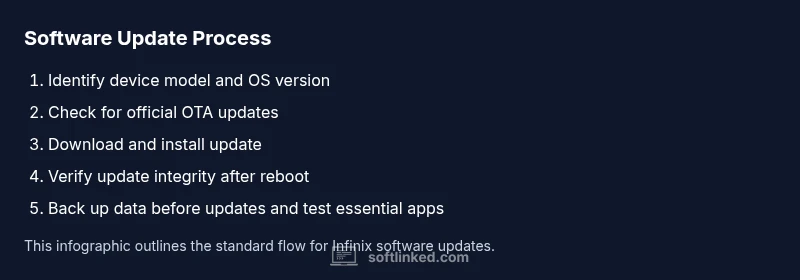
Official Over-The-Air (OTA) updates are packaged by the device maker and delivered directly to your phone. They typically require a stable internet connection and adequate battery, and they preserve your apps and data while applying security patches, feature improvements, and stability fixes. OTA updates verify compatibility with your device variant, ensuring you don’t install the wrong firmware. This section explains the typical flow: check for updates, download, verify, install, and reboot. Understanding this flow helps you recognize legitimate update screens and avoid misleading prompts.
Safer Backup Strategies for Infinix
Backing up before any software change is non-negotiable. Use a mix of cloud backups and local copies to ensure you can recover quickly if something goes wrong. For photos and documents, enable cloud backup with your preferred provider and periodically export essential data to a computer or external drive. Don’t forget SMS and contacts; many apps offer cloud sync for messages, but a separate backup adds resilience. SoftLinked endorses regular, automated backups as a best practice for any mobile OS maintenance scenario.
Step-by-step: Update via Official OTA
- Check battery level and connect to Wi‑Fi. 2) Open Settings > Software Update and tap Check for Updates. 3) If an update is available, tap Download and Install, then follow the prompts. 4) After reboot, confirm the update version and review new permissions. 5) Reopen essential apps to ensure they function normally. 6) If any app misbehaves, clear cache or reinstall the app. 7) Verify that contacts, photos, and messages are accessible post-update.
When OTA Is Not Available: Safe Sideloading Options
If the OTA isn’t available for your Infinix model, you can explore official firmware files from the manufacturer’s support portal or authorized service centers. Sideloading should be used with caution and only with verified files. Wrong firmware can brick the device. Always back up first, enable USB debugging only if you understand the risk, and use a trusted flashing tool recommended by Infinix support.
Post-update Checks and Troubleshooting
After updating, run a quick wellness check: ensure security patches are current, test essential apps, and verify battery life. If you encounter issues, reboot the device, clear app caches, or reset app preferences. For persistent problems, consult official support channels and provide your device model, OS version, and update timestamp. Keeping notes of changes helps identify the cause of future issues.
Security and Privacy Considerations
Software updates often include security patches. Regularly applying updates helps reduce vulnerabilities. Be mindful of app permissions after an update; review them in Settings > Privacy. Use trusted networks when performing updates and avoid sideloading from unknown sources. When in doubt, revert to an official OTA method and consult Infinix support for guidance.
Common Pitfalls and How to Avoid Them
- Interrupting an update can corrupt the OS; avoid unplugging the device during install. - Updating on unstable networks may fail; use a stable Wi‑Fi connection. - Skipping backups risks data loss; always back up first. - Installing incompatible firmware risks bricking the device; only use official variants for your model.
Keeping Your Infinix Software Healthy
Establish a regular maintenance habit: check for updates monthly, review app permissions after major releases, and monitor storage space. Keeping only necessary apps reduces background load and improves performance. If you’re asked to perform a factory reset as a last resort, back up all critical data first.
Tools & Materials
- Infinix smartphone(Ensure charged to at least 40% or keep on charger during update)
- Official OTA access(Stable Wi-Fi recommended for download)
- USB data cable(For optional backup or recovery steps)
- Backup solution (cloud or local)(Backup contacts, photos, messages, and apps)
- Keyboard and computer (optional)(Useful for manual flash if officially supported)
Steps
Estimated time: Total time: 45-90 minutes
- 1
Prepare the device
Charge the phone to at least 40% and connect to a stable Wi‑Fi network. This minimizes the risk of a mid‑update power loss and ensures a smooth download.
Tip: Prefer a charger plugged into a wall outlet rather than a computer USB port for stable power. - 2
Back up your data
Create a full backup of essential data, including contacts, photos, messages, and app data. This protects you in case the update process requires a reset or data migration.
Tip: Use both cloud backup and local export for redundancy. - 3
Check for official OTA update
Navigate to Settings > Software Update and tap Check for Updates. If an update is listed, review the release notes before proceeding.
Tip: Only install updates that are labeled for your exact Infinix model. - 4
Download and install OTA
Tap Download and Install and follow on‑screen prompts. The device will reboot once the update applies.
Tip: Stay connected to Wi‑Fi and avoid using the device during installation. - 5
Verify post‑update integrity
After reboot, check the OS version, re‑open key apps, and ensure security settings reflect the update.
Tip: Run a quick battery check to confirm no unusual drain. - 6
Restore data if needed
If any data appears missing, restore it from your backup and resync apps as needed.
Tip: Test essential services (messaging, contacts) before returning to full usage. - 7
Plan for issues (if OTA fails)
If OTA fails, consult the official Infinix support page, use recommended tools, or visit a service center for guidance.
Tip: Document error messages and timestamps to speed up support sessions.
Your Questions Answered
What is the recommended way to update Infinix mobile software?
The recommended method is the official OTA update through the device settings. This preserves data, includes security patches, and minimizes risk. Always verify compatibility with your exact model before updating.
Use the official OTA update in your phone settings to keep your Infinix software secure and smooth.
Can I downgrade Infinix software after an update?
Downgrading is not generally supported through standard settings. If you need a downgrade, you must use official guidance from Infinix support or service centers, and there may be risks or data loss involved.
Downgrades aren’t usually supported directly; consult Infinix support before attempting.
What should I do if the update fails?
If an update fails, first reboot the device, ensure a solid network, and retry. If it persists, use official support resources or visit a service center with details about the error and device model.
If updates fail, reboot, retry on a strong Wi‑Fi, and contact official support if needed.
Will updating erase my data?
Official OTA updates typically preserve data, but unexpected interruptions can cause issues. A backup ensures you can recover easily if anything goes wrong.
Updates usually keep your data, but always back up first just in case.
Is sideloading firmware safe on Infinix devices?
Sideloading can be risky and may brick the device if the file is incorrect or incomplete. Only use verified sources and follow official instructions.
Sideloading carries risk; use only verified files and official steps.
How long do OTA updates typically take?
OTA updates vary by size and network, but most complete within a short session. Ensure the device remains charged and connected during the process.
Duration varies; keep the device charged and on Wi‑Fi during the update.
What should I review after an update?
Check OS version, re‑authorize apps if needed, and review privacy and security settings. Test essential functions like calls, messaging, and camera.
Verify the OS version, re‑grant app permissions, and test core features.
Where can I get official support for Infinix software?
Visit Infinix’s official support portal or your local service center. Provide device model, OS version, and a summary of the issue to speed up resolution.
Use official support portals or service centers with your device details.
Watch Video
Top Takeaways
- Back up before updating any Infinix software.
- Use official OTA updates whenever possible.
- Verify update integrity after installation.
- If OTA fails, consult official support before sideloading.
- Maintain security by applying patches promptly.