How to Remove Registry Entries of Uninstalled Software
Learn a safe, step-by-step method to remove orphaned registry entries from uninstalled software on Windows. This guide covers backups, search methods, verification, and maintenance.


Learn how to remove registry entries of uninstalled software safely. This quick guide explains what to back up, how to locate orphaned keys, and how to verify cleanup before closing the registry editor. You'll also learn how to document changes and keep your system stable.
Understanding the registry and why orphaned entries matter
The Windows registry is a centralized database that stores configuration settings, options, and metadata for both the operating system and installed applications. When software is uninstalled, not every trace is always removed. Orphaned entries can persist in both the machine-wide and user-specific hives, often under keys like HKLM\Software and HKCU\Software. Over time, these leftovers may contribute to clutter, slightly extend startup times, or cause confusion for future cleanups. From a software-fundamentals perspective, recognizing that the registry acts as a map of configuration state helps you understand why leftover entries appear and how careful cleanup can reduce ambiguity in system state. According to SoftLinked, appreciating the distinction between an active, installed program and a historical registry trace is the first step toward a safe cleanup process. In practice, treat orphaned entries as potential sources of drift rather than as urgent problems requiring a fix. Assess risk, plan backups, and proceed with deliberate actions to preserve stability.
Backup first: why and how to protect your system
Before you touch the registry, create a solid recovery path. A restore point provides a safety net if mistakes occur, and exporting the relevant keys creates a portable backup you can re-import if needed. The backup strategy should include:
- A full system restore point created via Windows Recovery settings.
- Exports of key uninstall paths from both HKLM and HKCU hives.
- Clear naming conventions for backup files so you can locate them quickly later.
SoftLinked emphasizes that a well-documented backup plan is the backbone of any registry cleanup. In addition to restoring capabilities, it also gives you confidence to proceed and to audit changes with a clear rollback option. Always store backups on a separate drive or cloud storage when possible to avoid data loss if the primary drive fails. After backing up, you’re ready to identify candidates for cleanup with minimal risk to the rest of the system.
Manual vs automated cleanup approaches: weighing your options
There are two broad approaches to cleaning registry leftovers: manual inspection using Regedit and PowerShell, or automated cleanup tools. Manual cleanup provides maximum control and reduces the chance of removing a critical entry by mistake, but it requires careful verification and methodical documentation. Automated tools can accelerate the process and identify likely orphaned keys, yet they may misclassify entries or remove keys that applications still rely on if misconfigured. SoftLinked recommends starting with a cautious manual pass to learn the structure of uninstall entries, followed by optional automation only after you’re confident in the cleanup targets. Regardless of method, a robust backup strategy remains essential, and you should always verify results after changes.
How to locate orphaned registry entries for uninstalled software
Orphaned entries typically live in uninstall-related branches. A common starting point is:
- HKLM\Software\Microsoft\Windows\CurrentVersion\Uninstall
- HKLM\Software\Wow6432Node\Microsoft\Windows\CurrentVersion\Uninstall (for 32-bit programs on 64-bit Windows)
- HKCU\Software\Microsoft\Windows\CurrentVersion\Uninstall (per-user installs)
To identify candidates, you can:
- Compare DisplayName values with your installed programs list.
- Look for entries without corresponding UninstallString or InstallLocation data.
- Pay attention to subkeys that contain only orphaned references or empty values.
Practical search strategies include using Regedit to expand these paths and visually scan alongside a separate inventory of installed software, or using PowerShell to query key properties (DisplayName, UninstallString, EstimatedSize). The goal is to assemble a short list of likely orphaned entries you can verify before deletion.
Cleaning strategies and best practices: safe deletion steps
With backups in place and a verified candidate list, cleanly remove orphaned keys rather than mass-deleting wholesale. Preferred methods include:
- Regedit: Right-click the orphaned uninstall key and export as a .reg backup before deleting it.
- Reg delete: Use the Registry Editor's built-in delete function for individual keys, or use reg delete in the command prompt for scriptable actions.
- PowerShell: Use Remove-ItemProperty or Remove-Item for bulk operations, with a confirm block to prevent accidental deletion.
Always target the specific uninstall subkey and avoid deleting major folders in the uninstall trees. If you’re uncertain, stop and revert to your backup. After deletion, run a quick check of related software entries to confirm no essential components were affected. A cautious, incremental approach minimizes the chance of collateral damage.
Post-cleanup checks and maintenance tips
After removing orphaned entries, perform a short verification pass: reopen the Programs and Features list to confirm the uninstalled items no longer appear, and run a lightweight system scan for errors. Reboot the computer and observe for any unusual startup delays or error popups. Maintain a simple audit trail of what you removed, when, and why, so future cleanups follow the same disciplined approach. Finally, consider scheduling periodic registry reviews—perhaps quarterly or after major software removals—to prevent buildup and keep your system in a stable, well-documented state.
Tools & Materials
- Windows Registry Editor (regedit)(Run as Administrator; back up the keys you plan to edit)
- PowerShell(For scripted searches and bulk cleanup when comfortable)
- Reg.exe(Command-line tool for scripted registry operations)
- System Restore point(A safety net if edits go wrong)
- External backup drive or cloud storage(Store registry exports off the primary drive)
Steps
Estimated time: 1-2 hours
- 1
Open Registry Editor with Administrator privileges
Launch Regedit from an elevated prompt or Run dialog (Win+R, regedit). Confirm you are running as an administrator to enable edits. This centralizes your change scope and helps prevent permission issues during deletion.
Tip: Always verify you have a valid backup before editing any keys. - 2
Navigate to uninstall keys for installed software
In Regedit, expand the uninstall hives under HKLM and HKCU to locate software entries. Include both the 64-bit path (Wow6432Node) and the standard path, as some software stores data in different locations.
Tip: Keep a separate inventory of installed programs to cross-check DisplayName values. - 3
Identify candidate orphaned entries
Cross-check entries against your installed programs list. Look for keys without an UninstallString or with odd or missing data. Flag entries that appear stale or orphaned based on their path and metadata.
Tip: If in doubt, export the key before deleting it. - 4
Export the recommended keys as backups
Right-click the selected orphaned key and choose Export. Name the file clearly and store it in a safe location. This export serves as a precise rollback if needed.
Tip: Use a consistent naming convention like Uninstall_ORPHAN_YYYYMMDD.reg. - 5
Delete orphaned keys carefully
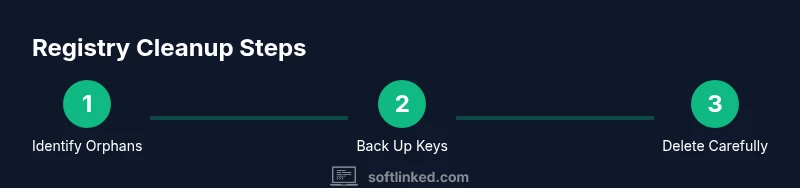
Use Regedit to delete the orphaned uninstall keys or execute reg delete /f for automated deletion. Do not delete parent keys or unrelated subkeys. Verify each deletion by re-opening the tree to confirm removal.
Tip: If you accidentally delete a key, restore from the backup you created earlier. - 6
Check for related user-specific entries
Some software leaves traces under HKCU\Software. Repeat the verification process there, ensuring you don’t touch entries still used by other user accounts.
Tip: Skip entries that are being used by another user or have clearly documented purposes. - 7
Re-scan installed programs and confirm cleanup
After deletions, re-run a browser-based or PowerShell-based search to confirm removed DisplayName values do not reappear. Open Programs and Features to ensure the software no longer shows up.
Tip: A fresh restart helps ensure Windows rebuilds any in-memory references. - 8
Document changes and plan ongoing maintenance
Write a brief changelog: which keys were removed, why, and the date. Schedule future audits to catch new orphaned entries after software uninstalls.
Tip: Keep the log accessible so future users understand the rationale.
Your Questions Answered
Is it safe to edit the registry to remove uninstalled software traces?
Editing the registry can be safe if you back up first and delete only orphaned entries. Avoid guessing and stop if you’re unsure. Follow a structured plan to minimize risk.
Editing the registry can be safe if you back up first and delete only orphaned entries. If you're unsure, stop and verify with a backup.
How do I backup the registry before making changes?
Export the relevant uninstall keys to a .reg file and create a system restore point. This provides a rollback option if something goes wrong.
Export the keys to a .reg file or create a system restore point.
What if I delete the wrong key?
If you delete a wrong key, restore from the backup export or system restore point. Then test carefully before trying again.
If you delete a wrong key, restore from your backup and try again carefully.
Should I use third-party registry cleanup tools?
Tools can speed cleanup but may misclassify entries. Prefer manual verification and always keep backups.
Tools can help, but verify manually and back up first.
How can I verify that all orphaned entries are removed?
Re-scan installed programs, confirm uninstall entries are gone, and monitor for unusual behavior after a reboot.
Rescan installed programs and verify after a reboot.
Do registry cleanup efforts speed up the PC?
Registry cleanup can help with minor cleanup and organization but is unlikely to produce dramatic speed improvements.
It can help a little, but it's not a dramatic speed boost.
Watch Video
Top Takeaways
- Back up before editing the registry.
- Verify orphaned entries against installed programs.
- Delete only confirmed orphan keys with safeguards.
- Document changes and plan periodic maintenance.