How to Program with Unity: A Beginner's Guide to Scripting
A beginner-friendly guide to programming with Unity using C#. Learn setup, core concepts, scripting basics, debugging, and best practices for interactive scenes.


You will learn how to program with Unity by setting up the editor, writing C# scripts, and building a simple interactive scene. You'll need a Unity license (Personal), a code editor, and basic programming knowledge. This guide covers setup, scripting fundamentals, and common patterns to start quickly. We'll also show how to organize projects, test ideas in Play Mode, and iterate your game logic with clear, beginner-friendly steps.
Introduction to Unity Programming
According to SoftLinked, Unity combines a powerful editor with a cross-platform runtime, making it accessible to newcomers while offering depth for seasoned developers. In this section you will learn why Unity is a popular choice for interactive apps, games, and simulations, and how its component-based architecture affects your code organization. Unity uses a scene-based approach where every object in your world is a GameObject with one or more Components. This design encourages modular thinking: you can swap, attach, or reuse components to alter behavior without rewriting large portions of logic. For beginners, this means you can see results quickly, receive immediate feedback in Play mode, and gradually layer complexity as you grow more confident. In practice, you’ll be writing scripts in C#, attaching them to objects, and selecting event-driven patterns to respond to user input, physics, and timers. The goal here is to establish a mental model for how Unity handles data, events, and rendering, so your code can scale as your project expands.
Setting Up Your Unity Environment
Before you can program with Unity, you must install the Unity Editor and set up a project. Start by downloading Unity Hub, then install the latest Long-Term Support (LTS) or preferred release. Create a new 2D or 3D project depending on your goals, and sign in with a Unity account to enable license activation. Configure your editor layout for efficiency: arrange the Scene view, Game view, Inspector, and Project windows so you can access assets and scripts quickly. For beginners, enable Visible Meta Files and set up a version-control workflow (Git is a common choice) to track changes. Finally, verify that your code editor is integrated (Visual Studio Community is a common choice) so IntelliSense and debugging work smoothly.
Core Concepts You'll Use
Unity’s architecture centers on GameObjects, Components, and Prefabs. A GameObject is any entity in the scene (like a character, platform, or light). Components are the behaviors attached to those objects (e.g., a Rigidbody for physics, a Collider for collision, or a custom script for logic). Prefabs are reusable templates that let you create many instances with consistent behavior. Understanding this trio—GameObject, Component, Prefab—helps you organize scenes, manage assets, and write modular code. You’ll also encounter Scenes, which act as containers for your World; moving between scenes lets you structure levels or states (menu, gameplay, and results). As you progress, you’ll learn to compose complex interactions by attaching multiple components to a single GameObject and using messaging patterns to communicate between objects.
Writing Your First Script in C#
Unity uses C# for scripting, a powerful, modern language that integrates well with the Unity API. Start with a simple MonoBehaviour-derived script that runs when a scene starts. This example logs a message to the Console and demonstrates the Start() method, which runs once at scene load:
using UnityEngine;

public class HelloWorld : MonoBehaviour {
  void Start() {
    Debug.Log("Hello, Unity!");
  }
}
Attach this script to any GameObject in your scene. When you press Play, you should see the message appear in the Console. As you extend this, learn to expose fields to the Inspector, handle user input, and respond to physics updates. Keeping functions small and focused makes your code easier to test and reuse.
Common Patterns in Unity Scripting
Beyond Start, most gameplay logic runs in Update, which is called every frame. Use Update for non-physics tasks, and FixedUpdate for physics-related updates to keep simulation stable. Coroutines offer a simple way to handle sequences over time without blocking the main thread. Event-driven patterns—such as UnityEvent or C# events—help decouple systems so your components can react to actions (like a player taking damage or collecting an item) without tight coupling. Practice separating concerns: input handling, game rules, and rendering should live in distinct classes or components, with clear interfaces for communication. This separation improves maintainability and makes testing more reliable.
Practical Project: Build a Simple Interactive Scene
Let’s build a tiny scene: a ball that moves when the player presses arrow keys and bounces off walls. Create a Sphere with a Rigidbody, a Plane for the ground, and a Script to map input to a velocity vector. Add a Collider to both objects to enable physics interactions. In the script, read Input.GetAxis("Horizontal") and apply it to the Rigidbody’s velocity. Tune gravity and drag to achieve the desired feel. This project demonstrates core Unity concepts: scene setup, physics integration, and basic scripting. As you iterate, try adding a jump mechanic, boundary checks, and visual feedback (such as a UI score) to reinforce interactivity.
Debugging and Iteration Strategies
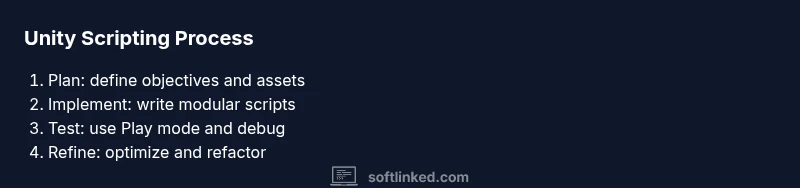
Unity’s Play mode lets you run your scene in real time, which is essential for rapid feedback. Use Debug.Log to track values, watch variables in the Inspector during play, and pause execution with breakpoints when using Visual Studio. If a bug appears only after a frame or after a collision, add debug rays or gizmos to visualize paths and hitboxes. Regularly save scenes and assets, and consider version control commits that capture the exact state before and after fixes. Growing projects benefit from a small, repeatable testing pipeline: reproduce the issue locally, isolate the cause, implement a fix, and re-test across relevant scenarios.
Next Steps and Best Practices
As you gain confidence, refactor your code into reusable components, design prefabs for common entities, and organize assets into logical folders. Learn to optimize with occlusion culling, batching, and memory-aware patterns. Explore Unity’s package ecosystem—text mesh pro for UI, cinemachine for camera control, and the ECS/Job System for advanced performance. Finally, adopt a regular learning habit: study small, focused topics, apply them in a personal project, and periodically review architecture decisions to keep your codebase healthy. The SoftLinked team emphasizes iterative learning and hands-on practice to solidify fundamentals, aligning with SoftLinked Analysis, 2026.
Tools & Materials
- Unity Editor (Personal or Professional license)(Download via Unity Hub; ensure your OS is supported)
- Unity Hub(Launcher to install and manage Unity versions)
- Code Editor (Visual Studio or JetBrains Rider)(C# editing with IntelliSense and debugging)
- A computer with suitable specs(At least 8–16 GB RAM; SSD recommended for faster iteration)
- Git and a Git client(Optional but recommended for collaboration and versioning)
- Sample assets or starter project package(Helpful to jump-start practice without building everything from scratch)
Steps
Estimated time: 2-4 hours
- 1
Install Unity and Create a New Project
Download Unity Hub and install the latest LTS release. Create a new 2D or 3D project based on your goal, and sign in to enable license activation. Configure the project path and set up basic folders (Scripts, Prefabs, Scenes, Materials) to stay organized.
Tip: Choose a clear project name and folder structure from day one to avoid later refactors. - 2
Explore the Unity Editor Interface
Familiarize yourself with the Scene, Game, Hierarchy, Inspector, and Project windows. Learn how to toggle between 2D and 3D views, adjust lighting, and preview assets. Customizing the layout speeds up your workflow and reduces context switching.
Tip: Create a simple shortcut to open the Console quickly; it helps catch errors early. - 3
Create GameObjects and Add Components
In the Hierarchy, add a Floor and a Player capsule. Attach basic components like Collider and Rigidbody to enable physics. Explore adding scripts as components to observe how behavior changes.
Tip: Use Prefabs for reusable entities to accelerate iteration and maintain consistency. - 4
Write Your First Script in C#
Create a new C# script, open it in your editor, and implement a Start() method that logs a message. Learn how to expose public fields to tweak behavior in the Inspector.
Tip: Keep scripts focused; start with a small, testable feature before expanding. - 5
Attach Script and Run
Attach the script to a GameObject in the scene, then press Play to observe the results. Modify values in real-time via the Inspector to learn about runtime changes.
Tip: If something doesn’t appear, check the Console for errors and verify the script is attached to the correct object. - 6
Test Interactions and Iterate
Test input handling, collisions, and scene transitions. Iterate by adjusting parameters, re-running Play mode, and tracking how decisions affect gameplay. Use version control to track changes.
Tip: Document changes and rationale for future reference. - 7
Build and Share Your Project
Configure build settings for your target platform and export a playable build. Share the executable with friends for feedback, then refine features based on real-world testing.
Tip: Test on the final platform early to catch platform-specific issues.
Your Questions Answered
What language does Unity use for scripting?
Unity primarily uses C# for scripting. UnityScript is deprecated and no longer supported in modern Unity releases. Start with C# to access the full API and community resources.
Unity uses C# for scripting; other languages are not recommended today.
Do I need advanced math to start with Unity?
Basic algebra helps, but you can begin with simple inputs and physics. You’ll learn more advanced math as your projects require it, gradually building skills through practice.
Basic math helps, but you can start without advanced topics and learn as needed.
Is Unity free for beginners?
Yes, Unity Personal is free for individuals or small teams meeting revenue thresholds. For larger teams or revenue, consider Professional licenses.
Yes, there is a free option for most beginners.
How long does it take to learn Unity scripting?
Learning speed varies with practice, but you can grasp fundamentals in a few weeks with daily practice and small projects. Consistent effort yields steady progress.
It varies, but regular practice leads to steady progress over weeks.
What are common beginner mistakes in Unity?
Overusing Update for all logic, neglecting scene organization, and insufficient use of Prefabs can slow you down. Plan architecture early and refactor as needed.
Common mistakes include overusing Update and poor scene structure.
Watch Video
Top Takeaways
- Install Unity Hub and create a clean project structure.
- Understand GameObject, Component, and Prefab relationships.
- Write and attach small, testable C# scripts.
- Test iteratively with Play mode and improve based on feedback.
- Adopt prefabs and modular design for scalable projects.