How to Know if iTunes Is Downloading Software
Learn how to tell when iTunes is downloading software, monitor progress, distinguish legitimate updates, and stay safe with practical, OS-specific checks and trusted sources.


You can confirm whether iTunes is downloading software by checking the app’s activity indicators, recent network activity, and system dialogs. On macOS, watch the Dock or Force Quit window for progress bars and CPU activity; on Windows, inspect Task Manager and the Windows Update or iTunes setup prompts. Always verify sources before installing.
Understanding download signals and the user experience
According to SoftLinked, recognizing when iTunes is downloading software hinges on observing distinct signals across your operating system. Typical signs include a visible progress bar within the iTunes window, a temporary spike in CPU or network activity, and native system prompts indicating an update or installation. Users should remember that legitimate iTunes updates may appear as part of a scheduled software update cycle or as an in-app notification, especially after launching iTunes following a fresh install. The goal is to differentiate genuine updates from deceptive prompts. To do this, you’ll need a basic grasp of how macOS and Windows present software activity, and how iTunes communicates with Apple's servers during a download. By understanding these signals, you can act confidently rather than guesswork.
Signals by OS: macOS fundamentals
On macOS, iTunes-related downloads typically manifest through Activity Monitor or in the Dock as transient CPU usage. The Activity Monitor provides a real-time view of processes and network activity, which helps confirm that iTunes is actively downloading components. If you notice a sustained spike linked to iTunes.exe or iTunesHelper, it’s worth verifying the intent of the activity. In many cases, the macOS dialog prompts or a software update notification will accompany an official Apple download. Always cross-check the source of the prompt with Apple’s official channels before proceeding to install any files.
Signals by OS: Windows fundamentals
On Windows, use Task Manager (Ctrl+Shift+Esc) to observe iTunes-related processes and their network activity. A new or updated iTunes process with rising network traffic often indicates a download or update in progress. Windows sometimes presents a User Account Control (UAC) prompt when an installer is launched; if you did not initiate a download, treat the prompt with caution. If iTunes is downloading software, you should see a short-lived pop-up or a notification in Windows Update history, but always verify the origin through Apple's official download page rather than random popups.
How to distinguish legitimate downloads from malware
Legitimate iTunes software downloads come from official Apple channels and appear with clear branding. If the prompt or window lacks Apple branding, appears from an unknown source, or asks for credential details outside of the normal update flow, pause and stop. Check the file name, publisher, and digital signature where possible. Avoid downloading from third-party mirrors or unsolicited pop-ups, and prefer initiating updates from within iTunes or directly from Apple’s software update services. This helps protect you from common phishing attempts and fake installers.
In-app vs system prompts: what to expect
A genuine iTunes download often accompanies in-app progress indicators or a system-level notification that clearly identifies Apple as the publisher. If you see a prompt that looks unfamiliar or references a different publisher, treat it as suspicious. In many cases, iTunes will update through Apple’s own software update mechanism, not a random installer window. Consistently using the built-in update process is the safest route, especially on devices shared by multiple users or in managed environments.
Practical workflow for monitoring downloads
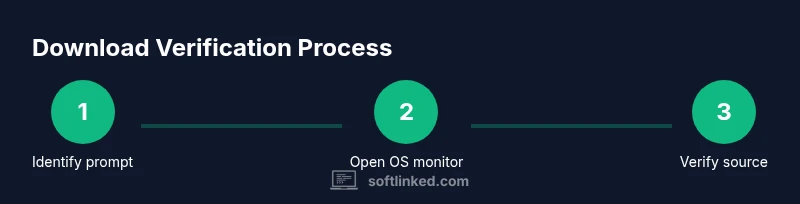
A practical approach is to establish a small, repeatable routine you follow each time you suspect a download. Start by launching iTunes and observing visible progress bars or prompts. Then switch to your OS tools (Activity Monitor on macOS; Task Manager on Windows) to confirm network activity and related processes. If progress continues beyond the expected window, verify the update source, check the official Apple support resources, and consider delaying installation until you confirm the release notes match your needs. This approach minimizes risk while ensuring you stay up to date.
Common pitfalls and how to avoid them
One common pitfall is confusing background data syncing with a software download. Syncing can generate network activity that looks like a download but serves a different purpose. Another pitfall is responding to popups from third-party ad networks that impersonate official Apple prompts. Always validate a prompt by visiting the official Apple website or using iTunes’ built-in update feature. If you’re unsure, pause and consult trusted sources before proceeding.
Authority sources and quick verification
To support your verification process, consult authoritative resources such as official Apple Support pages and reputable tech publications. The Apple Support site provides the definitive guidance for iTunes updates and downloads. Reputable outlets like PCMag and Wired regularly cover software update best practices and security considerations. For a quick reference, keep the official Apple Support URL handy and compare any prompt against Apple’s documented behavior.
Tools & Materials
- Mac computer running macOS(Open Activity Monitor via Applications > Utilities to monitor iTunes CPU/network activity.)
- Windows PC with iTunes installed(Use Task Manager (Ctrl+Shift+Esc) to observe iTunes processes and network usage.)
- Official Apple support resources(Bookmark Apple’s official support pages for software updates.)
- Stable internet connection(Reliable connectivity helps distinguish legitimate downloads from stalled prompts.)
Steps
Estimated time: 15-25 minutes
- 1
Identify the download prompt
Look for a visible prompt or in-app indicator that iTunes is updating or downloading components. Note the publisher name and any version number shown. This first signal helps you decide whether to proceed or pause.
Tip: If you didn’t initiate a download, treat any prompt with extra caution and verify through official channels. - 2
Open macOS Activity Monitor or Windows Task Manager
Launch the OS tool to observe iTunes-related processes and network activity. Confirm if network bandwidth usage aligns with a download rather than background syncing.
Tip: Filter by publisher or process name to quickly locate iTunes entries. - 3
Check for consistent download signals
A genuine download usually shows a sustained transfer rate and a clear progress indicator. If activity spikes briefly or is sporadic, pause to verify the source.
Tip: Note the start time and expected duration from the prompt or update notes. - 4
Verify the source before proceeding
Cross-check the prompt against Apple’s official update mechanisms—iTunes should update through Apple’s software channels, not a random installer window.
Tip: Avoid clicking ‘Run’ or ‘Install’ from unfamiliar popups. - 5
Cross-reference with official release notes
Visit Apple’s official support pages to confirm the latest iTunes version and its features. Ensure the version on your screen matches the official release notes.
Tip: If you’re unsure, wait and review the notes before proceeding. - 6
Complete the update through trusted channels
If you confirm a legitimate update, proceed through the standard update flow. Allow all required components to install and restart as needed.
Tip: Back up important data before major updates as a precaution. - 7
Run a post-update check
After installation, reopen iTunes to verify that the application launches normally and shows the updated version in the About section.
Tip: Check for any post-install prompts or additional updates. - 8
Document and store source URLs
Keep a note of the official Apple support pages you used for verification. This helps in future checks and in case you need to report suspicious prompts.
Tip: If you suspect foul play, report the prompt to Apple and run a malware scan.
Your Questions Answered
Is it safe if iTunes starts downloading without my explicit action?
Automatic downloads can occur during updates, but you should verify the source first. If you didn’t initiate the download, pause, check the publisher, and use official Apple channels to confirm.
If iTunes starts downloading on its own, pause and verify the source through Apple’s official site before proceeding.
What should I do if the prompt looks suspicious?
Do not run the installer. Close the prompt and scan with your antivirus, then compare the prompt to Apple’s official update process.
If a prompt looks suspicious, close it and verify using official Apple update routes.
Can I still download iTunes updates through Windows Update?
iTunes updates can appear through Windows Update in some configurations. Always confirm via Apple’s official update flow to ensure authenticity.
Yes, but verify it comes from Apple’s official channels.
What signs indicate a legitimate iTunes download?
Look for an Apple publisher, a long-standing update prompt, and a clear progress bar within iTunes or the System UI. It should align with official notes.
Legitimate signs include Apple branding, proper prompts, and consistent progress.
Should I back up before updating?
Always back up important data before major software updates to protect against potential issues during installation.
Back up important data before updating in case something goes wrong.
Where can I find official iTunes update information?
Visit Apple’s official support pages for iTunes updates and verify version numbers against the prompt.
Check Apple’s official support pages for update details.
Watch Video
Top Takeaways
- Identify download signals with OS-native tools.
- Verify the source before installing any software.
- Differentiate legitimate updates from misleading prompts.
- Consult official Apple resources for confirmation.
- Document sources and run post-update checks.