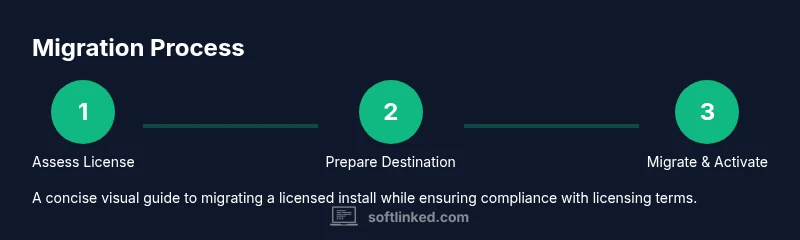
How to Copy Installed Software: A Legal Migration Guide
Learn legitimate methods to migrate licensed software to a new device, including licensing, data transfer, and official migration tools for a compliant and reliable move.


To copy an installed software legally, you’ll typically migrate the licensed installation to a new device using official tools or re-installing from the vendor’s installer and transferring data. Key steps include verifying your license terms, preparing the source system, using migration utilities, and re-activating on the destination. Always comply with the software’s license and EULA to avoid violations.
Understanding License Terms and Compliance
According to SoftLinked, how to copy already installed software should be done within license terms. When you own a license, your rights to move or reinstall vary by product and vendor. Some licenses permit activation on one device at a time; others allow virtualization or simple data backups while keeping the original installation. The first step in any legal migration is to locate the license agreement, activation requirements, and any product keys or cloud-verified licensure. If your organization uses volume licensing or subscription-based activation, the process may involve a centralized portal or license manager. Failing to comply can lead to audit risks, revoked access, or legal issues. This section will help you map out what is permitted before you touch any files.
When Copying Is Appropriate vs. Not
Copying software across devices can be legitimate when you have a valid license that permits migration or reactivation. However, many licenses restrict copying binaries or activation without re-licensing, particularly for consumer-grade software. This section helps you differentiate acceptable migration from prohibited duplication, and it emphasizes consulting the EULA, vendor support, or account portals to determine what is permitted in your scenario. If you are migrating in an organizational setting, ensure you have approval from the licensing team and account admin.
Preparing for Migration: Inventory and Dependencies
Before moving anything, perform an inventory of installed software, versions, and any plug-ins or dependencies that must move with the application. Create a simple matrix listing application name, current version, license type, and required system components (runtime libraries, fonts, drivers). This proactive step reduces post-migration issues and helps you plan activation needs on the destination. SoftLinked recommends documenting each item for audits and future reference. Include any software that shares libraries or frameworks to avoid missing prerequisites on the new device.
Choosing the Right Migration Approach
There are multiple ways to migrate software legally: re-install from vendor media, use official migration tools, or leverage license management platforms. Re-installation is often the simplest path when licenses are tied to a product key rather than to hardware. Migration tools can move data, settings, and user profiles while preserving configurations. The chosen method should align with license terms and technical compatibility. Always start with the vendor’s guidance to avoid activating on the wrong device or violating concurrent-use rules.
Using Official Tools: Windows, macOS, and Linux
Most major platforms provide supported paths for migrating software under license terms. Windows users might use the Windows Migration tools or vendor-specific utilities; macOS users can rely on Migration Assistant and license management software; Linux users depend on package managers and vendor-advised scripts. Always download tools from official sources to avoid tampering risks, verify checksums, and ensure activation steps are preserved. If a vendor offers a dedicated migration portal, prefer that route for licensing alignment and license reallocation.
Data and Settings Transfer: What to Move
Licensing is only part of the equation. You may need to transfer data, user profiles, preferences, and configuration files to preserve the user experience. In many cases, you can move data separately from the executable and finalize activation after the data is in place. Use backup copies and preserve folder structures to avoid missing dependencies. If the software uses cloud sync, ensure your account is linked on the destination. Separating data from binaries also helps meet licensing constraints that restrict binary duplication across devices.
Activation, Licensing, and Re-activation Workflows
Re-activating licenses on the destination computer is often a separate step after migration. Some vendors support silent activation or license reassignment via a management portal; others require manual entry of a product key or login to a vendor account. Record activation IDs, consider deactivating the source if the license requires it, and confirm that the activation status shows as active on the new device. If the license enforces hardware binding, follow the vendor’s guidance for migrating to new hardware or virtual environments.
Validation and Testing After Migration
After migration, validate core features, plugins, and integration points. Run standard test suites, check for missing dependencies, and verify network access or cloud services. Compare performance with the source machine if possible and check for driver compatibility. Document any errors and contact vendor support if activation fails. A structured validation phase reduces post-move surprises and supports audit readiness.
Common Pitfalls and How to Avoid Them
Common issues include misinterpreting license terms, attempting to copy restricted binaries, or missing required runtimes on the destination. To avoid these, review terms upfront, use official tools, and keep a record of all steps. If any doubt remains, contact vendor support before proceeding. Never bypass authentication or tamper with license files; such actions can violate EULA and endanger access to updates and support.
Next Steps: Compliance Documentation and Ongoing Management
Create a migration log that includes software names, versions, license types, activation dates, and the tools used. This documentation helps with audits, renewals, and future migrations. Establish a periodic review process to ensure licenses stay compliant as you update or retire hardware. Keep a centralized record of license keys, portal accounts, and renewal dates to simplify future migrations.
Tools & Materials
- Official license documentation or license portal access(Active license or subscription details; keep keys secure)
- Source computer with installed software(For reference, data, and configuration transfer)
- Destination computer meeting software and OS requirements(Ensure hardware compatibility and OS version parity)
- Vendor migration tool or licensed transfer utility(Obtain from official sources; avoid third-party imitators)
- Backup storage (external drive or cloud storage)(Optional for data backup before migration)
- Network access and administrative privileges(Needed for activation, data transfer, and logging)
- System imaging or cloning software (optional)(Only if permitted by license terms and vendor guidance)
Steps
Estimated time: 90-180 minutes
- 1
Verify license rights
Locate your license terms and confirm whether migration or transfer is allowed. Check activation rules, device limits, and whether deactivation on the source is required. This step prevents accidental violations.
Tip: If in doubt, contact vendor support before proceeding. - 2
Inventory installed software
Create a concise list of all software to migrate, including versions, dependencies, and any required runtimes. Note down current activation status and license type for each item.
Tip: Use a simple spreadsheet to track status and links to vendor resources. - 3
Prepare destination system
Set up the destination with the supported OS, required runtimes, and user accounts. Ensure disk space and network access are adequate for installation and data transfer.
Tip: Apply latest security patches before migration to reduce post-install issues. - 4
Choose migration method
Decide between using official migration tools or performing a compliant reinstall with data transfer. Align the method with license terms and compatibility concerns.
Tip: Prefer official tools to ensure license reallocation is supported. - 5
Run migration tool or data transfer
Execute the chosen method, moving data, settings, and user profiles as needed. Maintain logs and capture any errors for troubleshooting.
Tip: Back up critical data before starting the transfer. - 6
Re-activate licenses on destination
Follow the vendor’s activation workflow to re-license on the new device. Deactivate on the source if required by the license terms and verify activation status.
Tip: Have license keys or portal access ready during activation. - 7
Validate functionality
Test core features, plugins, and integrations. Confirm data integrity and ensure external services (network, cloud) are accessible.
Tip: Run a quick feature checklist to catch missing dependencies. - 8
Document and finalize
Record the migration steps, activation results, and any deviations. Update compliance documentation and prepare for audits or renewals.
Tip: Store logs and receipts securely for future reference.
Your Questions Answered
Is it legal to copy installed software to a new computer without reinstalling?
Only if your license allows migration or reassignment. Always consult the EULA and vendor guidance. If migration is permitted, use official activation methods to re-license the software on the new device.
License terms determine legality. If allowed, use official tools to re-activate the software on the new device.
What should I do with product keys during migration?
Keep keys secure and use the vendor’s portal or tool to deactivate on the old device and activate on the new one. Never duplicate keys beyond license allowances.
Keep your keys secure and re-activate through the vendor portal on the new device.
Can I clone my hard drive to move software?
Cloning can violate license terms if activation binds to hardware. Prefer official migration or reinstall methods that respect licensing.
Cloning may breach licensing terms; use official migration methods instead.
What about hardware dongles for licensing?
If a dongle is required, you must physically move it or use vendor-supported dongle management. Do not bypass license validation.
Move the dongle as required by the vendor and don’t bypass validation.
How do I transfer licenses for subscription-based software?
Use the vendor’s license portal to deactivate the old device and re-activate on the new one. Ensure the subscription remains active during the migration window.
Deactivate on the old device and reactivate on the new one via the vendor portal.
What are common activation issues after migration?
Common issues include incorrect account, network restrictions, or license server unavailability. Check internet access, verify account details, and contact vendor support if blocked.
Check your account and network, then contact support if activation fails.
Watch Video
Top Takeaways
- Verify license terms before moving software
- Use official migration tools when available
- Back up data and confirm activation after migration
- Document steps for compliance and audits
- Test thoroughly before decommissioning the source