How to Check If Software Is 64-Bit: A Practical Guide
Learn how to verify whether software is 64-bit across Windows, macOS, and Linux with clear steps, command examples, and practical tips to confirm binary architecture and OS support.


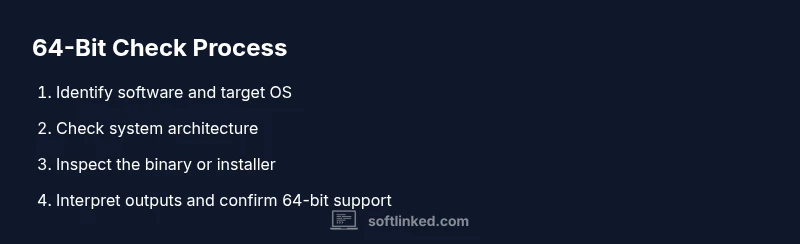
By the end of this guide, you will know how to determine if software is 64-bit across Windows, macOS, and Linux. You'll learn to inspect the executable, check OS architecture, and interpret common outputs from built-in tools and installers. This ensures you can verify compatibility, performance expectations, and proper resource allocation.
Why 64-bit matters
If you’re wondering how to check if software is 64 bit, the answer matters for performance, memory addressing, and compatibility. 64-bit software can access more memory and often leverages modern processor features, improving performance for data-heavy tasks. Conversely, 32-bit software may run in compatibility modes on newer systems but won’t utilize the full capabilities of a 64-bit OS. Understanding whether a program is 64-bit helps you plan memory usage, avoid runtime errors, and choose the right version of an installer or package. This quick distinction can save time during development, deployment, and troubleshooting. For developers, confirming 64-bit support informs packaging choices, testing strategies, and user guidance in documentation.
Understanding what you’re checking
Before you run any command, it helps to align on terms. A 64-bit binary is compiled to run as a 64-bit process on the host operating system. Some software is distributed as “universal” or multi-architecture binaries, meaning they include both 32-bit and 64-bit code paths. In practice, you’ll encounter terms like 64-bit, x64, x86_64, amd64, arm64, or aarch64. The goal is to map the binary’s actual architecture to what the operating system supports. When you check, you’re validating either the executable’s inherent architecture or the packaging metadata that dictates which architectures are provided. This ensures you’re evaluating the correct release for your platform and avoiding crashes due to architecture mismatch.
Quick checks you can do in Windows
Windows users can verify a program’s architecture using built-in tools. Start with the System Information utility to confirm the OS type (x64-based or other). In Task Manager, the Details tab often shows the Platform or Architecture column for each process, indicating x64 for 64-bit processes. The command line can also reveal architecture: run wmic os get arch to see the OS arch, or check a specific executable with the file header inspection through PowerShell commands. If an installer is involved, check the installer’s metadata or accompanying documentation for supported architectures. These steps help distinguish 64-bit programs from 32-bit counterparts without launching the application.
Quick checks in macOS
macOS users have a few reliable indicators. Open Terminal and run uname -m to see the machine architecture (e.g., x86_64 for Intel-based Macs or arm64 for Apple Silicon). You can also inspect a specific app with the file command, e.g., file /Applications/YourApp.app/Contents/MMacOS/YourApp, which will report 64-bit binaries if applicable. On macOS, universal binaries may include both arm64 and x86_64 slices. Understanding these signals helps you verify compatibility before buying, installing, or updating software on Macs.
Quick checks in Linux
Linux environments vary by distribution, but the core checks are consistent. uname -m reveals the host architecture (e.g., x86_64 or aarch64). Use the file command on the software binary to determine its architecture, e.g., file /usr/bin/yourapp. If you installed via a package manager, the package name often hints at architecture (e.g., amd64, i386). These checks are especially important for servers and embedded systems where mismatches can cause runtime issues or suboptimal performance.
How to verify a specific software package
When you want to confirm a particular piece of software, locate the installed binary or launcher. Use commands like which or where to find the executable, then run file on that path to reveal the architecture. If you downloaded a package, examine the filename or metadata for architecture hints (such as amd64, x64, arm64). In multi-arch distributions, you may need to choose a dedicated 64-bit installer or package variant. Always cross-check with official release notes or the vendor’s docs to ensure you’re using a 64-bit build on your OS.
Interpreting the outputs
Outputs vary by OS, but they share a common goal: identify 64-bit support. Typical signals include strings like 64-bit, x86_64, amd64, arm64, or a direct architecture label. If the result mentions 32-bit or i386, you’re looking at a 32-bit binary. For binaries that show multiple architectures, you may be dealing with universal or multi-arch packages, which require selecting the appropriate slice for your system. When in doubt, consult the vendor’s documentation or test the application under typical workloads to confirm behavior and performance.
Common pitfalls and how to avoid them
Avoid assuming a program is 64-bit solely because the OS is 64-bit. Some software remains 32-bit in 64-bit ecosystems. Another pitfall is relying on an installer’s default prompts; always verify the architecture indicated in the installer’s file name or metadata. On Linux, distribution-specific packaging may provide 32-bit compatibility libraries; if your goal is native performance, ensure you install the 64-bit package variant. Finally, remember that hardware compatibility matters: arm64 Macs, for example, require universal or arm64-native binaries.
Quick command cheat sheet (reference)
Use these pointers to quickly locate architecture signals across platforms:
- Windows: wmic os get arch, and inspect Task Manager Details/Platform for processes
- macOS: uname -m and file /path/to/app
- Linux: uname -m and file /path/to/app, plus package-manager hints like amd64
This cheat sheet helps you verify 64-bit status before integration, deployment, or troubleshooting.
Tools & Materials
- Computer with Windows, macOS, or Linux installed(Ensure access to the OS you’re testing on)
- Administrative access or sudo/root privileges(Some checks require elevated permissions (not strictly mandatory for all steps))
- Command-line interface (PowerShell, Terminal, or shell)(Needed for architecture checks and file inspections)
- Your target software package or executable(Have the path or installer available to inspect)
- Documentation or vendor release notes(Helpful for confirming official architecture guidance)
Steps
Estimated time: 15-20 minutes
- 1
Identify the software and OS
Locate the exact software you want to verify and determine the operating system where it will run. This initial step ensures you apply the correct architecture checks for the right platform. Knowing the environment also helps you choose the proper commands and installers.
Tip: Note the exact software version and the distribution channel (official site, app store, or package manager) for accurate matching. - 2
Check system architecture (host OS)
Run a quick check to confirm whether your OS is 64-bit. On Windows, look up System Information or run wmic os get arch. On macOS and Linux, uname -m reveals the host architecture. This establishes whether your environment can run 64-bit binaries efficiently.
Tip: If uname -m returns x86_64 or arm64, you’re in a 64-bit environment ready for 64-bit software. - 3
Find the software binary path
Locate the executable or launcher for the software you’re verifying. Use which or where to locate it on Linux/Windows respectively, or browse the Applications folder on macOS. This step provides the exact file you’ll inspect for architecture signals.
Tip: If you’re unsure, use a search tool to locate common executable names (e.g., the app name without the extension). - 4
Inspect the binary architecture
Apply the file command on Linux/macOS or the equivalent on Windows to inspect the binary header. Look for architecture markers like 64-bit, x86_64, arm64, or amd64 in the output. This is the core check to confirm the binary’s intended runtime.
Tip: On macOS, a universal binary may report multiple architectures; verify that the slice matching your OS is present. - 5
Cross-check with installer or packaging data
If you installed via an installer or package manager, review the filename, metadata, or repository package name for architecture hints. Many installers explicitly advertise supported architectures or provide separate 64-bit packages.
Tip: Compare the installer’s version tag with the OS architecture reported by the system to ensure alignment. - 6
Validate with a quick run (optional but recommended)
Launch a lightweight run of the software and monitor for crashes or warnings that indicate an architectural mismatch. Some apps will fail gracefully with appropriate logs if they’re not compatible with the host architecture.
Tip: Check log files or console output for messages related to architecture or memory addressing. - 7
Document and archive findings
Record the detected architecture, OS, and the exact binary version checked. This helps with future maintenance, upgrades, and ensuring consistency across environments. Create a small note or ticket for future reference.
Tip: Include the commands used and their outputs to reproduce the check later. - 8
Handle multi-arch or non-native cases
If the software ships as multi-architecture or lacks a native 64-bit build, evaluate alternatives such as a 64-bit-specific fork, a compatibility layer, or a different toolchain. Consider whether performance or compatibility requirements justify a different approach.
Tip: Consult vendor support or community forums for the best 64-bit-compatible variant.
Your Questions Answered
What does it mean if a program is 64-bit?
A 64-bit program is built to run on a 64-bit processor and operating system, allowing access to more memory and often improved performance. It may be part of a multi-architecture distribution, so you should verify the exact binary slice for your platform.
A 64-bit program runs on 64-bit hardware and OS, often with better memory use and performance. Check the binary slice to be sure you have the right version for your system.
Can a 32-bit program run on a 64-bit OS?
Many 64-bit operating systems support running 32-bit programs via compatibility layers. However, performance may not match native 64-bit software, and some features could be limited. Always prefer native 64-bit builds when possible.
Yes, many 64-bit systems run 32-bit programs through compatibility layers, but native 64-bit builds perform better.
What commands indicate architecture on Linux?
On Linux, use uname -m to reveal host architecture and file on the binary to confirm the executable’s architecture. Package manager metadata can also hint at supported architectures like amd64.
Use uname -m for the system and file on the binary for the app to confirm architecture.
What should I do if a program is not 64-bit compatible?
If a program isn’t 64-bit capable, look for a 64-bit version, a universal binary, or an alternative that runs natively as 64-bit. Using a compatibility layer is a last resort and may incur performance penalties.
If it isn’t 64-bit, find a 64-bit version or a suitable alternative, rather than forcing a workaround.
Are there universal binaries?
Some platforms distribute universal binaries that contain multiple architectures inside a single file. In such cases, verify that the portion for your OS is present and functioning.
Yes, universal binaries may include multiple architectures; ensure your platform can use the correct slice.
Watch Video
Top Takeaways
- Identify the host OS and software precisely before checking.
- Use host architecture and binary inspection to confirm 64-bit status.
- Cross-check installer packaging and architecture metadata for accuracy.
- Interpret outputs carefully: 64-bit indicators vs. 32-bit signals.
- Document findings for future audits and deployments.