How to Fill Out an Application Form: A Complete, Practical Guide
A comprehensive, education-focused guide on how to fill out an application form, including preparation, understanding common sections, best practices, and final submission tips for job, school, and visa forms.


You will learn how to complete a typical application form from start to finish, including gathering documents, filling fields accurately, and reviewing before submission. This guide covers common sections, required details, and practical tips to avoid mistakes, plus how to tailor responses for job, school, or visa applications. By the end you’ll submit a polished, error-free form.
What is an application form and why it matters
According to SoftLinked, mastering how to application form basics can simplify the entire process and boost your odds of success. An application form is a structured document used by organizations to collect standardized information about applicants. It typically covers personal details, contact information, education, work history, references, and often a short section for a personal statement or goals. The digital era has shifted many of these forms online, but the underlying principles remain the same: accuracy, honesty, and completeness.
When you encounter a form, you are not just filling fields; you are presenting a concise professional story. The form acts as a first impression, guiding the evaluator through your background and how it aligns with the opportunity. Mistakes, gaps, or inconsistent information can raise red flags, slow down the process, or disqualify you. Therefore, learning how to approach the form with a clear plan matters.
One practical way to think about it is as a template for your best self. Your goal is to provide verifiable data that can be quickly checked and cross-referenced with supporting documents. In many contexts, the form also determines the next steps, such as an interview, a test, or a campus tour. By recognizing its purpose, you can tailor your responses and anticipate follow-up questions.
Before you start: gather documents and resources
Preparation is the backbone of successful form completion. Gather identity documents (passport or government ID), your latest resume or CV, transcripts or certificates, references, and any scholarship or job-specific materials requested. If you will be submitting online, ensure you have a reliable internet connection and a device with up-to-date software. Create a folder (digital or physical) labeled with the form name and intake date to keep everything organized.
As you assemble materials, note any fields that may require dates, exact spellings of institutions, or contact information for referees. If you don’t know a detail, plan how you’ll verify it before submission. SoftLinked’s guidance emphasizes collecting verifiable data early to avoid last-minute scrambling. Consider also preparing alternative contact details or backups in case primary information changes.
Understanding common sections and what they mean
Most application forms share core sections that capture a candidate’s background. Common sections include Personal Information (name, address, contact details), Education History (institutions, degrees, dates), Employment History (employer names, roles, responsibilities, dates), and References (names and contact information). Some forms include a Personal Statement or Objective, which lets you explain motivation and fit.
Recognize that each field has a purpose: dates show chronology, institutions indicate credibility, and roles illustrate skills. If a section seems unfamiliar, read the instructions carefully, look for examples, and check whether the form allows you to attach documents. At minimum, you should provide complete data for required fields and avoid excess speculation in optional responses.
How to read questions clearly and identify tricky wording
Forms often use legal or technical language. Phrases like “currently employed” versus “previously employed” have subtle distinctions that change how you respond. Look for qualifiers such as “nearest mile,” “full-time,” or “contract” that affect eligibility. If a question seems ambiguous, use the official guidelines or contact the form administrator for clarification before answering.
Another tip is to note any mandatory fields (usually marked with an asterisk) and ensure those are answered in every instance. When you encounter a conditional question (one that appears only if you answered yes to a prior question), understand the condition and provide only what is asked under that branch. This reduces the chance of irrelevant or incorrect data appearing in your submission.
Filling out fields correctly: personal information, education, and work history
Accurate personal information forms the foundation of a credible application. Double-check names as they appear on official documents, spell addresses precisely, and use consistent formatting for dates (YYYY-MM-DD is often safest). For education history, list institutions in reverse-chronological order, include degrees or certifications, and provide accurate dates. When detailing work history, use action-oriented bullet points or concise descriptions that demonstrate responsibilities and outcomes.
If the form supports copy-paste, paste carefully to avoid hidden characters; if not, type slowly to reduce typos. Save a copy of each entry in your notes to cross-check against attachments later. Remember to avoid fabricating information—lies can be discovered and ruin credibility. SoftLinked emphasizes honesty paired with precision in every submission.
Special forms: job, school, visa—what changes you should expect
Different form types emphasize different aspects. Job applications may focus on skills, accomplishments, and relevance to the role. School applications often ask for coursework, extracurriculars, and personal goals, plus recommendations. Visa forms require precise travel history, financial solvency, and sponsor details. For all types, tailor responses to highlight alignment with the opportunity. When deadlines are involved, ensure you budget time for document verification and uploading.
If a form offers a “profile” or auto-fill feature, review every field even when information seems to come from your saved data. You can usually attach a resume or CV, but ensure it is up-to-date and matches the details you provide in the form. Consistency across documents improves your credibility.
Review, proofreading, and final submission steps
The final review is your last line of defense against mistakes. Read every field carefully, verify dates and spellings, and confirm that required attachments are included. Use a checklist to ensure you’ve completed required sections and answered all prompts. If possible, have a peer review your form to catch issues you might miss.
Before submitting, confirm the submission method (online, mail, or in person) and note the confirmation or tracking number. Save the confirmation page or email and export a copy of the completed form for your records. A deliberate review reduces back-and-forth requests and speeds up processing.
Digital forms vs print forms: advantages and pitfalls
Digital forms offer speed, auto-fill features, and easier storage, but can introduce privacy concerns or browser compatibility issues. Paper forms are tangible and sometimes preferred when submitting in person, yet they risk loss or damage and require manual data transfer if scanned later. When choosing a method, consider the organization’s preferences, your access to reliable hardware, and the ability to preserve a digital backup.
Regardless of format, maintain legible handwriting (if printing), ensure all pages are complete, and keep copies for your records. Maintain a calm, methodical pace to avoid skipping sections or misplacing documents.
Quick checklists to finalize your submission
Cross-check every required field, ensure consistency with your attachments, and verify that dates align across documents. Confirm whether you need to sign electronically or on paper, and check for any submission-specific notes (e.g., file size limits or naming conventions). Finally, click submit only after you have a stable internet connection and a saved receipt or confirmation number.
Tools & Materials
- Device with internet access(Laptop, tablet, or smartphone with a modern browser)
- PDF viewer or form software(For viewing and saving fillable forms)
- Identity documents(Passport or government-issued ID)
- Resume/CV(Only if requested in the form)
- Academic records(Transcripts or certificates if applicable)
- Reference contact information(Names, emails, and phone numbers)
- Notebook or digital note app(For drafting responses and tracking questions)
Steps
Estimated time: 60-90 minutes
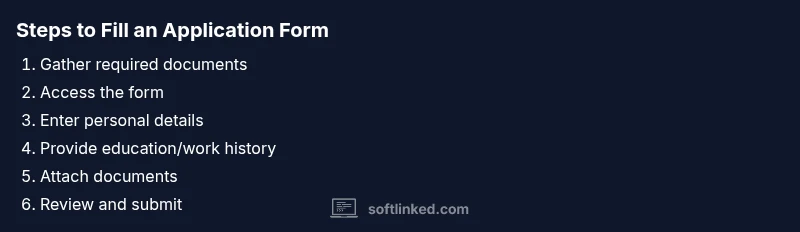
- 1
Gather all required information
Collect personal details, education history, employment records, and any reference contacts. Create a master checklist and verify every item against the form's requirements.
Tip: Pre-checks save time and prevent missing fields. - 2
Access the form and set up
Open the form in a secure environment, whether online or on paper. If online, ensure you can save progress and return later without losing data.
Tip: Use a trusted device and connection; enable auto-save if available. - 3
Enter your personal information
Fill in name, contact details, and identifiers exactly as they appear on official documents. Use consistent address formatting and dates.
Tip: Double-check spellings and dates; minor errors slow processing. - 4
Provide education and work history
List institutions and employers in reverse chronological order. Include dates, degrees, roles, and key responsibilities that demonstrate fit.
Tip: Be concise but specific about achievements and responsibilities. - 5
Attach documents and references
Upload or attach the requested documents and provide references if required. Name files clearly and ensure transfers are complete.
Tip: Verify file formats and sizes before submission. - 6
Review and submit
Re-read the entire form, check for consistency, and confirm adherence to instructions. Submit and save the confirmation receipt.
Tip: Keep a copy of the submission confirmation; you may need it later.
Your Questions Answered
What is the purpose of an application form?
An application form standardizes information to evaluate qualifications consistently. It captures essential data like personal details, education, and experience, and often influences next steps such as interviews or admissions.
An application form standardizes your information to help the evaluator compare candidates fairly.
What information is commonly requested on forms?
Typical sections include personal details, contact information, education, employment history, and references. Some forms also ask for a goal or personal statement and any required attachments.
Most forms ask for your contact details, education, work history, and references, plus any supporting documents.
How can I avoid common form mistakes?
Prepare in advance, verify each field, use consistent formatting, and double-check dates and spellings. Save progress frequently and confirm that attachments meet size and format requirements.
Check every field, keep formatting consistent, and save often to avoid mistakes.
What should I do if a field doesn’t apply to me?
If a field doesn’t apply, see if you can mark it as N/A or leave it blank only if allowed. Do not guess or fabricate information.
If a field doesn’t apply, mark N/A or leave it blank only if allowed.
Is it better to type or print forms?
Typing is usually preferred for online forms, as it reduces legibility issues and speeds processing. If you must print, write clearly and use black ink.
Typing is usually better for online forms; print neatly if you must.
How soon should I expect feedback after submission?
Feedback times vary by organization. If you haven’t heard back within a reasonable window, use the provided contact method to confirm receipt and status.
Response times vary; contact the organization if you don’t hear back in a reasonable period.
Watch Video
Top Takeaways
- Prepare documents before starting the form
- Fill all required fields with exact, honest data
- Review thoroughly before submission
- Attach and verify all supporting documents
- Keep copies for your records