Download Anaconda Software: A Practical How-To
A practical guide to download Anaconda software, verify integrity, install on Windows/macOS/Linux, and start managing environments with conda and essential packages.


You will learn how to download Anaconda software from the official site, verify the installer, install on Windows, macOS, or Linux, and create your first conda environment. We'll cover prerequisites, platform differences, security checks, and practical tips to ensure a smooth, reproducible setup. This includes checksums and safe browsing practices.
What is Anaconda and why download it
Anaconda is a data science platform that bundles the Python (and optionally R) ecosystem into a single, easy-to-install distribution. It includes the core Python interpreter, the conda package manager, and hundreds of popular data-science libraries such as NumPy, pandas, and scikit-learn. For new learners, Anaconda simplifies setup: you install once and start experimenting without chasing dependencies. According to SoftLinked, downloading Anaconda from the official site helps ensure you get all components in a consistent, tested bundle, reducing the risk of broken environments. The toolchain is cross-platform, so Windows, macOS, and Linux users can follow the same steps to get started. Keep in mind that there are different editions and variants of the product; the official Individual Edition is the most common starting point for students and professionals. In this article we’ll outline why you may want to download Anaconda software and how to approach the download safely.
Choosing the right installer: Individual Edition vs distribution
When you decide to download Anaconda software, you’ll generally choose between the Anaconda Individual Edition and other distributions such as Miniconda or enterprise offerings. The Individual Edition is designed for personal use, learning, and exploratory work, and it includes a large collection of preinstalled packages. Miniconda, by contrast, is a minimal installer that lets you build your environment from scratch. SoftLinked notes that for most students and new developers the Individual Edition provides the fastest path to a working data-science setup, while more controlled, lightweight environments can be built with Miniconda. Consider your goals, space constraints, and whether you prefer a ready-to-use bundle or a lean starting point.
System requirements and prerequisites
Anaconda supports Windows, macOS, and Linux platforms. The installer is available for 64-bit systems, and you should have a reasonably recent OS version to ensure compatibility with modern Python packages. Before you download, confirm you have administrative privileges on your machine, and ensure you have sufficient disk space for the full distribution or your chosen environments. A stable internet connection speeds up the download, and having a browser ready to access the official download page reduces friction. If you’re unsure about suitability, refer to the official docs for the latest platform notes and compatibility guidance.
Prepare your system for installation
Close other heavy applications to free up RAM during installation, and consider temporarily disabling antivirus scanning on the installer (re-enable after setup). Create a dedicated directory for your Anaconda installation or environments to keep things tidy. If you’re dual-booting or sharing a machine, set up a separate user profile to minimize conflicts and simplify environment management. The goal is to keep your base system clean so conda environments remain reproducible across projects.
Downloading from the official site (Windows/macOS/Linux)
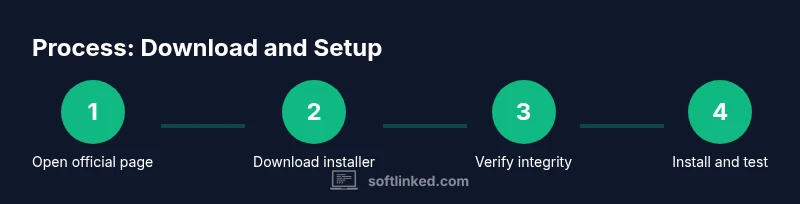
Go to the official Anaconda download page and select the appropriate installer for your operating system. For Windows, macOS, and Linux, download the graphical installer or the command-line installer depending on your comfort level. Always choose the latest stable release and avoid third-party mirrors to reduce the risk of tampered files. After the download begins, save the installer to a known location and prepare to verify its integrity before running it.
Verify the download integrity
Integrity checks help ensure the file you downloaded is complete and unmodified. Prefer to verify the SHA-256 (or SHA-512) checksum provided on the download page using your platform’s tools (sha256sum on Linux, Get-FileHash on Windows, or shasum on macOS). If the computed hash matches the published value, you can proceed with confidence. If it doesn’t, re-download the file from the official site and re-check. This step protects you from corrupted or malicious downloads and aligns with safe software practices.
Installing Anaconda on Windows, macOS, and Linux
Launch the installer and follow the guided prompts. On Windows, you’ll typically choose whether to add Anaconda to your PATH and to register Anaconda as the default Python. On macOS and Linux, you may also be prompted to initialize conda in your shell. The installer handles the bulk of setup, but you should note the chosen install location and remember that you can customize environments later. If you encounter permission prompts, grant access so the installer can write to the system paths.
Initializing conda and configuring environments
After installation, initialize conda in your shell (if not already done by the installer) and verify that conda commands are available in your terminal. Create a new environment for your project with a specific Python version, for example: conda create -n ds python=3.11. Activate it with conda activate ds, then install essential libraries. This step is important for reproducibility and prevents conflicts with other projects.
Creating your first data science environment
Within your new environment, install core libraries such as numpy, pandas, matplotlib, scikit-learn, and Jupyter. You can install multiple packages at once, for example: conda install numpy pandas matplotlib scikit-learn jupyter. Launch Jupyter Notebook or JupyterLab to begin interactive exploration. Regularly update your environment to keep packages compatible with your code base and Python version.
Installing essential packages and testing your setup
Test your setup by running a small script that imports the libraries you installed and prints their versions. This quick check helps ensure the environment is usable before you start a full project. Keep a record of your environment configuration (yml files are convenient for sharing) so you can recreate it on another machine or share with teammates. If you plan to publish notebooks, consider setting up a dedicated kernel for your project to avoid conflicts with other environments.
Troubleshooting common issues
If the installer fails, check for preexisting Python installations that might conflict with conda. Ensure PATH and environment variables are correctly configured. If conda commands are not recognized, try running the initialization command again or restarting your terminal. If packages fail to install due to dependency conflicts, create a clean environment and add packages one by one to isolate the problem. SoftLinked recommends documenting any fixes you apply so future installations go smoothly.
Security, privacy, and best practices
Always download Anaconda software from the official site and verify the installer’s integrity before running it. Avoid downloading from untrusted mirrors or unverified sources. Keep your systems updated and review security settings in conda to minimize exposure to vulnerabilities. The SoftLinked team emphasizes practicing isolation (environments) and version pinning to maintain reproducible, secure workflows across projects.
Next steps and learning paths
As you finish the initial setup, explore official tutorials and documentation to deepen your Python data science skills. Start with small projects that mix data wrangling, visualization, and modeling, and gradually expand to more advanced topics like machine learning pipelines. Build a habit of exporting environment specifications and sharing notebooks with peers to foster collaborative learning.
Tools & Materials
- A computer with a supported OS (Windows/macOS/Linux)(Windows 10/11, macOS 10.13+, Linux x86_64 recommended)
- Stable internet connection(Needed to download installers and access official docs)
- Administrative privileges(Required for system-wide installation on most systems)
- Web browser (Chrome/Firefox/Safari)(To access the official download page and docs)
- Checksum verification tool(Optional but recommended to confirm file integrity)
Steps
Estimated time: 30-60 minutes
- 1
Open the official download page
Navigate to the official Anaconda download page and identify the installer appropriate for your operating system. Use the latest stable release to minimize compatibility issues with libraries you’ll use for data science projects.
Tip: Bookmark the official page for future updates and new releases. - 2
Choose and download the installer
Select the Windows, macOS, or Linux installer based on your OS architecture (64-bit is standard). Start the download and save the file to a known location on your computer.
Tip: Prefer the graphical installer if you’re new to environment management. - 3
Verify the download
Check the installer’s SHA-256 checksum against the value provided on the download page using your platform’s hashing tool. A matching hash confirms file integrity and reduces risk of tampering.
Tip: If the hash doesn’t match, re-download from the official site. - 4
Run the installer
Launch the installer and follow on-screen prompts. Accept the default options if you’re unsure, but note the install location and whether to initialize conda in your shell.
Tip: On Windows, decide whether to add Anaconda to PATH only if you understand potential conflicts. - 5
Initialize conda in your shell
If not done by the installer, run the command to initialize conda so conda commands work from your terminal. This step makes environment management immediately available.
Tip: Restart your terminal after initialization to refresh the environment. - 6
Create your first environment
Create a dedicated environment for your project, e.g., conda create -n ds python=3.11. Activate it with conda activate ds and verify Python is available.
Tip: Name environments descriptively (ds for data science) to avoid confusion later. - 7
Install essential packages
Install core libraries like numpy, pandas, matplotlib, scikit-learn, and Jupyter in the new environment. You can add packages in a single command.
Tip: Install packages in the environment you created, not in the base environment. - 8
Test your setup
Run a simple Python script that imports the installed libraries and prints their versions. This confirms the environment is functional before you start projects.
Tip: Keep a small notebook with a quick start script for future reference. - 9
Maintain and update
Regularly update conda and the installed packages. Use environment files to reproduce setups on other machines or teammates’ systems.
Tip: Pin critical package versions for project stability.
Your Questions Answered
Is Anaconda free for personal use?
Yes, the Anaconda Individual Edition is free for personal use, learning, and small projects. Larger teams or enterprises have paid options with additional features and support.
Yes, Anaconda's Individual Edition is free for personal use, learning, and small projects.
Which OS is best supported by Anaconda?
Anaconda supports Windows, macOS, and Linux with comparable installers and tooling. The installation steps are similar across platforms, though some OS-specific nuances apply.
All three major operating systems are well supported; choose the installer for your OS and follow the platform notes.
How do I verify the installer’s checksum?
Compute the SHA-256 checksum of the downloaded installer and compare it with the value published on the download page. A match confirms integrity; a mismatch requires re-downloading from the official site.
Compute and compare the SHA-256 checksum to verify integrity.
What is the difference between Anaconda and Miniconda?
Anaconda provides a large, ready-to-use bundle of data-science packages. Miniconda is a minimal installer that lets you build environments from scratch, giving tighter control over installed packages.
Anaconda is a full bundle; Miniconda is a lean starter to build from the ground up.
How much disk space will I need?
Disk needs vary by your chosen setup. A full Anaconda installation can require several gigabytes; plan additional space for environments and datasets.
Expect several gigabytes for a full install, plus more for environments and data.
Do I need admin rights to install Anaconda?
Yes, admin rights simplify installation, especially on Windows and when adding to system paths. Some users may install locally in their user directory if allowed.
Admin rights help with system-wide installation; you can usually install in your user folder if allowed.
Watch Video
Top Takeaways
- Download the official installer from Anaconda’s site
- Verify the installer integrity with checksums
- Create and manage isolated conda environments
- Test your setup with a simple import-and-run check
- Keep environments reproducible with configuration files