Convert PDF to PowerPoint: Step-by-Step Guide
Learn how to convert PDF to PowerPoint quickly and accurately. Compare methods, preserve layouts, and optimize images and text for a clean, professional slide deck.


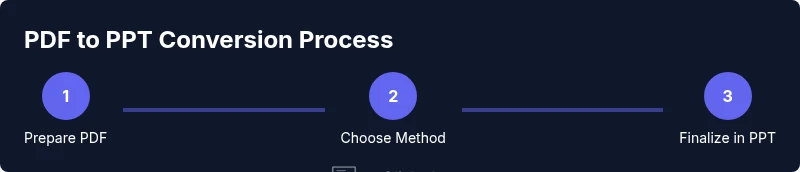
You will learn how to convert a PDF into a PowerPoint presentation with high fidelity. We'll compare methods (built-in tools, online converters, and professional software), discuss preserving layouts, fonts, and images, handling scanned pages with OCR, and provide a practical step-by-step workflow plus tips to troubleshoot common issues. This concise overview prepares you to select the right approach for your project.
Why converting PDF to PowerPoint matters
Converting a PDF to PowerPoint can be a time-saver when you need to present static documents, reports, or manuals to an audience that benefits from interactive slides. The act of converting transforms non-editable content into editable elements you can adjust, reflow, and rebrand to fit a specific deck. For students and professionals, this means less duplication of effort and faster iteration on designs. According to SoftLinked, a common workflow is to extract reusable content—text blocks, charts, and images—from a PDF and reassemble them in PowerPoint, preserving as much structure as possible while taking advantage of PowerPoint’s typography and layout tools. When you plan the conversion, consider the PDF’s structure: text-heavy pages can usually be converted with higher fidelity, while pages built primarily from images may require manual text re-entry or OCR. The end goal is a deck that communicates the same information with improved readability, enhanced visuals, and a consistent style across all slides. This section sets the stage for choosing the right method and understanding the typical fidelity you can expect.
Common methods to convert PDF to PowerPoint
There isn't a single universal button that converts PDFs to PowerPoint perfectly in every case; the best choice depends on the document type and your tolerance for editing. Method A uses a dedicated PDF-to-PowerPoint export tool or the Export feature in a PDF editor (like Acrobat or a PDF-to-PPT converter) to generate a PPT file with editable text and grouped objects. Method B relies on PowerPoint’s import options, where you place the PDF as images or use content-import workflows to pull text and graphics into slides. Method C is an online converter; you upload the PDF, the service returns a PPTX, and you download it. Method D is the most manual: you recreate slides from scratch by copying text, pasting images, and rebuilding layouts. Each method has trade-offs: dedicated exporters can preserve structure but may require post-editing; online tools are fast but may raise privacy concerns; manual recreation offers the cleanest result but takes longer. The optimal approach often combines these methods: run a quick export, then polish slides in PowerPoint to match your brand and presentation goals.
Preserving formatting, layouts, and fonts
After you generate a PPT from PDF, the first pass usually preserves many elements but not always exactly as intended. The most reliable way to maintain fidelity is to work with a central style guide: define slide masters, color schemes, and font families before you begin rearranging content. If the source PDF uses a constrained layout (two-column text, narrow margins, or fixed image placements), aim to map those elements to PowerPoint’s slide layouts rather than forcing a page-for-page transfer. Review fonts: if the embedded font in the PDF is not installed on your system, PowerPoint will substitute a close match that can change line lengths and kerning. When possible, use fonts that are widely available across platforms to reduce surprises. Convert text blocks into editable text rather than treating them as images; where images must remain, ensure they retain clarity by checking resolution and cropping in PowerPoint. Finally, check that bullet levels and indentation reflect the intended hierarchy to support readability and accessibility for your audience.
Handling images, tables, and charts
Images and charts often lose fidelity during PDF-to-PPT conversion, or they shift alignment. After the initial import, review every slide that contains graphics. Reinsert high-resolution images, resize charts to fit the slide grid, and use PowerPoint’s alignment guides to ensure consistent margins. If a table doesn't import cleanly, consider recreating it in PowerPoint with the same data, using the built-in table tools for consistent borders and shading. For charts, pre-create a chart in PowerPoint using the data extracted from the PDF (copy/paste values when possible) to preserve accuracy and enable quick updates later. When you must reuse a graphic from the PDF, export it as a high-resolution image (PNG or SVG where possible) and reinsert it with a minimal compression. Finally, maintain a consistent slide aspect ratio (for example, 16:9) and apply a uniform slide title style so that the deck reads as a cohesive whole.
Special case: scanned PDFs and OCR
Scanned PDFs contain embedded images of text rather than actual text, which means a straight export won't yield editable content. In these cases, run OCR (optical character recognition) on the PDF to generate editable text, then paste or type that text into PowerPoint slides. High-quality OCR results depend on the source image quality and the language setting. After OCR, carefully proofread for errors and adjust line breaks that may appear awkward in slide layouts. If you can't achieve good OCR quality, consider manual transcription for critical sections or using a trusted teammate to review. Keep in mind that OCR is more error-prone with complex math formulas, tables, or decorative fonts. Finally, verify that all visuals align with your deck's design system and that any outsourced content remains properly licensed for your presentation.
Troubleshooting and best practices
If your converted slides look off, start with a quick audit: compare the PDF pages to their PPT counterparts to identify recurring fidelity issues. Common problems include misaligned text columns, swapped fonts, and broken image placements. Proactively plan a post-conversion clean-up: set up a master slide with your brand fonts, adjust image compression settings, and standardize slide transitions. For sensitive PDFs, avoid online converters or ensure a reputable service with a clear privacy policy. Practice a batch workflow: run a sample of pages through your chosen method, fix the issues, then apply the same fixes across the rest of the deck. Accessibility matters: add descriptive slide titles, alt text for images, and readable color contrast. Finally, save and back up your work frequently to prevent data loss.
AUTHORITY SOURCES
- https://www.adobe.com
- https://www.stanford.edu
- https://support.microsoft.com
AUTHORITY SOURCES
For further reading and official guidance, consult trusted sources on PDF handling and presentation design. These organizations provide comprehensive documentation and best practices for exporting, converting, and presenting content across platforms. Review their guidance to confirm compliance, accessibility, and performance considerations when converting PDFs to PowerPoint.
Tools & Materials
- Computer or device with internet access(Stable connection preferred for any online tools)
- Original PDF file(Stored locally or accessible in cloud storage)
- PowerPoint or compatible presentation software(PowerPoint 2019+ or Microsoft 365 recommended)
- OCR software (optional)(Use if the PDF is scanned or image-based)
- Online conversion tool (optional)(Be mindful of privacy for sensitive documents)
Steps
Estimated time: 30-60 minutes
- 1
Assess the PDF's content
Open the PDF and determine whether pages are text-based or image-based. If text exists, expect editable content after conversion; if pages are image-only, OCR will be essential. This upfront assessment saves time later and informs your method choice.
Tip: Note page complexity and the presence of tables or charts early to plan re-creation steps. - 2
Choose a conversion method
Decide between a dedicated PDF-to-PowerPoint export tool, an import workflow in PowerPoint, online converters, or manual recreation. Each method has trade-offs between fidelity, speed, and privacy. Pick the approach that aligns with your document type and security needs.
Tip: For large, image-heavy PDFs, start with a lightweight export and plan significant slide-level edits. - 3
Prepare your PowerPoint deck
Create a new presentation with a consistent design system: set slide size (commonly 16:9), choose a font family, and define a master slide. This prepares you to align imported content with brand standards and reduces later rework.
Tip: Apply a consistent title and body layout to minimize reformatting later. - 4
Import or export PDF content
Run the export or import process to bring PDF content into PowerPoint. If using OCR, run it first, then paste text into slides. Expect some elements to come in as images or grouped objects that you will need to adjust.
Tip: Always save an intermediate version before mass edits begin. - 5
Review and adjust slide layouts
Go slide by slide to correct alignment, spacing, and typography. Reflow text to fit the slide grid and ensure headings, bullets, and visuals follow a consistent hierarchy.
Tip: Use PowerPoint’s alignment guides and distribution tools to keep a clean grid. - 6
Refine imagery, tables, and charts
Replace low-resolution images, re-create or adjust tables, and re-plot charts with accurate data. This step often yields the biggest fidelity improvements and a more professional look.
Tip: Prefer editable objects over embedded images where possible for future edits. - 7
Check accessibility and polish
Add alt text to images, confirm color contrast, and ensure slide titles are descriptive. This improves accessibility and makes your deck easier to navigate aloud.
Tip: Run a quick readability check and adjust font sizes accordingly. - 8
Save, export, and review final touches
Save a final version, export to PPTX or PDF as needed, and perform a final pass for consistency. Share with teammates for quick feedback and make any last adjustments.
Tip: Keep a changelog for major edits to facilitate collaboration.
Your Questions Answered
What is the easiest way to convert PDF to PowerPoint?
The easiest method often depends on the PDF. Use a trusted export tool for text-heavy PDFs, or import into PowerPoint and adjust. For scanned PDFs, OCR is necessary before editing. Always review slides for fidelity and accessibility.
Use a reliable export tool for text PDFs, or OCR for scanned ones, then edit in PowerPoint.
Can formatting be preserved when converting PDFs to slides?
Formatting can be partially preserved, but most workflows require post-conversion adjustments. Start with a consistent slide master, then fix fonts, spacing, and layout to match your brand.
Yes, but expect some edits after conversion to keep a consistent look.
Are online converters safe for confidential PDFs?
Online converters are convenient but may pose privacy risks for confidential content. If the PDF contains sensitive information, prefer offline tools or trusted services with strong privacy policies.
Use offline tools or trusted services if your PDF is sensitive.
What should I do if the PDF has many pages?
Batch convert can save time, but you’ll likely need substantial post-conversion editing for cohesion. Plan to adjust slide layouts and master styles across multiple pages.
Batch conversion helps; expect follow-up editing to ensure consistency.
Can I convert password-protected PDFs?
Converting password-protected PDFs requires access to the password. Without it, most tools cannot process the file. Ensure you have permission to modify the document.
You’ll need the password to unlock the file before conversion.
What if text becomes garbled after conversion?
Garbled text is common with font substitutions or OCR errors. Reinsert clean text, adjust line breaks, and verify hyphenation and punctuation in each slide.
Check and fix text carefully after conversion.
Watch Video
Top Takeaways
- Choose a method that balances fidelity and privacy.
- Set up a brand-consistent PowerPoint before importing.
- OCR improves text extraction for scanned PDFs but needs proofreading.
- Re-create complex tables/charts for accuracy and editability.
- Verify accessibility and save a backup before final sharing.