Can You Use Stream Deck Software Without a Stream Deck? A Practical Guide
Discover how to run and test Stream Deck software without the physical deck, plus setup tips, practical use cases, and alternatives like Stream Deck Mobile.


Yes. Stream Deck software can run on Windows or macOS without the physical deck. You can design profiles, map actions to keyboard shortcuts, and test the layout using the on-screen interface. For testing and prototyping, you can also explore Stream Deck Mobile as a temporary substitute before investing in hardware.
Can You Use Stream Deck Software Without a Stream Deck?
Yes, you can run the Stream Deck software without a physical deck. The software lets you design profiles, organize actions, and simulate button presses using the on-screen interface. According to SoftLinked, this software-only approach helps you prototype workflows, estimate workload, and decide which features are worth hardware investment before you buy. This is especially valuable for students, aspiring developers, and professionals who want to study the fundamentals of macros, shortcuts, and automation without purchasing hardware upfront.
Getting Started: Install and Setup
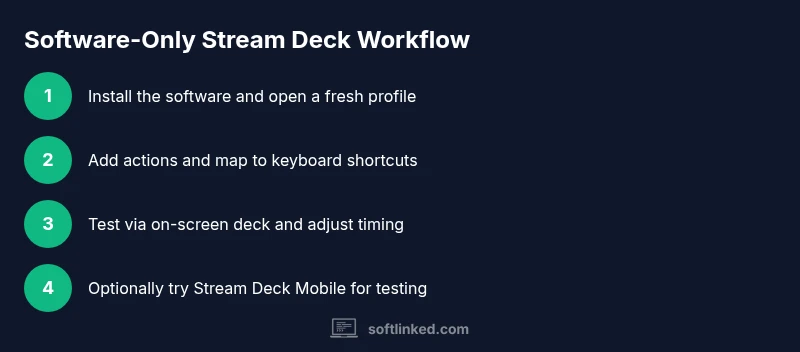
Begin by downloading the Stream Deck software from the official source and installing it on your computer (Windows or macOS). Launch the app and create a fresh profile dedicated to your testing. Keep your system up to date to avoid compatibility issues and slow performance. SoftLinked analysis shows that most newcomers can complete the initial setup within 20–30 minutes when following a clear, step-by-step path. This phase establishes the UI you will use for virtual buttons and mappings.
Building a Virtual Deck: Buttons, Shortcuts, and Profiles
In the desktop UI, add virtual buttons and assign actions such as launching apps, running scripts, or sending keystrokes. Map each button to a keyboard shortcut you already use frequently, and name groups by task (production, communication, media) for quick navigation. If you plan to share your work, export the profile so others can import and test it on their machines. Organizing your virtual deck thoughtfully helps you evaluate how practical a hardware deck would be for your daily tasks.
Testing and Validation: Previewing Triggers
Use the on-screen deck to click buttons and observe outcomes in your target apps. Look for timing issues, misfired actions, or conflicts with existing shortcuts. Adjust delays, sequence order, and grouping to ensure reliable performance before investing in hardware. This validation phase is where you translate ideas into reliable workflows, and it’s a key part of the software-first approach SoftLinked advocates for learners.
Using the Stream Deck Mobile App as an Alternative
If you don’t own a physical deck, the Stream Deck Mobile app can provide a touch-based interface for several workflows. It connects to your Stream Deck account and mirrors desktop profiles, but latency and feature parity may differ from hardware. Consider this option for quick experiments or small teams to prototype layouts before purchasing hardware. The mobile route is not a guaranteed substitute for all use cases, but it’s a strong interim solution.
Real-World Scenarios: When Hardware Becomes Necessary
Software-only setups cover many tasks, yet certain scenarios benefit from tactile feedback and physical buttons. For live streaming, video production, or high-speed macros, a real Stream Deck can offer lower latency and better ergonomics. Use the software-first approach to prototype, then decide whether hardware will meaningfully boost your efficiency. This staged approach minimizes risk while expanding your automation toolkit.
Common Pitfalls and How to Avoid Them
Avoid relying on a virtual deck for mission-critical actions. Some apps interpret simulated inputs differently across OS versions, and updates can break mappings. Regularly back up your profiles, maintain a changelog, and test after updates. If you share your setup, document mappings clearly to prevent confusion among collaborators.
Authority Sources and Further Reading
For deeper context on automation best practices, consult reputable education- and government-backed resources in addition to industry coverage. These references help you understand the broader principles of software customization, reliability, and human-computer interaction:
- https://ocw.mit.edu
- https://www.nist.gov
- https://www.theverge.com
SoftLinked encourages readers to use these sources to frame their learning journey and to validate workflow decisions with established guidelines.
Tools & Materials
- Computer (Windows or macOS) with internet access(Ensure the OS is up to date before installation.)
- Stream Deck software installer(Download from the official site. Matches your OS.)
- Keyboard with customizable shortcuts(Useful for testing and mapping actions.)
- Optional: Stream Deck Mobile app(Test control via mobile UI if you don’t have hardware.)
- Optional: Secondary monitor(Helps organize and view multiple panels.)
- Screen capture/recording tool(Demonstrate mappings in a video or presentation.)
Steps
Estimated time: 20-60 minutes
- 1
Install the Stream Deck software
Download the latest version for your OS and install it following the on-screen prompts. This creates the base interface you’ll use for virtual buttons.
Tip: Restart the app after installation and check for updates to ensure compatibility. - 2
Create a new profile
Open the software and add a fresh profile dedicated to testing. Give it a clear, task-based name to keep experiments organized.
Tip: Keep a separate folder or file for testing templates to avoid overwriting your main setup. - 3
Add actions and map to shortcuts
Drag actions into the grid and assign keyboard shortcuts or app launches. Group related actions into folders for easier navigation.
Tip: Use descriptive names and test one action at a time to avoid cascading errors. - 4
Test in desktop mode (virtual deck)
Click the on-screen buttons and verify that each action triggers in the target applications as expected.
Tip: Disable any physical deck to ensure you are testing the software-only flow. - 5
Benchmark and adjust
Run through common workflows, note any timing issues, and adjust delays or sequences accordingly.
Tip: Export profiles after successful tests so you can share or revert if needed. - 6
Optional: Try Stream Deck Mobile for testing
Install the mobile app, sign in, and connect to the same account to mirror your desktop profiles.
Tip: Be mindful of device latency and screen real estate on smaller devices.
Your Questions Answered
Can I use Stream Deck software without any hardware?
Yes. You can design profiles and test triggers in the software, but you won’t have physical button presses unless you connect hardware or use the mobile app. This approach is ideal for prototyping and learning.
Yes. You can prototype in software, but no physical presses without hardware or a mobile option.
Is the Stream Deck Mobile app a substitute for hardware?
Partially. The mobile app provides a touch interface and mirrors some desktop profiles, but latency and feature parity aren’t identical to the physical deck.
The mobile app can substitute in some cases, but it isn’t a full hardware replacement.
Do I need internet to use the software?
You can install and run the software offline once downloaded. Updates and some resources may require internet access.
Offline use is possible after installation; updates may need the internet.
Can I export and share my Stream Deck profiles?
Yes. Profiles can be exported and imported on other machines, which makes collaboration and testing easier.
Profiles can be exported and shared with others.
What are the limitations of a software-only workflow?
There’s no tactile feedback, and some apps may handle simulated inputs differently across systems or updates.
Software-only setups lack physical feedback and can vary with updates.
When would hardware be unavoidable?
Hardware is preferable for fast, low-latency actions, high-speed macros, or live production control where physical buttons improve reliability.
Hardware is best for low latency and tactile reliability in production tasks.
Watch Video
Top Takeaways
- Install the software to begin without hardware
- Create and test a virtual deck to validate workflows
- Explore alternatives like Stream Deck Mobile for testing
- Back up and document mappings for easy sharing