Can You Put Software on an External Hard Drive? A Practical Guide
Learn how to run software from an external hard drive, with Windows/macOS steps, performance tips, licensing notes, and safe backup practices.


Software can be run from an external hard drive in many cases, especially portable apps designed for portable storage. Traditional installers may rely on system components, registry entries, and license checks, so results vary. For best results, use a fast external drive and keep the drive connected during use. This approach can save internal space and enable portable setups for students, developers, and IT test environments.
Why you might want to run software from an external drive
There are several legitimate reasons to run software from an external hard drive. For students who move between machines, an external drive can act as a portable software library, helping you keep the same tools across devices without duplicating licenses. Developers often prefer external drives for isolated test environments, experiment sandboxes, or to keep the primary OS drive uncluttered. In business contexts, teams use external drives to share standardized toolsets for training or demonstrations. While this setup can be convenient, it comes with trade-offs in speed, reliability, and compatibility. The SoftLinked team notes that feasibility hinges on how software is designed, how the OS treats external installs, and licensing terms. In short, you can run software from an external drive, but plan for performance differences and licensing constraints.
When evaluating whether to place software on an external drive, start with your use case: portability versus performance, the software’s dependencies, and whether updates and licensing will function correctly from the external path.
What kinds of software can live on an external drive?
Portable apps are the most reliable category for external storage. These are designed to run without heavy integration into the host OS, requiring fewer registry keys or system components. Some traditional applications can also be run from external drives when their data folders and supporting libraries are relocated or redirected. It’s common for data-heavy tools (development environments, IDEs, data visualization apps) to store large caches or project files on the external drive while keeping core binaries on the drive itself. Always verify licensing terms, update mechanisms, and the vendor’s stance on external installations. If an app relies on shared system components (frameworks, runtimes, or specific OS services), it may not run cleanly from external storage.
Assess each piece of software individually. For mission-critical tools, test in a controlled environment to confirm updates, plugins, and integrations work as expected. SoftLinked’s guidance emphasizes evaluating both performance and compliance before moving to external storage.
How installing to an external drive works on Windows
Windows can install many programs to an external drive if you choose a custom install path. The installer UI often presents an option to select the destination folder; choose a folder on the external drive (for example, E:\Program Files\YourApp). Some apps may still store necessary data in user profiles or the registry, which can complicate portability. If a program doesn’t offer a separate data path, you can use junctions or symbolic links to redirect folders, but this is more advanced and can affect updates or uninstall processes. Ensure the external drive is formatted with a compatible file system (NTFS is common for Windows) and that the drive remains connected during use. Licensing terms may also restrict or dictate how installations on external media are managed.
Practical tip: start with portable apps first to gauge behavior before attempting full installs on external storage.
How it works on macOS
macOS allows many apps to live on external drives by placing the .app bundle in the External Drive’s Applications folder. The app can run from the external volume, but some components (preferences, caches, and helper services) may still be stored on the internal drive. Gatekeeper and code-signing policies can affect startup if the app requires consistent path references. If you move an app, macOS may re-check licenses or require reauthorization. App updates can also behave differently when the application is not in /Applications on the boot drive. As a result, thorough testing is recommended, especially for apps with complex installers or enterprise licenses.
Best practice is to keep a clean separation: install to the external drive for portability, but be mindful of where data and preferences reside.
Performance and reliability considerations
External drives are slower than internal SSDs, especially when connected over older USB interfaces. For acceptable performance, prefer USB-C connections with USB 3.1/3.2 or Thunderbolt interfaces and use a fast external SSD for the host drive. Mechanical HDDs may cause latency in load times and longer app startup, particularly for large IDEs, design tools, or virtual machines. Make sure the drive has sufficient free space and that you’re not saturating the bus with multiple high-demand tasks. Regularly defragmenting is generally unnecessary on SSDs and not advised for SSDs, but you should monitor drive health using SMART tools. In short, expect some slowdown compared to internal storage; plan around this with hardware choices and usage patterns.
Best practices for reliability and performance
- Use a high-speed external SSD with a modern USB-C or Thunderbolt connection.
- Keep the external drive dedicated to the software you intend to run; avoid mixing OS backups and programs on the same drive.
- Regularly back up external-drive software and data to a separate location.
- Prefer portable applications when possible; test updates before deploying broadly.
- Safely eject the drive after closing all programs to prevent data corruption.
Step-by-step: How to set up software on an external drive (generic)
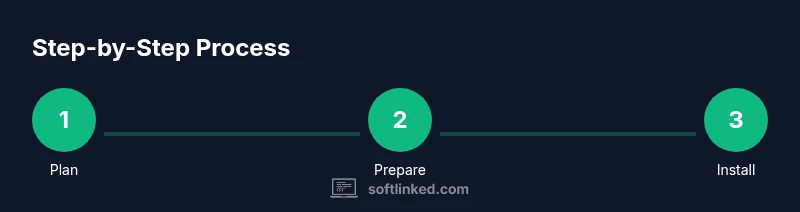
- Plan your installation; identify which apps are portable or can relocate data to an external drive.
- Prepare the external drive by formatting it with a compatible file system and creating a dedicated folder for installations.
- Run the installer and select the external drive as the destination; if not available, move the program after installation and redirect data accordingly.
- Configure launch shortcuts and, where possible, point data directories (caches, configs) to the external drive.
- Test the software thoroughly; check for updates, license checks, and plugin integrations.
- Implement a backup plan that copies the external-drive content to a separate drive or cloud storage regularly.
- Monitor performance and adjust hardware connections (cable type, port) if you notice bottlenecks.
Troubleshooting and common issues
- Some software will not run from external storage due to licensing or hard dependencies. If an app refuses to start, verify the installer options and consider a local install for core components, with data stored externally where feasible.
- If updates fail, check whether the app stores critical libraries in system folders. Updates may require reinstalling on the external drive or re-linking data paths.
- Permissions can block execution on macOS; ensure the drive and app have proper access permissions and that Gatekeeper allows the app.
- If performance is unacceptable, verify the drive type, connection bandwidth, and ensure there are no background processes monopolizing the USB bus.
SoftLinked’s guidance emphasizes validating licensing terms and update mechanisms before moving large suites of software to external drives.
Security, licensing, and backups
Running software from an external drive can expose you to licensing constraints and data risks if the drive is lost or corrupted. Always review license terms to confirm portability and use correct activation methods. Encryption can protect sensitive data if the drive is stolen. Maintain regular backups of both the external-drive software and its data. Use versioned backups to recover from accidental changes or software updates gone wrong. Finally, store the external drive in a safe location when not in use and ensure proper shutdown procedures to prevent data loss.
Tools & Materials
- External hard drive(formatted for the target OS; ensure adequate free space for the software and its data)
- USB-C or USB-A cable(match your computer ports; prefer USB-C if available)
- Computer with the appropriate OS(Windows, macOS, or Linux with up-to-date software)
- Optional: external SSD(for faster load times and better responsiveness)
- Basic disk utility or partitioning tool(needed if you plan to format or resize partitions prior to install)
Steps
Estimated time: 40-90 minutes depending on software scope and hardware
- 1
Plan the installation
Identify which programs are portable or can relocate data to an external drive. Check licenses and update mechanisms to ensure portability, and decide where data will live (external drive vs. internal).
Tip: Create a quick matrix of apps and their dependencies to avoid later surprises. - 2
Prepare the external drive
Format the drive with a compatible file system and create a dedicated folder for the apps you plan to install. Ensure the drive has enough free space for future updates.
Tip: Use NTFS/exFAT on Windows or APFS/HFS+ on macOS as appropriate for cross-OS access when needed. - 3
Install the software to the external drive
Run the installer and select the external drive as the destination. If the installer doesn’t offer a path change, consider portable alternatives or move the installed files after the fact and redirect data paths.
Tip: Prefer portable versions first to minimize system integration issues. - 4
Configure data and shortcuts
Point application data folders, caches, and settings to the external drive when possible. Create launch shortcuts on the main desktop for convenience.
Tip: Document the data path so you can migrate or back up easily. - 5
Test and validate
Launch the software, run a few tasks, and verify updates, plugins, and license checks. Monitor performance to identify bottlenecks.
Tip: Keep a backup of the external drive before major updates. - 6
Back up and maintain
Set up a regular backup schedule for the external drive. Periodically check drivers, firmware, and OS compatibility.
Tip: Encrypt sensitive software data if the drive contains confidential information.
Your Questions Answered
Can I boot Windows or macOS from an external hard drive?
Booting an OS from an external drive is possible in some configurations, but it requires specific setup and licenses. Many consumer apps don’t need bootable OS changes, and licensing terms may restrict such use. For most users, external drives are best for portable apps rather than primary OS boots.
You can boot from external drives in certain setups, but it’s not common for everyday software and licenses may restrict it. Portable apps are usually the safer route.
Will software run slower from an external drive?
Performance depends on drive speed and connection. SSDs on USB-C or Thunderbolt offer acceptable startup times, but internal SSDs are still faster. Expect some slowdown for large IDEs or games compared to internal storage.
Yes, there can be a speed difference. An external SSD with a fast USB connection will be much quicker than a traditional HDD, but still a bit slower than an internal drive.
Are licenses a concern when installing on external storage?
Licensing terms vary by vendor. Some allow portable installations or user-based licenses that don’t lock to a device, while others require activation tied to hardware. Always verify license terms before relocating software.
Licensing can limit external installs, so check the vendor terms before moving software.
Can all apps be moved to external drives?
No. Some apps require specific system components, registry entries, or path references that resist relocation. Portable apps and those designed for external use are the best candidates.
Not every app will work from external drives; portable apps are your safest bet.
What should I back up when I use external-drive installations?
Back up both the executable content and associated data folders, caches, and settings. Use versioned backups when possible so you can roll back problematic updates.
Back up the apps and their data, and keep versions to revert if needed.
What about macOS Gatekeeper and external apps?
Gatekeeper may block apps moved from external volumes. You may need to approve the app in Security & Privacy or re-download from the App Store for trusted installs.
Gatekeeper can block external apps; you may need to allow the app manually.
Is it safe to unplug the external drive while software is running?
No. Unplugging during use risks data corruption. Always eject the drive safely through the OS UI before disconnecting.
No, eject safely to avoid losing work.
Watch Video
Top Takeaways
- Evaluate software portability before moving installs to external drives.
- Use a fast external drive and reliable connections for better performance.
- Plan data paths and licenses to avoid failures after relocation.
- Regularly back up external-drive installations and data.
- Test thoroughly on your target OS (Windows/macOS) before widespread use.