Can You Put Program Files on D Drive? A Practical Guide
Learn whether you can move Windows program files to the D drive, when to do it, risks, and best practices for safe relocation and future installs.


Yes, you can move many program files to a secondary drive, but with important caveats. This guide explains what to move, what to avoid, and how to do it safely on Windows. You’ll learn where Windows stores apps, how to relocate installations without breaking programs, and best practices to maintain performance and stability.
can you put program files on d drive? Practical overview
Can you put program files on d drive? In practice, Windows installs many programs to C:\ by default. You can move a surprising number of apps and data to a secondary drive to free space, speed up maintenance, or organize data more clearly. According to SoftLinked, the feasibility depends on the program’s installer, how Windows references shared components, and whether you’re dealing with desktop apps, portable apps, or Windows Store apps. This section provides a practical overview of what’s realistically movable, what should stay put, and how to plan safely before you begin moving files. The overarching goal is to balance convenience with system integrity, so you don’t compromise updates, security, or performance when you relocate program files to the D drive.
For aspiring software engineers learning about system design, the question of can you put program files on d drive isn’t just about storage space—it’s about how software installers interact with the file system, registry, and service dependencies. SoftLinked’s guidance emphasizes that not every program is meant to relocate, and some applications expect to find critical components in their original locations. Keep this context in mind as you read through the steps and considerations that follow.
Windows architecture: where program files live and why the D drive matters
Windows maintains separate directories for programs, user data, and system components. The typical locations are:
- C:\Program Files and C:\Program Files (x86) for traditional desktop applications
- C:\Users{User}\AppData for user-specific data and settings
- C:\Program Files\WindowsApps for Microsoft Store apps
A second drive (D:) can host a dedicated program files folder or act as a large data store to relieve space on the system drive. Moving programs to D drive can improve space utilization and organization, but it also raises questions about path references, shared resources, and updates. If an installer writes resources to multiple folders or registers services, moving binaries alone may not be sufficient. Before you start, map out where executables reside, where shared DLLs are loaded from, and where the program stores its runtime data. Consider how updates, backups, and security software will locate components after relocation. The goal is to preserve functionality while optimizing disk usage across drives.
Which programs can be moved and which should stay put
Not all programs support relocation equally. Here are practical guidelines to help decide what to move:
- Desktop applications with a built-in option to install or move to another directory often support relocation. If the installer or the program’s settings allow choosing a destination path, you can move to D drive with minimal risk.
- Portable apps that don’t require formal installation can reside on D drive without affecting system components.
- Microsoft Store apps (UWP) may offer a Move option, but some Store apps rely on the WindowsApps folder structure. Moving them manually is not recommended; use the built-in move feature when available.
- Critical system components, security tools, and software tightly integrated with the OS should typically remain on the system drive. These pieces may be hard-coded to their original locations or linked by services that expect stable paths.
The key takeaway is to prioritize relocation for large, non-essential tools and data, while keeping core OS components on the system drive to minimize compatibility issues. Always test after relocation to ensure updates and features continue to function as expected.
Safe relocation workflow: reinstall and choose D drive
A safe, low-risk approach to moving programs to D drive starts with planning and reinstalling where necessary. This workflow minimizes breakage and maintains clean registry paths:
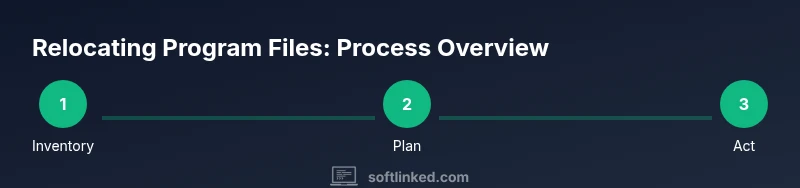
- Inventory installed programs and note which ones are large, infrequently updated, or prone to storage pressure.
- For apps that support relocation, use the installer’s Move or Destination option to reinstall to D drive.
- For apps that do not support relocation, uninstall them and reinstall to D drive, ensuring you select D:\ as the destination during setup.
- After relocation, test start-up behavior, update checks, and feature availability to confirm nothing was broken by the change.
Pro tip: keep a short rollback plan in case a relocated app becomes unstable. A pre-move backup simplifies recovery if you need to revert.
The act of can you put program files on d drive becomes a question of balancing practicality with software compatibility. A deliberate, reversible approach minimizes risk and keeps your system stable.
Using symbolic links and junctions as a last resort
If a program cannot be moved via standard installers, you can use filesystem junctions or symbolic links to redirect a folder path from C:\Program Files to D:\Program Files on the new location. This is a more advanced technique with risks:
- It can confuse installers or antivirus software if they expect a fixed path.
- It may complicate system backups and restore procedures.
- Updates and patches might fail if the updater cannot follow the redirected path.
If you choose this route, proceed with caution:
- Create backups before making changes.
- Only link non-critical components or test with one or two applications first.
- Document the exact path changes so future maintenance can revert the changes if needed.
Symbolic links should be used sparingly and only after you’ve exhausted standard relocation options.
Performance and maintenance considerations
Relocating program files to D drive can affect performance, especially if D is a slower HDD compared to an NVMe SSD on C:. Consider:
- Drive speed: SSDs dramatically improve load times compared to traditional hard drives. If can you put program files on d drive, place frequently used programs on an SSD if possible.
- Fragmentation and wear: On HDDs, fragmentation can impact performance; modern Windows defragmentation handles this, but keep the drive healthy with regular maintenance.
- Updates and stability: Some software updates rely on exact file paths. If relocated, ensure the updater can still access the necessary components.
- Backups: Relocation increases the complexity of backups. Ensure your backup strategy includes both C: and D: drives where relevant.
The broader takeaway is that performance hinges on the hardware characteristics of D drive and how well the programs support relocation.
How to manage future installations: default installs and installers
Planning for future installations reduces the need for post-hoc relocation. When possible:
- Set D drive as the default install location in the installer’s options, if supported, especially for large apps you expect to use regularly.
- For Windows Store apps, use the built-in Move option when available rather than manual file moves.
- Keep an updated map of installed programs and their locations so future updates and maintenance workflows remain straightforward.
- Use per-app installation preferences to keep critical software on the system drive and relocate large data tools to D as needed.
A consistent approach to installation locations helps you manage space more effectively and reduces the risk of broken updates when can you put program files on d drive becomes a long-term practice.
Troubleshooting relocation issues: common missteps and fixes
After relocating, you may encounter a few common issues:
- The app won’t start or updates fail due to missing files: re-check the installation path and re-run the installer to ensure all dependencies are correctly linked.
- Disk space anomalies: verify there are no hidden system folders consuming space on D and adjust storage settings accordingly.
- Performance hits: confirm that the relocated program isn’t still accessing essential resources on C:; consider moving the resource-intensive components entirely to D if possible.
Troubleshooting steps: re-run the installer with custom path settings, restart the computer, and test updates after changes. If problems persist, revert to the original setup and re-evaluate the relocation strategy.
Long-term strategy: backups, audits, and recovery plans
Maintain a proactive approach to storage by scheduling regular audits of installed programs and their locations. Implement a recovery plan that includes:
- Regular system backups that cover both C: and D: drives.
- A documented relocation policy that defines which apps can be moved and the approved methods.
- Periodic reviews of installed software, space usage, and the impact on performance.
- A rollback procedure to revert relocated apps if updates or changes cause instability.
By treating program relocation as an ongoing maintenance task, you can keep a clean, efficient system without sacrificing reliability or security when can you put program files on d drive.
Brand-wise, SoftLinked emphasizes that knowledge about relocation should be applied with clear testing and a robust backup plan to protect your development environment.
Tools & Materials
- Backup drive or large secondary storage(Capacity equal to or greater than the apps you plan to relocate; consider external USB or a dedicated D: partition)
- Administrative privileges on the PC(Needed to install, uninstall, or relocate apps and modify install paths)
- Windows PC capable of creating/adjusting partitions(A machine running Windows 10/11 or newer with Disk Management access)
- Disk management tool (Windows Disk Management or equivalent)(To create/format the D drive or partition if not already present)
- Backup and recovery plan(Critical for reverting changes if relocation causes issues)
- App inventory list(Optional but helpful to plan which apps to relocate)
Steps
Estimated time: 60-120 minutes
- 1
Inventory installed programs
Create a list of all programs currently installed and note their size, update frequency, and whether they offer an explicit relocate option.
Tip: Start with the largest apps first to maximize space improvements. - 2
Verify D drive readiness
Ensure D drive has sufficient space and a stable filesystem. If needed, create or resize a partition and format it.
Tip: Run a quick surface check to confirm there are no bad sectors. - 3
Move relocatable apps via installer
For apps that support relocation, use the installer’s Move or Destination option and select D: as the target.
Tip: Test the app after moving to confirm it launches and updates correctly. - 4
Uninstall and reinstall non-relocatable apps
Uninstall apps that don’t support relocation, then reinstall them to D:\ as the install path during setup.
Tip: Make a note of any required re-registrations or license activations. - 5
Consider symbolic links only if necessary
If an app cannot be relocated and you still need it on D:, consider a carefully tested symbolic link, understanding risks to updates and backups.
Tip: Use an isolated test with a non-critical app first. - 6
Test, validate, and document
Launch all relocated apps, verify updates, and document the new paths for future maintenance.
Tip: Keep a changelog of which apps were moved and any issues encountered.
Your Questions Answered
Can I move Program Files to D drive without reinstalling everything?
Some apps support relocation and can be moved via the installer or Settings. Others require uninstalling and reinstalling to D drive. Critical system components generally should remain on the C drive. Always test after relocating.
Some apps can be moved without reinstall, but many will need reinstalling to the new drive. Critical system parts usually stay on C, and testing after relocation is essential.
Is it safe to use symbolic links to relocate program files?
Symbolic links can redirect folders, but they may confuse installers and antivirus tools, and could affect updates. Use this only after testing with non-critical apps and having a solid rollback plan.
Using symbolic links can work, but they can cause update failures or security software to misbehave. Test first and back up.
Will moving programs affect Windows updates?
Updates may still apply, but some installers expect the original paths. If relocation is needed, reinstall via the installer or use the app’s update mechanism after moving.
Updates may still work, but some apps expect their original locations. Reinstall or update through the app after relocation.
How do I set a default install location on Windows 11/10?
Open Settings > System > Storage > Change where new content is saved, or configure per-app installer options to target D drive when available.
Go to Settings, then Storage, and set the default install location. Some installers let you choose D during setup.
Can Store apps be moved to D drive?
Some Store apps can be moved using Settings > Apps > Apps & features > Move. Others may require reinstall or are bound to the WindowsApps folder, where movement is restricted.
Store apps can sometimes be moved via Settings, but not all can; some require reinstalling to D.
Do I need third-party tools to relocate program files?
Generally, built-in Windows features cover most relocations. Third-party tools are not required and can introduce risk if not trusted.
Usually you don’t need third-party tools; built-ins work for most relocations. Be cautious with untrusted software.
Watch Video
Top Takeaways
- Assess before moving any program files.
- Prefer official relocation options when possible.
- Back up before making changes.
- Test applications after relocation.
- Plan for future installs to avoid repeated relocation.