Can You Put New Software on an Old MacBook? A Practical Guide
Explore whether aging MacBooks can run modern apps, what to check, and practical options like OS updates, lighter software, virtualization, or cloud solutions.


Yes, you can often run newer software on an older MacBook, but it depends on hardware specifications and macOS compatibility. Check the minimum OS version, CPU architecture, available RAM, and free disk space. If the device can't meet requirements, consider updating macOS to a supported version, using lighter alternatives, or employing virtualization or cloud-based apps.
Can you put new software on an old MacBook?
According to SoftLinked, the short answer is yes in many cases, but the real picture depends on hardware limits and macOS support. The question can you put new software on an old macbook often comes down to whether the device can meet the required OS version, RAM, and storage for the apps you want to run. If the model can run a reasonably recent macOS, you have a better chance of installing or updating software without major compromises. SoftLinked's guidance emphasizes planning, testing, and backup before committing to any upgrade path. In practical terms, start by listing your target programs, then compare their system requirements against your MacBook's specifications. This approach helps you avoid fruitless installs and sets realistic expectations for what your machine can responsibly handle while staying productive.
Assessing your MacBook's capabilities
Before you decide what to install or upgrade, perform a clear-eyed assessment of your hardware. Identify your model family (e.g., older Intel-based or early Apple Silicon devices), then check CPU type, RAM capacity, and available storage. Consider battery health and thermal performance, which influence how well prolonged workloads will run. A simple inventory helps you decide which software categories you can realistically support. For example, if you only need lightweight productivity tools, you may be able to run newer software with modest RAM. If your device is very tight on storage, focus on cloud-based or streaming options to reduce local demand. In every case, back up first and test gradually to avoid data loss or unstable behavior.
OS compatibility basics
Modern software increasingly ties itself to recent macOS versions. If your MacBook can run a supported OS, you can often install current apps, though some developers drop 32-bit support or require newer hardware features. Start by identifying your current macOS version and the latest version your model can run. Cross-check app requirements with official sources, and note any architectural constraints (e.g., 64-bit only). If critical apps require newer OS than your machine can support, you’ll need to pivot to lighter alternatives or consider virtualization or cloud-based options. Always prioritize official guidance from Apple and software publishers to avoid incompatible installations.
32-bit vs 64-bit and architecture considerations
A key constraint for older Macs is architecture. Many new applications require 64-bit support and recent instruction sets. If your MacBook is capped at a pre-64-bit environment, you’ll face compatibility gaps with current software. In some cases, you can find legacy versions or alternative builds that still run, but you lose security updates and feature parity. When evaluating software, verify whether the app ships a universal binary, a 64-bit variant, or a cloud/web-based option that doesn’t demand heavy local resources. If architecture limits are binding, prioritize cloud-based access or virtualization that isolates the old system from incompatible binaries.
Path A: Update macOS where supported
If your MacBook is eligible for a newer macOS within the vendor’s support window, an OS upgrade can unlock compatibility for newer applications. Plan upgrades during low-usage periods, back up beforehand, and verify that essential apps still work afterward. Maintain a rollback plan if the new OS introduces performance or stability issues. Keep in mind that some models must stay on older macOS versions due to firmware or driver constraints. In such cases, you may have to rely on lighter apps or alternative runtimes rather than a full OS update.
Path B: Embrace lighter software and alternatives
Many developers offer lighter, macOS-native versions designed for older hardware. When you can’t upgrade, look for apps with lower RAM and CPU footprints, or web-based equivalents that run in your browser. These options reduce strain on the system while preserving productivity. Where possible, opt for applications known to run well on aging hardware and confirm features align with your workflows. This approach often yields a smoother user experience without forcing a costly upgrade.
Path C: Virtualization and emulation for testing
Virtualization lets you isolate newer software in a controlled environment without altering the main system. If your MacBook supports a lightweight VM solution, you can test new software without risking core stability. Be realistic about performance — VMs on older hardware can be sluggish, but they are valuable for compatibility checks and learning. Always allocate resources conservatively and monitor temperatures and fan activity to avoid throttling or damage over time.
Path D: Cloud-based and remote software options
Cloud-based or remote desktop solutions let you access modern tools without heavy local installs. This path is particularly useful for resource-limited Macs. If your workflows rely on web apps or SaaS, ensure your internet connection is reliable and data policies align with your security requirements. Cloud access can extend the usable life of an older MacBook while preserving access to up-to-date software features.
Performance tips and maintenance
Regular maintenance can squeeze more life from an older MacBook. Clean up unused files, manage startup programs, and consider upgrading storage or memory if possible. Reducing visual effects and disabling non-essential background processes can improve responsiveness. In some cases, a fresh, clean macOS installation (on supported hardware) yields better performance than a stale setup with conflicting apps. Always verify each change with a brief test to confirm it benefits your daily tasks.
Backup, safety, and data integrity
Before attempting any upgrade path or major software changes, back up the entire system. Time Machine or cloud backups are suitable options; ensure you can restore critical files if something goes wrong. Test your backup by performing a sample restore of a few files. External drives, encrypted backups, and accessible recovery media provide a safety net for experiments and unfamiliar configurations. This precaution reduces the risk of data loss during OS updates or app migrations.
Decision framework: upgrade, replace, or adapt
Use a simple decision framework to decide whether to upgrade, replace, or adapt. If you can achieve your must-have tasks with lightweight apps or cloud access, consider staying with the current hardware while updating only the necessary software. If performance remains consistently painful and costs of workarounds exceed benefits, a replacement may offer better long-term value. Factor in reliability, repairability, and total cost of ownership when making the call.
Quick checklist before you take action
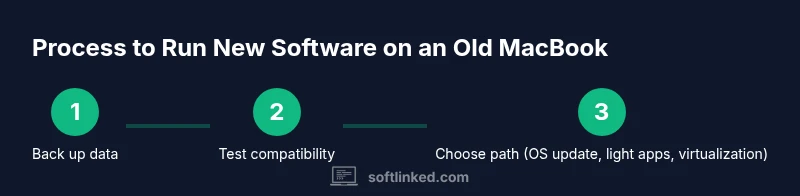
- Back up all data
- List target apps and their requirements
- Check macOS compatibility for your model
- Decide between OS upgrade, lighter apps, or virtualization
- Plan a test period and rollback option
- Confirm security and data-handling practices
Tools & Materials
- External hard drive or cloud backup service(Back up your entire MacBook before testing any changes)
- Mac with admin access(Needed to run OS updates and install software)
- List of target apps and minimum requirements(Includes version info and reliable sources)
- Stable internet connection(Required for downloads, updates, and cloud solutions)
- Optional: virtualization software(If you plan to sandbox testing environment (e.g., a lightweight VM))
Steps
Estimated time: 2-3 hours
- 1
Back up your data
Create a full backup using Time Machine or a trusted cloud solution. This protects your files before you test upgrades or install new software. Verify the backup by performing a quick restore test of a few files to ensure you can recover later.
Tip: Always verify backup integrity after completing it. - 2
Identify your MacBook’s capabilities
Determine your model family, CPU, RAM, and available storage. Record the OS version you’re currently running and the maximum supported by your hardware. This snapshot guides every subsequent choice and helps prevent wasted effort on incompatible software.
Tip: Use Apple menu > About This Mac to get core specs quickly. - 3
Check app requirements against your OS
For each target app, confirm minimum OS version, architecture (32‑bit vs 64‑bit), and any required hardware features. If several apps share the same constraints, prioritize those that align with what your MacBook can, realistically, support.
Tip: Copy-paste official requirements from the publisher’s site for accuracy. - 4
Test an OS upgrade path (if eligible)
If your device supports a newer macOS, run the installer in a controlled window. Ensure backups exist, and keep a rollback plan ready if the upgrade causes instability or driver issues.
Tip: Avoid upgrading during peak work times to minimize disruption. - 5
Explore lighter alternatives
Seek apps with lower resource demands or web-based equivalents. This reduces local load and preserves usability, especially if your hardware is constrained.
Tip: Experiment with one alternative at a time to isolate impact. - 6
Consider virtualization or remote access
If practical, set up a small VM or use cloud-based access to run newer software without changing the main system. Monitor performance and temperatures to avoid throttling.
Tip: Allocate only minimal VM memory to keep host performance stable. - 7
Make a final decision
Evaluate whether the improved software experience justifies ongoing costs, maintenance, and potential risk to stability. Decide whether to continue testing, switch to lighter workflows, or replace the device.
Tip: Set a decision date to prevent endless tweaking.
Your Questions Answered
Can I install the latest macOS on an old MacBook?
Not always. It depends on model year and firmware support. Check Apple's compatibility pages and consider whether an upgrade will meaningfully improve your workflow without compromising stability.
Not always. Check the model’s compatibility and weigh the benefits against potential stability issues.
Will updating macOS slow down my old MacBook?
Updates can improve security and compatibility, but some newer versions may run more slowly on very old hardware. Test in a controlled window and revert if performance drops significantly.
Updates can help or hurt performance on older hardware; test carefully.
Are virtualization options safe on old Macs?
Yes, virtualization is generally safe if you use reputable software and allocate resources conservatively. Ensure backups and monitor temperatures during use.
Yes, but expect slower performance and monitor heat.
What if an app stops supporting my OS?
Look for alternatives, older versions, or cloud-based options. If no viable path exists, you may need to replace the software stack or the device.
If an app drops support, switch to alternatives or cloud apps.
Should I replace the MacBook or buy a new one?
If continued performance improvements are essential and costs of workarounds exceed benefits, a replacement may offer better long-term value.
Replacement might be the smarter choice in the long run if upgrades don’t help.
How do I safely back up before trying upgrades?
Use Time Machine or a cloud backup and test a restore of a few files to ensure you can recover.
Back up first, then test restore to confirm reliability.
Watch Video
Top Takeaways
- Assess hardware first before attempting installs
- Use lighter apps or cloud-based solutions when possible
- Back up and test before making changes
- Replace the MacBook if long-term performance is unacceptable