Can You Download Software on a Chromebook? A Practical Guide
Discover how to download and run software on a Chromebook using Play Store, Chrome Web Store, or Linux (Beta). Step-by-step methods, safety tips, and troubleshooting for students and developers.


On a Chromebook, you can download and run software mainly through the Play Store, Chrome Web Store, or Linux (Beta). The method depends on your device and Chrome OS version. Typically you’ll install Android apps via Play, Linux apps via the terminal and package managers, or use web apps directly in your browser.
What a Chromebook Can Run: Apps and Systems
Chromebooks support a mix of software types, with three primary delivery paths: Android apps from the Google Play Store, web apps and extensions from the Chrome Web Store, and traditional Linux applications through the Linux (Beta) environment. According to SoftLinked, this multi-path approach makes Chromebooks versatile for students, developers, and casual users alike. The availability of each path depends on your model, Chrome OS version, and regional store permissions. Understanding these options helps you answer the question can you download software on a Chromebook in practical terms: you can, but you’ll choose among Android, web, or Linux applications based on what you need and how you prefer to work.
Quick note on terminology
- Android apps (APK-based) run inside the Play Store sandboxed in Chrome OS.
- Web apps run in the browser and can work offline if they’re Progressive Web Apps (PWAs).
- Linux apps run in a separate Linux container but can access files in your Chromebook’s storage if you grant permissions.
This article uses the umbrella term can you download software on a Chromebook to refer to all three channels.
Tools & Materials
- Chromebook with internet access(Stable Wi-Fi or Ethernet bridge recommended for large downloads)
- Google account(Needed to sign in to Play Store and Chrome Web Store)
- Play Store access enabled(Some models require enabling in Settings > Apps > Google Play Store)
- Linux (Beta) option(Optional for Linux apps; may require enabling in Settings > Linux (Beta))
- Web browser(Used for Chrome Web Store and PWAs)
Steps
Estimated time: 60-90 minutes
- 1
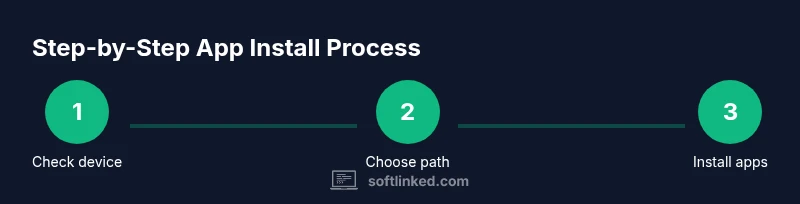
Check device capabilities
Verify whether your Chromebook supports Google Play Store and Linux (Beta) by visiting Settings and looking for Play Store and Linux options. If neither path appears, your device or OS version may limit installations to web apps only. This initial check saves you from chasing unavailable methods later.
Tip: If you’re unsure, consult the manufacturer’s support page for your exact model. - 2
Sign in with your Google account
Sign in to your Chromebook with your Google account to access the Play Store and Chrome Web Store. This step is essential for installing Android apps and Chrome extensions. It also syncs apps and settings across devices where you’re logged in.
Tip: Use a work or school account if your device is managed; some features may be restricted by policy. - 3
Enable Google Play Store (if available)
Navigate to Settings > Apps > Google Play Store and turn it on. Follow the on-screen prompts to set up the Play Store if it’s the first time. Once enabled, you can browse and install Android apps just like on an Android tablet or phone.
Tip: After enabling, reboot your device if Play Store doesn’t show installed apps right away. - 4
Install Android apps from the Play Store
Open the Play Store, search for the app you need, and install it. Some Android apps may require additional permissions; review these carefully before granting access. Android apps run in a sandbox and can coexist with Chromebook-native apps.
Tip: Prefer apps with strong Chromebook support or PWAs when possible for better integration. - 5
Explore Chrome Web Store and web apps
If a preferred app isn’t available as an Android app, check the Chrome Web Store for extensions or PWAs. Web apps load quickly in the browser and can offer offline functionality if designed as PWAs. This path often requires fewer permissions and less storage overhead.
Tip: Look for PWAs labeled with 'Add to Home screen' for a native-like feel. - 6
Enable Linux (Beta) for traditional Linux apps
If you need desktop-style software (e.g., certain IDEs, compilers, or Linux-native tools), turn on Linux (Beta) in Settings. This creates a Debian-based environment where you can install apps via apt or other package managers. Expect occasional command-line interaction.
Tip: Start with a small package (like build-essential) to confirm your Linux container works before installing larger tools. - 7
Install Linux apps and manage permissions
Use the terminal to install Linux software (for example, sudo apt-get install package). Remember to grant file-system permissions if the app needs access to downloads or project folders. You can switch between Chrome OS and Linux environments as needed.
Tip: Keep Linux apps separate from Chrome OS apps to avoid path and permission confusion. - 8
Keep everything up to date and secure
Regularly check for OS updates (Settings > About Chrome OS) and update installed apps across Play Store, Web Store, and Linux. Review app permissions periodically to minimize privacy risks.
Tip: Enable automatic updates where possible and back up important files to Google Drive or local storage.
Your Questions Answered
Can you download Windows software on a Chromebook?
Chromebooks do not run Windows software natively. You can use Android apps, Chrome Web Store extensions, web apps, or Linux-based software via the Linux (Beta) environment. Some Windows functionality can be accessed through web apps or remote desktop solutions, but native Windows executables are not supported.
No—Chromebooks don’t run Windows programs directly. You can use Android apps, web apps, or Linux apps, or access Windows remotely if needed.
Do all Chromebooks support Google Play Store?
Most modern Chromebooks support Google Play Store, but some older or education-focused models may not. Check Settings > Google Play Store to confirm availability.
Most newer Chromebooks support Play Store, but some older models do not.
Is Linux (Beta) safe to enable on my Chromebook?
Linux (Beta) is a supported feature that operates in a separate container. It’s generally safe when you install software from trusted sources and keep permissions limited.
Linux on Chrome OS runs in a separate space, and you should use trusted sources and limit permissions.
Can I sideload APKs or install non-store apps?
Sideloading APKs is not recommended and can bypass important security safeguards. Use apps from the Play Store or trusted sources within the Linux environment.
Sideloading apps is not recommended on Chromebooks; prefer official stores or Linux packages.
Can Linux apps run offline on a Chromebook?
Many Linux apps can run offline after installation, but some require network access for updates or licensing. Plan for occasional online checks if needed.
Many Linux apps work offline, but some features may need internet access.
What’s the best setup for a developer using a Chromebook?
A common setup combines Linux (Beta) with lightweight IDEs and developer tools, plus web-based editors for collaboration. Android apps can fill gaps for testing, while PWAs handle daily tasks.
For development, use Linux and web-based tools alongside occasional Android apps.
Watch Video
Top Takeaways
- Identify the best installation path for your needs (Android, web, or Linux).
- Enable Play Store and/or Linux (Beta) where your device supports them.
- Use web apps for quick access and reduced storage needs.
- Regularly update OS and apps to stay secure and compatible.