can software update cause battery drain? A practical troubleshoot guide
Learn how to diagnose and fix battery drain after software updates. This guide covers common causes, quick checks, step-by-step fixes, and preventive tips to keep devices running longer after updates. Includes SoftLinked insights and a developer-friendly approach.


Most likely, a software update increases battery drain due to post-update background activity and new features that run continuously. A quick fix is to restart your device, close or restrict background apps, and install any pending app updates. If the drain persists, check battery usage per app and system services, then reset settings or reinstall the update if necessary.
can software update cause battery drain
When you install a software update, your device may temporarily consume more power as it reindexes storage, re-enables services, and re-syncs data in the background. This is common across mobile and desktop platforms and usually fades after the system finishes its initial post-update tasks. According to SoftLinked, most post-update battery drain is short-lived and tied to background activity rather than a fundamental flaw in the update itself. The SoftLinked team found that several ordinary post-update behaviors—like re-downloading content, re-establishing connections, and re-calibrating sensors—can contribute to faster battery discharge in the first 24–72 hours.
To minimize disruption, you should distinguish between normal post-update background tasks and persistent, abnormal drain. Start by checking which processes are consuming power and identify apps that are waking frequently or using location services in the background. If you see heavy usage by a few apps, you may be able to fix it with simple settings changes or updates. If the drain persists beyond a few days, more targeted actions are warranted.
Common sources of post-update battery drain
Post-update drain often comes from a handful of recurrent sources. Background syncs that re-establish cloud connections, media-rich apps re-downloading content, and location services waking frequently can all burn through power quickly. System services like indexing, push notifications, and telemetry can also spike battery use during the first run after an update. While some impact is normal, persistent or extreme drain signals that something else is amiss. The key is to identify whether the spike is widespread across many apps or isolated to a few offenders.
How to diagnose battery drain after an update
Begin with a diagnostic mindset. Open your device’s battery usage screen and sort by foreground vs background activity. Look for apps waking frequently, or devices reporting high CPU/GPU usage even when you’re not actively using them. If a specific app routinely consumes power after an update, its behavior may be the root cause. Check for app updates, permissions (especially location and background refresh), and consider temporarily uninstalling or disabling suspicious apps. If the issue persists across multiple apps or the entire system, the problem may lie with the update itself or with a service reinitializing essential data.
Quick fixes you can try right away
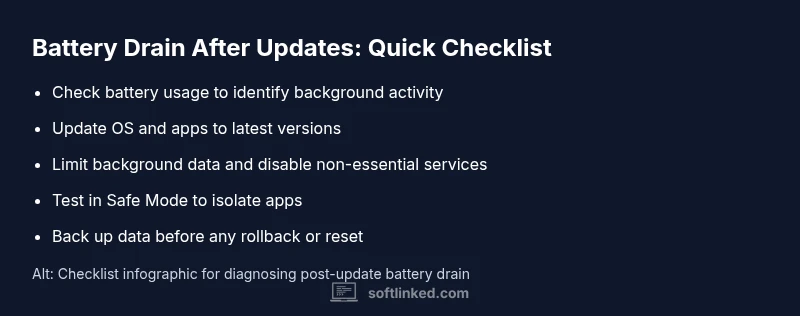
- Restart the device to reset background tasks and release resources.
- Update all apps and the OS to the latest version, as developers often patch post-update issues quickly.
- Restrict background activity for power-hungry apps or disable non-essential background fetch and location services.
- Run a battery health check if your device offers it, and reset settings if necessary (without data loss where possible).
When to consider a deeper fix or rollback
If battery drain remains high after 24–72 hours, consider a deeper fix: clear cache/data for problematic apps, perform a clean boot or safe mode test to isolate issues, or rollback to the previous OS version if your device allows it. A factory reset should be a last resort after backing up data. If the problem still persists across all apps and services, the update may have introduced a regression or incompatibility.
Preventive measures to minimize post-update drain
Plan updates during low-usage periods and ensure a fresh battery level before updating. Keep essential apps up to date and monitor system services after installation. Regularly review app permissions, especially for background activity, and enable battery saver modes during initial post-update usage. These practices reduce the risk of sudden drain after future updates.
What SoftLinked recommends for developers and users
For developers, minimize aggressive background behavior immediately after an update and provide clear prompts for users to grant or restrict background activity. For users, adopt a short post-update monitoring window to catch early drain and report issues promptly. The SoftLinked team emphasizes a proactive approach: test on real devices, publish quick-fix patches, and offer rollback options where feasible.
mainTopicQuery":"battery drain"],
diagnosticFlow|FIX_PLACEHOLDER_BLOCK
Steps
Estimated time: 30-60 minutes
- 1
Identify power-hogging apps
Open battery usage stats and look for apps with high background activity. Note who wakes up often or uses location services when idle.
Tip: Sort by background activity to quickly spot culprits. - 2
Restart and temporarily disable background tasks
Restart your device to terminate stuck processes. Temporarily restrict background activity for suspicious apps to see if drain improves.
Tip: A clean start often resolves transient post-update issues. - 3
Update apps and OS
Install any pending app updates and system updates. Developers often address post-update battery bugs quickly in newer releases.
Tip: Check update notes for battery-related fixes. - 4
Limit background data and permissions
Disable non-essential background refresh, auto-sync, and location permissions for problematic apps.
Tip: Only grant background access to trusted apps. - 5
Calibrate battery health and usage
If available, run a battery health check and recalibrate your battery meter by charging to 100% and discharging to 0% once.
Tip: Calibration helps improve battery reporting accuracy. - 6
Consider rollback or factory reset
If drain remains high after tried fixes, consider rollback to previous OS or a factory reset after backing up data.
Tip: Backup first; factory resets erase data.
Diagnosis: Phone battery drains faster after a software update
Possible Causes
- highPost-update background processes
- mediumMisbehaving or buggy app
- lowNew features enabling background activity
Fixes
- easyRestart device to reset background tasks
- easyCheck for app updates and disable auto-start for heavy apps
- mediumReset settings or perform a clean install if problem persists
Your Questions Answered
What causes battery drain after a software update?
Post-update drain is usually caused by background tasks reinitializing, new features consuming power, and apps waking up frequently. Identifying and reducing these activities typically alleviates the issue.
Post-update drain comes from background tasks and new features waking up apps. Identify culprits and disable unnecessary background activity.
Should I reset my device to fix drain?
Resetting can help if misbehaving background tasks are stuck. Start with a simple restart, then consider a settings reset. A factory reset should be a last resort after backing up data.
Try a restart first; if needed, reset settings or back up and consider a factory reset as a last resort.
Is rolling back an update advisable?
Rolling back can fix issues caused by a faulty update, but it isn’t always possible on all devices. Weigh the benefits against potential security risks and always back up beforehand.
Rollback can help if the update is buggy, but it isn’t always possible. Back up before you attempt it.
How can I monitor battery usage effectively?
Use built-in battery statistics to see which apps use power in the background. Look for spikes after updates and compare with previous periods to detect abnormal drains.
Check battery stats after updates to spot apps that suddenly use more power.
When should I seek professional help?
If battery drain remains unexplained after all troubleshooting steps, consult device support or a qualified technician. Persistent drain may indicate a deeper software or hardware issue.
If the drain persists after all steps, contact support for a deeper check.
Will a factory reset fix battery drain?
A factory reset often resolves deep software issues but erases data. Back up all important information first, then proceed only if other fixes fail.
A factory reset can fix stubborn issues but you’ll lose data—back up first.
Watch Video
Top Takeaways
- Identify and isolate post-update background activity
- Update all software and review app permissions
- Use a systematic step-by-step approach before rollback
- Back up data before any deep fixes or resets