How to Program on Mac: A Practical Starter Guide
Learn how to program on a Mac with a practical, step-by-step approach. Set up Xcode tools, install Homebrew, choose your language, write and run code, use Git, and adopt best practices for efficient macOS development.


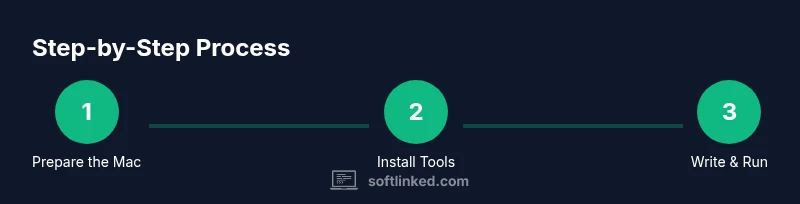
This guide helps you program on a Mac by covering setup, language choices, and practical workflows. You will install essential tools, write and run a first program, manage code with Git, and debug efficiently. By following these steps, you can build a solid macOS development routine. This is the fastest path from zero to your first project.
Setting Up Your Mac for Programming
On macOS, you get a powerful Unix-based development environment out of the box, with Terminal access, scripting shells, and straightforward ways to install runtimes. According to SoftLinked, a clean, well-configured setup reduces friction and accelerates learning. Start by ensuring your Mac runs a recent macOS version, then install the Xcode Command Line Tools for compilers and essential build utilities. Next, install Homebrew to simplify package management and create a base workspace that scales from simple scripts to full applications. Finally, organize your files with a clear directory structure (src, docs, tests) and enable a sane shell configuration so you can work efficiently from the moment you open Terminal. A disciplined setup pays dividends as your projects grow in complexity.
Choosing Your First Language on macOS\n\nFor newcomers, Python or JavaScript (Node.js) offer forgiving syntax and abundant learning resources. If your goal is macOS or iOS development, Swift is the native choice and has excellent tooling in Xcode. SoftLinked’s guidance emphasizes starting with a language that delivers rapid feedback loops and tangible results. Try Python first for quick experiments, then layer in JavaScript for web-oriented projects. If you anticipate building native apps, plan a parallel path with Swift while maintaining scripting language skills for automation and tooling.
Installing and Using Essential Tools\n\nA productive Mac programming setup relies on a few core tools. Install Xcode Command Line Tools to get compilers and build utilities. Add Homebrew to manage packages, then install a code editor like Visual Studio Code. Set up language runtimes with pyenv (for Python) and nvm (for Node.js) to easily switch versions as needed. Git should be configured early for version control, and a terminal that supports modern features (like zsh with Oh My Zsh) can boost productivity. These tools form the backbone of a flexible, scalable development environment on macOS.
Writing Your First Programs (Python and Swift)\n\nStart with a simple Python script to validate your setup. Create a file named hello.py with:python\nprint(\"Hello from macOS!\")\nRun it in Terminal: python3 hello.py. Next, if you want to explore macOS-native language, write a tiny Swift program in Xcode or a Swift file compiled via the command line. Example: print(\"Hello, macOS!\"). Swift provides strong typing and performance benefits for apps in the Apple ecosystem, while Python keeps things beginner-friendly for scripting and automation. This dual-path approach reinforces fundamentals and prepares you for broader software projects.
Version Control and Collaboration\n\nGit is essential for tracking changes and collaborating. Initialize a repository in your project folder with git init, create a .gitignore for common macOS and language-specific patterns, and learn the basics of staging, committing, and pushing to a remote like GitHub. As you grow, adopt a branching strategy (e.g., feature branches) to organize work. SoftLinked’s recommended workflow emphasizes small, frequent commits and meaningful messages to maintain a clear project history.
Debugging, Testing, and Building Apps\n\nDebugging starts with clear error messages and reproducible steps. Use built-in debuggers in your editor or IDE, add unit tests, and run tests frequently to catch regressions early. For macOS projects, build and run steps may involve Xcode for Swift-based apps or simple interpreter runs for Python/JavaScript. Keep a habit of running your code in clean environments (virtual environments for Python, containerized setups for Node.js) to isolate dependencies and ensure consistent results.
Best Practices for Efficient Mac Development\n\nAdopt a consistent workspace and version-controlled projects. Use virtual environments or version managers to pin runtimes, keep dependencies explicit, and document setup steps in a README. Regularly update your tools to benefit from the latest improvements and security patches. Finally, maintain a small but repeatable workflow for creating new projects: initialize a repo, set up a virtual environment or Node/npm, write a tiny test, and run it. This discipline speeds up learning and scale.
Tools & Materials
- Mac computer running the latest macOS(Ensure hardware can run Xcode and modern runtimes)
- Xcode Command Line Tools(Install via Terminal with xcode-select --install)
- Homebrew package manager(Used to install many dev tools)
- Code editor (VS Code or JetBrains IDE)(VS Code recommended for flexibility)
- Python 3.x runtime(Install via pyenv if you manage multiple versions)
- Node.js and npm(Install via NVM to switch versions easily)
- Git(Version control your code from day one)
- Docker (optional)(Helpful for cross-platform testing)
Steps
Estimated time: 60-120 minutes
- 1
Install Xcode Command Line Tools
Open Terminal and run xcode-select --install. Complete the prompts to install the essential compilers and utilities.
Tip: If you already have them, you can skip this step. - 2
Install Homebrew
Run the official Homebrew install script and follow on-screen instructions. Verify installation with brew doctor and brew --version.
Tip: Add Homebrew to your PATH if prompted. - 3
Install a Code Editor
Install VS Code (or your preferred IDE) via brew install --cask visual-studio-code or from the website. Open the editor and install the Python and JavaScript extensions.
Tip: Enable integrated terminal inside the editor for convenience. - 4
Install Node.js via NVM
Install NVM and then use it to install the latest Node.js LTS version. This gives you npm and the ability to switch versions easily.
Tip: Close and reopen Terminal after installing NVM. - 5
Install Python via Pyenv
Install Pyenv and then install a stable Python version. Set a global default for consistency across projects.
Tip: Use pyenv local to pin versions per project. - 6
Create a Workspace and Run Hello World
Create a new project directory, write a simple program (Python/Node.js), and run it to confirm the environment works.
Tip: Keep your project structure simple at first. - 7
Initialize Git Repository
Initialize git in your project, add files, commit, and connect to a remote repository if needed.
Tip: Write meaningful commit messages; practice small, focused commits.
Your Questions Answered
Do I need a Mac to program on Mac?
Yes, native macOS development uses macOS. You can write and test many languages on a Mac, but Xcode is required for Swift and Apple platform development. For non-native languages, you can use virtualization or alternative environments, but a Mac is still the primary development machine for macOS Workflow.
Yes, a Mac is needed for native macOS development with Xcode. You can code other languages on a Mac, but for Apple platform work, macOS is the standard.
Which language should I start with on Mac?
Python is beginner-friendly and great for scripting and automation on macOS. JavaScript (Node.js) is excellent for web and tooling, while Swift is ideal if you plan to build macOS or iOS apps. Start with one and add others as your needs evolve.
Start with Python for quick wins, then explore JavaScript for web tasks; add Swift later if you want native Apple apps.
Is Xcode required for all programming on Mac?
Not for all languages. Xcode is essential for Swift and macOS/iOS app development, but many languages (Python, JavaScript) only require a code editor and runtimes. You can use Xcode Tools just for compiling when needed.
No. Xcode is needed for Swift or Apple app development, but you can code in Python or JavaScript with just a editor and runtimes.
How can I run Linux tools on a Mac?
Mac users can install GNU/Linux-like utilities via Homebrew and use containerization (Docker) for Linux environments. Virtual machines or cloud-based dev environments are other options for stricter Linux requirements.
You can get Linux-like tools with Homebrew and Docker, or use a VM for a full Linux environment.
How do I start a simple project on macOS?
Create a project directory, initialize a Git repo, install runtimes (Python/Node.js), write a small program, and run it from the terminal. This establishes your workflow and demonstrates a repeatable setup.
Make a folder, set up Git, install runtimes, write a tiny program, and run it to verify your setup.
Can I develop cross-platform apps on macOS?
Yes. You can develop cross-platform apps using web technologies (Node.js, Electron) or frameworks like React Native. Docker helps reproduce Linux and Windows environments for testing, but some platform-specific features may require native macOS tooling.
Absolutely—use web tech or cross-platform frameworks; Docker can help test across platforms.
Watch Video
Top Takeaways
- Set up a clean macOS dev environment first.
- Choose a beginner-friendly language to start quickly.
- Leverage Homebrew and a solid editor for productivity.
- Version control early to manage changes effectively.