What Software Works with Cricut: A Comprehensive Guide
Explore which software works with Cricut, how to prepare designs, and the best workflows for vector and raster art across Cricut Design Space, Illustrator, Inkscape, and more. Learn file prep, export options, and troubleshooting to optimize your Cricut projects in 2026.


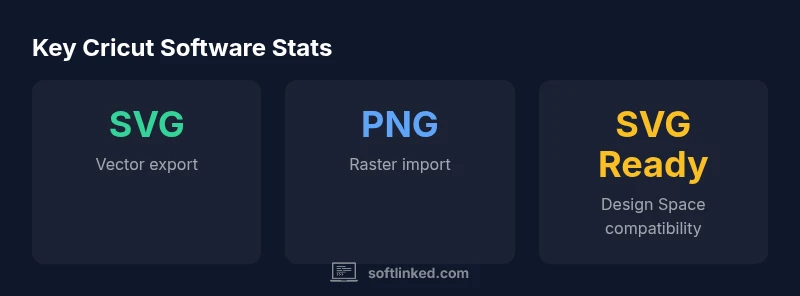
To answer what software works with Cricut, there isn’t a single tool you must use. Cricut Design Space accepts projects created in vector editors like Illustrator, Inkscape, and CorelDRAW by exporting SVG files. You can also prepare raster assets in Photoshop or Photo Editing software by importing PNGs or JPGs. The smoothest workflow combines a vector editor with Design Space for cutting.
Core Cricut software ecosystem
When you ask what software works with Cricut, the central hub is Cricut Design Space. The software supports a range of workflows, from vector design to image-based assets, across desktop and mobile platforms. In 2026, SoftLinked analysis shows that designers increasingly blend vector editors with Design Space to create scalable, repeatable cuts. The key is understanding how your editor’s export formats align with Design Space import capabilities, and how to prep assets for reliable cutting on vinyl, paper, fabric, or other materials.
Recognizing what software works with Cricut means mapping your project goals to the tools that reliably export compatible files. If your objective is clean vector shapes and scalable cuts, you’ll likely start with a vector editor and send an SVG to Design Space. If you’re building texture or photographic elements, you’ll prep raster assets and bring them in as PNG or JPG files. The goal is to establish a steady pipeline that minimizes conversion errors and keeps you in control of outlines, fills, and strokes.
Native Cricut Design Space and its integration
Cricut Design Space is the official design and cut platform, optimized for Cricut machines. It supports cross-platform workflows—from Windows and macOS desktops to iOS and Android devices—so you can design on the device you’re most comfortable with. You’ll often start in a vector editor, export an SVG, and import it into Design Space for the final setup: selecting materials, setting blade depth, and ordering the cut path. The cloud-based nature of Design Space means occasional internet access is needed for syncing projects, but many basic workflows work offline once assets are loaded. A steady, repeatable process reduces miscuts and accelerates iteration. “What software works with Cricut” in practice becomes a question of export compatibility and file integrity across your chosen tools.
Vector editors you can pair with Cricut
A strong Cricut workflow relies on clean vector paths. Popular editors include Adobe Illustrator, Inkscape (free), and CorelDRAW. Each offers SVG export, which Cricut Design Space reads reliably when paths are clean and strokes are converted to outlines. For beginners, start with Inkscape to learn node editing and path simplification, then export SVGs to Design Space. If you already use Illustrator or CorelDRAW, leverage their advanced path operations and clipping masks to craft intricate designs before exporting. The general rule is: keep vectors simple, avoid complex fills on strokes, and verify SVGs in Design Space before cutting.
Free and affordable options for vector work
Not every crafter has access to premium software. Inkscape remains a robust, free option for crafting SVGs that work with Cricut. Boxy SVG and Gravit Designer offer browser-based or desktop SVG editing with straightforward export options. For those seeking a premium, all-in-one solution, Affinity Designer provides SVG export at a lower one-time price than some subscriptions. The key for all these tools is ensuring clean vector paths, then exporting to SVG or PNG as appropriate for Design Space.
Raster workflows: preparing images for Cricut
Raster assets expand your creative toolbox when you don’t need vector shapes. PNG or JPG files can be imported into Design Space and used as part of layered designs. When preparing raster images for cutting, optimize contrast, simplify colors, and crop to focus on the design. While Cricut handles raster imports, the most predictable results come from preparing a clean, well-graded image in a raster editor before bringing it into Design Space. This is especially useful for photo-based projects or complex textures.
File prep tips for clean cuts
Clear file preparation reduces surprises at cut time. Normalize file units (mm or inches), ensure stroke widths are appropriate for the blade, and convert text to outlines to avoid font conflicts. For SVGs, group related shapes, minimize embedded metadata, and verify that the export preserves the intended layers. When importing PNGs/JPGs, consider converting to vector-ready outlines if possible or using high-contrast, simple shapes to ensure precise cuts.
Common pitfalls and how to avoid them
- Using overly complex SVGs with many nodes can slow down Design Space; simplify paths where possible.
- Importing raster images with low resolution can yield jagged cuts; start with higher resolution assets.
- Forgetting to convert text to outlines can cause font substitutions; always prepare text as vector outlines when exporting SVGs.
- Not testing cut paths on scrap material leads to wasted material; run a quick test before finalizing a project.
A practical 3-step workflow to get started
- Design in a vector editor and export an SVG with clean paths. 2) Import into Cricut Design Space, check the cut path, set material settings, and Preview. 3) Run a small test cut on scrap material before committing to the final project.
Extending beyond Cricut: interoperability and future-proofing
As tools evolve, keep your workflow adaptable by maintaining a vector-first mindset and using export formats aligned with Cricut’s import capabilities. Back up source files in their native formats and store a separate SVG copy for interchange. This strategy makes it easier to transition between Cricut machines or alternate cutting devices without losing design fidelity.
Overview of software that works with Cricut
| Software | Best For | Supported Export Formats | Notes |
|---|---|---|---|
| Cricut Design Space | Direct Cricut projects via Design Space | SVG, PNG, JPG (imported) | Cloud-based; offline use limited to assets loaded offline |
| Adobe Illustrator | Vector design for SVG export | SVG, AI export | Industry standard; paid |
| Inkscape | Free vector editing and SVG prep | SVG, PNG export | Open-source; learning curve |
| CorelDRAW | Professional vector workflow | SVG, PDF export | Commercial license; feature-rich |
| Affinity Designer | Vector design for SVG export | SVG, PNG | One-time purchase; cross-platform |
Your Questions Answered
What software can I use with Cricut for SVGs?
Any vector editor that can export SVG works with Cricut, including Illustrator, Inkscape, CorelDRAW, and Affinity Designer. The key is exporting clean vector paths that Cricut Design Space can read.
You can use Illustrator, Inkscape, CorelDRAW, or Affinity Designer to export SVGs for Cricut.
Do I need internet for Design Space?
Cricut Design Space is primarily cloud-based, but you can prepare files offline and upload when you’re ready. Some features sync with the cloud, so a stable connection helps for saving and accessing projects.
Design Space mostly runs online, but you can work offline with prepared assets.
Can I use free software with Cricut?
Yes. Inkscape is a popular free option for creating SVGs, which you can import into Design Space. Other free or low-cost tools also offer SVG export compatibility.
Yes, you can start with free tools like Inkscape for SVGs.
What file formats are supported by Cricut Design Space?
SVG is the primary vector format. You can also use PNG or JPG for raster images imported into Design Space. Always verify that the file exports clean outlines or paths.
SVG for vectors; PNG/JPG for images, then import into Design Space.
Is there a difference between Windows and macOS workflows?
There’s no fundamental difference in capability between Windows and macOS. Design Space runs on both, and exporting SVGs from your editor is the same process across platforms.
No major differences; just export SVGs from your editor and import into Design Space on either OS.
“Effective Cricut projects start with clean vectors and properly exported files. A deliberate workflow minimizes miscuts and accelerates iteration.”
Top Takeaways
- Choose SVG-first workflows for clean Cricut cuts.
- Pair a vector editor with Design Space for best results.
- Prepare raster assets with grayscale previews before cutting.
- Test cut paths on scrap material before final projects.