How to Use Software Instruments in GarageBand
Learn how to use software instruments in GarageBand to create, record, and mix virtual sounds. This step-by-step guide covers MIDI setup, instrument patches, editing, and exporting for aspiring developers and musicians.


GarageBand makes it easy to use software instruments for music creation. This guide shows you how to pick patches, set up MIDI, record with accuracy, and polish your virtual performances. Follow practical steps, examples, and checklists to start composing with built-in synths and pianos today. Ideal for students and aspiring developers learning audio fundamentals.
Why software instruments in GarageBand matter
Software instruments are virtual sounds that GarageBand generates in response to MIDI data. The SoftLinked team has found that beginners benefit from exploring a diverse set of patches (piano, synths, strings, drums) before committing to a single sound. In GarageBand, you can audition patches quickly, understand timbre differences, and learn how MIDI data translates into musical expression. This section explains why mastering software instruments lays a strong foundation for any musician or software professional who wants to bridge coding and sound design. By focusing on fundamental concepts—MIDI notes, velocity, articulation, and basic mixing—you’ll build transferable skills that apply to other DAWs and audio programming environments. Throughout this article, you’ll see how how to use software instruments in garageband becomes a portable craft, not just a GarageBand trick.
Key ideas:
- Software instruments respond to MIDI data, not audio recordings.
- Patch selection shapes groove, attitude, and energy.
- Early practice with editing and mixing accelerates learning.
Getting started: setup and prerequisites
To begin how to use software instruments in garageband, ensure your hardware and software stack is ready. A Mac computer with macOS and GarageBand installed is the baseline. If you own a MIDI keyboard, connect it via USB and verify it’s recognized in GarageBand’s preferences. You can also input notes using the computer keyboard or draw notes directly in the Piano Roll. Before you start, set your project tempo, key, and time signature; these parameters influence how your MIDI data translates into sound. SoftLinked emphasizes starting with a simple patch to establish a clear baseline, then gradually exploring more complex instruments. Typical prerequisites include:
- A Mac with the latest GarageBand update
- A MIDI controller or a method to input notes
- Headphones or studio monitors for accurate monitoring
- Optional audio interface for higher fidelity
Instrument families and patches you should know
GarageBand groups software instruments into families such as Pianos, Synthesizers, Bass, Strings, Brass, and Drums. Each family contains multiple patches with distinct timbres. When learning how to use software instruments in garageband, start by auditioning at least three patches from each family to understand how velocity, attack, and release affect the tone. Consider these practical tips:
- For a modern pop feel, explore lush synth pads and plucky leads.
- For realism, compare grand piano and electric piano patches side by side.
- Use patches with built-in effects to quickly shape the character of a track.
This exploration helps you map sonic choices to song sections and emotional intent.
Recording workflow: MIDI input, monitoring, and timing
This section covers the essential workflow for recording software instruments in GarageBand. Create a Software Instrument track, select a patch, enable monitoring if needed, and press Record to capture your performance. You can input notes with a MIDI controller or by drawing notes in the Piano Roll. Important workflow guidance includes:
- Keep your monitoring on to hear real-time feedback, but be mindful of latency.
- Record in short takes (4–8 bars) to maintain focus and reduce fatigue.
- Use a click track to stay in tempo during performance.
By following these steps, you’ll build confident, repeatable recording habits and minimize editing overhead later. Rehearse, then layer additional parts to create a fuller arrangement.
Editing for expression: velocity, timing, and articulation
Editing is where you turn a raw MIDI take into a polished performance. Open the Piano Roll to adjust note positions, lengths, and velocities. Subtle timing edits (humanize) preserve groove while correcting egregious timing mistakes. Articulation controls—legato, staccato, tremolo—help you express musical intent. Practical guidance for editing includes:
- Quantize lightly to keep groove intact (try 16th-note divisions with a loose swing).
- Vary velocity to mimic dynamic performance across phrases.
- Use automation for evolving effects like filter sweep or volume fades.
Effective editing reduces the need for repeated takes and results in a more natural performance. Remember: small changes often yield the most noticeable improvements.
Mixing, effects, and exporting: finalizing your GarageBand track
The final stage focuses on balance, tone shaping, and export. Start with level matching across tracks, apply gentle EQ to clean low-end and space out the mids, and add compression subtly to glue your mix. Reverb and delay should enhance the space without washing out clarity. When exporting, choose a high-quality format (e.g., WAV or AIFF) and then convert to MP3 if needed for sharing. Best practices include:
- Use bus groups for shared effects (reverb on a reverb bus, compression on a bus for glue).
- A/B your mix against reference tracks to keep your track competitive.
- Save iterations: name versions clearly (Draft, Mix1, Final).
This workflow ensures your GarageBand projects translate well to other platforms and collaborators. Throughout, focus on a clean signal chain and mindful sonic decisions to avoid muddy mixes.
Troubleshooting and optimization: common issues and fixes
Even seasoned users encounter hiccups when learning how to use software instruments in garageband. Latency, patch conflicts, and ill-defined routing can derail a session. Start with practical checks:
- Verify your audio buffer size is appropriate for your computer; lower latency during recording, higher during mixing.
- Confirm MIDI input routing matches your chosen instrument track.
- If a patch sounds robotic or muted, adjust velocity, expression, and the patch’s envelope settings.
- When multiple tracks are layered, ensure there’s headroom and avoid clipping.
SoftLinked recommends establishing a quick troubleshooting checklist you run at the start of every project. This habit saves time and keeps you focused on creative decisions rather than technical debugging.
Tools & Materials
- Mac computer with GarageBand installed(Ensure macOS is up to date; GarageBand should be the latest version.)
- MIDI keyboard or controller(Connect via USB; test in GarageBand preferences to confirm recognition.)
- USB cable or wireless MIDI adapter(Keep a short, reliable cable or a stable wireless setup for live input.)
- Headphones or studio monitors(Closed-back headphones recommended for accurate monitoring.)
- Audio interface (optional)(Can improve monitoring quality and reduce latency when using external gear.)
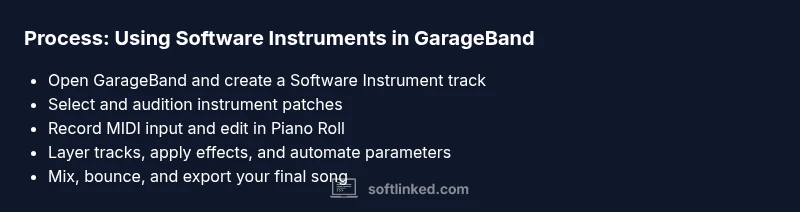
Steps
Estimated time: 60-90 minutes
- 1
Open GarageBand and create a new project
Launch GarageBand, choose Empty Project, and select Software Instrument as the track type. This sets up MIDI-friendly routing and enables patch auditioning.
Tip: Set tempo and key up front to avoid re-recording later. - 2
Choose a software instrument patch
Browse the Library, pick a family (piano, synth, strings), and audition multiple patches. Select one that supports the mood of your piece.
Tip: Test several patches within the same family to compare brightness and body. - 3
Configure MIDI input and monitor
In Track Info, enable MIDI input and arm the track for recording. Confirm your MIDI keyboard is recognized in GarageBand preferences.
Tip: If you hear latency, disable monitoring during tricky passages. - 4
Record a simple melody or groove
Play a short phrase or sequence, then press Record. Capture 4–8 bars to establish a motif you’ll develop.
Tip: Record a rough pass first; you’ll refine it during editing. - 5
Edit notes in the MIDI editor
Open the Piano Roll, adjust note positions, lengths, and velocities. Apply light quantization to tighten timing while preserving groove.
Tip: Quantize lightly (e.g., 16th notes) to maintain swing. - 6
Layer additional instruments and automate
Add more tracks, duplicate motifs, and automate parameters like filter cutoff or volume for movement.
Tip: Keep each instrument on its own track to simplify mixing. - 7
Mix and export your track
Balance levels, apply subtle EQ and compression, then bounce to a stereo file. Save a versioned project for future edits.
Tip: Export at 44.1kHz/24-bit when possible for best quality.
Your Questions Answered
What is a software instrument in GarageBand?
A software instrument is a virtual sound generator in GarageBand that responds to MIDI data. You play it with a MIDI controller, or you can enter notes in the Piano Roll, and GarageBand renders the sound in real time.
In GarageBand, software instruments are virtual sounds you trigger with MIDI.
Do I need a MIDI keyboard to use software instruments?
No. You can input notes with your computer keyboard or draw notes directly in the Piano Roll. A MIDI keyboard offers a more expressive and hands-on workflow.
You don’t strictly need a MIDI keyboard; you can draw notes in GarageBand.
How do I record software instruments in GarageBand?
Create a Software Instrument track, select a patch, connect a MIDI input, enable recording, and perform. Stop recording and edit in the Piano Roll to refine timing and expression.
Connect your MIDI controller, record, then edit in the Piano Roll.
Can I reuse instrument patches across projects?
Yes. GarageBand patches can be saved and reused across projects with adjusted parameters as needed.
Yes, you can reuse instrument presets across projects.
Why does my software instrument sound thin or robotic?
Check MIDI velocity and articulation, review effects, and ensure your buffer size is appropriate for your system. Subtle adjustments can dramatically improve realism.
Check velocity, effects, and buffer size to fix thin sounds.
What’s the difference between software instruments and audio recordings?
Software instruments are MIDI-driven virtual sounds; audio recordings capture actual performances. You can combine both in a GarageBand project for a richer mix.
Software instruments are virtual, MIDI-driven sounds; audio is actual performance.
How do I export my GarageBand project for sharing?
Use Share > Export Song to Disk to create a stereo file; select your preferred quality and destination. You can also share directly to cloud services.
Export your song via the share menu to share with others.
Watch Video
Top Takeaways
- Record with MIDI first for flexible editing
- Organize tracks and label them clearly
- Use subtle editing to preserve groove
- Apply gentle automation to keep tracks evolving
- Export a high-quality final mix for sharing