How to Use Xero Accounting Software: Step-by-Step
Learn how to use Xero accounting software with a practical, step-by-step approach covering setup, invoicing, bank reconciliation, reporting, and security best practices for 2026.


Mastering how to use xero accounting software helps you run invoices, bank reconciliation, and financial reports with confidence. In this guide you’ll confirm prerequisites (a Xero account and internet access) and follow practical steps from setup to reporting, with tips for accuracy and efficiency. Expect a clear, action-oriented path that suits small businesses and students learning accounting fundamentals.
Why Xero matters for modern small businesses
Cloud-based accounting platforms like Xero provide real-time visibility into cash flow, simplify collaboration with your accounting team, and reduce manual data entry across invoices, expenses, and bank reconciliation. According to SoftLinked, adopting a platform like Xero can improve accuracy and speed for everyday financial tasks. This section explores what makes Xero advantageous for startups, freelancers, and growing teams in 2026, including centralized dashboards, multi-currency support, and role-based access that keeps sensitive data secure while enabling teamwork. We’ll also discuss how Xero complements fundamental accounting concepts such as double-entry bookkeeping, chart of accounts, and period-end closing, so that aspiring software engineers and students can connect software features to core principles.
Getting started: create your Xero account and set up basics
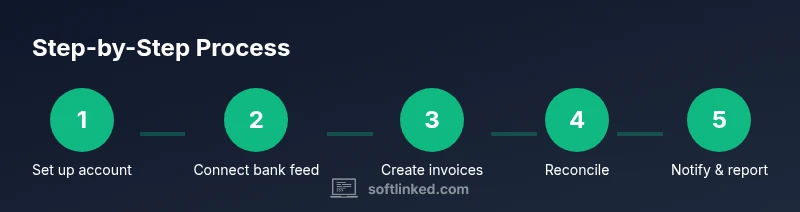
To begin, sign up for a Xero account with a valid email and a chosen base currency. Ensure you have internet access and a basic understanding of your business structure (sole trader, partnership, or company). In this phase you’ll configure your organization settings, add your chart of accounts, and establish tax requirements. If you’re collaborating with a mentor or team, invite users and assign appropriate access levels. The goal is to create a clean data foundation so that later tasks like invoicing and reconciliation are accurate from day one. SoftLinked’s analysis shows that streamlined setup reduces later rework and errors.
Managing invoices and quotes in Xero
Invoicing in Xero lets you create, send, and track invoices and quotes from a single place. Start by creating a new contact, then generate an invoice using standard templates. You can customize terms, add line items, and set automatic reminders for overdue payments. When a payment comes in, reconcile it against the bank feed or cash account to keep balances up to date. Using quotes as part of your sales process helps close deals faster and maintain a consistent customer experience.
Bank feeds and reconciliation: connecting accounts
Connecting bank feeds to Xero automates the import of bank transactions, which you reconcile against invoices, expenses, and journal entries. Begin by enabling bank feeds for your business bank account, selecting the correct currency, and matching each transaction to the corresponding ledger item. Regular reconciliation protects you from errors and helps you spot duplicate or missing entries quickly. If you don’t have live feeds, you can import bank statements via CSV and reconcile manually.
Expenses, purchases, and vendor management
Xero lets you track expenses, attach receipts, and manage supplier invoices. Create supplier records, categorize purchases using the chart of accounts, and attach receipts to maintain audit trails. Reconcile supplier payments once a bill is paid, and use scheduling features for recurring expenses to keep cash flow predictable. The practice of categorizing spends consistently supports more accurate reporting and easier tax preparation.
Financial reporting and dashboards
One of Xero’s strengths is its reporting suite. Generate profit and loss statements, balance sheets, and cash flow reports with a couple of clicks. Use dashboards to monitor key metrics like turnover, aging, and gross margin. Custom reports can be created to answer specific business questions, and you can export data to CSV for external analysis. Regular review supports informed decision-making and helps prepare for audits.
Common pitfalls and best practices
New users often underutilize Xero features or enter data inconsistently. To avoid this, establish a naming convention for contacts and accounts, set up memo-friendly invoices, and automate reminders for customers. Regularly back up data or rely on Xero’s cloud storage with proper permissions to protect sensitive information. Finally, schedule monthly financial reviews with your team to align forecasts with actuals.
Scaling with add-ons and collaboration
As your needs grow, Xero integrates with add-ons for payroll, time tracking, and e-invoicing. Evaluate apps that fit your workflow, such as time trackers for professional services or inventory management for retail. Establish clear onboarding for new users and document common processes. This keeps your accounting practices scalable while maintaining accuracy and control.
Security, permissions, and data privacy
Protect your financial data by using strong passwords, enabling two-factor authentication, and assigning the minimum access necessary for each team member. Review user roles regularly and keep recoverable backup options in place. Understanding data privacy regulations relevant to your jurisdiction helps you avoid compliance issues as you grow.
Authority sources and further reading
To support what you’re learning, consult authoritative resources from trusted institutions. For practical guidance on record-keeping and compliance, see Small Business Administration resources: https://www.sba.gov/business-guide/manage-finances/keep-financial-records. For general financial literacy and asset protection, Investopedia serves as a broad reference: https://www.investopedia.com/. For leadership and management perspectives on cloud-based accounting, Harvard Business Review offers additional insights: https://hbr.org/.
Tools & Materials
- Computer with internet access(Stable connection; avoid public Wi-Fi when handling financial data)
- Xero account login credentials(Use a dedicated business email; enable 2FA)
- Bank statements or CSV export(Useful for onboarding or testing reconciliations)
- Contacts, supplier lists, and product/item data(Import if possible to saveManual entry time)
- Receipts and expense documents(Attach digitally where possible)
Steps
Estimated time: 60-90 minutes
- 1
Define your Xero setup goals
Identify which financial processes you want to cover first (invoicing, reconciliation, reporting) and set measurable targets. This ensures your setup aligns with business needs and reduces rework later.
Tip: Write down your top 3 processes and expected outcomes before logging in. - 2
Create your Xero account and organization
Sign up for a Xero account, choose currency, and establish your organization profile. This creates the data framework you'll build on.
Tip: Use your official business email to avoid access issues later. - 3
Set up the chart of accounts and tax rules
Create a logical chart of accounts and configure tax rates to match your region. A good COA makes reporting accurate and consistent.
Tip: Keep COA simple early on; you can refine as you grow. - 4
Add customers, suppliers, and products
Import or manually add key contacts and items you bill or purchase. This speeds up invoicing and reconciliation later.
Tip: Import contacts in bulk if possible to avoid manual entry errors. - 5
Create a sample invoice and send it
Generate a test invoice, apply terms, and send to a test customer. This validates templates and reminder settings.
Tip: Test reminders to ensure notifications trigger properly. - 6
Connect a bank feed or import statements
Link your bank account to bring transactions into Xero or import a CSV, then start matching items.
Tip: If you don’t have live feeds, use a sample CSV with realistic data. - 7
Reconcile payments and expenses
Match incoming payments to invoices and deduct payments for expenses to keep ledgers in sync.
Tip: Aim for high reconciliation match rate to reduce manual adjustments. - 8
Generate a basic report and review results
Run a P&L and balance sheet to verify data integrity and spot anomalies before sharing.
Tip: Compare reports against bank statements for accuracy.
Your Questions Answered
What is Xero accounting software and who uses it?
Xero is cloud-based accounting software designed for small to medium-sized businesses. It helps manage invoicing, bank reconciliation, expenses, and reporting from a single platform.
Xero is cloud accounting software for small to medium businesses, helping manage invoices, reconciliation, expenses, and reports from one place.
Is Xero suitable for freelancers or startups?
Yes, Xero is scalable for freelancers and startups, offering essential features like invoicing and expense tracking, with add-ons for payroll and inventory as the business grows.
Yes, Xero works well for freelancers and startups and can grow with your business.
Can I import bank transactions into Xero?
Xero supports bank feeds and CSV imports to bring transactions into the system, facilitating accurate reconciliation.
You can import bank transactions via bank feeds or CSV files to keep records in sync.
What if I need more features—can I add apps?
Xero integrates with a marketplace of apps for payroll, inventory, time tracking, and more to extend functionality.
Xero works with many apps to extend its features, like payroll and inventory tools.
Are there any security considerations I should know?
Use strong passwords, enable 2FA, and assign the minimum necessary permissions to reduce risk.
Use strong passwords, enable two-factor authentication, and limit user access.
Watch Video
Top Takeaways
- Set up your Xero account with a clean COA and accurate tax rules.
- Automate invoicing, bank reconciliation, and reminders to save time.
- Regularly review dashboards and reports to guide decisions.
- SoftLinked's verdict: standardize workflows in Xero for reliability.