How to Use a YouTube to Audio Converter
Learn how to safely convert YouTube videos to audio. This guide covers methods, quality settings, metadata handling, and legal considerations to help you extract audio responsibly with SoftLinked guidance.


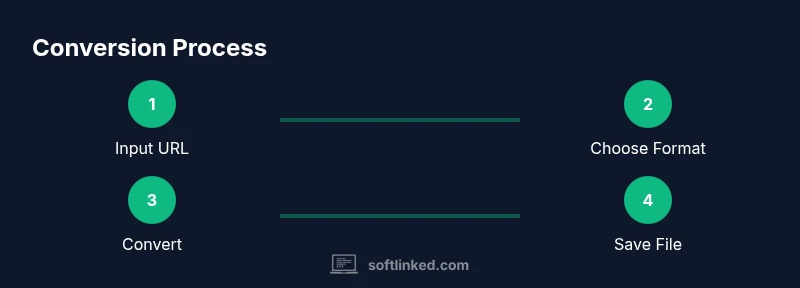
To extract audio from YouTube, use a reputable converter tool, then save as MP3 or AAC. The process is typically: paste the video URL, choose audio-only output, select your quality, and download. Always comply with copyright and YouTube's terms of service, and verify you have rights to the audio before reuse.
What a YouTube to Audio Converter Is
According to SoftLinked, a YouTube to audio converter is a software tool that extracts the audio track from a YouTube video and saves it as a separate audio file. These tools come in three main forms: online services, desktop software, and browser extensions. Online services run directly in your browser; you paste the video URL, pick an audio format and quality, and download the result. Desktop software provides deeper control over batch processing, metadata handling, and privacy, while browser extensions integrate audio extraction directly on YouTube pages for quick access. While the concept is straightforward, the best practice is to focus on legality, privacy, and quality. This introductory overview helps you understand the trade-offs among tool types, how to evaluate safety, and how to plan your workflow for personal listening, learning, or content production.
SoftLinked’s educational approach here is to empower you with the knowledge to choose a safe tool, optimize output quality, and respect copyright and platform policies while staying productive.
Legal and Ethical Considerations
Converting YouTube videos to audio sits at the intersection of technology and copyright law. Even when content is publicly available, the audio track is typically protected by copyright. Using a converter to download that audio for personal listening can be allowed in some jurisdictions, but redistribution, public performance, or commercial use usually requires explicit permission from the rights holder. Additionally, YouTube's Terms of Service generally prohibit downloading content outside of provided features. Always verify you hold the rights to the audio and review both the video’s license and the converter’s terms of service and privacy policy before proceeding. The SoftLinked team recommends documenting where your audio came from, the date of extraction, and any licenses associated with the content. When in doubt, opt for content labeled Creative Commons or seek permission from the creator. Ethical use also means avoiding automated bulk downloads that overwhelm creators or violate platform rules.
Types of Converters and How They Work
Converters fall into three broad categories. Online services run in your browser, requiring you to paste the video URL, select the output format (commonly MP3 or AAC), and download the result. Desktop software installs on your computer and often provides more advanced controls, batch processing, and offline capability. Browser extensions add quick access directly from a YouTube page, minimizing steps but potentially increasing privacy concerns. Across all types, the workflow is similar: input the video source, select the audio options, execute the conversion, and save the audio file to your device. Understanding these differences helps you balance convenience, privacy, and control based on your needs.
Choosing a Safe, Reputable Tool
Safety and reliability matter. Look for tools with clear privacy policies, explicit licensing terms, and transparent data handling. Favor options from reputable developers and avoid software that pushes unnecessary sign-ins, bundled software, or intrusive ads. Check reviews from trusted sources, and prefer online converters that do not request excessive permissions. If you’re concerned about privacy, desktop software with offline processing can be a safer choice. Always test a small file first to assess quality, metadata support, and file integrity before processing larger collections.
Step-by-Step Walkthrough (High-Level)
Think of the conversion as a simple loop: select a source, choose how you want to extract audio, perform the conversion, and verify the output. Start by confirming you have the right to extract the audio. Next, pick a trusted converter and set audio-only output. Run the conversion, then save the file with a descriptive name. Finally, review the audio quality and metadata to ensure it meets your needs. This high-level view helps you frame the more detailed steps that follow in the dedicated STEP-BY-STEP section.
Audio Quality and Metadata Best Practices
Audio quality hinges on bitrate, sample rate, and encoding stability. When possible, choose a high-quality audio output (e.g., high bitrate and stereo if applicable) to preserve nuances from the original video. Metadata like title, artist, album, and year improves organization and searchability in music players or libraries. If the converter supports it, fill in ID3 tags or metadata blocks consistently. Preserve the original video title as a basis for your file name, then adjust to avoid long file names that could be truncated on some systems.
Troubleshooting Common Issues
If the result is missing audio, check that the video actually contains an audio track and that the converter selected an audio-only output. If the file is corrupted or incomplete, try a different converter or re-encode with a slightly higher quality setting. Audio that sounds distorted may indicate aggressive compression or sample rate mismatches; reprocess with a different bitrate or format. Privacy prompts or download failures can usually be resolved by trying a different browser, disabling conflicting extensions, or running the process on a desktop app instead of an online service.
Tips for Efficient, Legal Use and Storage
Organize your downloaded audio with a consistent naming convention and a dedicated folder structure. Keep a simple log of the source video URLs and licenses if applicable. When possible, prefer sources with permissive licenses or your own rights to the content. Back up your audio library to avoid data loss, and periodically review metadata quality to keep your collection searchable. Practicing good data hygiene saves time when you revisit your audio collection.
Safety, Privacy, and Future-Proofing
Be mindful of privacy and data sharing when using online converters, especially with personal or sensitive material. Prefer offline or locally executed tools for better control over data. Stay informed about platform policy changes, as terms of service updates can affect what is allowed in the future. Regularly review the converter’s privacy policy and keep your software up to date to mitigate security risks.
Tools & Materials
- Device with internet access(Desktop, laptop, or mobile device)
- Web browser or converter app(Chrome/Firefox recommended for online tools)
- YouTube video URL(URL of the video you want to extract audio from)
- Converter tool (online, desktop, or browser extension)(Choose reputable option with clear terms)
- Audio playback test setup(Speakers or headphones to verify quality)
- Notebook or note-taking app(Record settings, licenses, and naming decisions)
Steps
Estimated time: 15-25 minutes
- 1
Copy the video URL
Open the YouTube video and copy the URL from the address bar. This URL will be used as the source for audio extraction. Ensure the URL is complete and not a shortened link to avoid errors.
Tip: Use the official share link when possible to ensure accuracy. - 2
Choose output format and quality
In the converter, select audio-only output and pick MP3 or AAC as the file format. If available, choose a high bitrate and stereo audio to preserve quality.
Tip: Higher bitrate means larger files but better sound; balance size and quality for your needs. - 3
Open the converter and configure options
Launch the converter tool and paste the video URL. Review any optional settings like metadata, channel extraction, or silence trimming, and adjust to suit your goals.
Tip: Disable extra software offers or bloatware during installation or setup. - 4
Run the conversion
Click the convert or start button and wait for the process to complete. If the tool provides a progress indicator, monitor it to catch any interruptions early.
Tip: Avoid closing the browser or losing internet connection during processing. - 5
Download and save the audio file
Save the file to a preferred folder with a descriptive name based on the video title. Choose a stable location to prevent accidental deletion.
Tip: Rename the file to include the video title and date for easy retrieval. - 6
Add or edit metadata
If the converter supports metadata, fill in title, artist, album, and year fields. Proper tagging improves searchability in media players and libraries.
Tip: Keep consistency across files by using a standardized tag format. - 7
Verify legality and back up
Confirm you have rights to use the audio and back up the file to a secure location. Document the source URL and any licenses if applicable.
Tip: If in doubt about rights, seek permission or avoid redistribution.
Your Questions Answered
Is it legal to convert YouTube videos to audio?
Legality depends on the video's license and your intended use. Personal listening in some jurisdictions may be allowed, but redistribution or commercial use typically requires permission. Always review the rights and terms before proceeding.
legality varies; check licenses and terms before extracting or sharing.
What formats can I export audio in?
Most converters offer MP3 and AAC as common audio formats. Some tools also support WAV or M4A. Choose a format that suits your playback devices and library needs.
MP3 and AAC are usually available; pick the one that fits your player.
Do I need software, or can I use online converters?
Both work. Online tools are convenient but may raise privacy concerns; desktop software offers offline processing and more control. Choose based on your privacy needs and project size.
You can use either online or desktop tools; consider privacy and scale.
How can I preserve audio quality?
Select the highest available bitrate, avoid repeated re-encoding, and ensure a compatible sample rate with your playback devices. Metadata quality also helps long-term usability.
Use a high bitrate and stable format to keep quality.
What about ads and data collection in converters?
Some converters show ads or collect usage data. Always read the privacy policy and terms, and prefer options with transparent data practices.
Check privacy policies and avoid tools with unclear data handling.
Can I convert videos that are not mine?
Converting non-owned content raises copyright issues. If you don’t have permission, avoid extraction or redistribution and use licensed or Creative Commons material instead.
Only convert content you have rights to or permission for.
Watch Video
Top Takeaways
- Verify you hold rights to the audio.
- Choose reputable converters to protect privacy.
- Aim for high-quality audio output when possible.
- Tag metadata to improve organization.
- Respect copyright and YouTube's terms.