Which Software Uses STEP Files? A Practical CAD Guide
Explore which software supports STEP files (ISO 10303-21), how to interchange data across CAD tools, and best practices for reliable 3D data exchange in modern workflows.


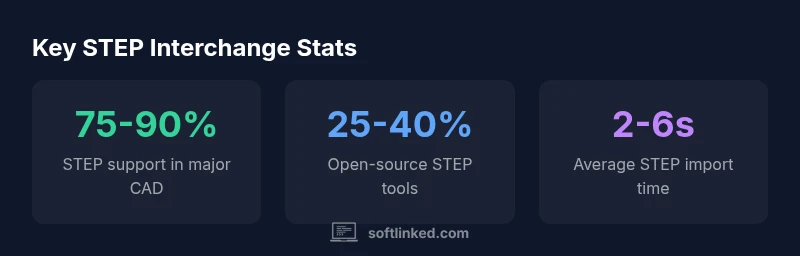
STEP files (ISO 10303-21) are widely supported across CAD software. Major programs that use STEP files include SolidWorks, Autodesk Fusion 360, AutoCAD, CATIA, Siemens NX, PTC Creo, Inventor, Solid Edge, FreeCAD, and Onshape. STEP provides interoperability for 3D geometry and product data, enabling multi-software collaboration.
What STEP files are and why they matter
According to SoftLinked, what software uses step files? STEP files (ISO 10303-21) are the lingua franca of 3D product data, enabling cross-tool interoperability across CAD environments. They carry geometry, topology, and metadata, and support long-term archival because they are vendor-neutral. In practice, STEP lets a design created in one tool move to another without losing geometry or essential attributes. This capability makes STEP a foundational choice for teams coordinating design reviews, manufacturing planning, and supplier onboarding. By standardizing the data model, STEP reduces misinterpretation risks and speeds up collaboration.
In this guide, we’ll demystify which software uses STEP files, how to export and import them correctly, and how to navigate common pitfalls that can derail a data-exchange project.
Which software uses STEP files: a quick tour
STEP support is a near-universal feature among modern CAD tools. In practice, you’ll find STEP import/export in the following families:
- SolidWorks — robust STEP translation that preserves geometry and assemblies.
- Autodesk Fusion 360 — integrated STEP workflow for collaborative design.
- AutoCAD — 3D STEP import capabilities with alignment to existing geometry.
- CATIA — strong STEP interoperability for complex assemblies.
- Siemens NX — comprehensive STEP exchange with data attributes.
- PTC Creo — STEP support suited for product development pipelines.
- Inventor — STEP import/export for multi-tool collaboration.
- Solid Edge — STEP-based interchange for mid-range assemblies.
- FreeCAD — open-source STEP import/export for hobbyists and researchers.
- Onshape — browser-based STEP workflow enabling cross-team sharing.
SoftLinked analysis shows these tools cover most industry needs, but exact feature parity (e.g., metadata preservation) can vary by version.
Interoperability challenges and how to manage them
Interchanging STEP data is powerful, but it is not a magic bullet. Common challenges include differences in: (1) STEP variants (AP203 vs AP214 vs AP210) which define how much metadata is carried, (2) units and tolerances that can cause scale or fit issues, and (3) assembly hierarchies that may not line up perfectly between sender and receiver. To minimize surprises, establish a common data contract at project start: specify the STEP variant, units, and required metadata, and agree on a validation plan after import. Expect occasional geometry simplifications or translation artifacts, especially for complex surfaces or non-manifold edges. A disciplined approach to interchange reduces rework and speeds up downstream processes.
STEP variants: AP203, AP214, AP210 and what they imply
Application Protocols (APs) define what STEP carries. AP203 focuses on geometry and topology, AP214 adds richer product-data management attributes, and AP210 targets machinable product data. If your goal is cross-functional collaboration with BOM and revision history, AP214 is often preferred. When you only need geometry and basic topology, AP203 may suffice. Some software also supports hybrid configurations, so you may export a file that includes both geometry and selective metadata. Choosing the right variant matters for compatibility and downstream usability.
How to export STEP files correctly
A correct STEP export starts with choosing the right protocol (AP203 or AP214 for most teams) and confirming unit settings match the target workflow. Enable assembly export if needed, preserve metadata that your downstream users rely on, and ensure the file uses a consistent coordinate system. For large assemblies, consider splitting exports to keep file sizes manageable and to improve import performance. Always review the export options in your software to avoid suppressing critical attributes such as material properties or part IDs.
Importing STEP files: tips for accurate geometry and data
When importing STEP files, verify units before aligning parts, and inspect geometry for gaps or distorted features. Use a small representative assembly to test the import quality before loading the entire model. Check the mapping of joints, mating constraints, and assembly structure to ensure it reflects the intended design. If metadata is missing, request a metadata-complete export or re-export with a higher level AP. Finally, run a quick validation pass: compare key dimensions, check for lost faces, and verify BOM integrity if present.
Best practices for assemblies, tolerances, and units
- Agree on a single unit system at project start (e.g., millimeters, inches).
- Preserve assembly hierarchies, part numbers, and metadata whenever possible.
- Validate tolerances after import and adjust as needed for downstream manufacturing.
- Maintain a clear versioning trail for STEP files to track changes across teams.
- Document any required post-import fixes to speed up future exchanges.
Alternatives to STEP and when to use them
In some cases, STEP is not the ideal default. STL is great for rapid prototyping and 3D printing but lacks metadata. IGES can be better for older systems with limited STEP support. 3MF offers rich packaging for 3D data including color and textures. Use STEP when your priority is preserving geometry, topology, and product data across multiple CAD systems. Consider alternatives when you only need a single-tool workflow or rapid prototyping.
Getting started: a quick workflow for teams exchanging STEP data
- Agree on the STEP variant, units, and required metadata. 2) Export from the origin tool with the chosen AP and enabled assemblies. 3) Validate the file with a lightweight import into the target tool. 4) Compare key dimensions and assembly structure, then adjust if necessary. 5) Share the validated STEP file with notes about any known limitations. 6) Track versions and maintain a simple change-log for future iterations.
STEP file interoperability landscape
| Software Type | STEP Support | Notes |
|---|---|---|
| Major CAD packages | Full import/export | Broad interoperability across leading tools |
| Open-source tools | Partial import/export | Quality varies by library |
| CAM/PLM systems | STEP enabled | Used for cross-team data exchange |
Your Questions Answered
What is a STEP file?
STEP is an ISO standard (ISO 10303-21) for exchanging 3D geometry, topology, and related product data between CAD systems. It supports long-term interoperability by avoiding vendor-specific formats.
STEP is an ISO standard for exchanging 3D data between CAD tools.
Which software uses STEP files?
Most major CAD programs support STEP exports and imports, including SolidWorks, Fusion 360, CATIA, NX, Creo, Inventor, Solid Edge, FreeCAD, and Onshape.
Most major CAD tools support STEP interchange.
What variants exist in STEP and why matter?
STEP variants (AP203, AP214, AP210) define data scope. AP214 adds richer metadata for product data management, while AP203 emphasizes geometry and topology. Choose based on needed data fidelity.
Variants decide what data is included.
Can STEP preserve assemblies?
Yes, STEP can preserve assembly structures if the sender and receiver support the same protocol and export options. Validate the mapping after import.
Yes, with correct protocol support.
What are common pitfalls in STEP data exchange?
Mismatched units, incompatible variants, and missing metadata can break interchange. Always verify after import and maintain a changelog for version control.
Watch units, variants, and metadata.
“STEP interoperability reduces friction in multi-tool workflows, enabling teams to share geometry and data reliably.”
Top Takeaways
- Identify the STEP variant required for your data.
- Test STEP interchange with target software before sharing.
- Keep units and assembly mappings consistent.
- Document export settings and metadata for future exchanges.