Software Download Excel: A Practical Guide for 2026
A comprehensive, step-by-step guide to downloading Excel safely, comparing official options, and choosing the best spreadsheet tool for students and professionals in 2026.


By the end of this guide you will know how to download Excel or suitable spreadsheet software safely and legally. You'll learn official channels, how to verify authenticity, potential free-trial options, and practical setup tips. This is ideal for students, aspiring developers, and professionals who need reliable spreadsheet tools. We will also cover common pitfalls and how to choose between Excel and open-source competitors.
Understanding what download means for Excel and similar tools
When we say a "software download" for Excel, we mean obtaining an installable package or a trusted online access method to a spreadsheet application. Excel is part of Microsoft Office and Microsoft 365, but there are legitimate alternatives with comparable features. The SoftLinked team notes that, for students and professionals alike, choosing the right distribution channel matters just as much as the tool itself. The importance of licensing, platform compatibility, and future updates becomes clear once you map your needs to a download path. This section sets the frame for safe, legitimate access, whether you need the classic desktop experience or modern cloud-first options.
- Desktop Excel (standalone) vs. Microsoft 365
- Web-based Excel (Office Online) vs. installed apps
- Open-source and paid alternatives
Understanding these distinctions helps you avoid untrusted sources and overpricing, while ensuring you can work offline when needed.
Official channels to download Excel and why they matter
Downloading Excel from official channels minimizes risk and guarantees access to updates, security patches, and support. The most reliable path is through Microsoft’s official site or a recognized educational or business license portal. Always check the domain (look for the padlock symbol and a valid certificate) and avoid third-party mirrors.
From a software fundamentals perspective, official channels also simplify license management, ensuring you’re compliant with licensing terms. If you’re a student or educator, institutions often provide discounted access through official programs. SoftLinked's analysis shows that learners who start at official sources experience smoother activation and fewer post-download issues.
- Microsoft 365 for individuals and households
- Microsoft 365 Education for schools and students
- Standalone Excel options if available in your region
Should you pay, subscribe, or try before you buy?
Excel can be obtained via several licensing models, each with trade-offs. A Microsoft 365 subscription typically includes Excel, along with other Office apps, cloud storage, and regular updates. A one-time purchase or stand-alone license may exist in some regions, but licensing models vary by country. If you’re unsure, start with a trial where offered and evaluate compatibility with your workflows. Open-source spreadsheet tools, while not Excel, can cover many use cases at no upfront cost.
SoftLinked notes that for students and new professionals, trials offer a risk-free way to test features like data analysis, charts, and automation. Evaluate your long-term needs before committing to a single path.
How to compare Excel options: official Excel vs. alternatives
When comparing Excel options, consider:
- Feature parity: functions, charts, pivot tables, and data modeling
- Platform support: Windows, macOS, iOS, Android, and web access
- Collaboration: real-time editing, sharing controls, version history
- Cost structure: subscription vs. perpetual license vs. free tools
Alternatives such as LibreOffice Calc or Google Sheets provide core spreadsheet capabilities and can be ideal for light-use scenarios or when licensing is a constraint. The SoftLinked team emphasizes testing a couple of options against your typical tasks (importing data, building dashboards, automating repetitive steps) to determine the best fit.
Safety and verification: avoid scams and tampering
Downloading software from unofficial sources can expose devices to malware, trojans, or tampered installers. Always verify the downloaded file’s integrity using checksums or digital signatures if provided, and run reputable antivirus scans before installation. Be cautious with download accelerators or installers from unknown sites, and avoid bundling software that adds unrelated programs. Keeping your browser and security tools current reduces risk and helps protect sensitive data during installation.
How to install and set up Excel after download
Install progress should be monitored and steps followed as they appear in the setup wizard. Accept the license terms, select a destination folder you control, and choose whether to enable essential features such as automatic updates and reporting diagnostics. After installation, sign in if needed and complete any activation prompts. Configure basic preferences (default file locations, calculation settings) to align with your workflow, then verify that core features such as formulas and charts work as expected.
Performance considerations and system readiness
Before you download, check your device’s minimum requirements and ensure you have enough storage for the installer and any offline data. For large spreadsheets, you’ll want adequate RAM and a modern processor. If you work with heavy data sets, consider enabling hardware acceleration if available and closing unnecessary background applications during heavy computations. Regularly update to keep features secure and compatible with your files.
Tools & Materials
- Web browser (latest version)(Used to access official sources and verify certificates)
- Stable internet connection(Avoid interruptions during download and activation)
- Storage space (at least 2 GB or more)(Space for installer + local files)
- Administrative access on the computer(Needed to install software and apply updates)
- Account credentials (Microsoft or educational/enterprise)(Required for activation or subscription sign-in)
- Backup plan (external drive or cloud)(Optional for preserving templates and data)
Steps
Estimated time: 20-40 minutes
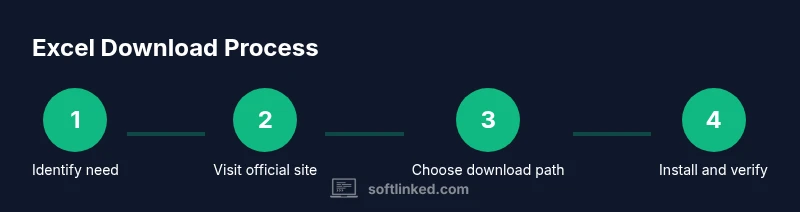
- 1
Identify your download goal
Clarify whether you need Excel as part of Microsoft 365, a standalone install, or an online/web option. Knowing this upfront helps avoid unnecessary downloads and licenses.
Tip: Write down your must-have features to compare options quickly. - 2
Visit official sources only
Open your browser and navigate to the official Microsoft site or your institution’s licensed portal. Verify the URL and look for a secure connection (https).
Tip: Bookmark the official page to reduce the chance of phishing. - 3
Choose the appropriate download path
Select the product that matches your needs: standalone Excel, Microsoft 365, or an online-only option. Consider trial availability if you want to test features first.
Tip: If in doubt, start with a trial before committing to a subscription. - 4
Download the installer safely
Click the download button and save the installer to a known location. Avoid installers bundled with other software.
Tip: Use a security tool to scan the downloaded file before opening. - 5
Verify integrity and sign-in
If a signature or checksum is provided, verify it. Sign in with your Microsoft or educational account if required for activation.
Tip: Keep your account credentials secure and enable two-factor authentication. - 6
Run the installer and follow the wizard
Launch the installer, accept license terms, choose install options, and complete the setup. Allow updates to run automatically after installation.
Tip: Close other apps to reduce conflicts during installation. - 7
Initial setup and testing
Open Excel, run a quick test (enter data, create a chart), and confirm basic operations. If needed, customize settings for file paths and autosave defaults.
Tip: Create a simple template to speed up future work.
Your Questions Answered
What is the safest way to download Excel?
The safest method is to download Excel from official Microsoft channels or your accredited educational/enterprise portal. Avoid unverified third-party sites and check for a secure connection. After download, scan the installer with trusted security software.
Get Excel from official sources to stay safe, then scan the file before you install.
Is there a free way to use Excel?
Microsoft offers web-based Excel through Office Online, which is free with a Microsoft account. Some educational institutions also provide free access through licensed programs. Desktop Excel typically requires a purchase or subscription for full features.
There are free web-based options and educational licenses; desktop Excel usually requires payment.
Can I use Excel without an internet connection?
Yes, the desktop version of Excel can run offline once installed. Online-only features require an internet connection. Regular updates will still occur when connected.
Yes, offline use is possible with the desktop version; online features need internet.
What risks should I watch for when downloading software?
Risks include malware, bundled adware, and tampered installers. Always verify the source, use checksums if provided, and keep security software up to date.
Watch for malware and verify sources before installing anything.
Are there good open-source alternatives?
Yes. LibreOffice Calc and similar tools provide spreadsheet capabilities with no license cost. They may lack some advanced Excel features, so test them against your typical tasks.
Open-source options exist; test them if licensing or cost is a concern.
Do I need a Microsoft account to download Excel?
Many download paths require a Microsoft account to activate or subscribe. If you’re in an educational program, you may be able to use institutional credentials instead.
A Microsoft account is often needed for activation or access; institutional credentials may apply for students.
Watch Video
Top Takeaways
- Download only from official sources to reduce risk.
- Choose the license model that matches your usage needs.
- Verify authenticity before installation.
- Consider open-source or online options when licensing is a constraint.
- Configure updates and preferences for long-term security.