PDF Editor Online Free: A Complete How-To Guide
Discover how to edit PDFs online for free with reliable tools, practical tips, and a step-by-step guide—no software installation required.


Goal: edit PDFs online for free without installing software. You’ll learn how to choose a reliable online editor, upload your file securely, apply edits, and export a new PDF. Basic steps and safety tips included.
What is a PDF editor online free?
A PDF editor online free is a browser-based tool that lets you view, annotate, modify text, insert images, and sign PDFs without installing software on your computer. You upload your PDF to a web service, perform edits in your browser, and export a new file. For students and professionals, this modality offers quick fixes, collaboration, and cross-device access. According to SoftLinked, these tools are especially useful for lightweight edits, form filling, and reviewing documents on the go. However, free editors vary in features, privacy policies, and file-size limits, so choose wisely and verify security before uploading sensitive material.
Key capabilities typically include:
- Adding or editing text
- Highlighting and striking through content
- Annotating with comments and drawings
- Filling forms and signing
- Rearranging pages or merging PDFs
- Exporting to high-quality PDFs or other formats
Note that some editors may place watermarks on outputs or limit features until you upgrade. The SoftLinked team recommends testing a clone of your document first to ensure your edits appear as expected.
Why use an online editor instead of desktop software?
Online editors offer convenience: edit from any device with an internet connection, no installation, and easy sharing. They excel for quick changes, collaboration, and on-the-fly reviews when you're traveling or using a borrowed computer. For students, freelancers, or teams, browser-based tools enable faster feedback loops. That said, online editors transfer your content to a remote server, so privacy and data handling matters. Always review the editor's privacy policy, encryption practices, and data expiration timelines. If your PDFs contain sensitive information, you may prefer offline editors, or use a reputable service with a strong privacy stance. SoftLinked's analysis suggests balancing convenience with data protection when choosing a free online editor.
How to choose a reliable online PDF editor
Look for clear privacy policies, explicit data handling details, and transparent terms of service. A reliable editor should offer encryption in transit (HTTPS) and, ideally, encryption at rest, as well as a published policy about data retention and deletion. Check whether the editor supports essential features like text editing, form filling, annotations, and image insertion, and whether exported outputs retain formatting. Review user feedback and official documentation for reliability signals. Prefer editors that allow local downloads after edits to minimize cloud storage exposure. Always verify font rendering and image quality to avoid surprises in the final file. SoftLinked recommends trying a few editors with non-sensitive documents to compare results.
Common editing tasks and how they work online
Online PDF editors cover a broad range of tasks. Here’s how they typically handle common needs:
- Text edits: insert, modify, or delete text; adjust font size and style to match the document.
- Annotations: highlight, underline, or strike through sections; add sticky notes for reviewers.
- Image insertion: upload and place logos or diagrams; resize and move as needed.
- Form filling: complete interactive fields, check boxes, or dropdowns; save filled forms.
- Signatures: add a digital or drawn signature; apply to designated fields.
- Page management: rotate, delete, duplicate, or reorder pages; merge multiple PDFs.
- Redaction: remove sensitive content permanently when supported by the editor.
Keep in mind that availability varies by editor, and some features may be restricted in free tiers. Always verify the final output visually after exporting.
Security and privacy considerations
Security and privacy should guide every choice when editing PDFs online. Prefer editors that use HTTPS to encrypt data in transit and publish clear data handling practices. Be cautious about uploading highly confidential documents to free tools, as some services retain copies for a period or use them to improve products. If you must work with sensitive material, consider offline editors or reputable paid online services with strong privacy commitments and explicit deletion timelines. Always sign out after editing and clear browser data if you share a public device. The SoftLinked team emphasizes balancing convenience with data protection when using free online editors.
Step-by-step workflow overview
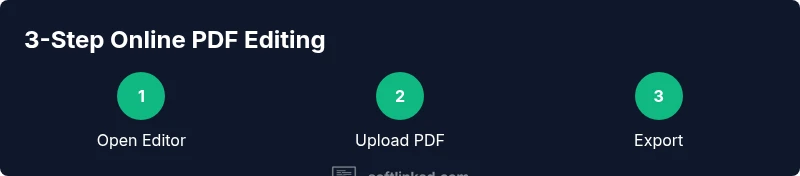
A high-level workflow helps you stay efficient: identify a trusted editor, upload your PDF, apply the required edits, review the document for accuracy, and export it. In practice, you often start by opening the editor in your browser, then selecting the PDF file from your device or cloud storage. After editing, you review the changes, ensure the layout remains intact, and finally export the edited PDF back to your device or cloud storage. This overview keeps you oriented if you switch between tools.
Troubleshooting common issues while editing PDFs online
Even reputable editors can run into hiccups. If a file won’t upload, check your internet connection, try another browser, or ensure the file isn’t corrupted. If fonts appear off or formatting shifts, re-apply font settings or export with a compatible font subset. If an editor crashes, save a copy of your current work if possible, reload the page, and restart the session. For large documents, consider splitting the file into smaller parts before editing to avoid timeouts. When in doubt, test edits on a duplicate copy to prevent data loss.
Best practices for free online editors
- Use trusted editors with transparent privacy policies.
- Avoid uploading highly sensitive documents unless you trust the service and understand its retention policy.
- Save incremental backups of your work to local storage.
- Sign out and clear cache after each session on shared devices.
- Compare the edited output against the original to catch inadvertent changes.
Following these practices helps you maximize safety and reliability when editing PDFs online for free.
Alternatives and upgrade considerations
If you frequently edit PDFs or require advanced features (OCR, batch processing, advanced redaction), evaluate paid plans or offline editors. Paid options often remove watermarks, increase file-size limits, and unlock premium features that improve accuracy and workflow automation. For some users, a desktop editor provides stronger security controls and offline reliability, reducing exposure of documents to cloud services. SoftLinked suggests balancing cost against feature needs and privacy preferences when choosing between a free online editor and paid alternatives.
Tools & Materials
- Modern web browser (Chrome/Firefox/Edge)(Keep updated to ensure compatibility with editor features.)
- Stable internet connection(Upload/download speed affects editing experience.)
- Original PDF file(Keep a local backup before editing.)
- Optional login for saves(Some editors require or offer optional accounts to save progress.)
- Backup copy for testing(Always test edits on a duplicate before final export.)
- Screenshot tool (optional)(Capture before/after comparisons for verification.)
Steps
Estimated time: 20-40 minutes
- 1
Open a trusted online PDF editor
Navigate to a reputable online editor via a secure URL (https). Confirm the site mentions a privacy policy and data practices. This prepares you for a safe editing session without installing software.
Tip: Verify the URL and privacy policy before uploading any files. - 2
Upload your PDF file
Use the editor’s upload button and select your PDF from local storage or cloud storage. If the file is large, consider splitting it or using a lower-resolution copy for practice edits.
Tip: Upload a non-sensitive test copy first to gauge performance. - 3
Choose the editing tool you need
Select the text editor, drawing tool, annotation, or image insert option as required. Familiarize yourself with font options and alignment to preserve readability.
Tip: Test a small edit to ensure font rendering matches the document. - 4
Make the edits
Apply changes directly in the document: edit text, insert images, fill forms, or add signatures. Keep edits minimal to avoid layout shifts.
Tip: Work on a duplicate file when trying new edits. - 5
Review and annotate
Review all edits for accuracy, check formatting, and add comments or notes for collaborators. Use side-by-side viewing if available.
Tip: Use a compare or revision feature if the editor offers it. - 6
Export or save the edited PDF
Choose the appropriate export option and quality settings. Ensure the final file preserves text readability and image quality.
Tip: Prefer exporting to PDF/A or high-quality PDF when possible. - 7
Securely remove local copies and sign out
After exporting, delete local copies if the device is shared. Sign out of the editor and clear browser data to minimize residual access.
Tip: Close the browser window after signing out to end the session securely.
Your Questions Answered
Is it safe to edit confidential PDFs online?
It depends on the editor's privacy policy and encryption practices. Prefer reputable services with clear data handling and deletion timelines. For highly sensitive documents, offline or paid options may be safer.
It depends on the editor’s privacy policy and encryption; use reputable services and consider offline options for sensitive files.
Do free online PDF editors add watermarks?
Some free editors add watermarks on exports unless you upgrade or log in. Always check export options and terms before proceeding with edits that need a watermark-free result.
Some free editors add watermarks unless you upgrade; check export options before proceeding.
Can I edit scanned PDFs online?
Many online editors offer OCR to convert scanned pages into editable text, but results vary by tool. For critical documents, review OCR accuracy and consider offline OCR options if needed.
Some tools provide OCR; check accuracy and consider offline OCR for important documents.
Are there file size limits when editing PDFs online for free?
Free editors typically impose a file size limit or restrict features for larger documents. Check the platform’s policy and consider splitting large PDFs if you encounter limits.
Free editors often have file size limits; review the platform policy or split large files.
Will edits be saved after I close my browser?
Some editors auto-save to cloud storage if you’re logged in; others require manual saving. Always download a local copy after edits and log out to protect your work on shared devices.
Auto-save depends on the tool; download a local copy after edits and sign out on shared devices.
Can I edit PDFs on mobile devices safely?
Many editors offer mobile-friendly interfaces, but the experience varies. For large or sensitive documents, consider using a desktop or dedicated app with strong privacy controls.
Most editors have mobile support, but desktop apps may offer stronger privacy controls.
When should I upgrade or switch tools?
Upgrade or switch tools when you need features like OCR, advanced redaction, batch processing, or no-watermark outputs. Evaluate based on your volume and privacy needs.
Upgrade when you need advanced features or watermark-free exports.
Watch Video
Top Takeaways
- Choose trusted editors with clear privacy policies.
- Check for watermark policies before exporting.
- Export quality matters; verify fonts and layout.
- Protect sensitive documents with offline or trusted cloud options.
- Upgrade thoughtfully when you need advanced features.