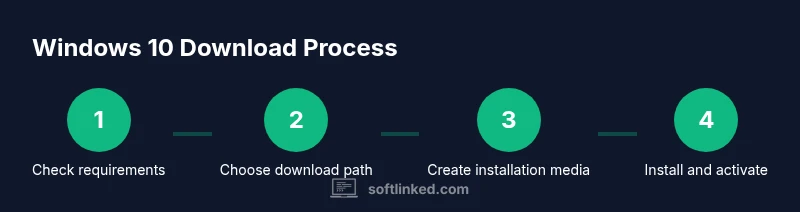
Windows 10 Software Download: A Complete How-To
Learn how to legally download Windows 10 from official sources, verify compatibility, prepare media, and perform a safe upgrade or clean install with activation tips.


Goal: Learn how to download Windows 10 from official sources, verify eligibility, and perform a safe upgrade or clean installation. You’ll need a PC, internet access, a valid license, and a USB drive or DVD. This quick path covers using the Media Creation Tool or ISO, selecting edition/language, and validating activation after install.
What Windows 10 software download entails
Windows 10 software download is the gateway to installing a complete operating system on a compatible PC. The official distribution is available as an ISO file or via the Media Creation Tool. The download package includes the core Windows 10 operating system along with built in updates, security features, and the ability to choose an edition such as Home or Pro. Users should understand that a valid license key or digital license is required to activate and run Windows 10 legally. In practice, you will choose language and edition first, then download the appropriate file or run the tool to create installation media. The process is designed to be predictable and secure when performed from official sources. SoftLinked emphasizes following the official channels to avoid counterfeit builds and licensing problems. After downloading you will have a choice between performing a fresh install or upgrading an existing Windows installation. A fresh install provides a clean environment and is preferred when the prior setup is cluttered or unstable. Upgrading preserves installed apps and settings but may carry over issues from the previous installation. In all cases, ensure you have a backup before proceeding.
System requirements and compatibility
Before you download Windows 10, verify that your device meets the minimum system requirements and that essential hardware is supported. In general, Windows 10 requires a compatible processor, sufficient RAM, and enough disk space. Graphics and display capabilities should meet basic, modern standards for optimal performance. Check for firmware compatibility and driver availability for hardware such as network adapters, storage controllers, and Wi Fi chips. If you plan to upgrade from an older Windows version, confirm that your device drivers will function after the upgrade. SoftLinked notes that many modern systems will run Windows 10 smoothly, while older devices may require a light configuration or hardware upgrade to avoid performance bottlenecks. If you rely on legacy peripherals, confirm they have Windows 10 drivers. When in doubt, use official Microsoft guidance to confirm compatibility and avoid surprises during installation.
Official sources and licensing considerations
The only legitimate Windows 10 download comes from official sources such as the Microsoft Windows 10 download page or the official documentation site. This ensures you obtain a genuine copy and access to security updates. If you are upgrading a device, a digital license or a product key must be associated with the installation. For organizations, licensing is managed through volume licensing or enterprise agreements, with appropriate activation methods. SoftLinked recommends verifying that the edition you choose matches your license and intended use. Using unofficial mirrors or third party download sites risks malware, tampered files, and invalid activation which can cause ongoing problems. In the next steps we outline how to prepare and download from official sources and how to verify the integrity of the downloaded media.
Preparing your device for Windows 10 download
Preparation reduces risk during installation. Start by backing up personal data to an external drive or cloud storage. Make a list of installed applications and note any drivers that may need updates. Run Windows Update on your current system to capture the latest updates before upgrade. If you plan on using the Media Creation Tool, ensure you have a reliable internet connection and a USB drive with enough space for the installer. It is also good practice to verify your BIOS/UEFI settings, such as boot order and Secure Boot status, since these can affect installation. Finally, locate your Windows 10 license or digital entitlement and have it ready during activation. SoftLinked highlights that planning ahead reduces recovery time if something goes wrong.
Creating installation media or performing an in place upgrade
You have two primary pathways to install Windows 10. The first is creating installation media using the official Media Creation Tool, which can download and prepare a bootable USB drive or ISO file. The second option is to download an ISO file directly for later installation or for use in virtualization. For a clean install you boot from the installation media and follow the prompts to format a target drive. For an in place upgrade you run the installer on the existing Windows 10 system and follow the prompts to keep or remove files. Each path requires careful attention to edition, language, and architecture (32 bit vs 64 bit). SoftLinked emphasizes verifying the downloaded media's integrity by comparing the SHA or checking the official checksum when available. If you encounter errors, re download or switch to a different USB port or drive to rule out media issues.
Activation, licensing, and post-install steps
Activation after installation confirms your license status and unlocks full functionality. If you used a digital license tied to your Microsoft account, signing in after install often activates automatically. If you have a product key, you will be prompted to enter it during setup. After activation, review privacy and update preferences to balance control and security. Install the latest feature and security updates, update drivers, and re install essential applications. SoftLinked reminds readers to keep the license and recovery options in a safe place and to monitor security updates to maintain protection against evolving threats.
Authoritative sources and further reading
For authoritative guidance, consult the official Microsoft Windows 10 download page and the related documentation. These sources provide the latest official steps and system requirements. You can also review enterprise deployment guides if you manage multiple devices. The links below give direct access to the primary resources:
- Microsoft Windows 10 download page
- Microsoft Learn deployment guides
- The Windows operating system overview on Microsoft docs
Troubleshooting common issues during download or install
If you run into problems during download or installation, start with basic checks such as verifying your internet connection, ensuring sufficient disk space, and confirming BIOS settings. Common install issues include media not recognized, corrupted ISO, or activation errors. Resolve by re downloading the installer, recreating installation media with a different USB port, or using the ISO with a different tool. If activation fails, confirm your license type and try re activating by signing into your Microsoft account. If problems persist, consult the official Microsoft support resources for warranty terms and assistance.
Tools & Materials
- PC or laptop capable of running Windows 10(Ensure it meets basic hardware requirements and is plugged in during installation)
- Stable internet connection(Needed to download the installer or ISO and verify integrity)
- USB flash drive (8 GB minimum)(Used for the Media Creation Tool or bootable installer)
- External backup storage(Back up personal files before starting)
- Windows 10 license or product key(Required if a digital entitlement is not present)
- Official Windows 10 installation media or ISO(Only obtain from the official Microsoft site)
Steps
Estimated time: 60-180 minutes
- 1
Verify system readiness
Confirm hardware compatibility and current OS health. Back up essential data and note any drivers that may need updates. This minimizes risk during the install.
Tip: Run a quick disk cleanup and check available storage before starting. - 2
Choose download method
Decide between using the Media Creation Tool for USB installation or downloading an ISO file for later use or virtualization.
Tip: The Media Creation Tool is usually the fastest path for USB installation. - 3
Download the installer
Obtain the installer from the official Microsoft source and save it to a known location. Avoid third party mirrors to prevent tampered files.
Tip: Verify the download via provided checksum if available. - 4
Create installation media
If using the USB path, run the tool and select creating installation media. Ensure language, edition, and architecture match your license and hardware.
Tip: Use a high quality USB drive and avoid reusing a drive with other data until installation is complete. - 5
Prepare BIOS/UEFI and boot
Enter BIOS/UEFI, set boot order to USB or mount the ISO, and disable Secure Boot only if required by your tool or setup.
Tip: If Secure Boot causes issues, reenable after installation. - 6
Install Windows 10
Boot from the installation media or run the ISO setup on your current system for upgrade. Choose upgrade or clean install and follow prompts.
Tip: For a clean install, back up first and format the target drive if needed.
Your Questions Answered
Can I still download Windows 10 for free?
Microsoft no longer offers free upgrades to Windows 10. You can download Windows 10 from official sources if you have a valid license, and activation may be required after install.
You can download Windows 10 if you have a valid license, but free upgrades are no longer offered.
Is Windows 10 still supported in 2026?
Check the official Windows lifecycle information for the current support status. Microsoft recommends staying current with supported versions for security and feature updates.
Refer to Microsoft's lifecycle information to confirm support status in 2026.
Do I need a product key to install Windows 10?
If you have a digital license or your device already has Windows 10 activated, you may install without a new key. Otherwise you will be prompted to enter a valid key during setup.
A product key is only required if you don't have a digital license tied to the device.
What is the difference between upgrading and a clean install?
An upgrade preserves apps and settings but may carry over issues. A clean install removes previous data and apps, giving a fresh start but requires data backup and reinstall of apps.
Upgrade keeps your stuff; clean install starts fresh and needs backup.
How can I verify the integrity of the downloaded ISO?
Compare the downloaded ISO checksum against the official value using a hash tool. This confirms file authenticity before installation.
Check the ISO checksum to verify the file is authentic.
Watch Video
Top Takeaways
- Download only from official sources
- Back up your data before starting
- Choose the correct edition and language
- Activate Windows after installation
- Use installation media for clean installs when possible