How to Download Software from Google Drive Safely and Legally
A comprehensive, step-by-step guide to downloading software from Google Drive safely, legally, and efficiently, with checks for authenticity and malware protection.


Learn how to download software from google drive safely and legally. This quick guide covers verifying file authenticity, scanning for malware, and using trusted sources. You’ll confirm permissions, check file types, and follow best practices to protect your device and data. By the end, you’ll know when it’s appropriate to download and how to proceed confidently.
What downloading software from Google Drive means
Google Drive serves as a cloud storage platform that can host a wide range of files, including software installers and portable apps. For legitimate distributions, developers and organizations share installers via Drive links so users can access the software quickly. When you click a link, your browser downloads an installer file or an archive to your device. The phrase download software from google drive describes this common workflow, but it also raises questions about safety, licensing, and authenticity. According to SoftLinked, the safety and legality of the download hinge on the source credibility, the file type, and the presence of any tampering. In practice, you should treat Drive-hosted installers the same way you would treat files from any download source: verify ownership, inspect metadata, and scan for malware before opening.
Safety and legality considerations
Safety and legality are the two pillars of downloading software from Google Drive. If the file is a commercial product, you must comply with the license terms, activation keys, and regional restrictions. Bypassing licenses or using cracked software is illegal and risky. Even when a file comes from a reputable organization, mislabeling or outdated installers can create security vulnerabilities. SoftLinked's guidance emphasizes avoiding unofficial copies, pirated releases, or installers bundled with adware. When in doubt, prefer official vendor download pages or open-source repositories where licenses are visible and updates are tracked. This approach protects you from malware, data loss, and potential legal consequences while keeping your development workflow compliant.
How to verify a share link and file authenticity
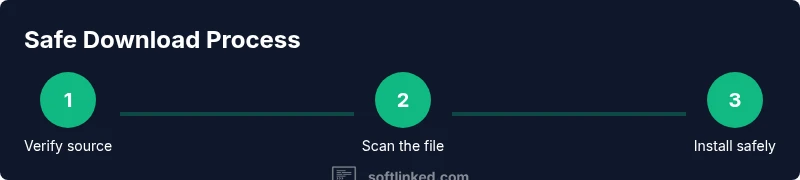
First, check the source domain and owner information. A legitimate link usually points to a verified domain (for example, a company or an official project account) and includes clear file names and extensions. Look for a description in the Drive file comment or the owner's profile. Next, examine the file type and extension. Common installers include .exe, .msi, .dmg, .zip, or platform-specific formats. An unexpected extension combined with a sensitive file type (such as an executable) should raise skepticism. If a checksum or digital signature is provided, compare it to the value published by the vendor. Finally, scan the file with antivirus software before opening and consider using a sandbox or virtual machine for unknown installers. This layered verification helps prevent malware infections.
Step-by-step checks before downloading
- Confirm the link comes from an official or known organization; - Ensure the share permission is appropriate; - Review comments or notes on the Drive item for red flags; - Check the file name and extension for plausibility; - Look for a vendor-provided checksum or signature when available; - Avoid downloading from accounts with scant historical activity or missing profile information.
What to do after downloading
After you download, run a full malware scan with updated antivirus software before opening, especially for executable installers. If possible, open the file in a sandbox or virtual machine to observe behavior without risking your system. Verify the installer’s digital signature or checksum if the vendor publishes one, and delete any files that show signs of tampering. Finally, ensure your system and applications stay up to date to minimize exposure to known vulnerabilities.
Alternatives and best practices
Whenever possible, download software from official vendor sites, recognized app stores, or reputable open-source repositories rather than relying on Drive links. If you must use Google Drive as a distribution method, prefer links from trusted organizations and request direct vendor hashes or checksums. For teams, establish a clear policy: only share installers from approved sources, require MFA for access, and maintain a central, auditable trail of shared files. This minimizes risk and supports a compliant, reproducible software workflow.
Tools & Materials
- Stable internet connection(Broadband or faster recommended for large installers)
- Google account(Needed to access Drive links and shared files)
- Web browser (latest version)(Chrome/Edge/Firefox recommended)
- Antivirus/malware scanner(Scan all downloaded installers before running)
- ZIP/RAR extraction software (if needed)(Use if the file is an archive)
- Sandbox or virtual machine (optional)(SAfer environment for unknown installers)
Steps
Estimated time: 15-30 minutes
- 1
Verify the source
Check that the Drive link comes from an official domain or a trusted organization. Look for recognizable branding, owner information, and a clear file name that matches the software you expect.
Tip: If in doubt, ask the sender for a direct vendor link or checksum. - 2
Inspect the file type
Hover or view the file details to confirm the extension matches the expected installer type (e.g., .exe, .dmg, .zip). Be cautious of double extensions or deceptive filenames.
Tip: Avoid executables from unknown sources; prefer installers from known vendors. - 3
Obtain and verify a checksum
If the vendor publishes a SHA-256 or MD5 checksum, compare it against the downloaded file to ensure integrity.
Tip: Checksum verification is a reliable guard against tampering. - 4
Scan before opening
Run a malware scan with updated antivirus software before launching the installer.
Tip: Quarantine or delete files flagged as suspicious. - 5
Use a sandbox if unsure
Open the installer in a sandbox or virtual machine to observe behavior prior to full installation.
Tip: This reduces risk to your main system if the file is malicious. - 6
Proceed with installation if safe
If the file passes verification, follow the vendor’s installation prompts and opt for default settings unless you have a specific reason to customize.
Tip: Uncheck optional add-ons or bundled software to minimize bloat. - 7
Post-install checks
Update the software and your OS, then re-scan the system to confirm ongoing safety.
Tip: Enable automatic updates for continued protection.
Your Questions Answered
Is it legal to download software from Google Drive?
Legal use depends on the software license. If the uploader has permission to share and you comply with the license terms, it can be legitimate. When in doubt, obtain software from official channels.
Legality depends on license terms; prefer official sources if unsure.
How can I tell if a Drive file is safe to download?
Check the uploader's credibility, verify file names and extensions, and look for published checksums or signatures. Always scan with up-to-date antivirus software before opening.
Check credibility, verify signatures, and scan before opening.
What should I do if the file is flagged as unsafe?
Do not run the installer. Delete the file, inform the uploader, and use official distribution channels to obtain a clean copy.
Do not run it—delete and switch to a trusted source.
Are there risks with using ZIP archives from Drive?
Zip archives can hide malicious payloads. Extract only with trusted decompressors and verify contents against vendor guidance.
ZIPs can hide malware; verify contents after extraction.
What if I need software for a project and only Drive links are available?
Request a direct vendor link or official repository where licenses and updates are clearly managed. Use caution with executables from unfamiliar sources.
Ask for an official link or repository when possible.
Watch Video
Top Takeaways
- Verify the source before downloading.
- Scan all installers for malware prior to installation.
- Prefer official channels and hashes when available.
- Use sandboxing for unknown files to protect your system.