Chrome Download for Windows 7: Safe Options in 2026
Learn why official Chrome downloads no longer support Windows 7, and explore safe upgrade paths and browser alternatives to stay secure in 2026.


Google Chrome no longer offers official builds for Windows 7. If you need Chrome-like browsing on Windows 7, upgrade your OS or switch to a supported browser. For safe alternatives and a clear, step-by-step approach, see our full guide.
Why Chrome isn't officially supported on Windows 7
According to SoftLinked, the landscape for Chrome on older operating systems has changed dramatically over the past few years. The current official Chrome release cycle targets Windows 10 and Windows 11, with Windows 7 no longer listed as a supported platform in Google's modern support matrices. This shift is driven by the need to maintain security, performance, and compatibility with modern websites and web standards. For users still running Windows 7, that means there is no safe, fully supported installer from Google for the latest Chrome versions. SoftLinked's analysis shows that attempting to run modern Chrome on Windows 7 can expose you to unpatched vulnerabilities, missing security features, and frequent site incompatibilities that degrade your browsing experience. In practical terms, you may encounter frequent site breakages, failing extensions, or degraded HTTPS security if you force a modern browser onto this older OS. If you rely on Windows 7 for legacy software or hardware constraints, this reality should shape your expectations and decisions. The best path is to treat Windows 7 as a platform to migrate away from, rather than as a permanent base for up-to-date software.
Alternative browsers and security considerations
When Chrome offers no official Windows 7 support, you have two broad directions: migrate your operating system to a newer Windows version, or select a different browser that still provides security updates and reasonable compatibility on Windows 7. SoftLinked emphasizes the importance of security first, especially on older machines connected to the internet. Browsers built on modern engine bases can still offer robust privacy controls and phishing protections even if the underlying OS is outdated. Some users opt for Firefox ESR, which focuses on stability and security on longer support cycles, while others explore up-to-date Chromium-based forks or other vendors that still publish Windows 7-compatible builds. Regardless of choice, verify that the browser receives security updates, supports current web standards, and has an active support channel. Remember: the goal is to minimize risk while maintaining practical usability, not to chase the newest features at the expense of safety.
How to verify your system and choose a path
Start by confirming your Windows version and service pack level. On Windows 7, this is typically under System Properties. If you determine you cannot upgrade safely to Windows 10/11, evaluate alternative approaches such as a browser with ongoing security updates that runs on Windows 7, or consider a lightweight Linux live environment as a temporary host for browsing. The decision should balance security, software compatibility with your tools, and your willingness to upgrade the OS. SoftLinked recommends creating a tested plan with data backups, and a clear timeline for progress toward a more secure platform. This ensures you do not delay critical security updates for the sake of a single browser.
How to download a supported browser safely
If you decide to migrate to a newer Windows version, begin with a clean backup of your data and plan the upgrade path. If you opt for an alternative browser, use the official download pages and avoid third-party mirrors. For Windows 7 users, Firefox ESR and select Chromium-based builds from trusted vendors can be viable options, but you should always verify the source URL, SSL certificate, and digital signatures. After installation, review privacy and security settings, enable automatic updates where possible, and consider keeping a separate, isolated user profile to minimize the risk of cross-account data leakage. The core principle is to avoid legacy Chrome installers from dubious sites and to keep security layers up to date where feasible.
Managing updates and security on legacy Windows
On Windows 7, ongoing security updates depend on the availability of vendor support for the browser you choose. In many cases, the safest approach is a Windows upgrade to a supported OS alongside a modern browser. If upgrading is not immediately possible, configure the new browser to block insecure content, enable tracking protection, and disable insecure plugins. Regularly review installed extensions and remove those that are unused or poorly maintained. Consider enabling firewall rules, enabling anti-malware software, and employing a VPN for added privacy when using legacy systems. This combination helps mitigate some risks while you prepare for a longer-term transition to a supported platform.
Troubleshooting common issues
If you encounter site compatibility problems or notice slow performance after switching browsers, check for known compatibility flags or compatibility modes within the browser settings. Ensure your system drivers and security software are up to date, as outdated drivers can cause performance hiccups with modern web content. If you experience login or certificate errors, verify that the system clock is accurate and that the root certificates are current. Finally, if you must revert to a different browser due to compatibility or performance, export important data (bookmarks, passwords) securely and import them into the new browser to preserve continuity.
Tools & Materials
- Windows 7 PC with Administrator access(Needed to install or upgrade software)
- Reliable backup medium (external drive or cloud backup](Back up bookmarks, data, and configuration)
- Stable internet connection(Required for downloading browsers and updates)
- Official browser download pages (Firefox ESR, recommended alternatives)(Avoid unofficial mirrors to reduce malware risk)
- Checksum or signature verification tool (optional but recommended)(Verify downloads if you must obtain older builds from trusted sources)
Steps
Estimated time: 45-90 minutes
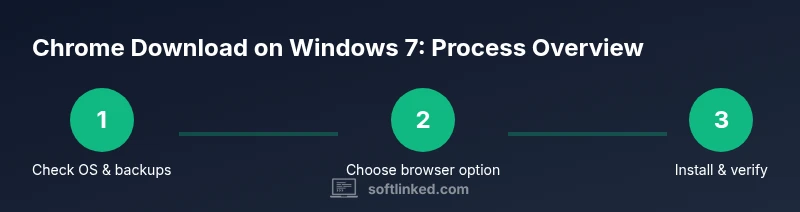
- 1
Check system compatibility
Open System Settings and confirm Windows version and service pack level. If you are on Windows 7, note any constraints that will affect browser choices and security updates.
Tip: Document the exact OS version before deciding your path. - 2
Decide between OS upgrade or alternative browser
Weigh the risks and benefits of upgrading to Windows 10/11 versus selecting a still-supported browser that works on Windows 7. Consider long-term security, software compatibility, and hardware limits.
Tip: A small OS upgrade now can save bigger security issues later. - 3
Visit official browser download pages
Navigate to the official site of an alternative browser compatible with Windows 7 and verify the URL starts with https. Avoid third-party mirrors that may bundle malicious software.
Tip: Use bookmarks to avoid phishing redirects. - 4
Download and install the chosen browser
Download the installer from the official source, run the installer, and follow on-screen prompts. Close other apps to ensure a clean installation.
Tip: Verify the digital signature if offered by the installer. - 5
Test and secure
Launch the new browser, import bookmarks, enable automatic updates, and review privacy settings. Run a malware scan and check for browser-specific security features.
Tip: Set the browser to update automatically to reduce exposure to vulnerabilities.
Your Questions Answered
Is Google Chrome still downloadable for Windows 7?
Official Chrome downloads do not support Windows 7 in 2026. You should upgrade OS or use a supported browser. If you must browse, choose a secure alternative from verified sources and expect limited compatibility.
Chrome for Windows 7 isn’t officially available. Upgrade your OS or switch to a supported browser; use trusted sources for any alternative.
What are safe alternatives to Chrome on Windows 7?
Firefox ESR is a commonly recommended alternative for Windows 7, along with other Chromium-based browsers from reputable vendors that continue to publish Windows 7 builds. Always verify updates and avoid shady mirrors.
Try Firefox ESR or another reputable browser that still supports Windows 7 and receives updates.
Will upgrading Windows affect my data?
Upgrading Windows can preserve user data if done via an in-place upgrade. It’s essential to back up documents, photos, and browser data before starting the process.
Data can be preserved with an in-place upgrade, but back up first to be safe.
Can I run Chrome in a virtual machine on Windows 7?
Running a Windows 10/11 VM with Chrome installed can work, but it adds complexity and may impact performance on older hardware. It’s a workaround rather than a sustainable solution.
Yes, but it’s a workaround with potential performance costs.
What security risks exist with outdated browsers?
Outdated browsers miss critical security fixes and modern web standards. They expose you to phishing, malware, and data breaches. Always prioritize updates and consider an OS/browser upgrade.
Outdated browsers are risky; update where possible and upgrade OS for better protection.
Watch Video
Top Takeaways
- Upgrade Windows 7 to a supported OS when possible.
- Avoid unofficial installers; choose official browser sources.
- Back up data before any browser or OS changes.
- Evaluate browser alternatives that still receive security updates.