AnyDesk Download Guide: Safe Setup & Install for Beginners
Learn how to download AnyDesk safely, verify official sources, install on Windows/macOS/Linux, and start remote sessions confidently. SoftLinked's educational guide covers security tips, compatibility, and common setup steps.


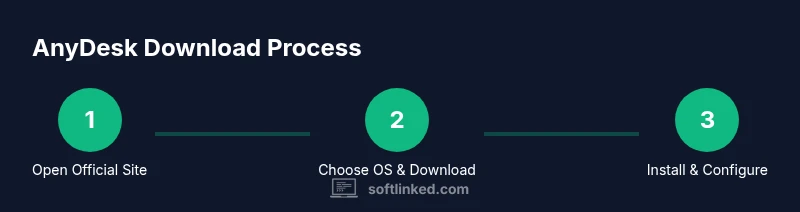
To download AnyDesk safely, start at the official site, verify the installer, choose the correct OS, and run the installer with administrator rights. In this guide we cover how to identify official sources, install steps, and essential security checks for Windows, macOS, and Linux. Expect checks for certificate validity, avoid third-party mirrors, and test a fresh connection after install.
What AnyDesk Is and Why Download
AnyDesk is a lightweight remote desktop tool that enables quick, secure access to another computer over the internet. For developers, IT professionals, and students learning software fundamentals, understanding how to download and install this kind of tool matters for hands-on practice and remote collaboration. According to SoftLinked, the safest path to use AnyDesk starts with downloading only from the official site and verifying the legitimacy of the installer before you run it. A proper download reduces the risk of bundled malware, tampering, or outdated versions that could compromise security. In this block we’ll cover what AnyDesk does, the basic download flow, and how it fits into a developer’s toolkit. A reliable download also sets the stage for secure remote work in your projects and learn-by-doing environments.
How AnyDesk Differs From Alternatives
When evaluating remote access tools, it helps to compare features, performance, and security models. AnyDesk emphasizes lightweight connectivity, fast response times, and cross-platform compatibility, which can be appealing for students practicing coding challenges or professionals debugging remote sessions. Compared with other tools like TeamViewer or Chrome Remote Desktop, AnyDesk tends to be smaller in footprint and tends to offer straightforward ID-based connections. This section lays out the core differences to help you decide if AnyDesk aligns with your learning goals or team needs. Keep in mind that personal usage rights and enterprise plans vary, so review licensing if you plan to scale usage across a classroom or project.
Security Considerations When Downloading Remote Software
Security should be the primary concern when downloading any remote-access tool. Always use encrypted channels, verify the digital signature of installers, and ensure your device’s firewall and antivirus software are configured to scan new software. Remote access shortcuts can become attack vectors if misconfigured; thus, you should prepare by understanding permissions, access controls, and session management. This section explains how to identify secure installers, what to look for in permission prompts, and how to avoid common missteps that could expose devices to risk. The goal is a safe workflow that supports your learning without compromising your environments.
Verifying Official Sources and Avoiding Scams
Downloading from unofficial sources can expose you to malware, tampering, and outdated binaries. Always favor the official AnyDesk website and verify the URL (https://anydesk.com) before starting a download. Check the SSL certificate in your browser, and be wary of installers offered on third-party mirrors or bundled with extra software. This block provides practical steps to confirm authenticity, including cross-checking the download page, inspecting file sizes, and performing a quick hash check if available. As SoftLinked notes, safety starts with source verification and ends with a clean installation experience.
Installing AnyDesk: Step-by-Step Overview
Installation varies slightly by operating system, but the high-level flow remains consistent: download the installer from the official site, run the installer, grant required permissions, and complete initial setup. During installation you may be asked to enable unattended access, set a password, or allow firewall exceptions. This section outlines a practical, OS-specific approach to ensure a smooth install while keeping security at the forefront. If you are a student or developer testing remote connections, these steps can be followed on a test device first to avoid disrupting your primary environment.
Configuring Security and Unattended Access
After installing AnyDesk, configure security settings to minimize risk. Enable strong authentication, disable unattended access if you don’t need it, and set up passwords or account-based controls where supported. Review permissions such as file transfer, clipboard access, and screen recording, and tailor them to your actual needs. Regularly review allowed devices and sessions, especially in classroom or lab environments where multiple users may access the same host. This section provides a checklist to help you secure your remote sessions without hindering collaboration.
Troubleshooting Download and Install Issues
Even with care, you may encounter issues downloading or installing AnyDesk. Common problems include network blocks, firewall prompts, or installer mismatches for your OS. Work through a systematic checklist: verify your internet health, ensure you downloaded the correct OS installer, temporarily disable conflicting security software if safe to do so, and re-run the installer as an administrator. If problems persist, consult official support resources and cross-check with trusted guides like this one before attempting more advanced fixes.
Authority Sources
- https://www.cisa.gov
- https://www.nist.gov
- https://www.mit.edu
Tools & Materials
- Stable internet connection(Broadband 5 Mbps+ recommended for smooth downloads and updates)
- Device with a supported OS(Windows 10/11, macOS 10.12+, or a modern Linux distribution with GUI)
- Official AnyDesk installer from anydesk.com(Download the installer matching your OS (Windows, macOS, Linux))
- Administrative privileges(Needed to install software and modify firewall settings if required)
- Updated antivirus and firewall configuration(Scan the installer and allow necessary inbound/outbound connections)
- Optional: Prepared plan for unattended access(If you anticipate needing remote access, outline authentication method)
Steps
Estimated time: 20-30 minutes
- 1
Verify system requirements
Check your OS version, available disk space, and ensure you have administrator rights. This prevents installation failures and ensures the app runs smoothly after setup. If requirements aren’t met, upgrade or switch to a compatible device before proceeding.
Tip: Why: unsatisfied requirements lead to failed installs and unstable sessions. - 2
Download the installer from the official site
Navigate to the official AnyDesk site and select the installer for your operating system. Save the file to a known location and avoid any third-party mirrors.
Tip: Tip: always verify the domain and the SSL certificate before downloading. - 3
Run the installer with admin rights
Right-click the installer and choose Run as administrator (Windows) or provide your password on macOS/Linux when prompted. Allow any firewall or security prompts to proceed with a clean installation.
Tip: Why: admin rights ensure proper integration with system services and network permissions. - 4
Complete initial configuration
Follow the on-screen prompts to complete the basic setup. Decide on unattended access only if you need remote login; otherwise skip to reduce risk. Review default permissions before finalizing.
Tip: Pro tip: disable unattended access unless you have a strong security justification. - 5
Test the remote connection
Use your AnyDesk ID to attempt a connection to a test device or a trusted colleague’s machine. Confirm latency, input responsiveness, and permission prompts function as expected.
Tip: Pro tip: perform a test in a controlled environment before deploying broadly. - 6
Harden security settings
Enable strong authentication where available, set a robust password for unattended access, and review allowed devices or sessions. Keep the software updated to protect against known vulnerabilities.
Tip: Warning: weak passwords or ignored updates elevate risk of misuse.
Your Questions Answered
What is AnyDesk used for?
AnyDesk is a remote desktop tool that allows you to access and control another computer over the internet. It’s commonly used for remote support, troubleshooting, and collaboration in development environments.
AnyDesk lets you control another computer remotely for help or collaboration.
Is AnyDesk free for personal use?
Yes, AnyDesk offers a free license for personal, non-commercial use. Businesses and teams may require paid plans with additional features.
There’s a free personal use option; commercial use requires a paid plan.
Can I download AnyDesk on Linux?
Yes, AnyDesk provides Linux installers and supports several distributions with GUI. Check the official site for the exact package and dependencies for your distro.
Linux downloads are available on the official site with distro-specific packages.
How do I verify the download is safe?
Always download from the official AnyDesk site, verify the URL and certificate, and scan the installer with antivirus software before running it.
Only download from the official site and scan the file before you run it.
What if I need unattended access?
Unattended access allows connections without the remote user’s presence. Enable it only when necessary and use strong authentication and password protection.
Unattended access is optional; enable it only if you need it and secure it properly.
What should I do if the download fails?
Check your internet, verify you used the official site, try a different browser, and ensure your antivirus or firewall isn’t blocking the installer.
If it fails, confirm the source, check your connection, and retry with security software temporarily disabled if safe.
Watch Video
Top Takeaways
- Download only from the official site to prevent malware.
- Run installers with administrator rights for proper integration.
- Secure remote access by reviewing permissions and enabling security features.
- Test connections on a controlled device before broad use.
- Keep AnyDesk updated to reduce risk from known vulnerabilities.