Why Would a Software Update Fail? A Troubleshooting Guide
A practical, urgent guide to diagnose and fix software update failures quickly. Learn common causes, quick checks, and safe, step-by-step fixes to minimize downtime and keep systems secure.


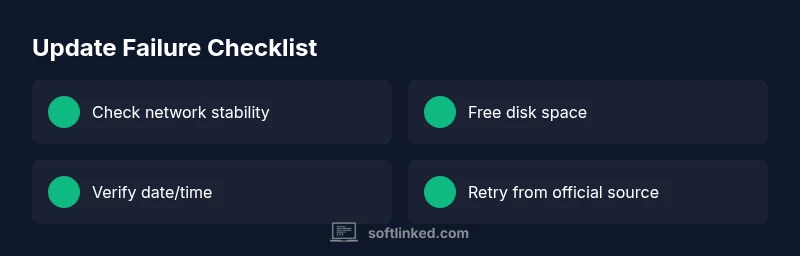
Most software update failures stem from unstable network, insufficient storage, or corrupted packages. Quick fix: 1) retry on a stable network, 2) free up space, 3) restart the device and reattempt, 4) verify date/time and source integrity, and 5) if it still fails, review error codes or logs to guide the next steps.
Why update failures happen and what it means for you
Update failures disrupt routine work, security, and access to new features. From SoftLinked’s perspective, most failures cluster around three areas: connectivity (unstable or restricted networks), storage (not enough space to unpack and install updates), and package integrity (corrupted or tampered download). In practice you’ll see generic error messages, interrupted installations, or updates that stall mid-way. Addressing these root causes quickly minimizes downtime and reduces the risk of leaving devices exposed to vulnerabilities. By understanding the common failure modes, you can triage problems faster and avoid unnecessary re-attempts.
According to SoftLinked, a systematic approach reduces restore time and prevents repeat issues. Start with simple checks, then move to targeted fixes. This keeps your workflow intact and aligns with best practices for software fundamentals and QA.
Note: Always back up critical data before significant updates, and ensure you’re operating on supported software versions to avoid compatibility problems in later steps.
Immediate checks you can perform
Before diving into deep fixes, run through fast checks that catch the majority of failures. Ensure the device is connected to a stable network (prefer wired or a strong Wi‑Fi signal). Verify there’s enough free disk space for the update package and temporary working files. Check the device’s date and time settings, as discrepancies can cause certificate or server validation failures. Look for any pending restarts or pending system maintenance reminders. If the update is from a corporate or enterprise source, confirm the update channel and policy settings aren’t blocking the install. Finally, review any error messages or codes and search for their meaning in official documentation or SoftLinked’s troubleshooting notes.
How to read update error messages and what they mean
Error messages are your first clue. Many updates fail due to network timeouts, certificate validation, or insufficient privileges. If you encounter a generic error, note the exact wording, any error codes, and when it occurs (download vs. install phase). For more actionable insights, compare the current system state to the required prerequisites listed by the vendor: minimum OS version, available disk space, dependency software, and required reboot behavior. When possible, capture log files or export the installer report for review. Interpreting messages accurately speeds up the diagnosis and prevents blind retries.
Platform-specific pitfalls to check first
Different platforms have their own quirks. On Windows, ensure Windows Update service is running and that there are no corrupted system files using built-in tools. On macOS, verify that the installer package is from a trusted source and that SIP (System Integrity Protection) status isn’t blocking changes. On Linux, check package manager status, repository integrity, and compatibility between the kernel and the update. For all platforms, avoid updating during critical work sessions and ensure a stable power source to prevent mid-update power loss.
Understanding platform-specific hurdles helps you apply the right fix without unnecessary steps and aligns with recommended safety practices.
Collecting evidence: how to prepare for a fix
Good documentation accelerates resolution. Note the device type, OS version, update name, and timestamp of the failure. Gather screenshots of error dialogs, logs from the installer, and any network diagnostics if the issue seems network-related. If you’re in a managed environment, collect policy settings or management console messages. This data supports faster internal triage or when reaching out to support. Always sanitize personal data before sharing logs. With a clear evidence trail, you’ll reduce back-and-forth and reach a resolution sooner.
Safe recovery paths when simple fixes don’t help
If basic checks fail to resolve the problem, consider safer recovery paths. Retry the update after a clean boot to ensure no background processes are interfering. Use an official offline installer or a different network (e.g., a mobile hotspot) to isolate the issue from the network. Reset or refresh components only if vendor guidance permits, and avoid risky workarounds that could brick the device. If updates still refuse to install, escalate with supported channels and include your diagnostic details for faster assistance.
Steps
Estimated time: Total time: 60-90 minutes
- 1
Verify network and power
Ensure a stable internet connection, ideally wired or strong Wi‑Fi. Plug the device into power to avoid mid-update shutdowns. Reconnect and test access to the vendor’s update server, then retry the update.
Tip: Use a wired connection when possible to minimize packet loss. - 2
Free up disk space
Check available storage and delete or move nonessential files. Empty the recycle bin or trash and clear temporary update files if prompted by the system.
Tip: Aim for at least 20–25% free space beyond the update size. - 3
Verify system time and sources
Make sure the system clock is accurate. Confirm updates are from trusted sources and certificates are valid for the update package.
Tip: Disable VPNs or proxies that might interfere with certificate checks. - 4
Restart and attempt again
Fully restart the device to clear stuck processes. Then run the update again, preferably outside peak usage hours.
Tip: Close running apps to reduce resource contention. - 5
Check for prerequisite updates
Some updates require earlier updates or specific software dependencies. Install any listed prerequisites before retrying.
Tip: Read the vendor notes for the exact prerequisites. - 6
Use official install path
If available, use the vendor’s offline installer or recovery option. This isolates the update from live services and reduces network-related failures.
Tip: Only download installers from the official site.
Diagnosis: Software update won’t install or completes with an error.
Possible Causes
- highUnstable or blocked network connection
- highInsufficient disk space for download or unpacking
- mediumCorrupted download or package integrity issues
- lowIncorrect system time/date or certificate problems
- lowSoftware conflicts or pending restarts
Fixes
- easyTest a stable network (prefer wired or strong Wi‑Fi) and retry
- easyFree disk space by removing useless files or moving data
- easyRestart device, clear cache/temporary files, and reattempt
- easyVerify date/time and source integrity; disable VPN if used
- mediumIf error persists, check for updates from official sources or logs
Your Questions Answered
What are the most common reasons updates fail?
Typically, updates fail due to network issues, insufficient storage, or corrupted download packages. Diagnosing relies on checking connectivity, space availability, and integrity of the update package before retrying.
Common reasons are network problems, lack of space, or a corrupted download. Check connectivity, free space, and package integrity, then retry.
How can I tell if storage is the problem?
Look at the available disk space reported by the OS during the update prompt. If space is low, free up space or move data to another device before retrying.
Check the free space shown during the update prompt; if it's low, free up space before trying again.
Should I disable antivirus during updates?
Only disable antivirus if the vendor specifically recommends it and you understand the risks. Re-enable protection after the update completes.
Only disable antivirus if the vendor says so, then re-enable right after the update.
Is it safe to retry updates multiple times?
Retrying after a short interval is usually fine, but avoid repeated attempts in rapid succession as it could trigger rate limits or system instability.
Yes, but space out retries to avoid instability and rate limits.
When should I contact support?
If updates fail after all basic checks, or if corporate policies and prerequisites are unclear, reach out to official support with your logs and device details.
Contact support when basic fixes don’t solve it and you have logs to share.
Can a failed update harm my device?
A failed update rarely damages hardware; it can leave the system in an unstable state. Follow official recovery steps to restore a clean state.
Failure rarely harms hardware, but can leave the system unstable. Follow official steps to recover.
Watch Video
Top Takeaways
- Identify the root cause quickly with structured checks
- Keep data safe with backups before updates
- Use official channels and prerequisites for reliability
- Escalate when persistent failures occur to avoid downtime