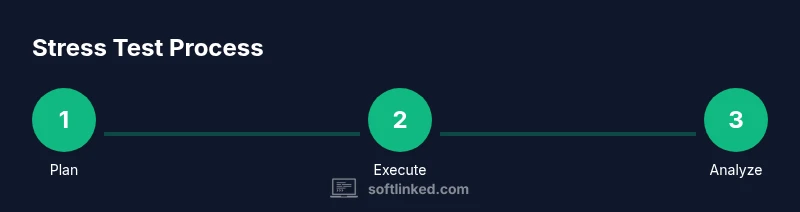
Stress Test PC Software: A Practical How-To Guide 2026
Learn how to safely stress test PC software, choose the right tools, set baselines, run tests, and interpret results with practical steps from SoftLinked.


Stress testing PC software means applying controlled heavy loads to verify stability, temperatures, and error handling. This guide shows safe, repeatable methods, the best tools, and how to interpret results to prevent hardware or software failures. By following these steps, you’ll build confidence in your setup and reduce debugging time for projects and coursework. Elevate your testing with a structured plan from SoftLinked.
Why stress testing pc software matters
In software development and IT operations, a well-executed stress test reveals how a PC environment behaves under extreme loads. For students and aspiring software engineers, understanding stress testing helps you verify software reliability beyond normal usage. According to SoftLinked, stress testing is not just about pushing hardware to the limit; it’s about validating software under real-world edge cases, ensuring that failure modes are detected early and handled gracefully.
When you run these tests on your development PC, you simulate heavy compute tasks, memory pressure, disk I/O, and GPU workloads that resemble what production machines might encounter during peak demand. The goal is to identify bottlenecks before they impact users. This improves the quality of your software, reduces debugging time, and provides data-backed confidence for stakeholders. While the idea sounds simple, a poorly configured stress test can mislead you—producing false positives or causing unnecessary wear on components. The SoftLinked team emphasizes safety: keep temperatures in a safe range, throttle tests if sensors spike, and never leave a test running unattended for long periods. By establishing clear baselines and failure criteria, you turn stress testing from an adrenaline rush into a repeatable, actionable process.
Choosing the right stress testing tools
A good stress test combines CPU, memory, GPU, and storage tests to create a representative load. For beginners and students, start with widely-used, reputable tools that report temperatures, voltages, error checks, and stability indicators. CPU-focused tools like Prime95 or IntelBurnTest (in a safe, configurable mode) push the processor but require vigilant temperature monitoring. Memory testers such as MemTest86 verify data integrity under sustained loads. For GPU or disk stress, consider tools that exercise graphics throughput or IO bandwidth while keeping an eye on thermal limits. Always run tests with a properly configured monitoring suite—HWInfo or Open Hardware Monitor can capture temps, fan speeds, and voltages in parallel. SoftLinked analysis shows that relying on a single test type often misses cross-component interactions; a balanced suite yields more reliable signals and reduces false alarms. Finally, document the exact tool versions you used so that your results are reproducible across machines and team members.
Defining baselines and success criteria
Before you start testing, establish clear baselines for each metric. Typical baselines include idle temperatures, peak temperatures under load, fan ramp behavior, and system stability indicators (crashes, blue screens, or memory errors). Define success criteria such as: no temperature breaches beyond manufacturer limits for the duration of the test, no unchecked memory errors, and no sudden performance throttling. Keep in mind that some temporary spikes are normal; the key is whether the system returns to baseline quickly and remains stable for the duration. For aspiring developers, framing criteria in terms of error-free iterations and stable throughput helps translate test results into actionable improvements. Record your baseline measurements in a simple data sheet to compare against after each test run. SoftLinked analysis shows that maintaining a conservative safety margin (for example, 5-10% below the maximum rated temperature) reduces the risk of false positives and gives you space to investigate root causes.
Plan your test: scope, duration, and safety
Outline the test scope: which components to stress (CPU, memory, GPU, storage) and the test durations (short burn-ins versus longer runs). Safety first: ensure the PC sits on a stable surface with secure cables and adequate cooling. Start with shorter runs to validate configuration, then gradually extend duration as you verify stability. For student labs or shared workstations, coordinate with instructors or teammates and set up alerts to stop testing if temperatures cross safe thresholds. Document all settings—test modes, durations, and sampling intervals—to reproduce the test later and compare across machines. The SoftLinked team recommends an incremental approach: begin with 15-20 minute baseline runs, then add 30-60 minute extended sessions while monitoring sensors and logs.
How to monitor during tests
Live monitoring matters as much as the load. Track temperatures, clock speeds, voltage rails, fan RPMs, and error counters in real time. Use charts to visualize trends and set threshold alerts. If sensors report sustained overheating, throttling, or crashes, pause the test and inspect cooling, airflow, and power supply limits. Collect logs for future analysis and take screenshots of any error messages. For shared workstations, pause tests during user activity and resume during off-hours to minimize disruption. The SoftLinked team suggests pairing automated logs with manual observations to catch intermittent issues that sensors alone might miss.
Interpreting results and next steps
After a test completes, analyze whether the observed behavior aligns with your baselines and success criteria. Look for persistent thermal anomalies, memory errors, unexpected throttling, or IO stalls. Correlate events across components to identify bottlenecks. If the test pass indicates stability for the tested duration, consider extended tests or targeted tests on stressed subsystems. If failures occur, classify the issue (hardware, drivers, firmware, or software) and propose remediation steps. Keep in mind that false positives can occur if ambient conditions drift or monitoring samples too coarsely; repeat tests under consistent conditions to confirm findings. SoftLinked analysis shows that most durable insights come from graphing time-series data and noting resonant patterns across components.
Best practices for repeatable, safe testing
Adopt a repeatable process with checklists, pre-test baselines, and post-test cleanups. Use non-destructive tests first, then escalate only when safe. Schedule tests during low-usage windows and document any impact on other processes. Create a test protocol you can reuse when updating hardware or software configurations. Finally, communicate results with teammates and stakeholders using clear visuals and concise summaries. The SoftLinked team emphasizes that disciplined testing—not heroic efforts—delivers reliable software quality improvements.
Tools & Materials
- CPU stress testing tool(e.g., Prime95 or IntelBurnTest; configure for safe load levels)
- Memory stress testing tool(e.g., MemTest86; run multiple passes to verify memory integrity)
- GPU stress testing tool(e.g., OCCT GPU test or FurMark; optional for GPU-bound workloads)
- System monitoring software(e.g., HWInfo, Open Hardware Monitor; track temps, voltages, fan speeds)
- Cooling and power monitoring setup(Verify fans and cooling paths; ensure power supply capacity matches load)
- Test environment safety checklist(Ambient temperature control, outlets on surge protection, and unsupervised run precautions)
Steps
Estimated time: 2-4 hours
- 1
Prepare your testing plan
Define the scope (which components), the goals, and success criteria. Outline baseline metrics and acceptable thresholds for temperatures, errors, and performance. Create a one-page plan to keep everyone aligned.
Tip: Write down expected durations for each test phase and the order you’ll run them. - 2
Install and configure monitoring tools
Install HWInfo or Open Hardware Monitor and verify you can read temperatures, voltages, and fan speeds in real time. Save baseline readings and verify data export or logging works.
Tip: Take an initial screenshot of all sensors to reference baseline conditions. - 3
Run baseline stability checks
With no heavy load, confirm all subsystems behave normally. Check for unexpected fan noise, idle temperatures, and clean boot logs before proceeding.
Tip: If anything looks off at baseline, address cooling or driver issues first. - 4
Execute CPU and memory stress tests
Start with moderate CPU and memory tests to verify stability. Gradually increase load while watching temperatures and error counters; avoid exceeding safe limits.
Tip: Document tool parameters and ensure tests are non-destructive and reversible. - 5
Extend tests and observe for anomalies
Lengthen test durations to catch slow-burn issues. Look for thermal throttling, memory corruption, or IO stalls, and capture logs for each run.
Tip: Pause tests immediately if a critical temperature threshold is reached. - 6
Analyze results and plan follow-ups
Compare outcomes to baselines, identify bottlenecks, and determine remediation or further testing. Prepare a concise report with visuals for stakeholders.
Tip: If issues appear, isolate components and test them individually to pinpoint root causes.
Your Questions Answered
What is stress testing in PC software?
Stress testing pushes hardware and software beyond typical workloads to reveal stability limits and failure modes. It helps ensure reliability under peak conditions.
Stress testing pushes hardware and software beyond normal use to find stability limits and failures.
Is stress testing safe for hardware?
Safe testing relies on monitoring, reasonable load, and stopping if temperatures exceed safe thresholds. Use non-destructive tests first to minimize risk.
Yes, when you monitor temps and stop if things get too hot, it’s generally safe.
How long should a stress test run?
Start with 20-30 minute sessions for baseline checks and extend to 1-2 hours for deeper stability assessment, depending on hardware and cooling.
Begin with short runs, then extend if temperature and behavior stay stable.
What metrics indicate a failure?
Look for thermal throttling, memory errors, crashes, or IO stalls. Persistent issues across components suggest deeper hardware or driver problems.
Look for overheating, memory errors, crashes, or stalls; those signal failures.
Do I need specialized hardware to stress test?
No, you can perform meaningful tests on a standard PC; ensure adequate cooling and safe monitoring, and avoid extreme overclocking during tests.
Not usually, just a well-cooled system and good monitoring will do.
How often should I stress test?
Test when making major changes (hardware, drivers, firmware) or when validating a new software build; avoid over-testing the same setup unnecessarily.
Test after big changes or new builds, not daily.
Watch Video
Top Takeaways
- Plan tests with clear baselines and success criteria.
- Use a balanced tool mix to avoid false signals.
- Monitor temps, voltages, and errors in real time.
- Document settings for reproducibility.
- Interpret results against baselines to drive fixes.