Software Update Samsung Tablet: A Practical How-To (2026)
Learn how to safely update your Samsung tablet's software with a step-by-step approach, backups, and troubleshooting. This educational guide from SoftLinked covers OTA updates, phasing, and post-update checks to keep your device secure and performant.


This guide shows you how to perform a safe software update on a Samsung tablet, covering checks, backups, OTA installation, and troubleshooting. You’ll learn how to prepare, what to expect during the update, and how to verify success. SoftLinked’s approach emphasizes data protection, power management, and staying on supported software for security and feature access.
Why software update samsung tablet matters
Keeping the software update samsung tablet current is essential for security, performance, and access to new features. According to SoftLinked, regular updates reduce exposure to known vulnerabilities and improve compatibility with apps and services. Updates may also bring UI improvements, new security patches, and bug fixes that prevent crashes and data loss. For developers and students learning software fundamentals, understanding how updates work helps you design more robust apps that handle OS changes gracefully. This article will walk you through why updates matter, how the process unfolds on Samsung tablets, and practical steps you can follow to update safely. The goal is to empower you to manage updates confidently while protecting your data and workflows.
How updates work on Samsung tablets
Samsung tablets run Android-based firmware with Samsung's One UI skin. When an update is released, it goes through phased rollouts, which means not every device receives it at the same time. When a device checks for updates, the system downloads an OTA package and verifies its integrity before installation. The update may include the Android security patch level, One UI enhancements, app compatibility updates, and performance tweaks. Some updates require a restart or a brief downtime. In some cases, important updates are delivered via Samsung servers rather than over-the-air, but users generally get it automatically. As a learner, you should understand that updates can change permission prompts, UI layouts, and the behavior of system apps. Preparedness helps prevent surprises during important work sessions.
How to check for updates and back up data
To check for updates on most Samsung tablets, go to Settings > Software update > Download and install. If an update is available, follow the on-screen prompts to download and install. Before starting, back up your data using Samsung Cloud or Google Drive to protect photos, messages, and app data. Ensure you have a reliable Wi‑Fi connection and enough battery life. If you use a microSD card, consider moving or backing up data stored there. After the update finishes, sign back into your Samsung account if required and verify that essential apps open correctly. If you enable auto-update, future updates will arrive automatically, reducing manual checks but requiring some space. SoftLinked analysis shows that prepared users experience smoother transitions and fewer post-update issues.
Step-by-step overview
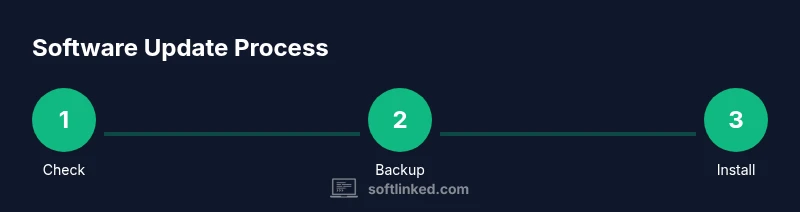
The following sections provide a detailed, actionable plan you can follow to perform a software update on your Samsung tablet with confidence. You’ll see how to prepare, execute, and verify the update, plus practical mitigations if things don’t go as planned. The approach emphasizes backups, power stability, and verifying that core functionality remains intact after the update. By following best practices, you minimize downtime and maximize the benefits of new software features.
Troubleshooting common issues during updates
Update hiccups can happen for several reasons, including unstable internet connections, insufficient storage, or interrupted power. Common symptoms include stalled downloads, stuck installations, or reboot loops. The key is to isolate the root cause: confirm network stability, free up storage space, and ensure the device remains powered throughout the process. If problems persist, you can try clearing the update cache or performing a fresh install from recovery mode. Keep in mind that some issues may require rolling back to a prior backup or seeking official support if the device remains unresponsive.
Safety, backups, and post-update checks
Safety first: never interrupt an update once it begins. Always ensure the tablet is plugged in or connected to a reliable power source. Backups are critical—store photos, messages, and app data in the cloud or on an external drive before updating. After the update, verify essential apps, test essential features (camera, Bluetooth, Wi‑Fi, and cellular connectivity if applicable), and confirm you can sign in to your accounts. This post-update check helps catch issues early and keeps your workflows on track. SoftLinked underscores that a proactive maintenance mindset reduces surprises and strengthens your understanding of software fundamentals.
Tools & Materials
- Wi-Fi internet connection(Stable connection recommended for downloading large OTA packages)
- Fully charged battery or power source(Keep device plugged in during the update to prevent shutdowns)
- Backup storage(Use Samsung Cloud, Google Drive, or local backup to save data)
- Samsung account access(Helpful for cloud backups and seamless restoration)
- Charger and compatible cable(Optional if you can reliably power from a wall outlet)
Steps
Estimated time: 20-40 minutes
- 1
Back up important data
Open your preferred backup solution and save photos, messages, and app data. Confirm the backup completed successfully before proceeding. Backups protect you if something goes wrong during the update.
Tip: Verify backup completion by restoring a test file to ensure data integrity. - 2
Charge the device or connect to power
Ensure the tablet has at least 50% battery and remains connected to a power source throughout the process. A power interruption can corrupt the update package and leave the device unusable.
Tip: If you can, keep the device plugged in for the entire update window. - 3
Connect to a stable Wi-Fi network
Switch to a reliable Wi-Fi network to download the update package. Avoid cellular data as it can be slower and less stable for large downloads.
Tip: Pause other bandwidth-heavy activities during the update. - 4
Open Settings and check for updates
Navigate to Settings > Software update > Download and install. If an update is available, review the changelog to understand new features and fixes before installing.
Tip: If you see multiple updates, install the latest one first to minimize reboots. - 5
Download and install the update
Tap Download and install (or Install now) and wait for the process to complete. Do not interrupt the device during installation.
Tip: If download stalls, pause and retry or switch networks briefly. - 6
Restart and finalize
If prompted, restart the tablet to complete installation. After reboot, allow the device to finish any post-update setup tasks.
Tip: Check for app updates afterward to ensure compatibility. - 7
Verify core functions
Open essential apps, test Wi-Fi, Bluetooth, and camera, and confirm you can sign in to your accounts. Note any odd behavior for later troubleshooting.
Tip: Keep a log of any post-update issues to reference if needed. - 8
Review and restore if needed
If necessary, restore data from backup and reconfigure settings. Confirm all critical data is intact and functioning as expected.
Tip: Document any new permission prompts you approve during setup.
Your Questions Answered
How do I know if my Samsung tablet needs an update?
You can check by going to Settings > Software update > Download and install. If an update is available, you’ll see a notification and can review the changelog before installing.
Check Settings > Software update to see if an update is available and read the changes before installing.
What should I do if the update stops or fails?
If the update stalls, pause and reconnect to a stable Wi‑Fi network, then retry. If it still fails, restart the device and attempt again. If issues persist, consult official support or revert to a backup.
If the update stalls, reconnect to Wi-Fi and retry. If it fails again, restart and try once more or contact support.
Will updating erase my apps or data?
Updates generally preserve apps and data, but it’s best practice to back up beforehand. Some migrations might temporarily reset preferences, but your data should remain intact.
Updates usually keep data, but back up first to be safe.
Is it safe to update using mobile data?
Using Wi‑Fi is recommended for speed and reliability. Mobile data can work, but it’s slower and may incur costs if you exceed your plan.
Wi‑Fi is preferred; mobile data can work but may be slower and costlier.
Can I revert to a previous software version after updating?
Downgrading is not always supported and can require factory reset or specialized tooling. If possible, rely on backups to restore data and settings after a fresh install.
Downgrades aren’t always possible; use backups to restore data if needed.
Watch Video
Top Takeaways
- Back up data before updating.
- Ensure power and a stable connection during updates.
- Review changelogs and verify post-update functionality.
- Troubleshoot with careful steps and logs if issues arise.