How to Uninstall Software Through Any OS: A Practical Guide
Learn how software can be uninstalled through built-in tools across Windows, macOS, and Linux, with safety practices, cleanup tips, and troubleshooting to ensure complete removal.


In this guide you’ll learn how software can be uninstalled through built-in tools on Windows, macOS, and Linux, plus best practices for safe removal and cleanup. You’ll see OS-specific steps, how to remove leftovers, and how to verify that the software is fully gone. By the end you’ll have a repeatable uninstall process that minimizes risk and preserves system health.
Understanding What It Means to Uninstall Software
Uninstalling software is more than deleting a program icon. It is a disciplined process that aims to remove all components that the software installed on your system, including executables, libraries, configuration files, and registry entries (on Windows). A clean uninstall reduces clutter, decreases the chance of conflicts with future installations, and helps improve performance and security. According to SoftLinked Team, understanding the scope of uninstallation is essential for reliable results. In practice, you should expect to address both visible app files and hidden traces that may linger in system folders or the registry. As you will see, the exact steps differ by operating system, but the underlying goal remains the same: leave the system in a state where no remnants of the program remain that could cause errors or privacy concerns. The SoftLinked team emphasizes planning and backups before you start to ensure you can recover if something goes wrong in 2026.
Why Proper Uninstallation Matters
Proper uninstallation matters for several reasons: it frees up disk space, reduces attack surface by removing potential attack vectors, and prevents version conflicts with other software. Inadequate removal can leave registry keys on Windows, or orphaned files in /usr/share or /opt on Linux, which can confuse future installations. A thorough uninstall helps maintain system performance and reliability, particularly on development machines where dependencies are frequent. For students and professionals learning software fundamentals, seeing how uninstalls clean up both files and settings provides a practical example of responsible software lifecycle management. By following a structured process you reduce the risk of accidental data loss and maintain a tidy software environment.
Cross-Platform Uninstall Methods Across OSes
While every operating system has its own uninstall tools, the core approach is consistent: stop the program, remove files, and tidy leftovers. On Windows, you use the Programs and Features panel or the Settings app to trigger an uninstaller, often bundled with the software. On macOS, you typically drag the app to the Trash or use an official cleanup tool if provided. In Linux, uninstalling usually involves a package manager such as apt, dnf, or pacman, depending on the distribution. Across platforms you may also run additional cleanup commands to remove caches, logs, and residual configuration files. The key is to follow OS-specific steps while keeping an eye out for associated services and background daemons that can keep components active.
Before You Begin: Backups and Precautions
Before removing software, create a backup of important data and consider setting a system restore point or a snapshot if your OS supports it. This safety net ensures you can recover user data or revert the system if the uninstallation impacts other software or configurations. Take note of any dependencies—some programs install companion services or plugins that other apps rely on. Document the exact name and version of the software to uninstall so you can locate the correct uninstaller or package in the future. As you proceed, ensure you have administrator access, because many uninstall operations require elevated privileges. In 2026, software ecosystems emphasize safe, auditable uninstall workflows, which SoftLinked also advocates in its guidance.
Uninstalling on Windows: Built-in Tools
Windows provides a built-in uninstall mechanism that you can access from the Start menu or Settings. The typical path is Settings > Apps > Apps & features, where you select the program and click Uninstall. Some programs install an independent uninstaller you can run from the program’s folder or from the Start menu. Important details include choosing the option to remove related user data and preferences if offered, and confirming any prompts to ensure complete removal. On Windows, the registry can store remnants of applications, so you may want to run a registry cleaner or do a careful manual cleanup after the uninstaller has finished, but only if you know exactly what you are doing.
Tools & Materials
- Administrator/root access(Windows admin or macOS/Linux sudo privileges required for uninstallations that affect system components.)
- Target software name and version(Accurate identification prevents removing the wrong program.)
- Backup storage(External drive or cloud backup to save user data before uninstall.)
- Official uninstaller or package manager commands(Use the supported uninstall tools rather than manual deletion.)
- System backup or restore point(Optional recovery point if supported by OS.)
- Internet connection(Needed for certain official cleanup tools or online repositories.)
- Command-line access(Useful for advanced or stubborn uninstalls.)
Steps
Estimated time: 30-60 minutes
- 1
Identify the software to uninstall
Determine the exact software title, version, and any related components such as plugins or companion services. Correlate uninstall steps with the vendor’s documentation when possible. This clarity prevents accidental removal of shared components used by other programs.
Tip: Have the exact product name and version handy before starting. - 2
Check for running processes and stop them
Before removing, ensure the program isn’t running. Close related apps and terminate processes via Task Manager (Windows) or Activity Monitor (macOS). For services, disable or stop them to avoid locked files during uninstall.
Tip: If a process resists closing, try Safe Mode or a clean boot. - 3
Run the built-in uninstaller for your OS
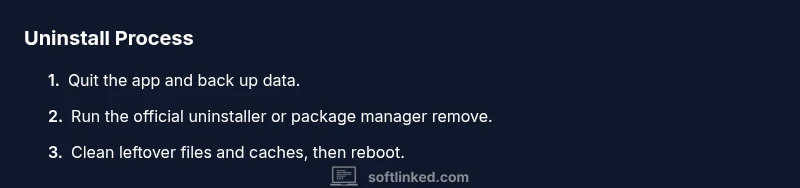
Use the official uninstall tool: Windows Settings > Apps > Apps & features; macOS drag-to-trash or official uninstaller; Linux package manager remove/purge commands. Follow prompts to remove user data if prompted.
Tip: Avoid deleting core system files; opt for official removal options where available. - 4
Clean up leftovers and caches
After the main uninstall, search for leftover files, folders, and configuration data across common paths (Windows Registry where applicable, macOS Library, Linux /etc and /var). Use vendor tools when offered and back up before making registry edits.
Tip: Back up configuration files before deleting to avoid losing settings you may need later. - 5
Reboot the system to finalize changes
Restart the computer to ensure all services stop cleanly and any remaining changes take effect. A reboot helps release locks on files and confirms the uninstall state.
Tip: A second reboot can help confirm cleanup after multiple components are removed. - 6
Verify uninstallation using official checks
Check the Programs list (Windows) or Applications folder (macOS) and use package queries (Linux) to confirm the software is gone. Look for related services or background processes and ensure no startup entries remain.
Tip: If nothing shows up but you still suspect remnants, perform a targeted search for related files. - 7
Handle stubborn components with safe tools
If the software resists removal, use vendor-provided cleanup utilities or advanced cleanup commands with caution. Avoid force-deleting system software or driver components that other apps rely on.
Tip: Consult vendor support before using aggressive cleanup methods. - 8
Document the uninstall for future reference
Record the software name, version, date of removal, and reason for uninstall. This creates an auditable trail and helps future IT tasks or education workflows.
Tip: Keep a simple uninstall log for quick audits.
Your Questions Answered
What exactly gets removed when I uninstall software?
Uninstalling typically removes the program’s executable files, libraries, configuration data, and sometimes related services or drivers. It may not always clean every log or cache automatically, so a secondary cleanup is sometimes necessary.
Uninstalling usually removes the program files and settings; some leftovers may require a manual cleanup.
Why might an uninstall leave traces behind?
Traces can be registry entries, shared libraries, caches, or leftover configuration files used by other software. Some components are shared across programs, and the uninstaller may not remove them to avoid breaking other apps.
Remnants happen when shared components or caches are left behind for safety or because they’re used by other programs.
How can I force uninstall on Windows if the normal path fails?
If standard uninstallation fails, you can use the Programs and Features repair options or vendor-provided cleanup tools. In persistent cases, you may need to remove related services and manually delete registry entries with caution.
If the normal uninstall doesn’t work, use vendor tools or safe manual cleanup, but proceed carefully with registry edits.
Is it safe to uninstall system apps on macOS?
System apps on macOS are often protected; only uninstall apps you know are non-essential. Use official uninstaller tools when available and avoid removing core components that macOS relies on.
Don’t uninstall built-in system apps unless you’re sure they’re not part of the OS’s essential functionality.
Can I uninstall software remotely on multiple machines?
Yes, in enterprise or lab environments you can use management tools to deploy uninstall commands or scripts. Test in a small subset before broad deployment to avoid widespread issues.
Remotely uninstalling is possible with management tools; test first to prevent outages.
What should I do if I uninstall something I still need?
If you remove software accidentally, check for reinstall options from the vendor or OS package manager. Maintain backups so you can recover quickly if needed.
If you uninstall by mistake, you can reinstall from vendor sources and restore data from backups.
Watch Video
Top Takeaways
- Uninstall with a clear plan and admin rights.
- Back up data before removing software.
- Verify removal across OS components and settings.
- Document the uninstall for future reference.