How to Convert JPG to PDF: A Practical Guide
A practical guide to using a jpg to pdf converter. Learn tool choices, optimize image quality, batch processing, and securing files for reliable portable PDFs.


According to SoftLinked, mastering a reliable jpg to pdf converter is a foundational skill for students and developers who document work and share visuals across platforms. This guide shows how to choose tools (online, desktop, or API), preserve image quality, and batch-process JPGs into polished PDFs. We also cover privacy, accessibility basics, and practical checklists to ensure your PDFs print cleanly.
What is a JPG to PDF Converter and why use one?
A JPG to PDF converter is software or an online service that takes one or more JPEG images and compiles them into a single PDF document or into multiple pages within PDFs. The primary reasons people convert JPGs to PDFs include portability, reliable sharing across devices, consistent printing results, and better document organization. For developers and students, a good converter also streamlines workflows by preserving color accuracy, enabling batch operations, and respecting privacy when handling sensitive images. In practice, using a reputable converter reduces manual formatting time and ensures your images appear exactly as intended when viewed or printed.
Choosing the Right Converter: Online vs Desktop vs API
When selecting a jpg to pdf converter, you balance convenience, privacy, and automation needs. Online tools are fast and easy for quick tasks, but they require uploading images to a remote server. Desktop apps keep data local and often offer richer options like batch processing and OCR, at the cost of installing software. APIs let developers embed conversion into apps or pipelines, unlocking automation at scale. Consider file sizes, number of images, and whether you need multi-page PDFs or searchable text. For sensitive material, offline desktop solutions are generally safer, while online services may suffice for casual, non-confidential tasks. In every case, verify that the tool preserves color, keeps metadata minimal, and supports your required page sizes and orientations.
Output Quality: DPI, Color, and Compression Essentials
Image-to-PDF quality hinges on several settings. DPI (dots per inch) affects print clarity; 300 DPI is typically recommended for print-ready PDFs, while 72-150 DPI can be acceptable for on-screen viewing. Color spaces matter: RGB preserves vibrant colors on screens, while CMYK is better for professional printing. Compression choices control file size but can reduce detail; lossless compression preserves exact pixels, whereas lossy compression trades some quality for a smaller file. A thoughtful converter lets you preview results, adjust page size (A4, Letter, or custom), and choose whether to include borders or fit images to page. Keeping a balance between quality and size is key for a usable, shareable PDF.
Batch Processing and Automation Strategies
For projects with many JPGs, batch processing saves substantial time. Look for a converter that supports concurrent conversions, ordered file merging, and descriptive naming. When automating, define a consistent input order (e.g., by filename or date) and a predictable output path. Some tools offer automation via drag-and-drop workflows, command-line interfaces, or APIs. If you frequently convert new images, consider creating a hot folder workflow that watches a folder and updates PDFs automatically when new files arrive. Always test a small batch first to validate quality and order.
Accessibility and Text Extraction: Making PDFs Usable
Accessible PDFs improve readability and searchability. Choose a converter that supports OCR (optical character recognition) when your JPGs contain text you want extractable. Even without OCR, you can improve accessibility by providing meaningful document structure, alt text for images, and clear contrast. After conversion, run a quick accessibility scan and ensure the document is navigable with headings, bookmarks, and proper reading order. If your workflow requires searchable text, OCR-enabled conversion is essential.
Privacy and Security Considerations
Privacy matters when uploading images to online services. If your JPGs contain personal or sensitive information, opt for offline desktop tools or on-premise API solutions rather than cloud-based options. Review the converter’s privacy policy, data retention terms, and whether images are stored temporarily or permanently. For batch workflows, consider local processing first and only upload non-sensitive batches to cloud-based services when necessary. Regularly update software to patch security vulnerabilities and minimize risk.
Troubleshooting Common Issues
If your PDF looks off, start with the basics: verify the page size matches your intent, check orientation, and confirm all images loaded correctly. Color shifts can occur when color profiles aren’t preserved; ensure the converter supports sRGB or the intended color space. Large image files can produce slow-loading PDFs; compress cautiously or reduce resolution before converting. If you encounter corrupted outputs, retry with a smaller batch or a different tool, and verify the original JPGs aren’t damaged. In automation, implement error handling and logging to catch failures early.
Integrating JPG to PDF into Apps and Workflows
Developers can integrate JPG to PDF functionality into apps using APIs or libraries. Look for SDKs that support batch uploads, page configuration, and reliable output formats. When designing an integration, define input validation (supported image types, size limits), output naming conventions, and error propagation. For teams, document the workflow, sample code, and a rollback plan if the API changes or becomes unavailable. A well-architected integration reduces manual steps and improves consistency across projects.
Tools & Materials
- JPG image files(Select high-resolution JPGs for best results; consider 300 PPI as a target when printing)
- PDF output destination(Choose a folder with write permissions and consider a clear naming scheme)
- Web browser or PDF software(Online converters require internet access; desktop tools avoid data transfer to the cloud)
- Batch naming convention(Useful for large sets to preserve desired order (e.g., 001,002,003))
- Privacy considerations(If handling sensitive images, prefer offline tools or trusted on-premise APIs)
Steps
Estimated time: 15-60 minutes depending on image count and tool chosen
- 1
Prepare your JPG files
Gather all images, ensure they’re legible, and arrange them in the desired order. Rename files if necessary to reflect the order in the final PDF.
Tip: Sort by content and intended sequence before you start. - 2
Choose your converter
Decide between online, desktop, or API-based tools based on privacy needs, quantity, and whether you need batch processing.
Tip: For sensitive images, offline desktop tools are safer. - 3
Import images into the converter
Open the app or service and select all JPGs, or drag-and-drop into the workspace. Ensure the images appear in the intended order.
Tip: If possible, enable a preview pane to verify order visually. - 4
Configure PDF settings
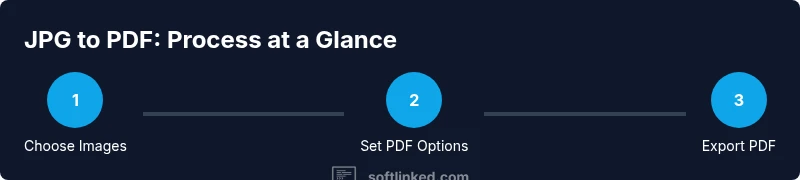
Set page size (A4/Letter), orientation, image quality, color space, and whether to create a multi-page document.
Tip: Choose 300 DPI for printing; lower DPI saves space for on-screen viewing. - 5
Convert and save
Execute the conversion and save the resulting PDF to your chosen location with a descriptive filename.
Tip: Avoid vague names like IMG_001; use project name and date. - 6
Review the output
Open the PDF, verify image alignment, color fidelity, and text if OCR was used. Confirm the number of pages equals the number of JPGs.
Tip: Check a print preview to catch layout issues. - 7
Batch or automate (optional)
If you have many JPGs, enable batch mode or automate the process with a script or API integration.
Tip: Document the workflow for your team and set consistent file naming.
Your Questions Answered
What is a JPG to PDF converter and when should I use one?
A JPG to PDF converter is software or a service that compiles JPEG images into a PDF document or a multi-page PDF. Use it to share, print, or archive images consistently across devices.
A JPG to PDF converter turns images into a single, portable document for easy sharing and printing.
Is it better to use online or offline converters?
Online converters are convenient for quick tasks but require uploading images to a server. Offline tools keep data local and are preferable for sensitive material. Choose based on privacy needs and batch size.
Online tools are fast but involve uploading images; offline tools are safer for private data.
Can I combine multiple JPGs into a single PDF?
Yes. Most converters support stacking multiple JPGs into one multi-page PDF. You can usually arrange the order before saving.
Yes, you can create a single PDF from multiple JPGs by arranging their order.
Will converting JPGs to PDF reduce image quality?
Quality depends on settings. Use higher DPI and lossless compression to preserve detail; avoid aggressive compression that blurs images.
Quality can stay high if you choose appropriate DPI and compression settings.
How can I make the PDF searchable after conversion?
If your JPG contains text, enable OCR during conversion so the resulting PDF has searchable text. Otherwise, the content remains image-based.
Enable OCR if you need searchable text in the PDF.
What should I check after exporting a PDF?
Open the PDF to verify page order, image fidelity, and that all pages render correctly. Confirm file size and metadata meet your needs.
Review the final PDF for order, clarity, and proper rendering.
Watch Video
Top Takeaways
- Choose the right converter based on privacy and batch needs.
- Configure page size, orientation, and compression for quality/size balance.
- Verify the final PDF for accuracy and accessibility.
- Batch and automate when handling large image sets.