Is It Good to Update Your iPhone? A Practical 2026 Guide
Explore whether updating your iPhone software is beneficial, how to prepare, risks, and step-by-step methods to install safely in 2026.


This guide helps you decide whether to update your iPhone, outlining benefits, risks, and practical steps to do so safely. You'll learn when updates are essential, how to back up data, and how to minimize downtime or compatibility issues. By the end, you’ll know the right time and method to update your iPhone with confidence.
Why updating your iPhone matters
According to SoftLinked, keeping iPhone software up to date isn't just about new features; it's a core part of device reliability, security, and performance. Software updates fix bugs, patch vulnerabilities, and optimize energy use. Without updates, apps may crash more often, peripherals may misbehave, and you could miss important iOS improvements. In 2026, Apple continues to roll out regular updates that extend hardware life and improve privacy controls. However, updates can also introduce compatibility issues with older apps or devices. The goal is to balance benefits and potential risks. Start by understanding what an update includes: a changelog describes new features, security patches, and performance tweaks. If you rely on mission-critical apps or accessibility settings, you should evaluate updates more carefully. The decision to update should be deliberate, not accidental; planning reduces downtime and surprises. One common question is is it good to software update your iphone? The answer depends on your usage, apps, and how you manage backups and privacy. This article guides you through the decision and the practical steps to update safely.
What changes with iPhone updates
iPhone updates come in two main flavors: major iOS version updates that introduce new capabilities and design refinements, and smaller security or bug-fix releases that patch known issues. Each update includes a changelog that outlines improvements, new system behaviors, and compatibility notes. Even minor updates can optimize battery management, performance, and app stability. It is helpful to know that not every feature will be immediately useful to every user; you may only notice a few real benefits on day-to-day tasks. For developers, updates can require new app permissions or API changes. For people with older devices, the experience may vary; some devices may run more smoothly after updates, while others may see negligible changes. The key is to review the notes, assess whether your essential apps remain functional, and plan a backup before you proceed. This helps avoid surprises when the update lands on your device.
Benefits of updating
Updating your iPhone can bring tangible benefits beyond new features. Security patches guard against newly discovered vulnerabilities, reducing the risk of data leakage or compromised accounts. Performance improvements may speed up animations, reduce app crashes, and enhance responsiveness in daily tasks like messaging, camera, and navigation. Battery optimization routines introduced in some updates can extend screen time, assuming you follow best-practice charging habits. Additionally, updates often improve privacy controls, giving you finer-grained control over app access and data usage. Keeping software current also helps ensure compatibility with new accessories and peripherals. While updates sometimes introduce changes you dislike, the long-term gains tend to outweigh the short-term friction, particularly for devices that handle sensitive information or personal data. The SoftLinked perspective emphasizes proactive maintenance as a cornerstone of sustainable device use.
Common concerns and how to mitigate
Many users worry about wasted time, data loss, or broken apps after updating. To mitigate these risks, start with a full backup before you begin. Use iCloud or a local backup on a computer, and verify that your critical files are accessible after the backup. Check available storage; if you need extra space, offload photos or videos temporarily. Ensure your device is connected to a reliable power source and a stable Wi-Fi network to prevent interruptions. Review the update notes for any known compatibility caveats with essential apps. If you depend on certain peripherals (airdrop devices, Bluetooth accessories), confirm that these devices are supported by the new software version. If an update fails, you can retry, reset network settings, or perform a manual update via Finder or iTunes. Patience and preparation minimize downtime and risk.
How to prepare before updating
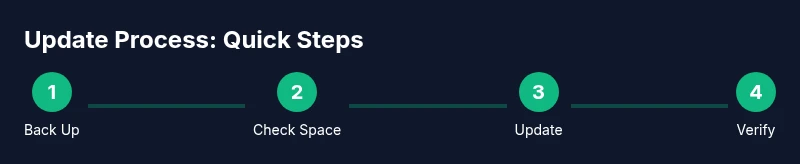
Preparation starts with data integrity and a stable environment. Back up your iPhone to iCloud or a computer, then confirm that your backup completes successfully. Free up storage by moving large media files to the cloud or a secondary device. Plug the phone into a charger or ensure it has ample battery life; updates require sustained power. Connect to a trusted Wi‑Fi network to avoid cellular data usage and interruptions. Update apps beforehand to reduce friction during the system upgrade. If you are using accessibility settings or specialized configurations, record them so you can reapply after the update. Finally, read the update notes once more to gauge whether you should delay for a few hours to wait for reports from others who installed the update early. This reduces surprises when the install begins.
The update process explained
The actual update flow is straightforward but benefits from a calm, methodical approach. Open Settings, go to General, then Software Update. Tap Download and Install or Install Now, and provide your device passcode when prompted. The device will restart and display a progress screen; this can take some time depending on the device and update size. Keep the device connected to power until the process completes. After the restart, you may see short setup screens—follow prompts to restore settings and re-enable preferences. Some users see new onboarding tips or privacy prompts; these are normal. Verify that essential apps open correctly and that your key data appeared as expected. If you encounter issues, you can try again or revert to your previous backup, though this requires more time and caution.
Troubleshooting failed updates
If an update stalls or fails, there are several safe remedies. First, ensure a stable Wi‑Fi connection and sufficient battery. Restart the device and try the update again. If the update still fails, consider updating via a computer using Finder (macOS) or iTunes (Windows) as an alternative delivery method. Check for available storage and free space, as insufficient space is a common failure point. Review any error codes and search for official guidance on the vendor site, rather than random forums. In stubborn cases, restoring the device to its factory state is a last resort after ensuring a solid backup; this will erase data, so you must restore from backup afterward. If you often run into trouble, schedule updates during low-activity periods.
How to minimize downtime and data loss
Plan for update windows during times when you can be unavailable for a while. Make a current backup, and ensure you have access to power and Wi‑Fi. Use a device with enough free storage and close unnecessary apps to accelerate the process. Consider turning on Low Power Mode before updating if it is available; this can help conserve battery during installation. After the update, take a few minutes to reconfigure settings and re-download any content that might have been removed, such as offline maps or media for offline use. By preparing and testing beforehand, you reduce the risk of data loss and extended downtime.
After update: what to check
After updating, verify that the device is functioning properly. Check that you can open key apps, that camera and microphone access are behaving, and that important data appears in notes and messages. Review privacy settings to see if new options have been added or denoted differently. Run a quick battery check to see whether there is any unusual drain and adjust charging habits if needed. Watch for unexpected popups or changes in system behavior in the first days after updating. If you notice any anomalies, contact support or revert to a known-good backup if available.
Is it worth delaying updates for older devices?
For devices with aging hardware, updates can be a mixed bag. New software features may run slowly, and some functions might feel less responsive. If you depend on a stable, high-performance device, you may want to evaluate whether the update provides enough value to justify potential slowdowns. A good approach is to search early adopter reports from reputable sources and weigh them against your usage needs. In many cases, installing a slightly delayed update can net stability benefits without significant new risks. The decision should reflect your tolerance for change, the apps you rely on, and whether you want to preserve maximum battery life. The 2026 guidance from SoftLinked emphasizes deliberate planning, backups, and verifying essential apps after updating.
Tools & Materials
- iPhone(Any model with a supported iOS version; ensure battery is charged or plugged in)
- Stable Wi‑Fi connection(Prefer a reliable home network; avoid public networks when possible)
- Backup method (iCloud or computer backup)(Verify backup completed before starting)
- Power source(Keep the device plugged in during the update)
- USB-C / Lightning cable(Useful for wired backup or manual updates via Finder/iTunes)
- Computer with Finder/iTunes (optional)(Helpful for manual update or recovery if needed)
Steps
Estimated time: 30-60 minutes
- 1
Back up your data
Create a full backup using iCloud or a computer backup. Confirm the backup completed and that you can restore selected items if needed.
Tip: Backup first to prevent data loss if something goes wrong during the update. - 2
Check storage and compatibility
Ensure sufficient free space for the update and verify your essential apps are compatible with the new version.
Tip: Delete or offload large media if you are tight on space. - 3
Charge and connect to power
Plug the device into a charger or ensure it has a healthy battery level before starting the update.
Tip: Few updates require full battery; staying plugged in prevents mid-install shutdowns. - 4
Connect to a trusted Wi‑Fi network
Join a reliable network to download the update without risking interruptions.
Tip: Avoid public networks to reduce security risks. - 5
Open Software Update settings
Navigate to Settings > General > Software Update to check for the latest available version.
Tip: Read the update notes to understand what changes are coming. - 6
Download and install
Tap Download and Install or Install Now and enter your passcode when prompted.
Tip: If the option is not visible, try again later or restart the device. - 7
Allow the update to run
Let the device restart and complete the installation; avoid using the device during this time.
Tip: Be patient; larger updates take longer on older devices. - 8
Verify post-update integrity
Check that essential apps open, data appears intact, and settings are as expected.
Tip: Take note of any unusual prompts or new privacy options. - 9
Reapply preferences
Reconfigure accessibility, notifications, and any custom settings you had before.
Tip: Some apps may re-download data after update; monitor data usage. - 10
If issues arise, use a backup or recovery
If something goes wrong, restore from a recent backup or try the update again after troubleshooting.
Tip: Keep calm and follow the official recovery steps if you encounter errors.
Your Questions Answered
Should I update as soon as the update is released?
Not always. Consider checking user feedback and update notes first, especially if you rely on critical apps. If you can wait a day or two, you may benefit from early reports on stability.
You don't have to rush. Check notes and wait for initial feedback if your setup is critical.
Will updating erase my data?
Updates themselves do not erase data, but it is essential to back up beforehand. A backup protects your content if something goes wrong during installation.
Updates won’t erase data on their own, but you should back up just in case.
What if the update fails on my iPhone?
If an update fails, retry with a stable Wi‑Fi connection and sufficient battery. If issues persist, try updating via Finder or iTunes on a computer or restore from a known-good backup.
If it fails, retry with power and a solid network, or use Finder or iTunes on a computer.
Can I update over cellular data?
Apple generally recommends Wi‑Fi for system updates due to size and reliability. Cellular updates may incur data usage and interruptions; use Wi‑Fi when possible.
It's best to use Wi‑Fi; cellular updates can be risky and use a lot of data.
How long does an average update take?
Update duration varies by device and version, but most installations complete within a reasonable window. Plan for a dedicated update time and avoid multitasking during the process.
Most updates take a little while; set aside 30 to 60 minutes and avoid distractions.
Should I delay updates on an older iPhone?
Delaying can help if you depend on stable performance. However, delaying too long may miss security patches. Weigh your device’s performance against security and feature needs.
If performance is critical, delay briefly, but don’t miss important security fixes.
Watch Video
Top Takeaways
- Back up before updating to protect data.
- Read update notes to understand benefits and risks.
- Use reliable Wi‑Fi and power during install.
- Verify apps and data after update.
- Delay updates on very old devices if performance declines.